There are a number of ways to generate PDFs in Airtable. The most basic is to use the Airtable Page Designer extension (which is an official extension made by Airtable). However, the Page Designer comes with a number of pretty significant limitations:
- It cannot be automated in any way (you have to manually 'save' every PDF)
- You can only create 1-page documents
Thankfully, there are a number of apps that allow you to overcome these limitations and automate PDF generation in your Airtable table. In this article, we'll be showing how you can generate PDFs using an Airtable Automation and DocuPotion.
In this guide, we're going to be creating a PDF of an invoice. However, the principles are the same for creating any type of PDF document from your Airtable data.
Adding PDF fields to your Airtable table
In the invoice example we're using, we have a table called 'Invoices' that has the following fields:
- Customer Name (single line text)
- Address (single line text)
- Invoice Number (number)
- Grand Total (rollup)
- Line Items (linked records)
- PDF (attachment)
- Generate PDF (checkbox)
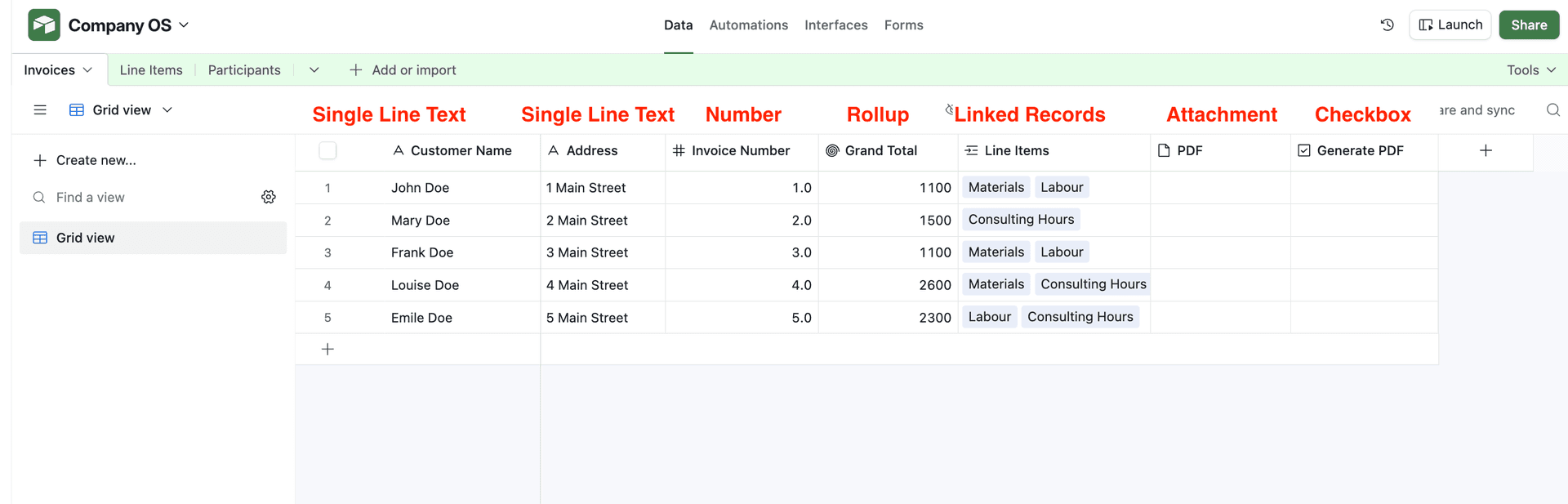
The linked record links the 'Invoices' table to the 'Line Items' records. The 'Line Items' table includes information on each product that's going to be included in our invoice:
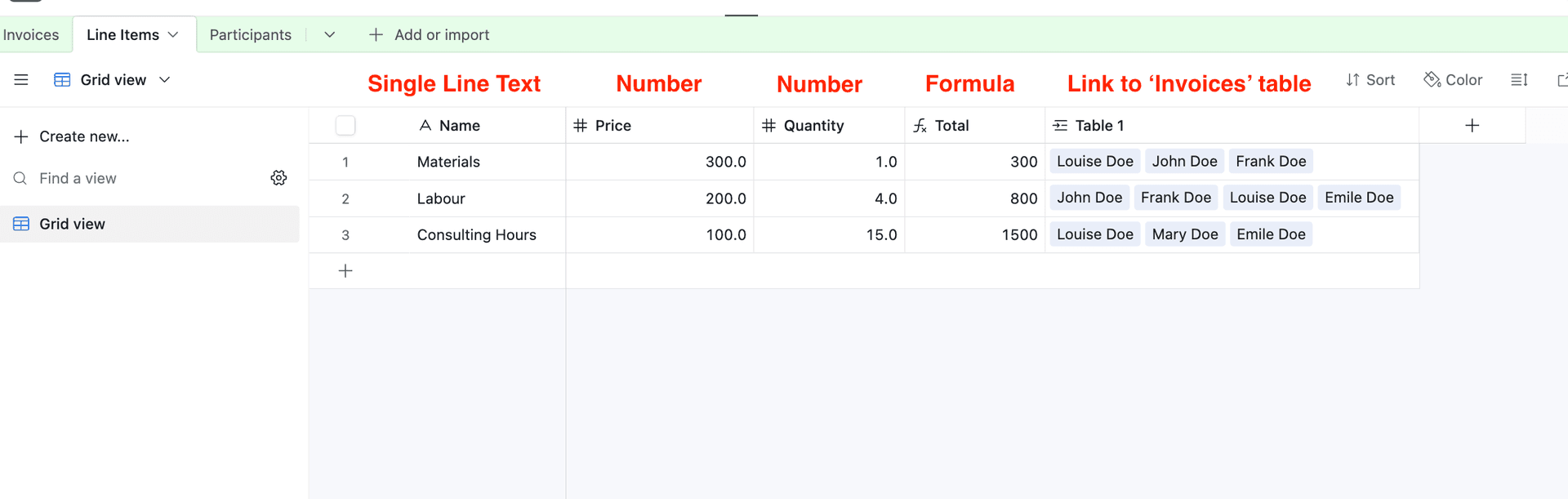
There are a couple of key things to note at this stage:
- The 'PDF' field in the 'Invoices' table is the attachment field that the output PDF gets uploaded to. This must be an Attachment field.
- The 'Generate PDF' checkbox field is going to be used to trigger the automation that creates the PDF. When the user checks the checkbox, we're going to run a script that calls the DocuPotion API and attaches the generated PDF to the 'PDF' field
Register for a DocuPotion account
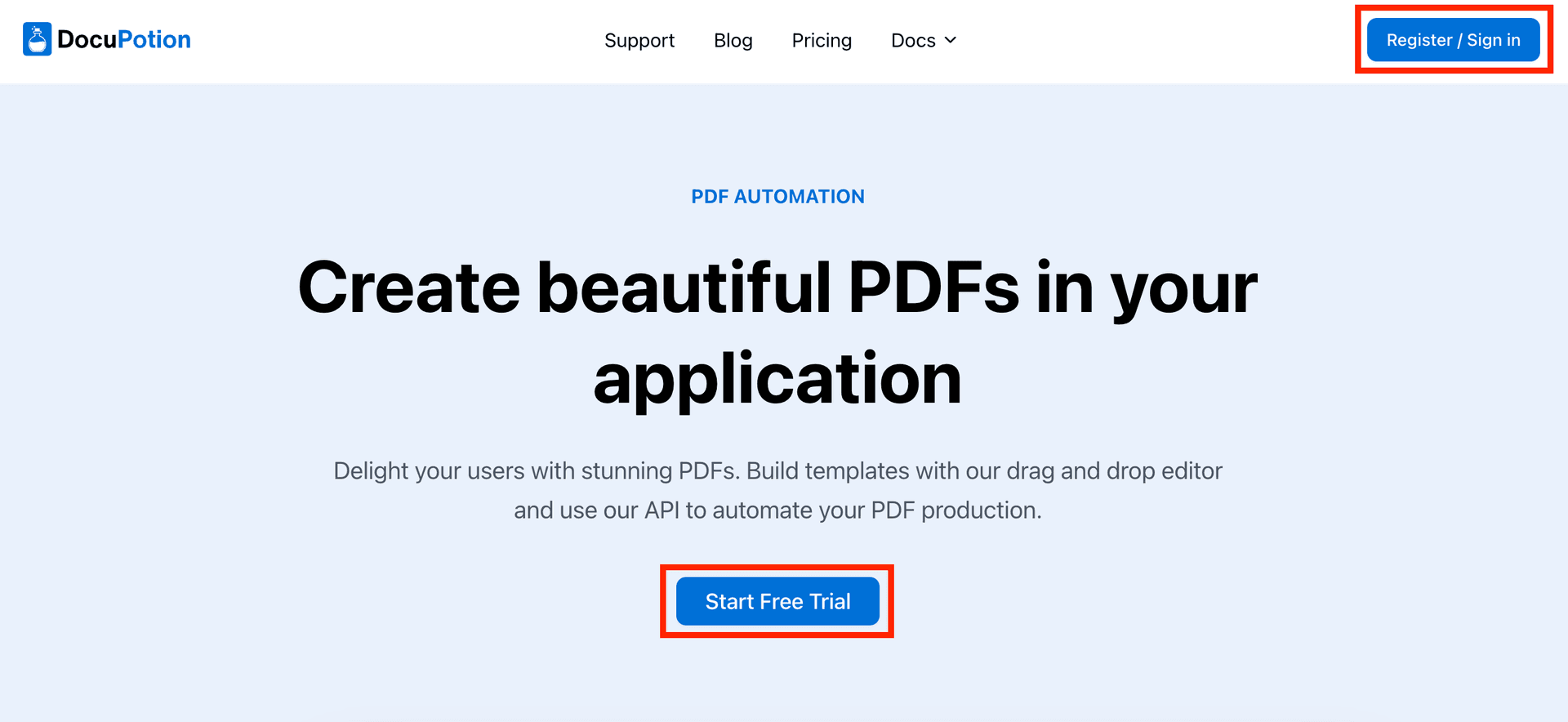
We're going to design a reusable PDF template in DocuPotion. Navigate to the DocuPotion homepage and click on the 'Start free trial' button.
You'll be taken through a few short onboarding steps. Once you've submitted some details, you'll land in your dashboard, ready to create your first template.
Creating a reusable PDF template
A template is the reusable design that will get populated with your Airtable data. Head to the 'Templates' tab and click 'New Template'.
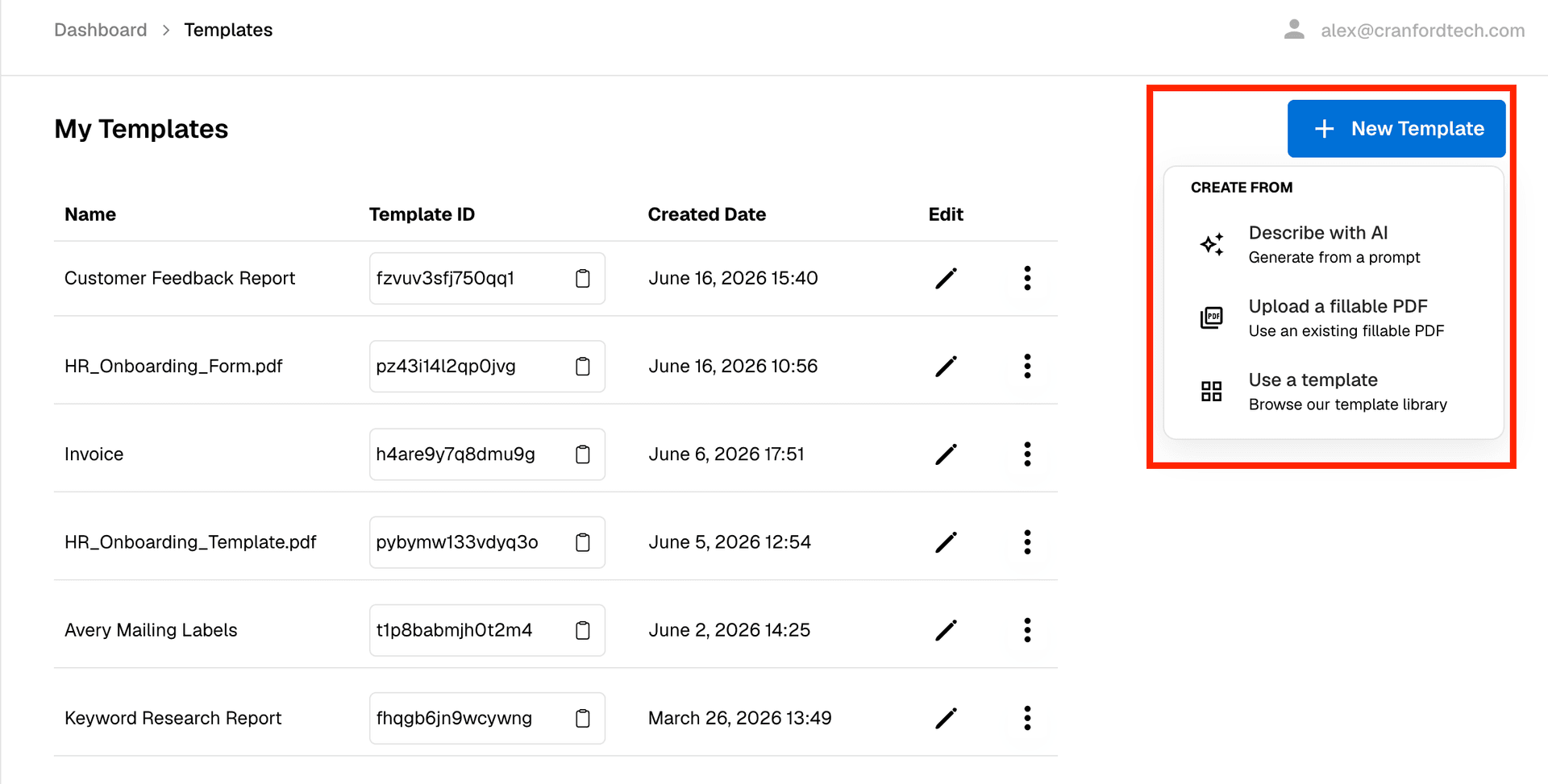
You'll see a few ways to create one, so pick whichever suits how you work:
- Describe with AI: Describe the document you want in plain language and the editor builds it for you. You can attach reference files and keep refining with follow-up prompts (the same way you'd interact with ChatGPT or Claude). See Getting started with the template editor.
- Upload a fillable PDF: Already have a fillable PDF form? Upload it and DocuPotion turns its form fields into merge fields automatically, so you keep your exact layout. See Creating a template from a fillable PDF.
- Use a pre-built template: Start from a ready-made invoice, contract or certificate in the library and tweak it.
In this example we'll create an invoice using the 'Describe with AI' option.
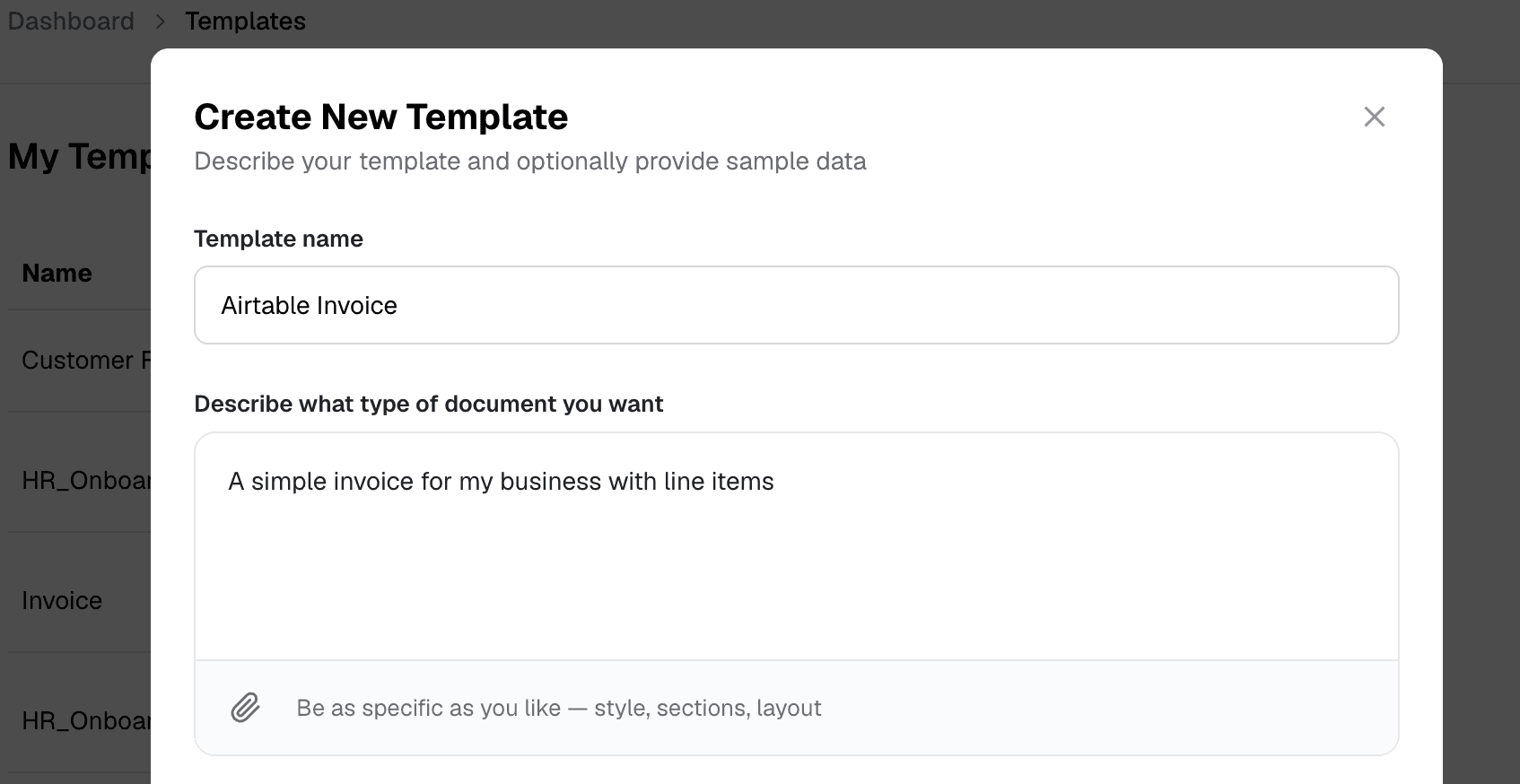
We want to include the values from our Airtable fields as {{merge_fields}}. To do this, we're going to add the name of our columns to the 'Sample Data' section. The names we add to the sample data section don't need to match our Airtable column names perfectly - we're going to map them later on, so as long as they are reasonably close to the actual Airtable column names it's fine.
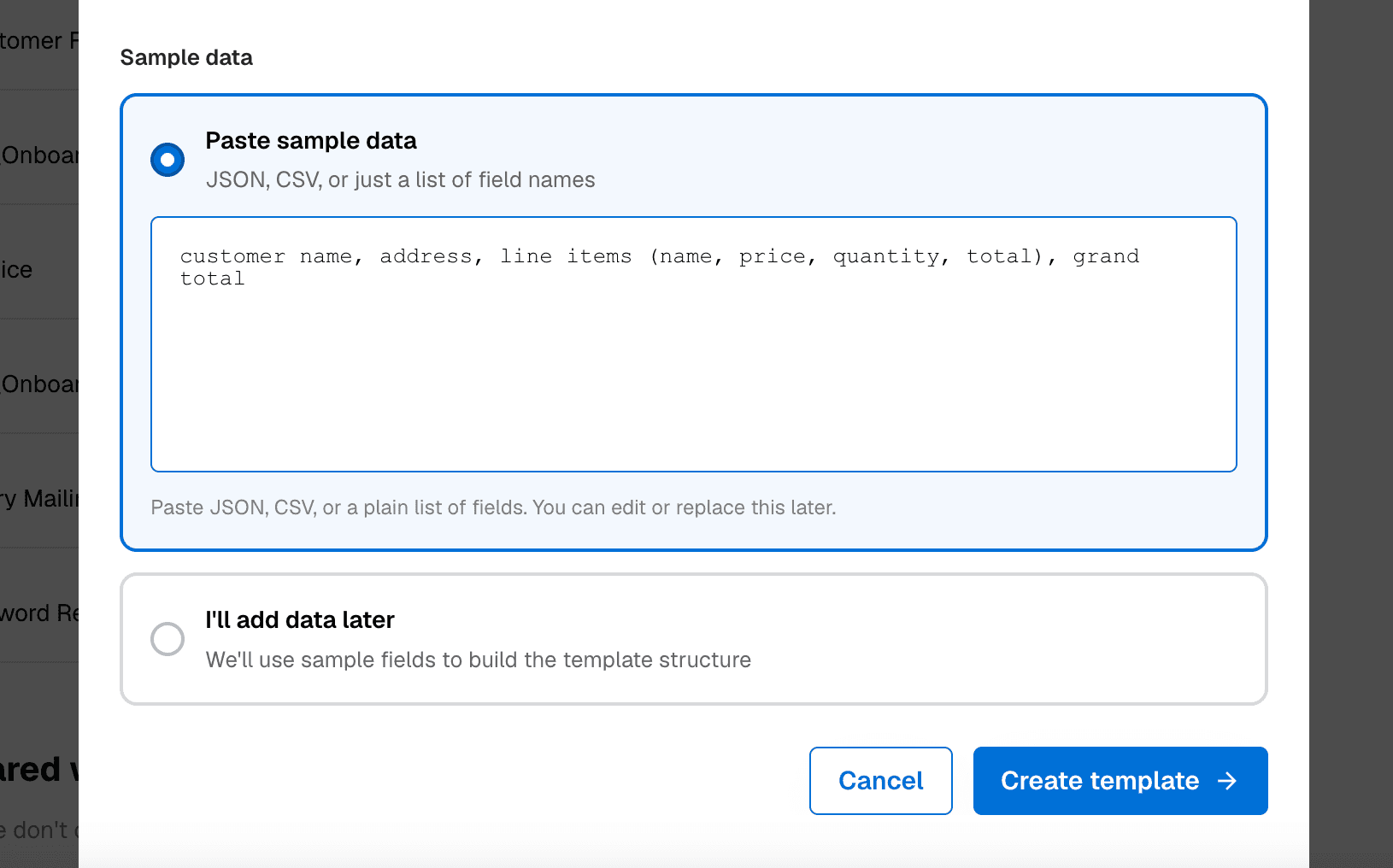
Our invoice also has line items, which live in a separate 'Line Items' table and are pulled in as linked records. To show these as a table of rows in the PDF, the template uses a repeating block: a section that gets repeated once for each line item, with merge fields for the values that change on each row (such as the product name, quantity and price). When you provide your sample data, include a few example line items so DocuPotion knows to build this repeating section. We'll connect it to your linked records during the mapping step later on.
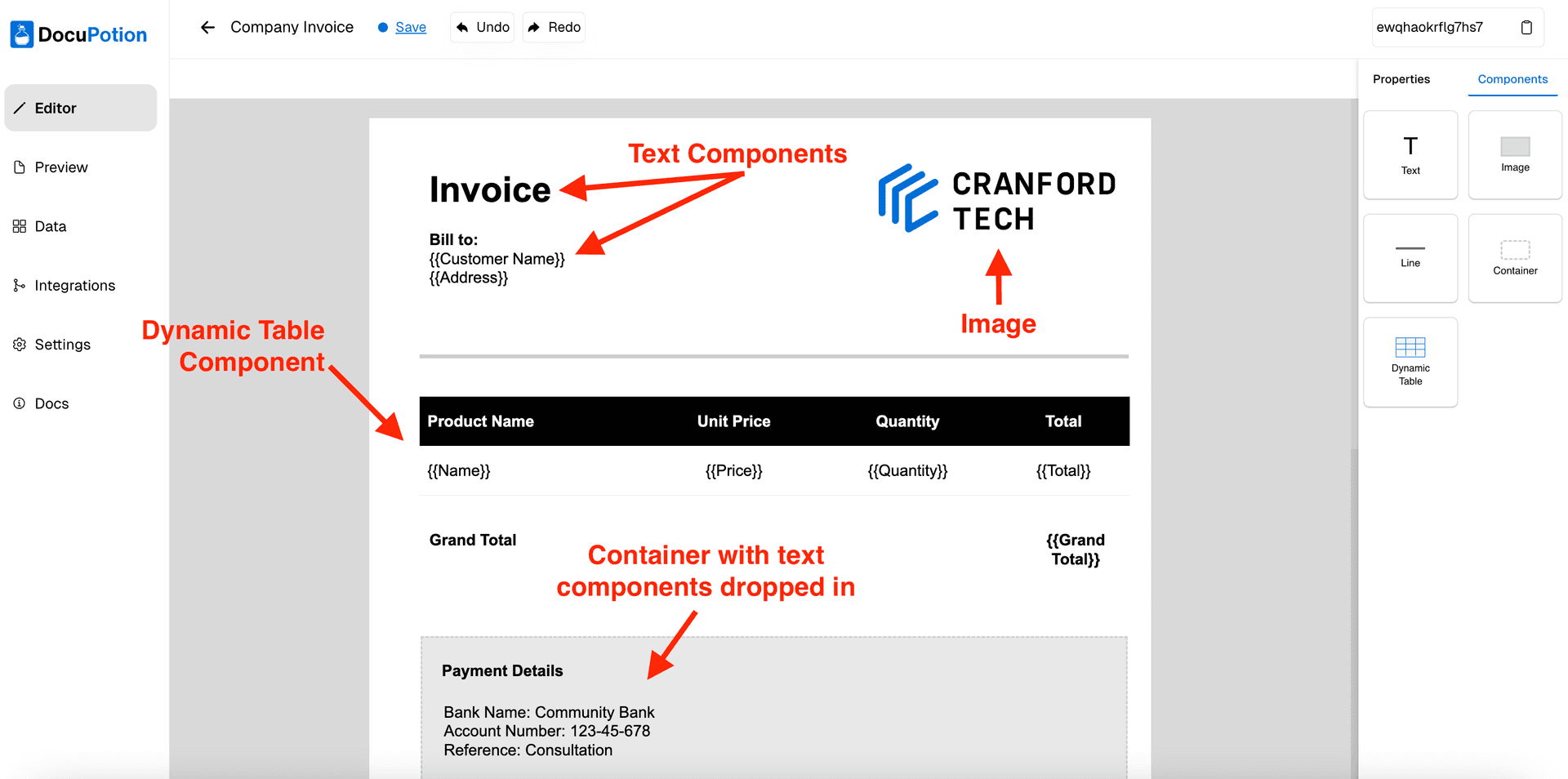
It may take DocuPotion a couple of minutes to build your template. Once it's finished, you can see a preview of your template in the editor.
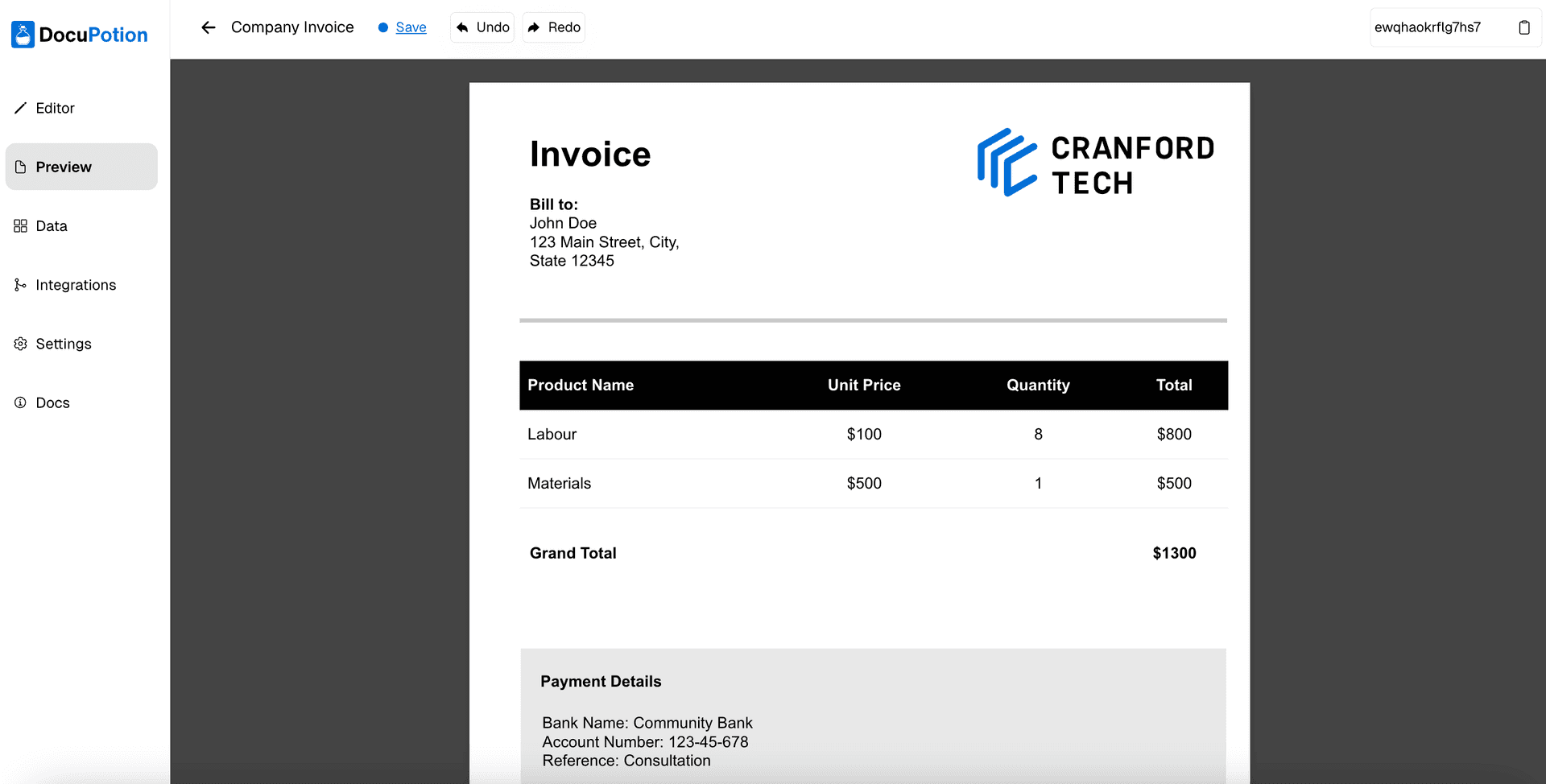
You can preview how your PDF will look with actual data by clicking on the 'With Data' tab. You can edit the sample values used for the preview in the 'Data' tab.
Editing your template
You can refine the design of your template by adding follow-up prompts in the chat panel, the same way you'd chat with ChatGPT or Claude. The editor tries to preserve everything you didn't ask to change, so each tweak builds on your existing layout rather than starting over.
Here are some example prompts you might use:
- "Make the header blue (#0070D7) and increase the company name to 22px."
- "Add a 'Notes' section below the totals, with a light gray background."
- "Move the logo from top-left to top-center and add a thin divider underneath."
- "Remove the page number in the footer."
You can also upload images to include in your template by clicking on the '+ Add' button in the 'ATTACH FILES' section. Reference specific images in the prompt by using the @ command:
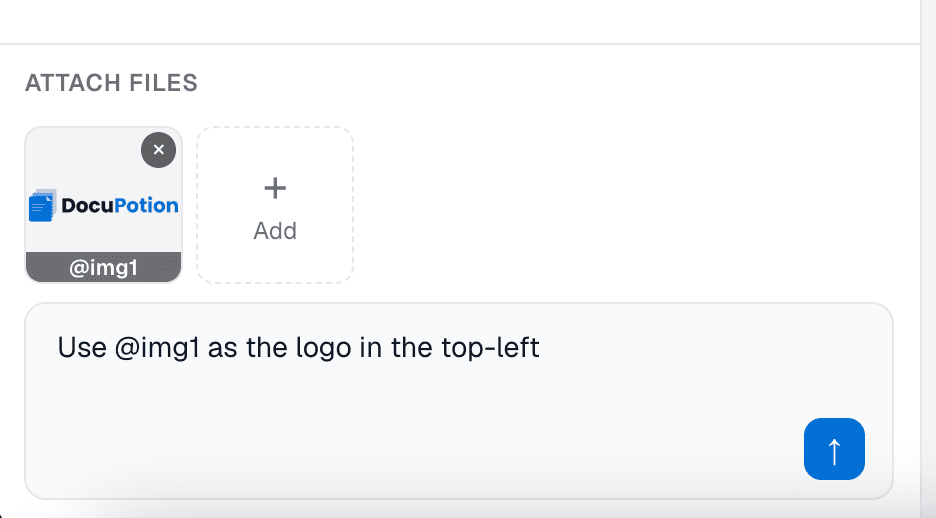
DocuPotion will then include the image in your template.
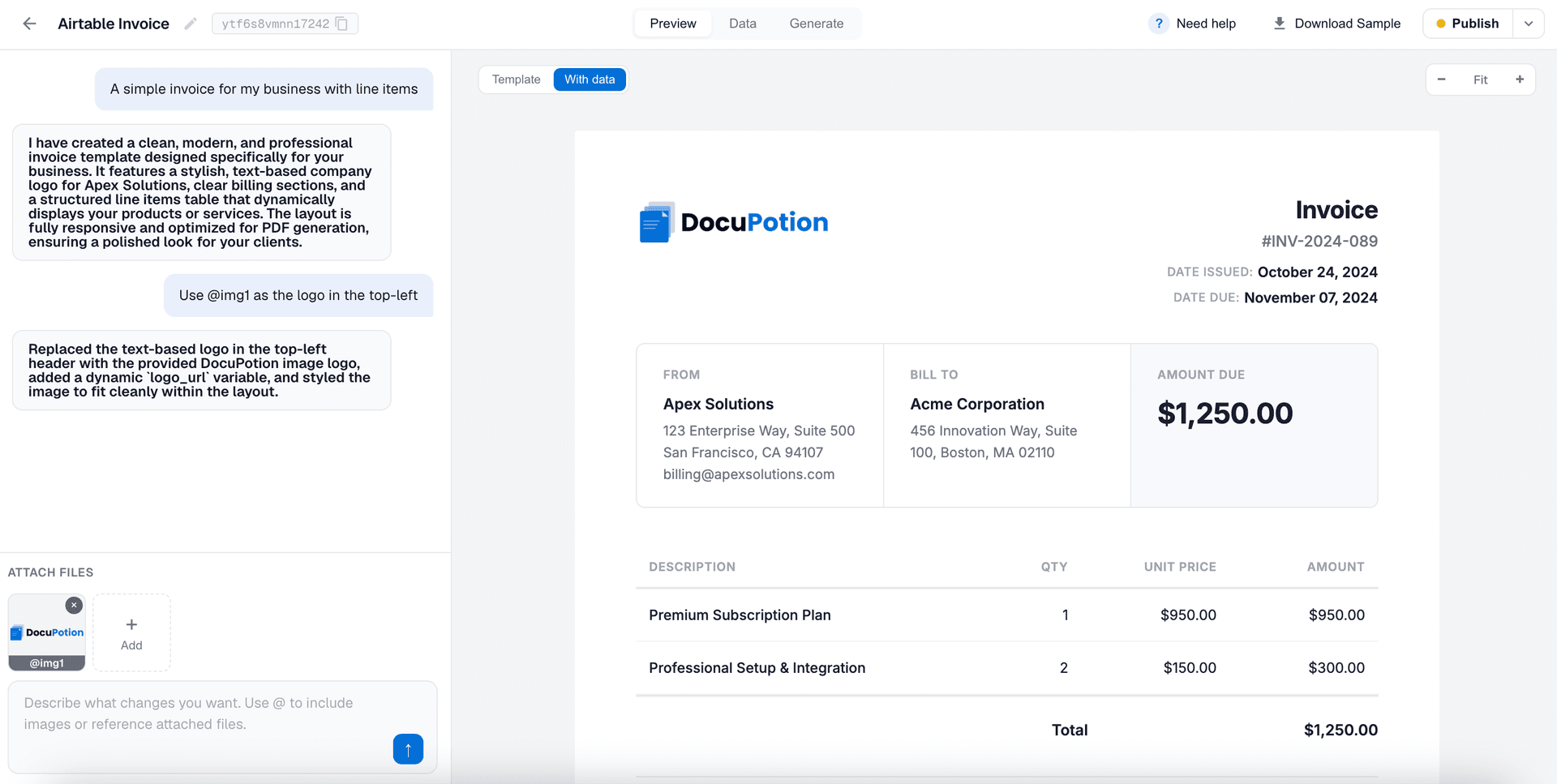
Once you're happy with your template, hit the Publish button in the top-right of the editor.
Connecting your Airtable account
The next step is to provide DocuPotion with access to your Airtable. Open the 'Generate' tab of your template and select the Airtable card, then click 'Connect Airtable account'. You'll be asked to authorize DocuPotion and choose which bases it can access. Once a green 'Connected' badge appears, you're set.
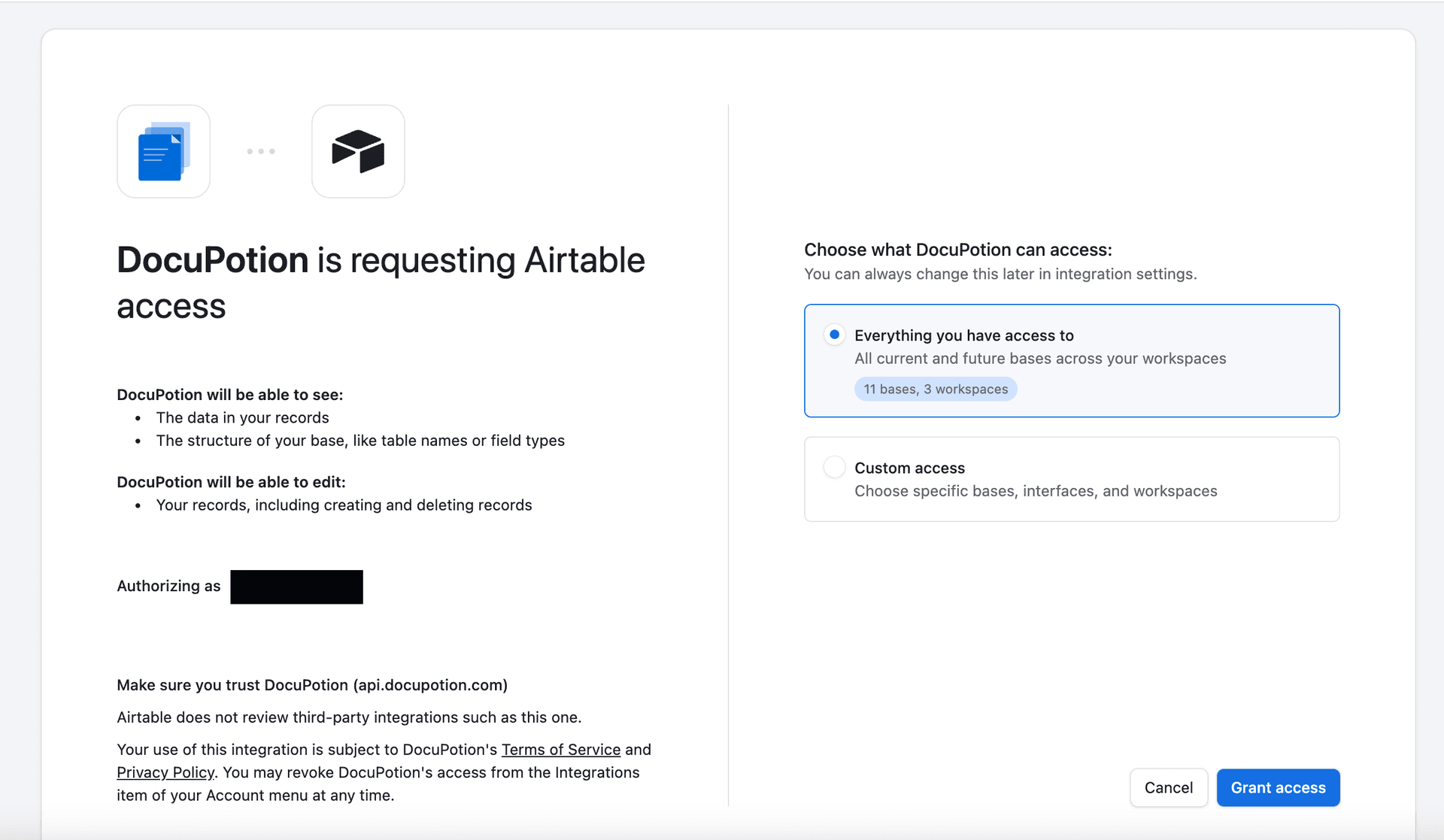
You can choose to grant DocuPotion access to all of your bases, or limit access to specific bases. If you choose 'Custom Access' you will need to ensure DocuPotion has access to the base you will be generating PDFs from.
Mapping your data
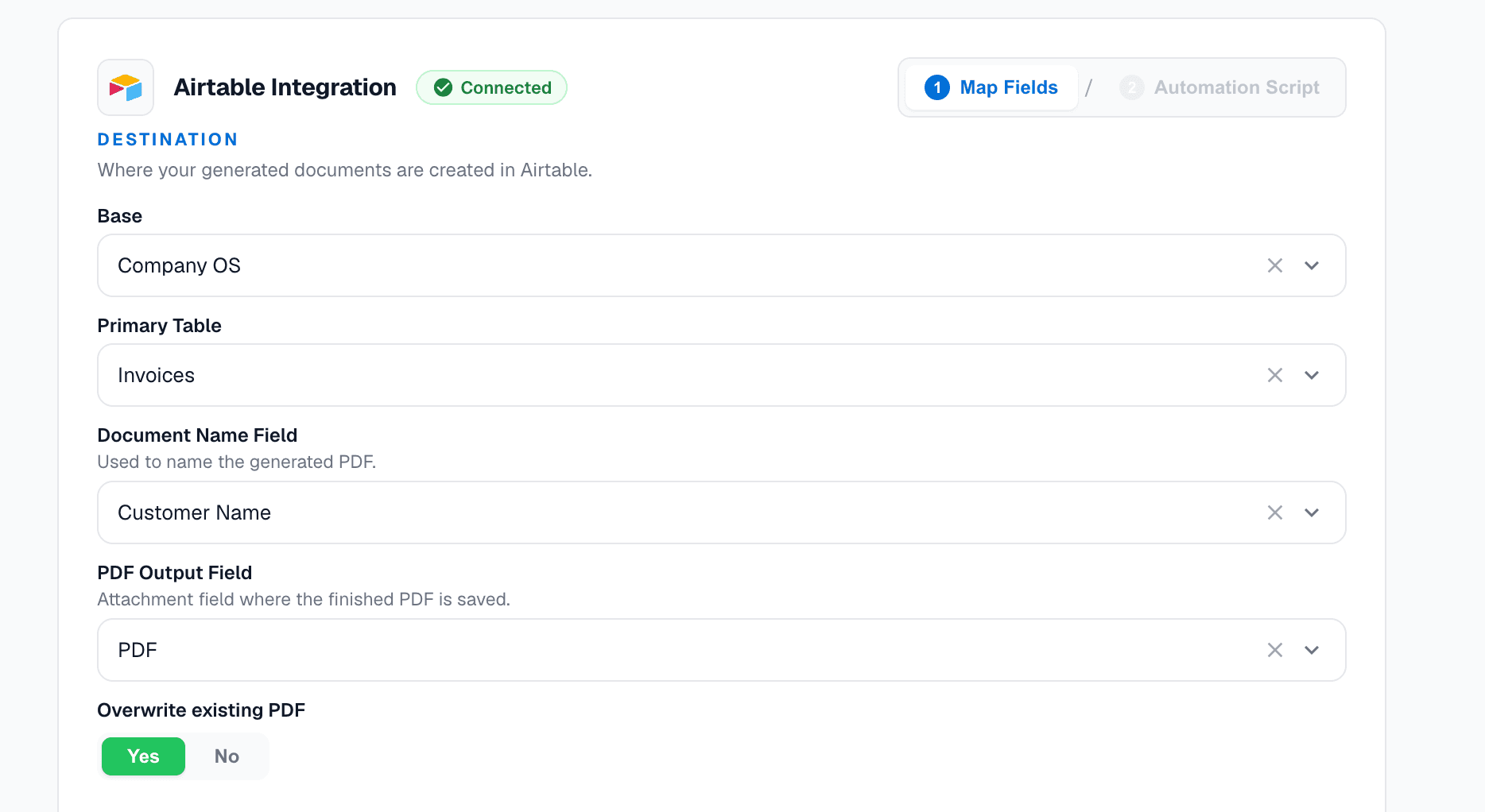
With Airtable connected, you'll set where your documents come from and where they go:
- Base: The base that holds your records.
- Primary Table: The table you're generating documents from (our 'Invoices' table).
- Document Name Field: The field used to name each generated PDF.
- PDF Output Field: The attachment field your finished PDF is saved to (our 'PDF' field).
- Overwrite existing PDF: Choose 'Yes' to replace a previous PDF on the record, or 'No' to add a new one alongside it.
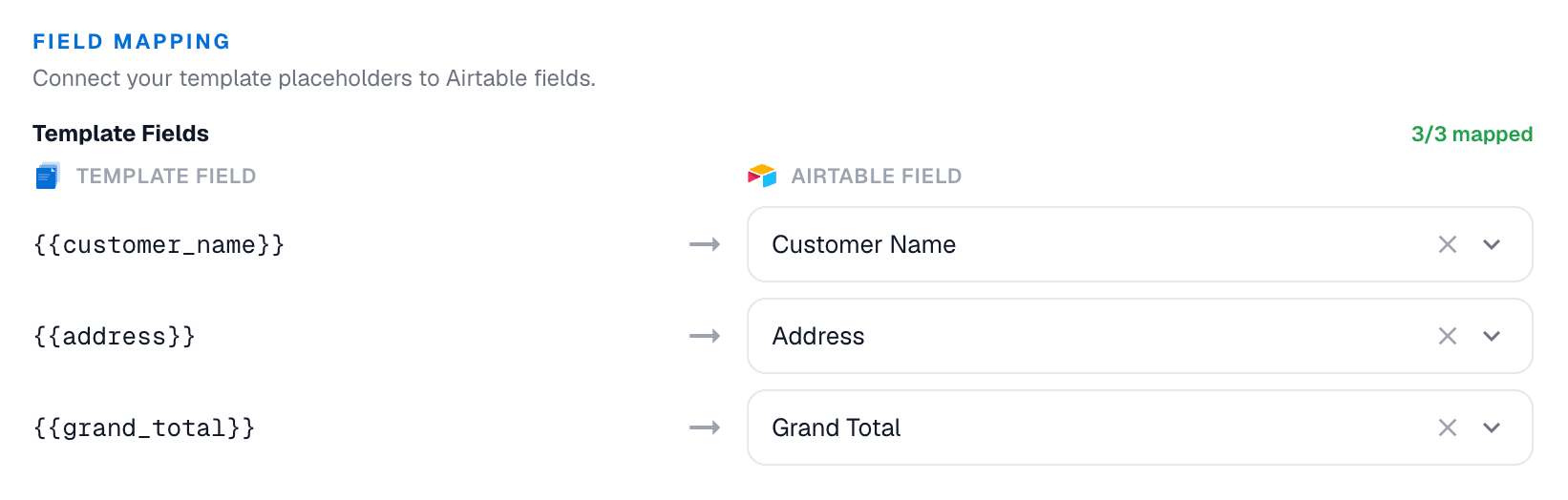
Next, map each merge field in your template to the matching Airtable column. Just start typing a field name to find it.
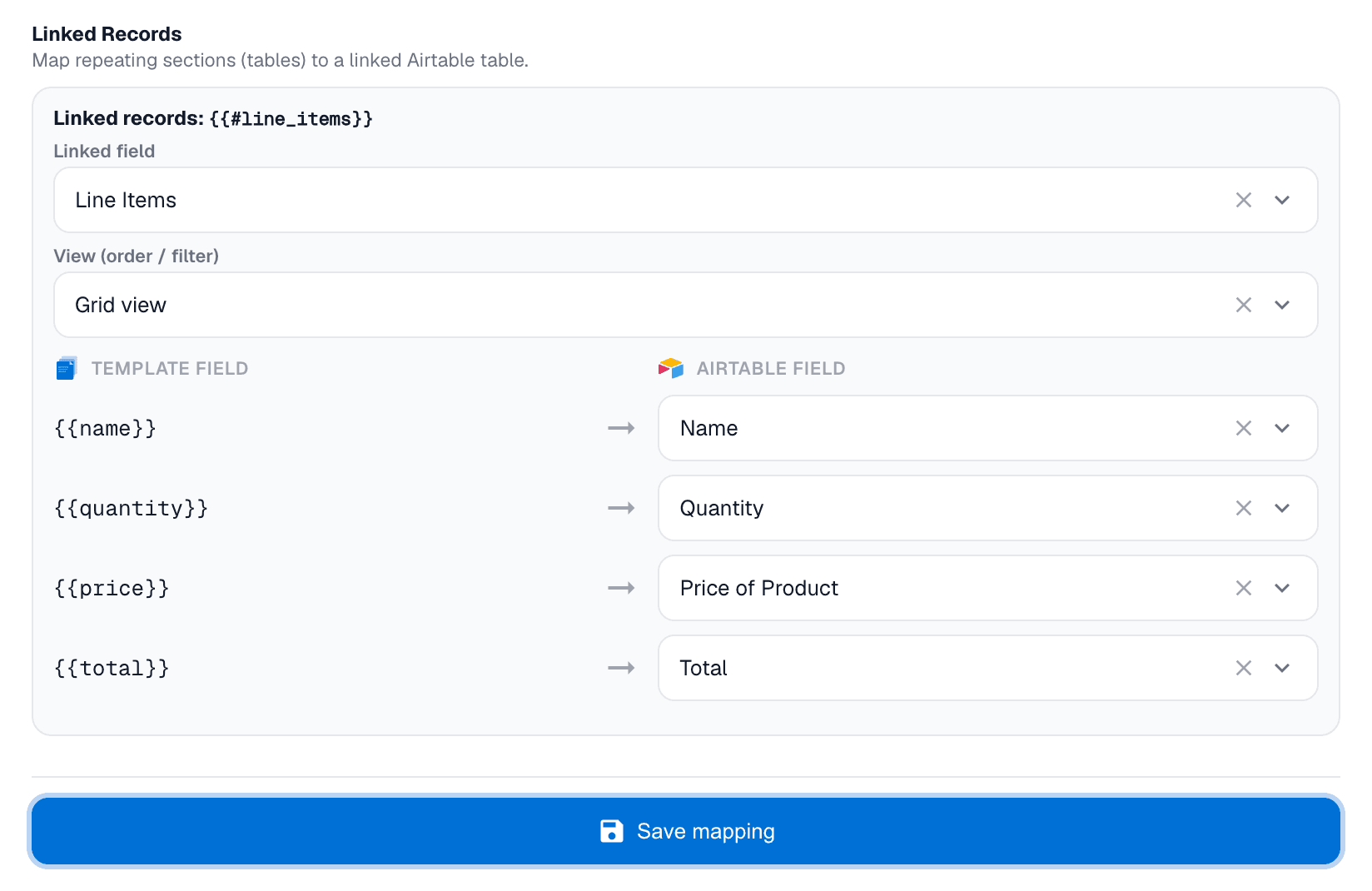
If your template contains a loop (for example if you're using a table for line items), then you'll map that data separately.
Finally, copy the generated automation script. You'll paste this into Airtable in the next step.
Setting up the automation in Airtable
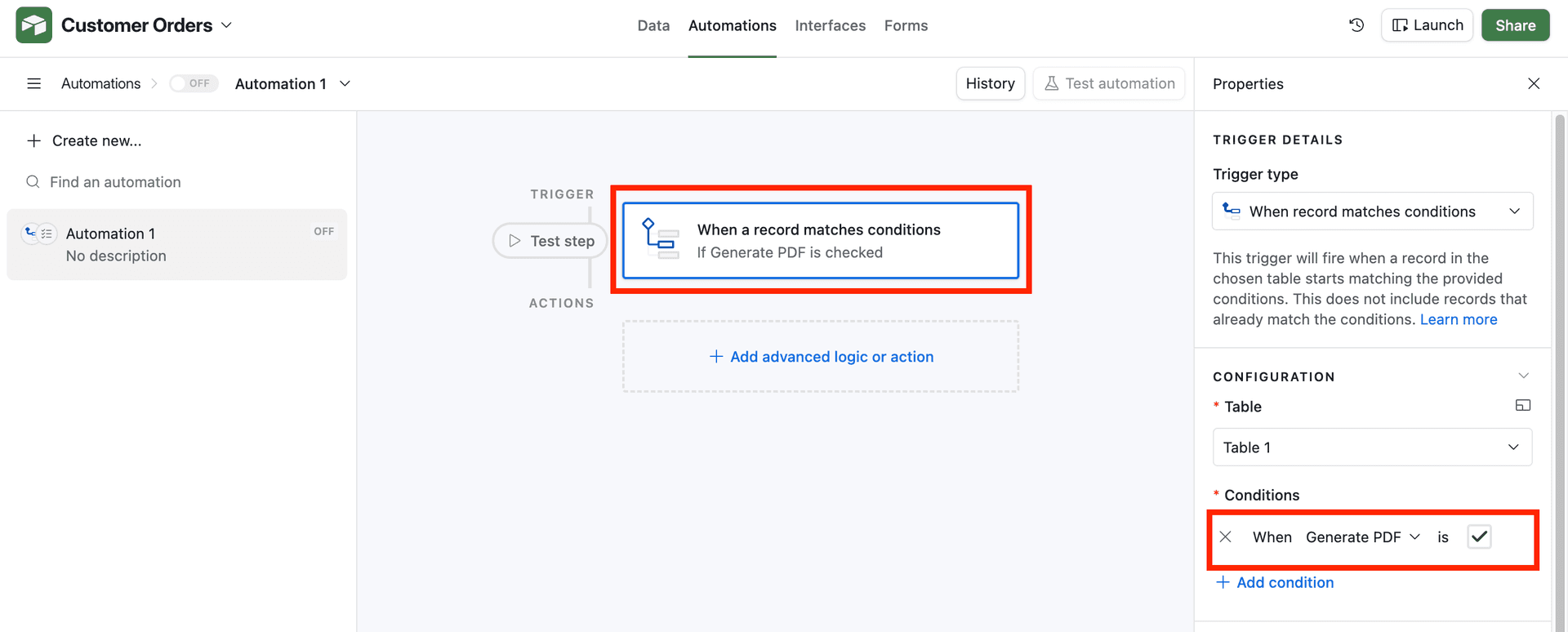
Open your Airtable base, go to the 'Automations' tab and create a new automation. Set the trigger to 'When a record matches conditions', choose your table, and set the condition so it fires when the 'Generate PDF' checkbox is checked.
Add a 'Run a script' action and paste in the script you copied from DocuPotion.
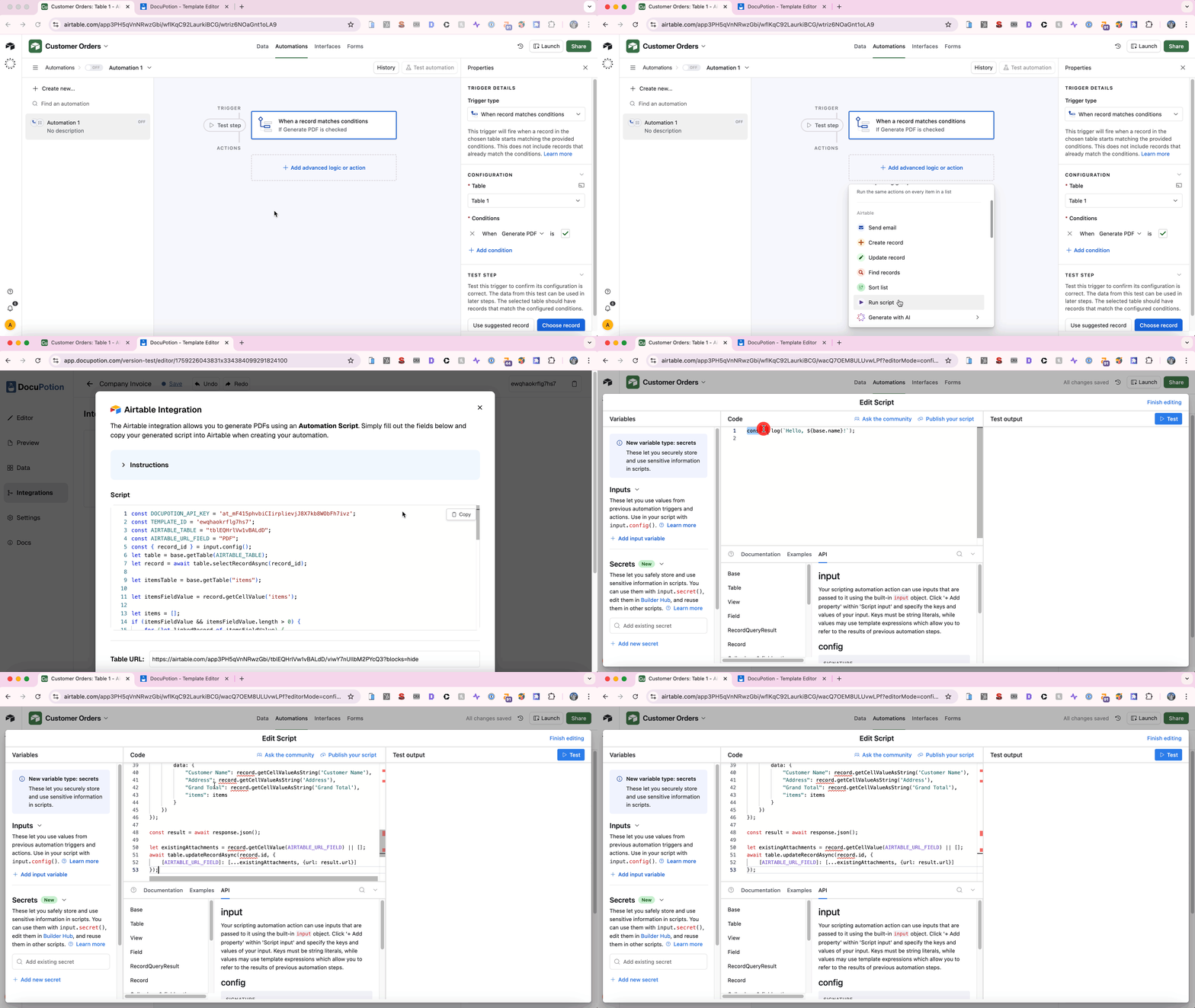
Now click 'Add input variable' and create one called record_id, then link it to the record ID from your trigger.
The input variable must be spelled exactly record_id. If the spelling doesn't match, the script won't be able to find your record.
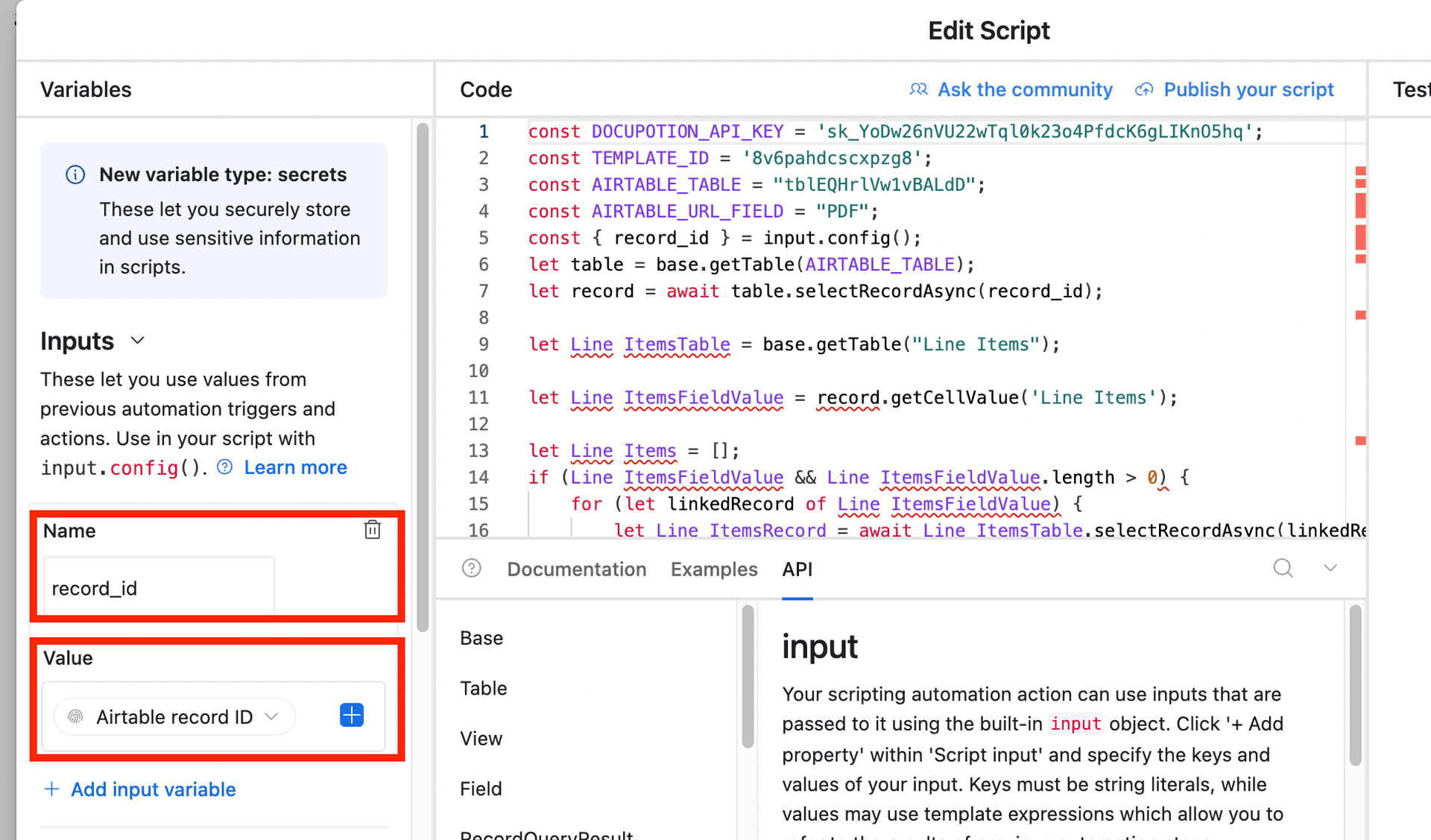
Click 'Finish editing' and turn the automation on.
Running the automation
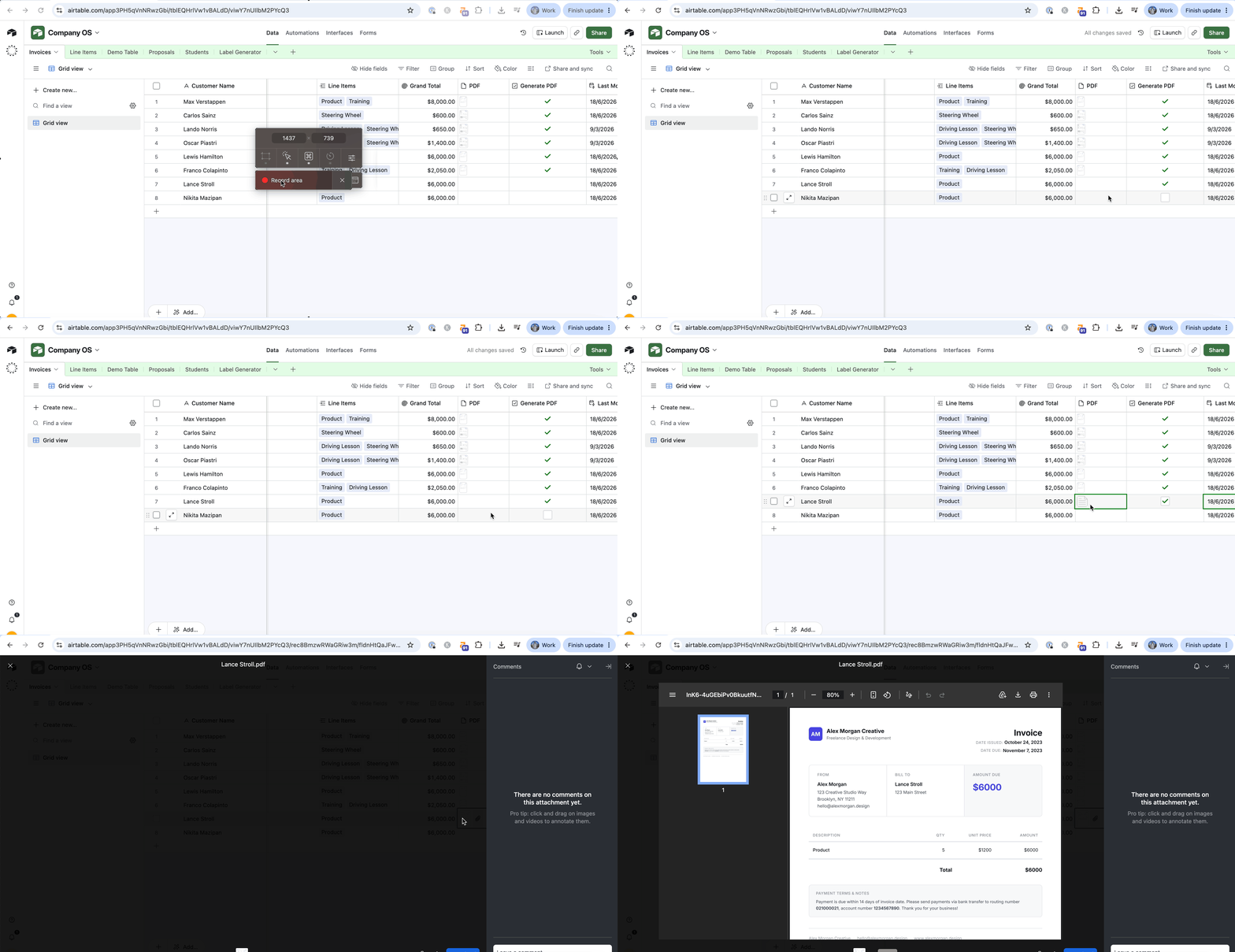
Go to your data and check one of the 'Generate PDF' checkboxes. After a few seconds, DocuPotion takes your reusable template, drops in the data from that record, and a nicely formatted PDF appears in your attachment field.
Debugging issues with the automation
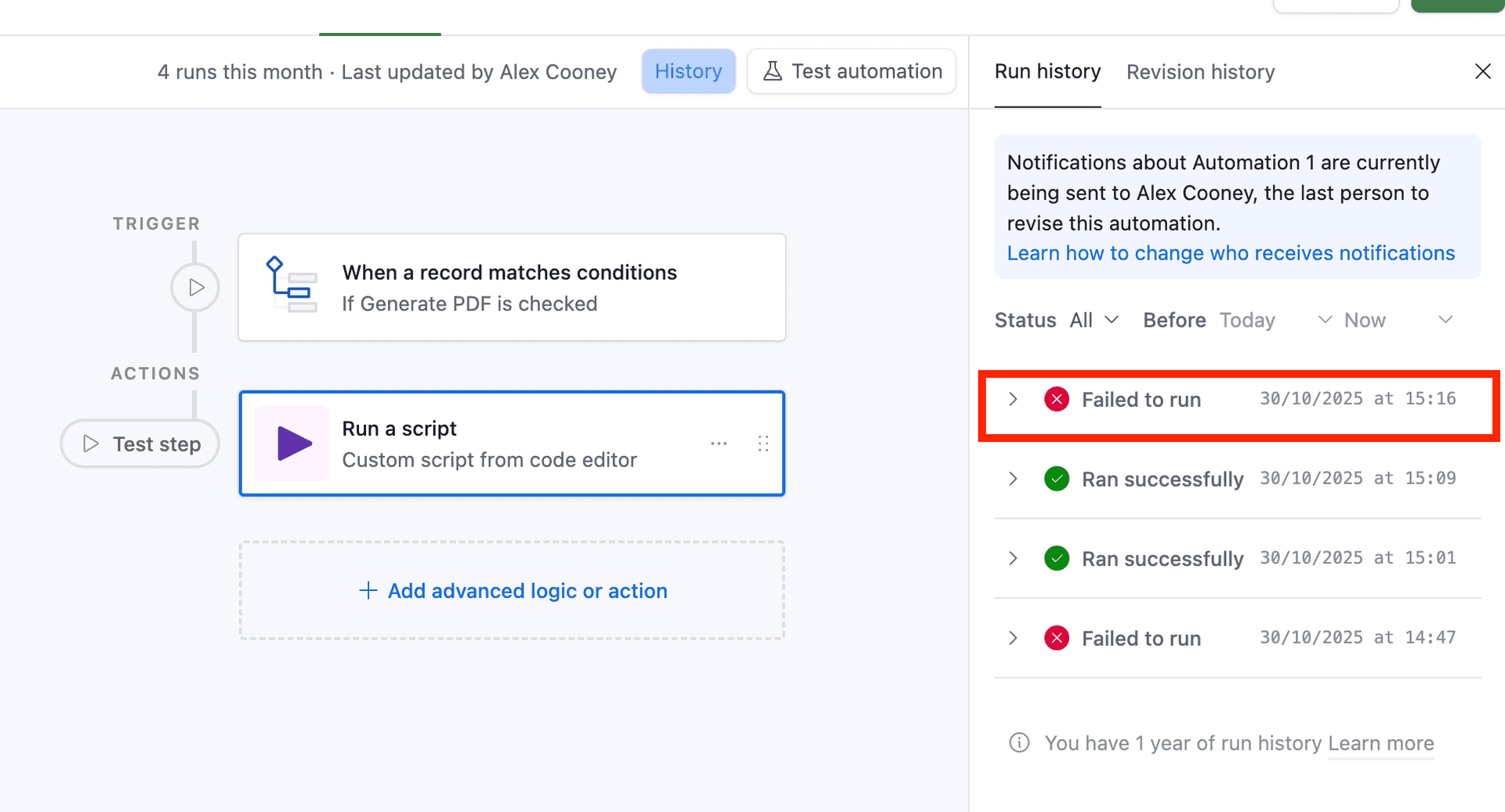
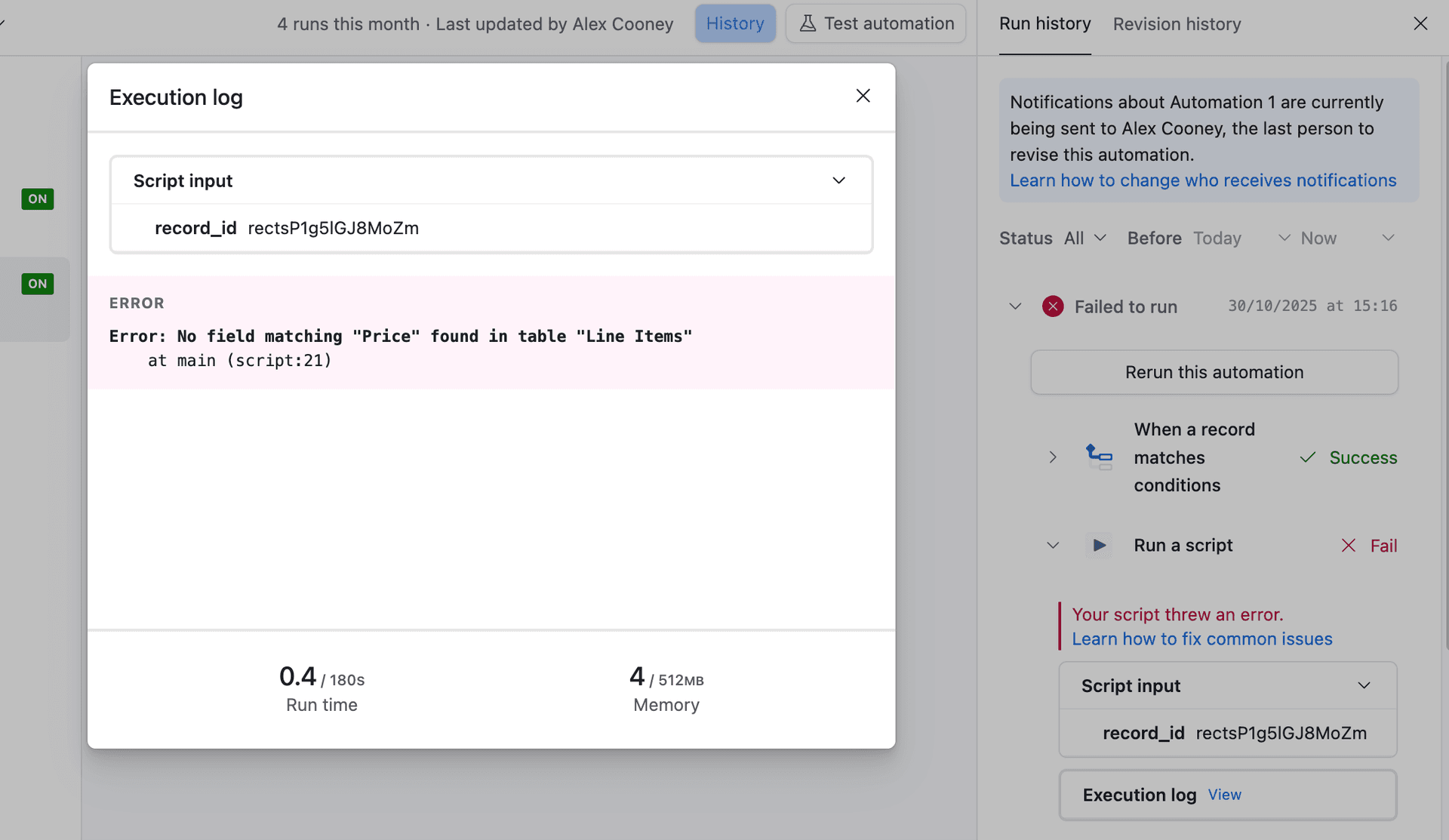
If a PDF doesn't appear, the 'Automations' tab will tell you why. Open the automation, find the run marked 'Failed to run', click into the 'Run a script' step and open the execution log to see the error. In the example below, we'd changed the name of the 'Price' column in our 'Line Items' table, which broke the mapping.
Updating your template later
If you add or rename merge fields in your template, go back to the 'Generate' tab, update your field mapping and click the 'Save mapping' button again.