Introduction
Playwright is an open-source browser automation library developed by Microsoft, designed to enable reliable end-to-end testing for modern web apps. Playwright provides the ability to automate browser tasks programmatically in Chromium, Firefox and WebKit, using a single high-level API that's available in JavaScript, Python, .NET, and Java.
Why choose Playwright for PDF generation? Although Playwright is best known for cross-browser end-to-end (E2E) testing and web automation, it also offers several compelling features that make PDF generation both powerful and enjoyable for developers.
First, it comes with built-in auto-waiting that eliminates most manual waitForSelector calls, reducing the boilerplate code you'd write with other tools. Second, Playwright's browser contexts enable efficient parallel PDF generation, which allows you to create multiple documents simultaneously without launching multiple browsers. Third, Playwright is built with a modern async API that provides excellent TypeScript support, making your code more maintainable and suitable for large projects. Finally, Playwright can generate navigable PDFs with clickable bookmarks using the outline option, which is perfect for creating documentation and catalogs.
In this guide, we'll walk you through everything you need to know about PDF generation with Playwright, from customizing PDF options, adding headers/footers, handling dynamic content, to advanced techniques like parallel generation.
DocuPotion tip: Using Playwright for PDF generation only works with Chromium browsers - this is because the PDF export relies on Chromium's print-to-PDF functionality. However, Playwright supports Firefox and WebKit for other automation tasks.
Quickstart
Before you install Playwright, you need to ensure you have Node.js 20+ installed on your system.
Next, create a project directory and run the following command to install Playwright:
npm init playwright@latestDuring the installation, you'll be prompted to answer the following:
- Do you want to use TypeScript or JavaScript? · Choose
JavaScript
Note: You can choose TypeScript if you prefer—Playwright supports both. The code examples in this guide use JavaScript for simplicity.
- Where to put your end-to-end tests? · Choose
tests - Add a GitHub Actions workflow? (Y/n) · Choose
true - Install Playwright browsers (can be done manually via 'npx playwright install')? (Y/n) · Choose
true.
DocuPotion tip: The most important thing for our use case is installing a Playwright browser, specifically, Chromium. Without it, Playwright won't be able to generate PDFs, since the page.pdf() API is only supported in Chromium.
Here's a minimal example showing how you'd implement PDF generation using Playwright:
const { chromium } = require("playwright");

(async () => {
  const browser = await chromium.launch();
  const page = await browser.newPage();
  await page.goto("https://playwright.dev/");
  await page.pdf({ path: "playwright.pdf", format: "A4", printBackground: true });
  await browser.close();
})();
Let's break down what each line does:
chromium.launch()starts a Chromium browser instancebrowser.newPage()creates a new browser page (like opening a new tab)page.goto()navigates to the target URLpage.pdf()generates the PDF using the specified options and saves it to the specified pathbrowser.close()shuts down the browser and frees resources
Now if you run the script you'll have a PDF file named "playwright.pdf" generated in the project directory.
Generating PDFs from Different Sources
Playwright provides flexible ways to generate PDFs, including from web pages or static HTML content. This versatility makes it suitable for various use cases, like archiving websites or creating dynamic documents.
PDFs from a URL
This is one of the most common use cases of PDF generation with Playwright. It works by using Playwright's page.goto() method to navigate to a web page, and using page.pdf() to capture the rendered content.
Here's an example:
const { chromium } = require('playwright');

(async () => {
  const browser = await chromium.launch();
  const page = await browser.newPage();

  // Navigate to the target page
  await page.goto('https://en.wikipedia.org/wiki/Website');

  // Generate PDF with custom filename
  await page.pdf({
    path: 'website.pdf',
    format: 'A4',
    margin: { top: '1in', right: '1in', bottom: '1in', left: '1in' },
    printBackground: true
  });

  await browser.close();
})();
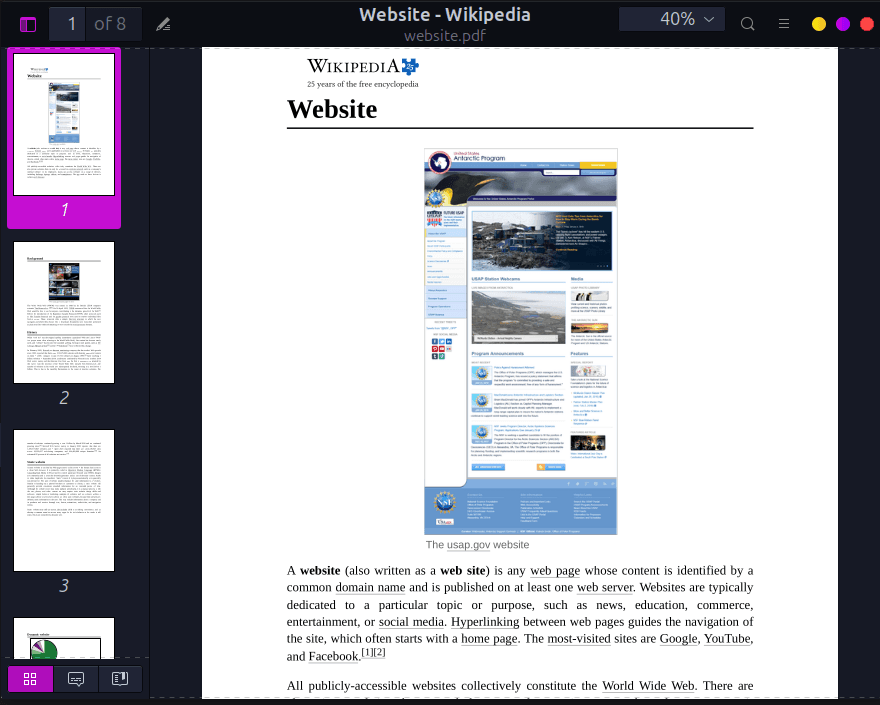
The generated PDF is shown in the following screenshot:
From an HTML string
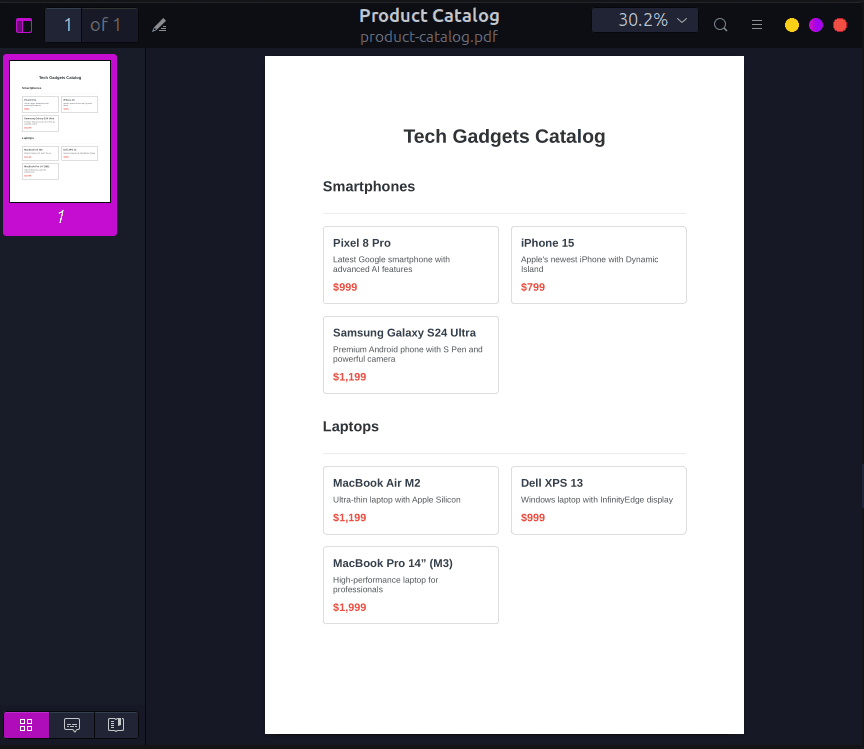
Sometimes, you may need to generate custom PDFs from dynamic HTML content rather than existing URLs. For this, we can use Playwright's page.setContent() method to load an HTML string directly. This is ideal for documents like invoices, reports, or product catalogs generated from your application data.
Here's an example to generate a product catalog:
const { chromium } = require("playwright");

const products = [
  {
    category: "Smartphones",
    items: [
      {
        name: "Pixel 8 Pro",
        description: "Latest Google smartphone with advanced AI features",
        price: "$999",
      },
      {
        name: "iPhone 15",
        description: "Apple's newest iPhone with Dynamic Island",
        price: "$799",
      },
      {
        name: "Samsung Galaxy S24 Ultra",
        description: "Premium Android phone with S Pen and powerful camera",
        price: "$1,199",
      },
    ],
  },
  {
    category: "Laptops",
    items: [
      {
        name: "MacBook Air M2",
        description: "Ultra-thin laptop with Apple Silicon",
        price: "$1,199",
      },
      {
        name: "Dell XPS 13",
        description: "Windows laptop with InfinityEdge display",
        price: "$999",
      },
      {
        name: 'MacBook Pro 14" (M3)',
        description: "High-performance laptop for professionals",
        price: "$1,999",
      },
    ],
  },
];


function generateCatalogHTML(data){
  const categoriesHTML = data
    .map(
      (section) => `
        <div class="category">
          <h2>${section.category}</h2>
        </div>
        <div class="products">
          ${section.items
            .map(
              (item) => `
                <div class="product">
                  <h3>${item.name}</h3>
                  <p>${item.description}</p>
                  <div class="price">${item.price}</div>
                </div>
              `
            )
            .join("")}
        </div>
      `
    )
    .join("");

  return `
  <!DOCTYPE html>
  <html lang="en">
  <head>
    <meta charset="UTF-8" />
    <title>Product Catalog</title>
    <style>
      * {
        box-sizing: border-box;
      }

      body {
        font-family: Arial, Helvetica, sans-serif;
        color: #333;
        margin: 0;
        padding: 0;
      }

      .catalog {
        max-width: 900px;
        margin: 0 auto;
        padding: 40px;
      }

      .header {
        text-align: center;
        margin-bottom: 50px;
      }

      .header h1 {
        margin: 0;
        font-size: 32px;
      }

      .category {
        margin-top: 40px;
        padding-bottom: 10px;
        border-bottom: 2px solid #eee;
      }

      .products {
        display: grid;
        grid-template-columns: repeat(2, 1fr);
        gap: 20px;
        margin-top: 20px;
      }

      .product {
        border: 1px solid #ddd;
        padding: 16px;
        border-radius: 6px;
        page-break-inside: avoid;
      }

      .product h3 {
        margin-top: 0;
        margin-bottom: 8px;
        color: #2c3e50;
      }

      .product p {
        margin: 0 0 12px;
        font-size: 14px;
        color: #555;
      }

      .price {
        font-size: 18px;
        font-weight: bold;
        color: #e74c3c;
      }

      @media print {
        body {
          background: #fff;
        }
      }
    </style>
  </head>
  <body>
    <div class="catalog">
      <div class="header">
        <h1>Tech Gadgets Catalog</h1>
      </div>

      ${categoriesHTML}
    </div>
  </body>
  </html>
  `;
}

(async () => {
  const browser = await chromium.launch({ headless: true });
  const page = await browser.newPage();

  await page.setContent(generateCatalogHTML(products), {
    waitUntil: "networkidle",
  });

  await page.pdf({
    path: "product-catalog.pdf",
    format: "A4",
    printBackground: true,
    margin: {
      top: "20mm",
      bottom: "20mm",
      left: "15mm",
      right: "15mm",
    },
  });

  await browser.close();
})();
Producing the following output:
Playwright PDF Options Explained and Print Styling
In the previous code examples, you may have noticed we passed some configuration options to the page.pdf method. These are customization parameters that let us fine-tune how the generated PDF looks.
Below are some of the key and most commonly used options and their descriptions.
| Option | What it does |
|---|---|
path | This tells Playwright where to save the generated PDF file. If this is not provided, Playwright won't save a file and will instead return the PDF as a buffer in memory. |
format | Sets the paper size for the PDF, such as A4, Letter, or Legal. When this is set, it overrides any custom width or height values. |
width / height | This lets you define a custom page size instead of using a preset format. You can use units like px, in, or cm (for example, 8.5in or 800px). |
margin | Controls the space around the content on the page. You can set top, right, bottom, and left margins to prevent content from touching the edges of the PDF. |
printBackground | Decides whether background colors and images from your CSS should appear in the PDF. This is off by default, so you need to turn it on if your design relies on backgrounds. |
landscape | Switches the page orientation to landscape. If set to false (default), the PDF will use portrait orientation. |
scale | Zooms the page content in or out before generating the PDF. Values below 1 make content smaller, while values above 1 make it larger. |
pageRanges | Allows you to choose which pages to include in the PDF, like "1-5, 8". If you leave this empty, all pages are printed. |
preferCSSPageSize | Tells Playwright to use the page size defined in the CSS @page rule instead of the format, width, or height options. |
displayHeaderFooter | This enables rendering of custom headers and footers on every page. This must be set to true for headerTemplate and footerTemplate to work. |
headerTemplate | The HTML template used for the page header. Commonly used for document titles, logos, or section names. Supports special placeholders like page numbers. |
footerTemplate | The HTML template used for the page footer. Often used for page numbers, dates, or copyright text. Also supports placeholders like current page and total pages. |
Here's a comprehensive example showing multiple PDF options working together:
await page.pdf({
    path: "example.pdf",
    format: "A4",
    landscape: false,
    printBackground: true,
    scale: 0.95,
    margin: {
      top: "20mm",
      right: "15mm",
      bottom: "20mm",
      left: "15mm",
    },
    pageRanges: "1-2",
    preferCSSPageSize: false,
  });
Controlling Output with CSS
For more precise control over how your PDF looks, you can rely on CSS print styles instead of only Playwright's PDF options. This approach gives you more flexibility, especially for catalogs, reports, and other layout-heavy documents.
Using preferCSSPageSize
When preferCSSPageSize is set to true, Playwright allows your CSS @page rules to override the format, width, and height options defined in JavaScript.
This means:
- Page size is controlled entirely by CSS
- Margins defined in
@pageare respected - JavaScript PDF sizing options are ignored
Defining page size and margins with @page
To control how your PDF pages look, you can use the CSS @page rule. This rule tells the browser what paper size to use and how much space to leave around the edges of each page.
@page {
  size: A4;
  margin: 20mm 15mm;
}
In this example:
size: A4sets the PDF to use standard A4 paper.margin: 20mm 15mmadds vertical and horizontal spacing around the content, so text and images don't sit too close to the page edges.
Page breaks in PDFs generated by Playwright
By default, Playwright automatically splits content across pages. However, Playwright still allows us to use CSS properties to control how content flows across pages. These include:
page-break-beforeandpage-break-after: These let you force an element to start on a new page or ensure the next content begins on a new page. For example, you can make every new category or section start on its own page.break-inside: avoid: This prevents an element from being split across two pages.
Example:
.category {
  page-break-before: always;
}

.product {
  break-inside: avoid;
}
Preserving background colors
By default, many browsers ignore background colors and images when printing to save ink. To ensure your background colors and gradients appear exactly as designed, use:
* {
  -webkit-print-color-adjust: exact;
}
This forces the browser to preserve colors when generating the PDF.
Forcing screen styles instead of print styles
If your layout looks better with screen styles than print styles, you can tell Playwright to render the page as a screen:
await page.emulateMedia({ media: "screen" });This is helpful when:
- You're creating PDFs with designs that rely on modern layout styles
- You don't want print-specific CSS to apply
- You're generating marketing or catalog PDFs, and so on.
Creating navigable PDFs with bookmarks
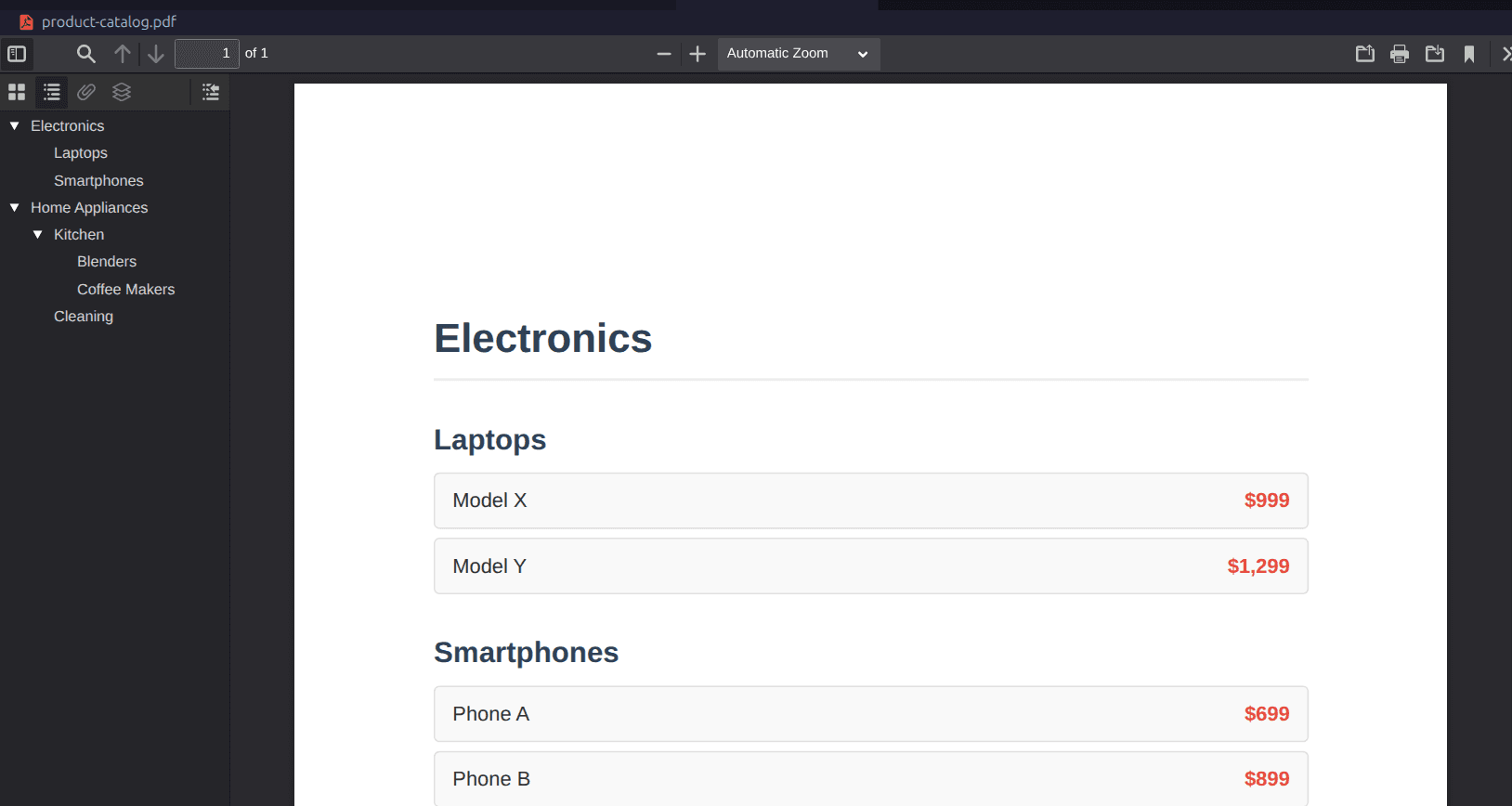
The outline option in page.pdf() is a boolean value that specifies whether to embed clickable bookmarks (like a table of contents) into the PDF, creating a navigation outline. This feature was added in Playwright v1.42 to improve document usability by allowing readers to navigate between sections using a sidebar in PDF viewers.
Here's how it works: Playwright automatically extracts headings (h1-h6) from the HTML and builds a hierarchical tree. Top-level h1s become main bookmarks, with nested h2s and h3s as sub-items. This mirrors a table of contents, ideal for long documents like catalogs, documentation, or manuals.
To create an outline, set outline: true and tagged: true in the options.
DocuPotion tip: It's important to set tagged: true in the options because it tells Playwright to generate a tagged (structured) PDF, which most PDF readers require to display the outline correctly.
Let's look at an example:
const { chromium } = require('playwright');

(async () => {
  const browser = await chromium.launch();
  const page = await browser.newPage();

  await page.setContent(`
    <!DOCTYPE html>
    <html>
      <head>
        <meta charset="UTF-8" />
        <style>
          * {
            box-sizing: border-box;
          }

          body {
            font-family: Arial, Helvetica, sans-serif;
            color: #333;
            margin: 0;
            padding: 40px;
            line-height: 1.5;
          }

          h1 {
            font-size: 28px;
            margin-top: 40px;
            margin-bottom: 10px;
            color: #2c3e50;
            border-bottom: 2px solid #eee;
            padding-bottom: 6px;
          }

          h2 {
            font-size: 20px;
            margin-top: 25px;
            margin-bottom: 8px;
            color: #34495e;
          }

          h3 {
            font-size: 16px;
            margin-top: 18px;
            margin-bottom: 6px;
            color: #555;
          }

          .item {
            padding: 8px 12px;
            margin-bottom: 6px;
            background: #f9f9f9;
            border: 1px solid #e0e0e0;
            border-radius: 4px;
            display: flex;
            justify-content: space-between;
            font-size: 14px;
          }

          .price {
            font-weight: bold;
            color: #e74c3c;
          }

          .section {
            page-break-inside: avoid;
          }
        </style>
      </head>
      <body>
        <div class="section">
          <h1>Electronics</h1>

          <h2>Laptops</h2>
          <div class="item">
            <span>Model X</span>
            <span class="price">$999</span>
          </div>
          <div class="item">
            <span>Model Y</span>
            <span class="price">$1,299</span>
          </div>

          <h2>Smartphones</h2>
          <div class="item">
            <span>Phone A</span>
            <span class="price">$699</span>
          </div>
          <div class="item">
            <span>Phone B</span>
            <span class="price">$899</span>
          </div>
        </div>

        <div class="section">
          <h1>Home Appliances</h1>

          <h2>Kitchen</h2>

          <h3>Blenders</h3>
          <div class="item">
            <span>ProBlend 3000</span>
            <span class="price">$129</span>
          </div>

          <h3>Coffee Makers</h3>
          <div class="item">
            <span>BrewMaster</span>
            <span class="price">$89</span>
          </div>

          <h2>Cleaning</h2>
          <div class="item">
            <span>Vacuum Pro</span>
            <span class="price">$249</span>
          </div>
        </div>
      </body>
    </html>
  `);

  await page.pdf({
    path: 'product-catalog.pdf',
    tagged: true, // Important
    outline: true,
    format: 'A4',
    printBackground: true,
    margin: {
      top: '20mm',
      bottom: '20mm',
      left: '15mm',
      right: '15mm',
    },
  });

  await browser.close();
})();
You can see the outline in the sidebar as shown in the screenshot below:
To ensure your content comes out as expected, keep the following tips in mind:
- Always use proper heading hierarchy (h1 > h2 > h3)
- Keep headings concise and descriptive
- Avoid skipping heading levels (don't go from h1 to h3)
- Use IDs on headings if you need specific anchor points
- The outline respects CSS display properties (hidden elements won't appear)
Headers and Footers
Headers and footers in a PDF are sections at the top (header) and bottom (footer) of each page. They contain repeating information like page numbers, document titles, dates, or author names, which provides context, navigation aids, and adds professionalism to multi-page documents.
Playwright supports headers and footers through the headerTemplate and footerTemplate options in page.pdf(). However, they are disabled by default and must be explicitly enabled using:
displayHeaderFooter: trueWithout this option, headerTemplate and footerTemplate will be ignored.
Both headerTemplate and footerTemplate accept HTML strings, and inside these templates, we can use special placeholders that Playwright replaces automatically when generating the PDF:
| Placeholder | How to write it in the template |
|---|---|
| Current page | <span class="pageNumber"></span> |
| Total pages | <span class="totalPages"></span> |
| Date | <span class="date"></span> |
| Title | <span class="title"></span> |
| URL | <span class="url"></span> |
Here's an example:
const { chromium } = require("playwright");

(async () => {
  const browser = await chromium.launch();
  const page = await browser.newPage();

  await page.setContent(`
    <html>
      <head>
        <title>Tech Gadgets Catalog</title>
      </head>
      <body>
        <h1 style="text-align:center; margin-top:50px;">Tech Gadgets Catalog</h1>

        <h2>Smartphones</h2>
        <p>Pixel 8 Pro — Latest Google smartphone with AI features</p>
        <p>iPhone 15 — Apple smartphone with Dynamic Island</p>

        <h2>Laptops</h2>
        <p>MacBook Air M2 — Ultra-thin laptop with Apple Silicon</p>
        <p>Dell XPS 13 — Windows laptop with InfinityEdge display</p>
      </body>
    </html>
  `);

  await page.pdf({
    path: "catalog.pdf",
    format: "A4",
    printBackground: true,
    displayHeaderFooter: true,

    headerTemplate: `
  <div style="
    width:100%;
    background-color:#2c3e50;
    color:white;
    padding:8px 0;
    font-size:12px;
    text-align:center;
    font-weight:bold;
    border-bottom: 2px solid #e74c3c;
  ">
    Tech Gadgets Catalog - Q1 2026
  </div>
`,

    footerTemplate: `
  <div style="
    width:100%;
    background-color:#ecf0f1;
    color:#2c3e50;
    font-size:10px;
    padding:6px 0;
    border-top: 2px solid #e74c3c;
    display:flex;
    justify-content: space-between;
    font-family:Arial, sans-serif;
  ">
    <span style="padding-left:10px;">© 2026 TechGadgets Inc.</span>
    <span>Page <span class="pageNumber"></span> of <span class="totalPages"></span></span>
    <span style="padding-right:10px;">Generated on <span class="date"></span></span>
  </div>
`,
    margin: {
      top: "35mm",
      bottom: "35mm",
      left: "15mm",
      right: "15mm",
    },
  });

  await browser.close();
})();
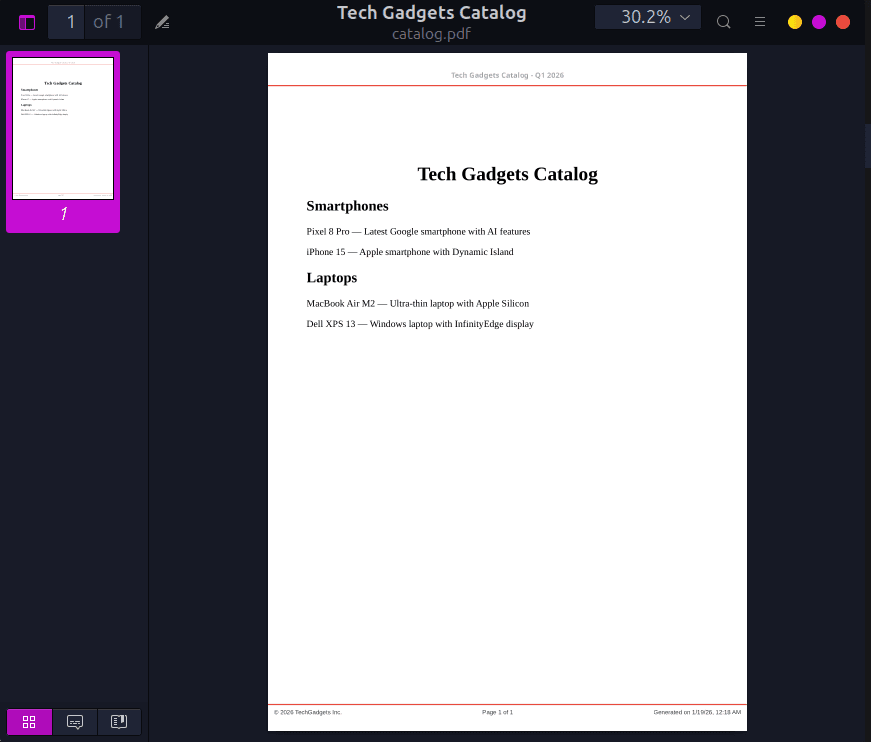
This is what the generated PDF looks like:
DocuPotion tip: When using headers and footers, always increase the top and bottom margins. Otherwise, your main content may overlap with them.
Auto-Waiting and Loading Content
One of Playwright's biggest advantages is auto-waiting, which means automatically pausing actions until elements are ready and visible in the browser. This is especially helpful when generating PDFs as without it, content on dynamic pages—like lazy-loaded images or fonts—might not appear in the generated PDF.
Playwright options to ensure page content is fully loaded
The waitUntil option determines when Playwright considers a page loaded:
'load': Waits for the load event, meaning all resources are fetched (this is the default).'domcontentloaded': Fires when the DOM is ready, but some images or assets may still load.'networkidle': Waits until no network requests are active. Best for SPAs or pages with async content.'commit': Fastest; waits for the response but before rendering.
DocuPotion tip: For pages with dynamic content, 'networkidle' is usually the safest choice.
Manual waits (only when necessary)
Sometimes you need to wait for a specific element or a short delay:
await page.waitForSelector('.image'): Waits until a specific element appears.await page.waitForLoadState('networkidle'): Waits for all network activity to finish after navigation.await page.waitForTimeout(1000): Simple pause for 1 second. Use sparingly.
For example, the following snippet waits for product images to finish loading before generating the PDF:
const { chromium } = require('playwright');

(async () => {
  const browser = await chromium.launch({ headless: true });
  const page = await browser.newPage();

  await page.goto('https://techgadgets.com/products', { waitUntil: 'networkidle' });

  // Wait for all product images to load
  await page.waitForSelector('.product img');

  // small delay to ensure fonts or lazy content appear
  await page.waitForTimeout(500);

  await page.pdf({
    path: 'products.pdf',
    format: 'A4',
    printBackground: true,
  });

  await browser.close();
})();
Generating PDFs in Parallel with Browser Contexts
Playwright's browser contexts are isolated sessions within a single browser instance. They are like incognito tabs, with each has its own cookies, local storage, and session data. This isolation makes them perfect for generating multiple PDFs in parallel without interference.
Why use browser contexts? Using browser contexts offers the following advantages:
- Efficiency: Launching one browser and reusing it with multiple contexts is faster than starting multiple browsers.
- Isolation: Each context is independent, so data from one PDF generation task won't affect others.
- Concurrency: You can run multiple PDF generation tasks simultaneously, speeding up batch processing.
For example, imagine you're generating PDFs from five different web pages. Creating a browser instance for each URL would be inefficient and wasteful. A better approach is to launch a single browser and create a separate browser context for each PDF, where each context is isolated, ensuring no data conflicts, while saving system resources and allowing parallel processing:
const { chromium } = require('playwright');

(async () => {
  // Launch a single browser instance
  const browser = await chromium.launch({ headless: true });

  const urls = [
    'https://techgadgets.com/report1',
    'https://techgadgets.com/report2',
    'https://techgadgets.com/report3',
    'https://techgadgets.com/report4',
    'https://techgadgets.com/report5'
  ];

  // Generate all PDFs in parallel
  await Promise.all(
    urls.map(async (url, index) => {
      // Create an isolated context for each PDF
      const context = await browser.newContext();
      const page = await context.newPage();

      await page.goto(url, { waitUntil: 'networkidle' });

      // Generate the PDF
      await page.pdf({
        path: `report-${index + 1}.pdf`,
        format: 'A4',
        printBackground: true,
      });

      // Clean up the context
      await context.close();
    })
  );

  await browser.close();
})();
When generating many PDFs in parallel, launching all tasks at once can consume too much memory or CPU, especially when you're on standard servers. To control concurrency, you can process a limited number of tasks at a time - say, 3 PDFs simultaneously - using a library like p-limit or by implementing batching manually.
The following code example limits the concurrency to three tasks at a time:
const { chromium } = require('playwright');
const pLimit = require('p-limit');

// Limit concurrency to 3 tasks
const limit = pLimit(3);

(async () => {
  const browser = await chromium.launch({ headless: true });

  const urls = [
    'https://techgadgets.com/report1',
    'https://techgadgets.com/report2',
    'https://techgadgets.com/report3',
    'https://techgadgets.com/report4',
    'https://techgadgets.com/report5'
  ];

  // Wrap each PDF generation task with the concurrency limit
  const tasks = urls.map((url, index) =>
    limit(async () => {
      const context = await browser.newContext();
      const page = await context.newPage();

      await page.goto(url, { waitUntil: 'networkidle' });

      await page.pdf({
        path: `report-${index + 1}.pdf`,
        format: 'A4',
        printBackground: true,
      });

      await context.close();
    })
  );

  // Wait for all tasks to complete
  await Promise.all(tasks);

  await browser.close();
})();
Upgrading your PDF generation with DocuPotion
Playwright is great when you're generating a known quantity of relatively straightforward PDFs. Things start getting trickier when you start generating more complex PDFs at scale.
Managing Chromium instances on your own servers means dealing with memory management, browser updates, timeout handling, and building your own queuing system for high-volume generation. Each PDF spins up a full browser context, which can quickly consume server resources.
This is where a managed solution like DocuPotion becomes valuable. Instead of maintaining PDF infrastructure yourself, DocuPotion handles the heavy lifting—scaling, queuing, and reliability—so you can focus on your document templates and business logic.
Frequently Asked Questions
Is Playwright free to use?
Yes. Playwright is fully open-source under the Apache 2.0 license. You can use it for personal or commercial projects at no cost.
Can I generate PDFs with Firefox or WebKit?
No, you can't. PDF generation in Playwright is Chromium-only. While you can automate tasks with Firefox or WebKit, the page.pdf() function only works with Chromium-based browsers.
How do I add clickable bookmarks to my PDF?
Set outline: true in your PDF options and structure your HTML with proper headings (h1–h6). Playwright automatically creates a navigation tree from these headings, similar to a table of contents. See the "Creating navigable PDFs with bookmarks" section for examples.
Can Playwright generate multi-page PDFs?
Yes, content automatically paginates based on your paper size and CSS. You can control page breaks using CSS properties like:
page-break-beforepage-break-afterbreak-inside: avoid
How do I generate multiple PDFs efficiently?
The most straightforward way is to use browser contexts to run PDF generation in parallel. Launch a single browser instance, then create multiple isolated contexts to generate PDFs simultaneously. This approach is far more efficient than launching multiple browsers. See the "Generating PDFs in Parallel with Browser Contexts" section for more tips.