When a deal reaches the point where it needs a proposal, most teams still build that proposal by hand: open a template, copy the company name, the contact, the pricing and the timeline out of the CRM, export a PDF, then send it off for signature. It is repetitive, it is easy to get a figure wrong, and it happens on every single deal.
It does not have to. With DocuPotion you can put the whole thing inside an Attio workflow, so the proposal generates itself and goes out for signature the moment a deal moves into the stage you choose. In this guide we will build exactly that, using the DocuPotion blocks in Attio's native workflow builder.
Prefer to watch first? Here is the whole setup in a two-minute walkthrough.
We use a sales proposal moving to a "Proposal Sent" stage as the running example, but the same pattern works for any document and any trigger: an NDA on a new inbound deal, a renewal agreement 30 days before a contract ends, an order form when a deal is marked won.
What we are going to build
The setup is three small workflows that work together:
- Generate and send the proposal. When a deal's stage changes to Proposal Sent, generate the proposal from that deal's data and send it for e-signature.
- Tell the team it is out. When the proposal is sent for signature, post a message to Slack so everyone knows.
- React once it is signed. When the proposal comes back fully signed, move the deal to Won and post a message to Slack.
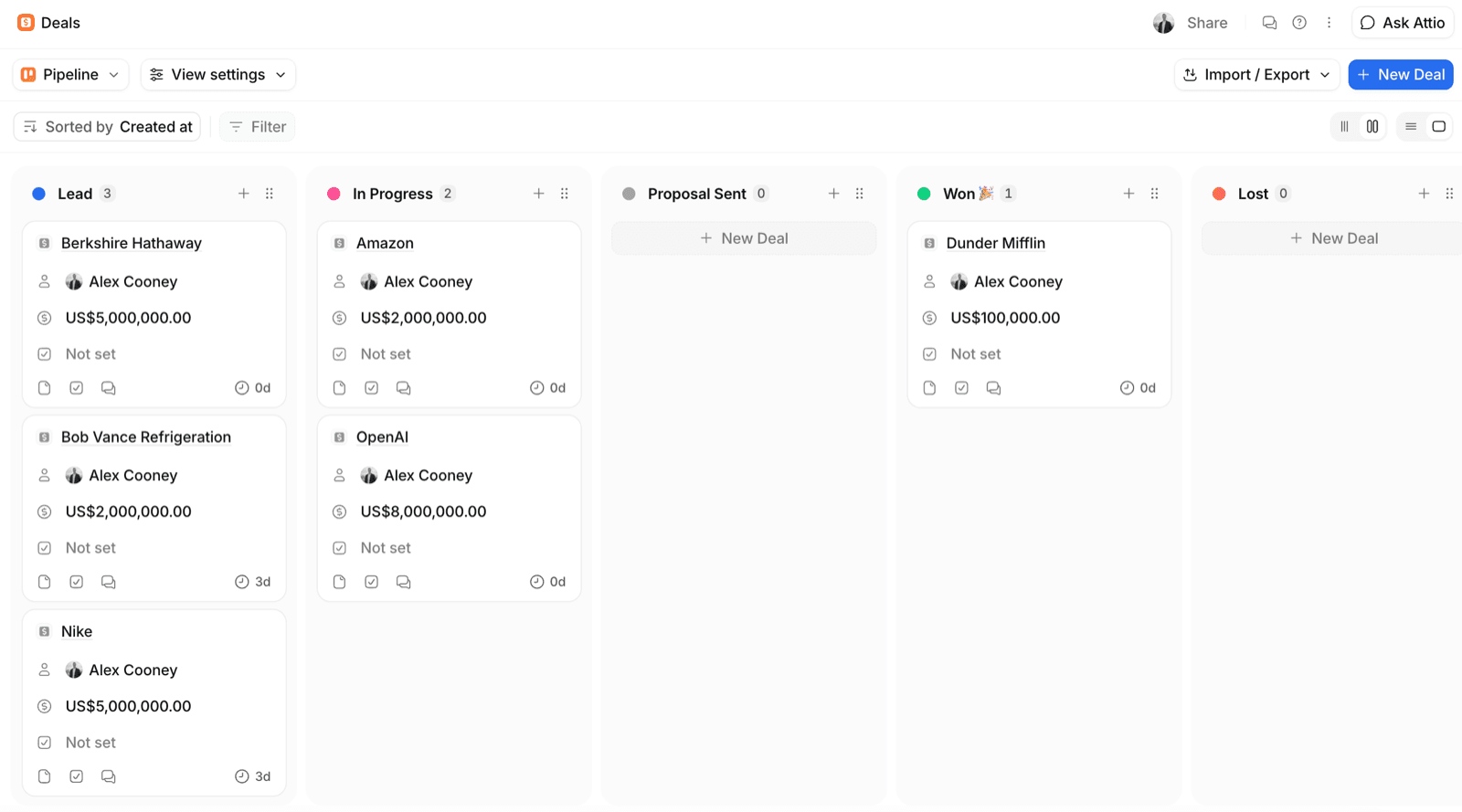
Splitting the follow-up into its own workflows is deliberate, and we explain why below. First, the pipeline this runs on. Here a deal moves along the stages Lead → In Progress → Proposal Sent → Won, and it is the move into Proposal Sent that we will use as our trigger.
Before you start
You will need:
- An Attio workspace where you can build workflows, with the DocuPotion Attio app installed and connected. If you have ever generated a document from a record, you are already connected. If not, the Attio quickstart guide walks through installing the app and approving the connection on both sides.
- A DocuPotion automation that produces your proposal. An automation is a template plus its field mapping for an Attio object, and it is what the workflow block runs. If you have not built one yet, follow How to generate documents from Attio first, and switch on Send for signature in its delivery settings so the proposal goes out for signing. You can start a free trial with no credit card required.
DocuPotion tip: Build and test the automation from a record first, using Create document on a deal. Once it generates the proposal you want by hand, dropping it into a workflow is the easy part.
Step 1: Trigger the workflow on the deal stage
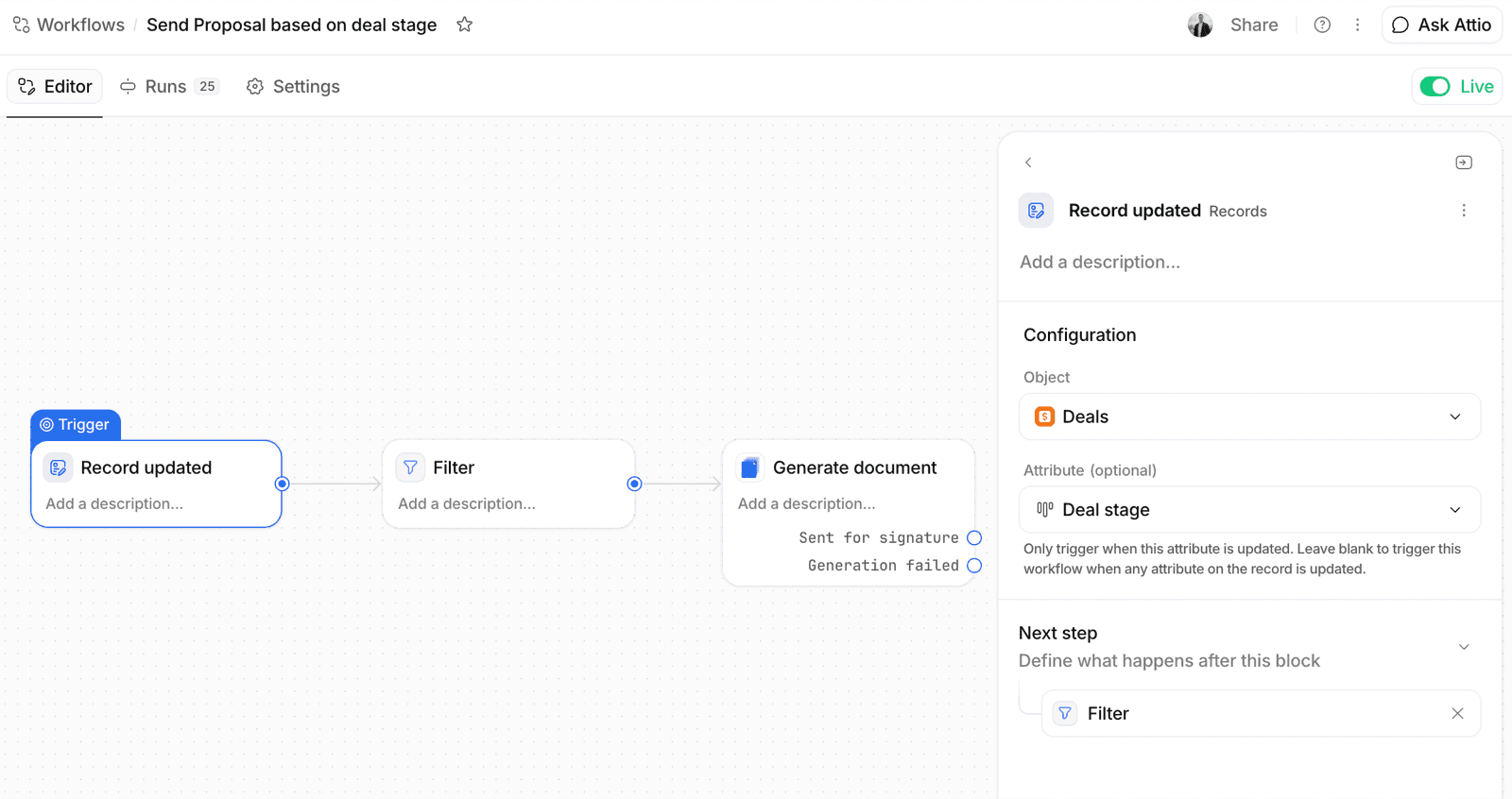
In Attio, open Workflows, create a new workflow, and choose Record updated as the trigger. In the trigger's configuration:
- Set the Object to Deals.
- Set the optional Attribute to Deal stage, so the workflow only runs when the stage changes, not on every edit to the record.
Step 2: Filter to the right stage
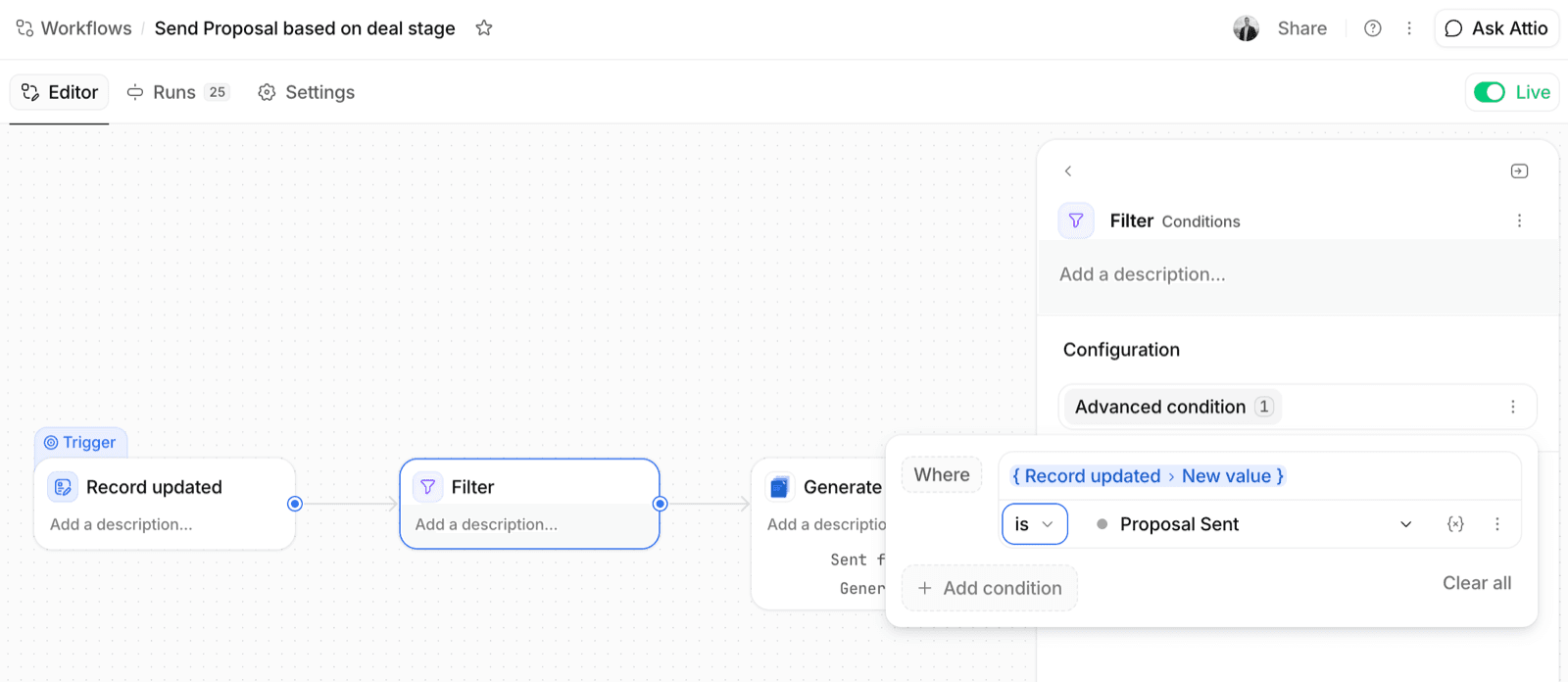
A record-updated trigger fires whenever the deal stage changes to any value, so add a Filter step to narrow it to the one stage you care about. Set the condition to:
{ Record updated > New value } is Proposal SentNow the workflow only continues when a deal moves specifically into Proposal Sent. Everything after the filter runs only for those deals.
Step 3: Add the Generate document step
Add a step and pick DocuPotion's Generate document block. It has two settings:
- Automation. Choose the DocuPotion automation that builds your proposal (in our example we're using the Generate Proposal automation). The automation decides which template is used, how the deal's fields are mapped, and whether the document is sent for signature.
- Record. This is the record the document is generated from. In the vast majority of cases, you'll want to set this to
{ Record updated > Updated Deal }, which is the specific deal that just changed stage.
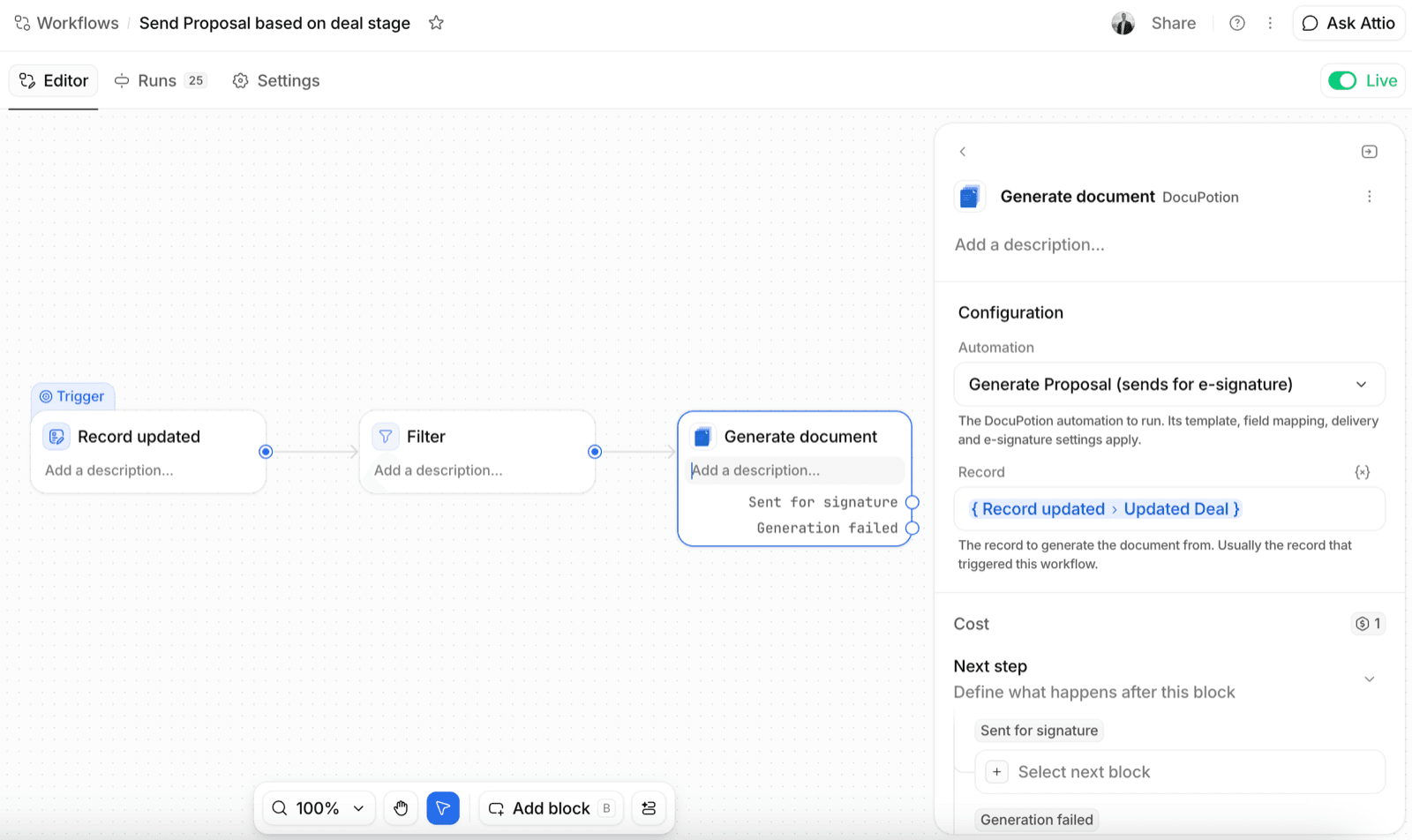
When the workflow runs, the proposal is generated from the deal's data and the finished PDF is uploaded to that deal's record, exactly as if someone had clicked Create document on the record by hand.
The step branches on what happened
The Generate document step ends on exactly one outcome, and you can add steps under each one. The outcomes depend on the automation you chose:
- If the automation just generates a document: Generated or Failed.
- If the automation sends for e-signature (our case): Sent for signature or Generation failed.
Use the success outcome to carry on, for example posting an internal note that the proposal has gone out, and the failure outcome to alert someone if generation did not complete. Only one path ever runs, so a step you place under Sent for signature runs only when the proposal actually went out.
What happens when the deal moves stage
That is the first workflow done. From now on, whenever anyone drags a deal into Proposal Sent, or the stage is set by another automation, DocuPotion generates the proposal from that deal and emails it to the signer. The signer opens a secure link and signs it, no account required.
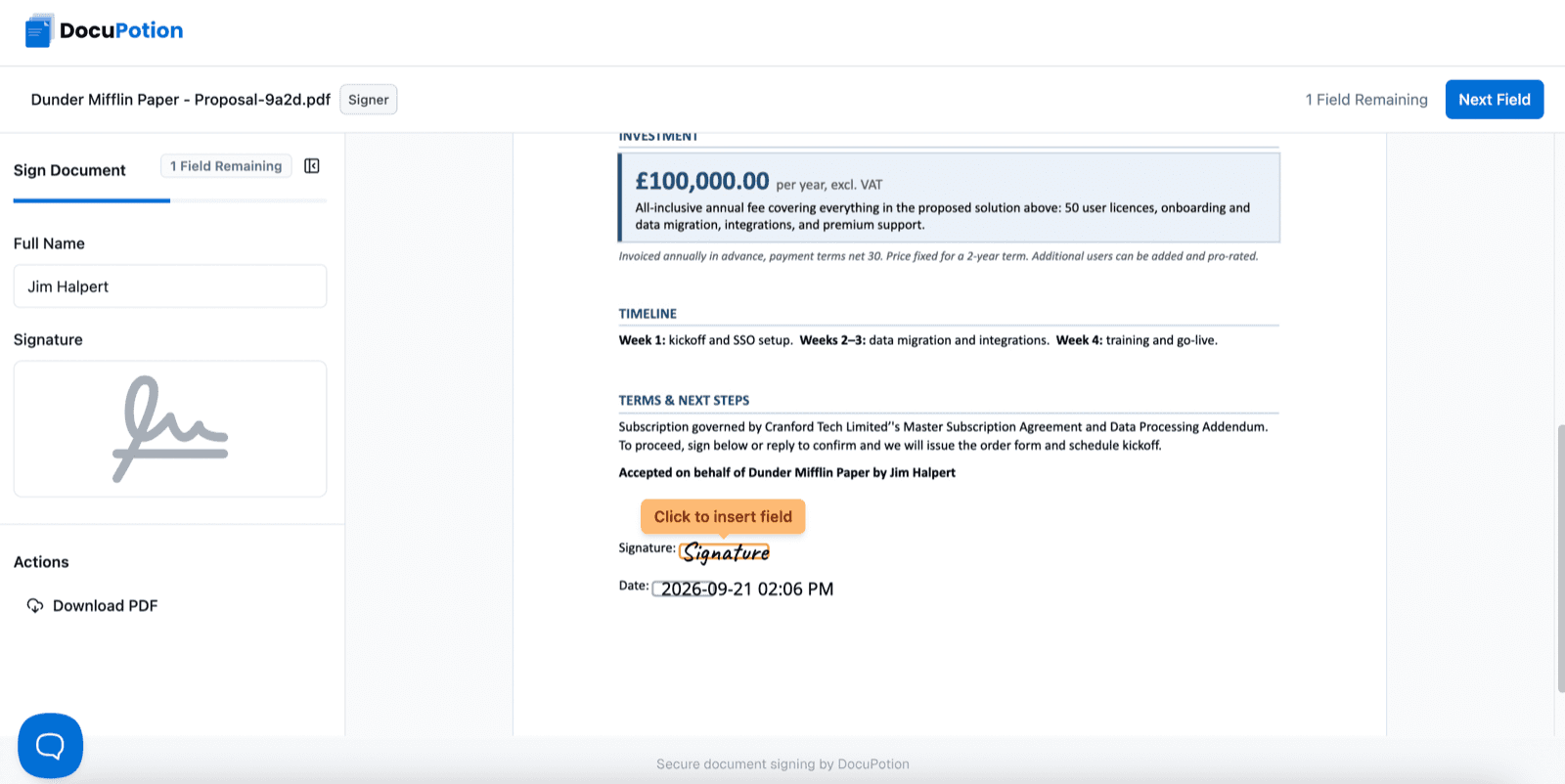
Signatures collected through DocuPotion comply with the ESIGN Act and UETA in the US, and qualify as electronic signatures under eIDAS in the EU. Once everyone has signed, the sealed copy is attached back to the Attio record automatically. There is more on how this works on the e-signatures page.
Step 4: Tell the team when the proposal is sent
The Generate document step finishes as soon as the proposal has been sent for signature, so you can react to that straight away. Create a new workflow with DocuPotion's Document sent for signature trigger, set it to your Deals object and proposal automation, and add the step you want. Here it posts to a Slack channel so the team knows the proposal has gone out.
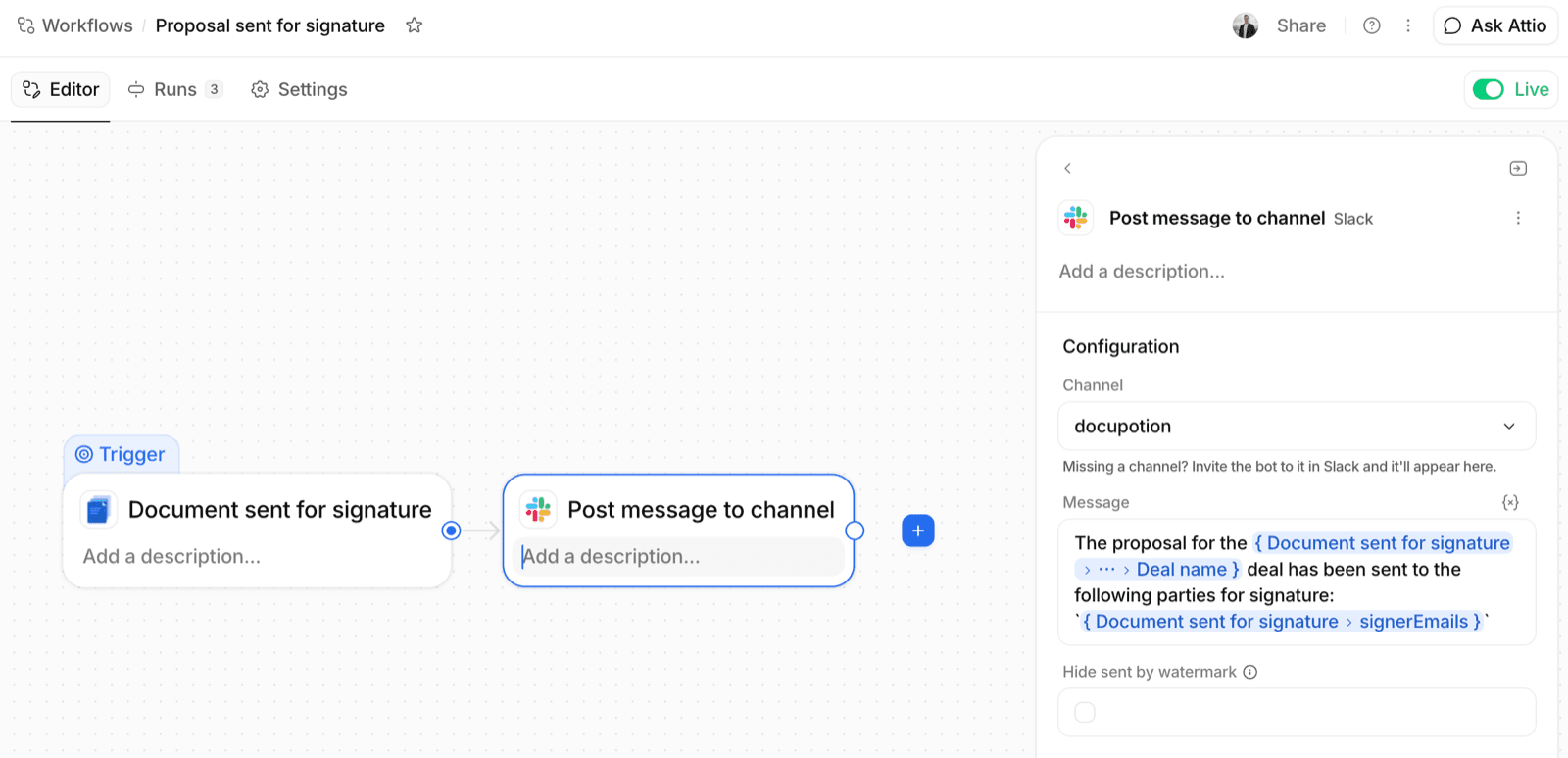
The trigger hands its details to the next steps, so the Slack message can name the deal and list the signer emails it went to, straight from the workflow variables.
Step 5: Update the record when it is signed
Here is the important part. The Generate document step ends at Sent for signature, not Signed, and it does not pause and wait, because signing can take days. So to do something once the proposal is actually signed, you use a separate workflow that starts from the signing event itself.
Do not put your "after signing" steps under the Generate document step. Its success outcome is Sent for signature. To act on a completed signature, use the Document signed trigger in its own workflow.
Create a workflow and choose Document signed as the trigger. Configure it to listen for the right documents:
- Object: Deals, so it fires for documents on deal records.
- Automation: pick your proposal automation to fire only for signed proposals, or Any automation to fire for every signed document on the object.
Then add the steps that should run once the proposal is signed. In this example the workflow updates the record and posts a message to Slack letting the team know the deal has been signed:
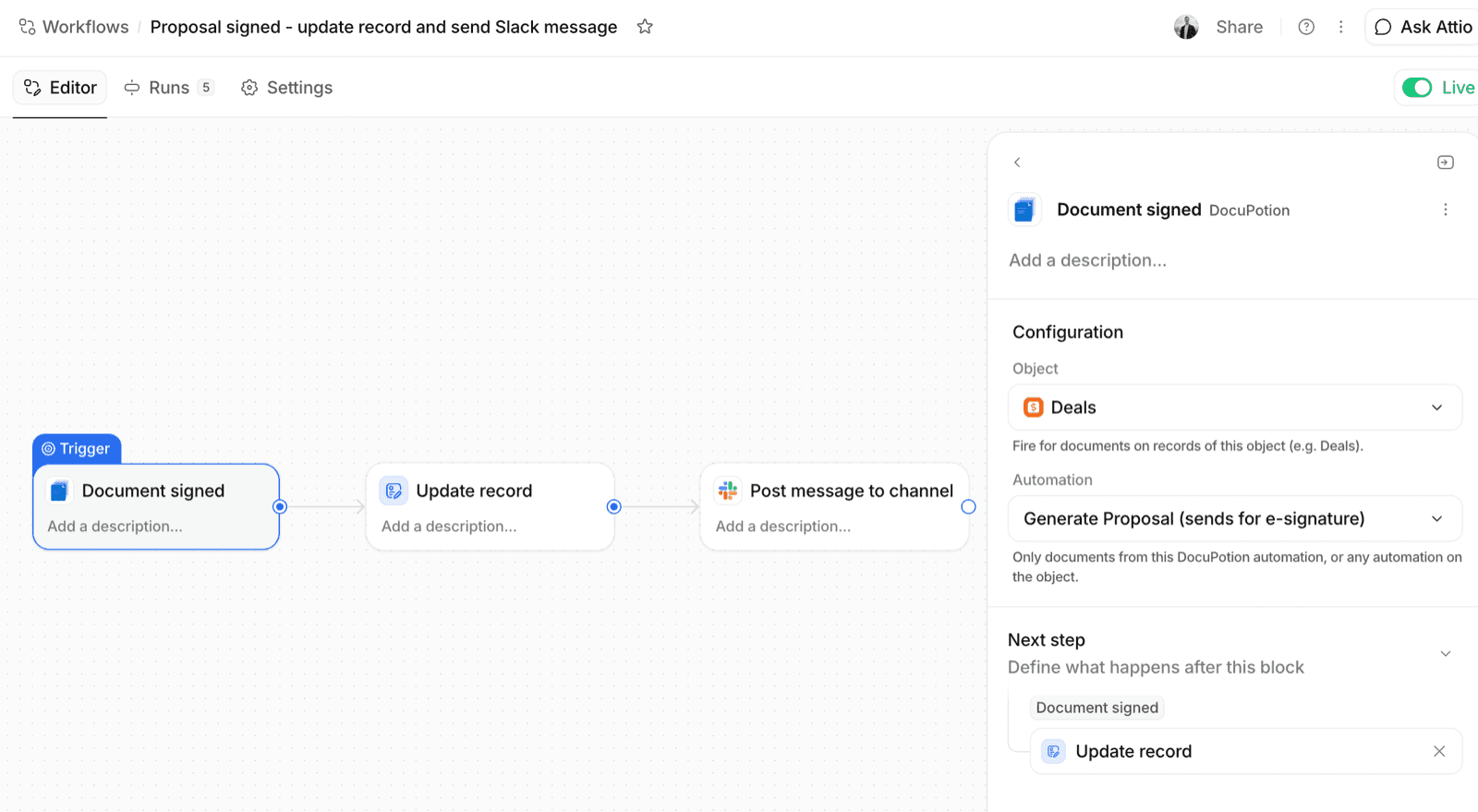
When the trigger fires, later steps can use details of the signed document, including:
- the record the document belongs to, so you can update the deal or read its fields;
- the document's file name and status;
- the signers: their email addresses, how many there are and how many have signed.
So a Document signed workflow can move the deal to Won, create an onboarding task for the account owner, and drop a Slack message with the signer's details, all on its own.
See it end to end
That is all three workflows in place. To watch them run, drag a deal from In Progress into Proposal Sent. The proposal generates from that deal, and the prospect gets an email with a Review and sign button that opens a secure signing page, no account required. As soon as it goes out, the first Slack message lands; when the prospect signs, the deal moves to Won and the second message follows.
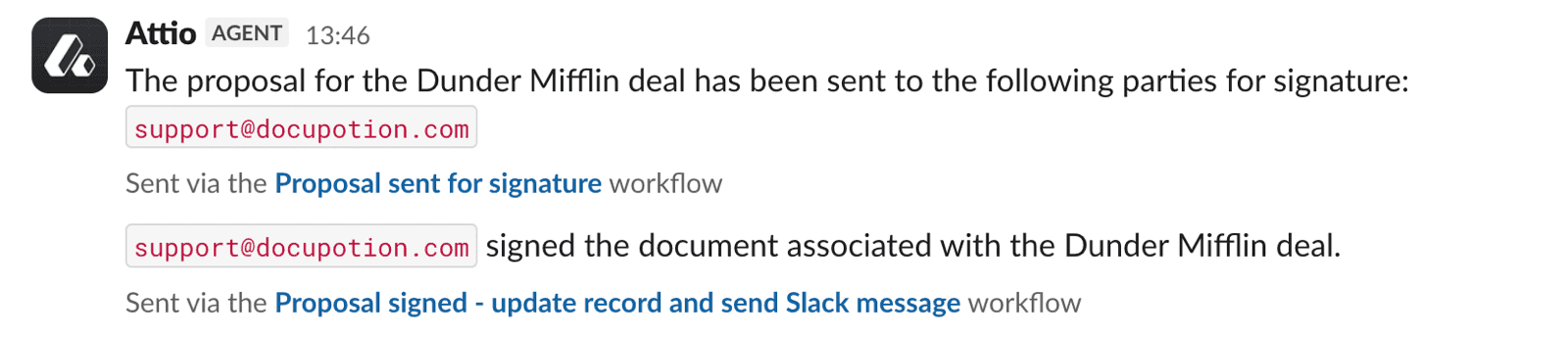
Every step is also recorded on the deal itself. Open the Documents tab on the record to see the proposal's full history: when it was sent, opened and fully signed.
Using DocuPotion vs. automation tools
You could wire something like this together with Zapier or Make, passing fields across with an HTTP request and maintaining a webhook. DocuPotion's blocks run inside Attio's own workflow builder on the connection you already have, so there is no middleware to build, nothing to authenticate separately, and nothing that breaks when a third-party tool changes. The proposal is also built from the deal and its related records, so line items and linked details flow into the document and total themselves. There is more on the document automation page.
Wrapping up
That is a proposal that sends itself. You trigger a workflow on the deal stage, filter it to Proposal Sent, and generate the proposal with the DocuPotion block. Two more workflows, on the Document sent for signature and Document signed triggers, keep the team posted and move the deal on once it comes back. After the one-time setup, nobody assembles a proposal or chases a signature by hand again.
Ready to try it? Install the DocuPotion app from the Attio marketplace and build your first proposal workflow today.