Unlike some other CRMs, Attio doesn't have native quoting or invoicing features (as of October 2026), so handling quotes and invoices from your CRM means adding an app of some sort. There are a few on the Attio App Store that cover parts of the job, and some teams build workflows that connect Attio to QuickBooks or similar tools via Zapier.
There are typically three separate quoting/invoicing jobs people may need to do with Attio:
- Generate: create a quote (or invoice) document from the data already in Attio, without painful copying and pasting into a template.
- Sync: get invoices and their payment status from a billing or accounting tool, like Stripe or QuickBooks, onto the right Attio record.
- Track: see where every quote stands (sent, opened, signed, paid) without leaving Attio.
Each of these needs a different tool, and many teams end up wanting a bit of all three. This guide walks through how to approach each one.
A note on tools: DocuPotion is our document generation and e-signature app for Attio, so it features in the "generate" and "track" sections below. For syncing invoices and payments, DocuPotion isn't the right tool, and this guide points you to the apps that are.
The short answer
- To generate quotes (or invoice documents) from Attio, use a document generation app like DocuPotion. You build a reusable template, map it to your Attio records, and generate a PDF (with line items and an optional e-signature) from any record.
- To sync invoices and payment status into Attio, use a billing app that connects to the tool you already invoice from, e.g. Stripe Invoicing for Stripe or AttiBooks for QuickBooks Online. You can also use Zapier / Make / n8n to connect to your tool of choice.
- To track everything, keep the documents and their statuses on the Attio record, and use Attio workflows to move the deal along when a quote is signed.
Generate: creating quotes from Attio
Generating a simple PDF of a quote from Attio involves more than you might expect: a data model that supports line items, a template, and a way to map your Attio data into it. The setup below handles all of it. It uses a quote as the running example, but the same approach works for invoices with a few small changes, which are noted along the way. If you'd rather watch, here's the whole process in a video walkthrough:
The data model
One option is to add a set of attributes to the Deal record for everything that goes into the quote, like quote number, date sent and valid until. It works, but you quickly end up with a lot of attribute bloat on your deals, and it breaks down as soon as you need more than one quote per deal.
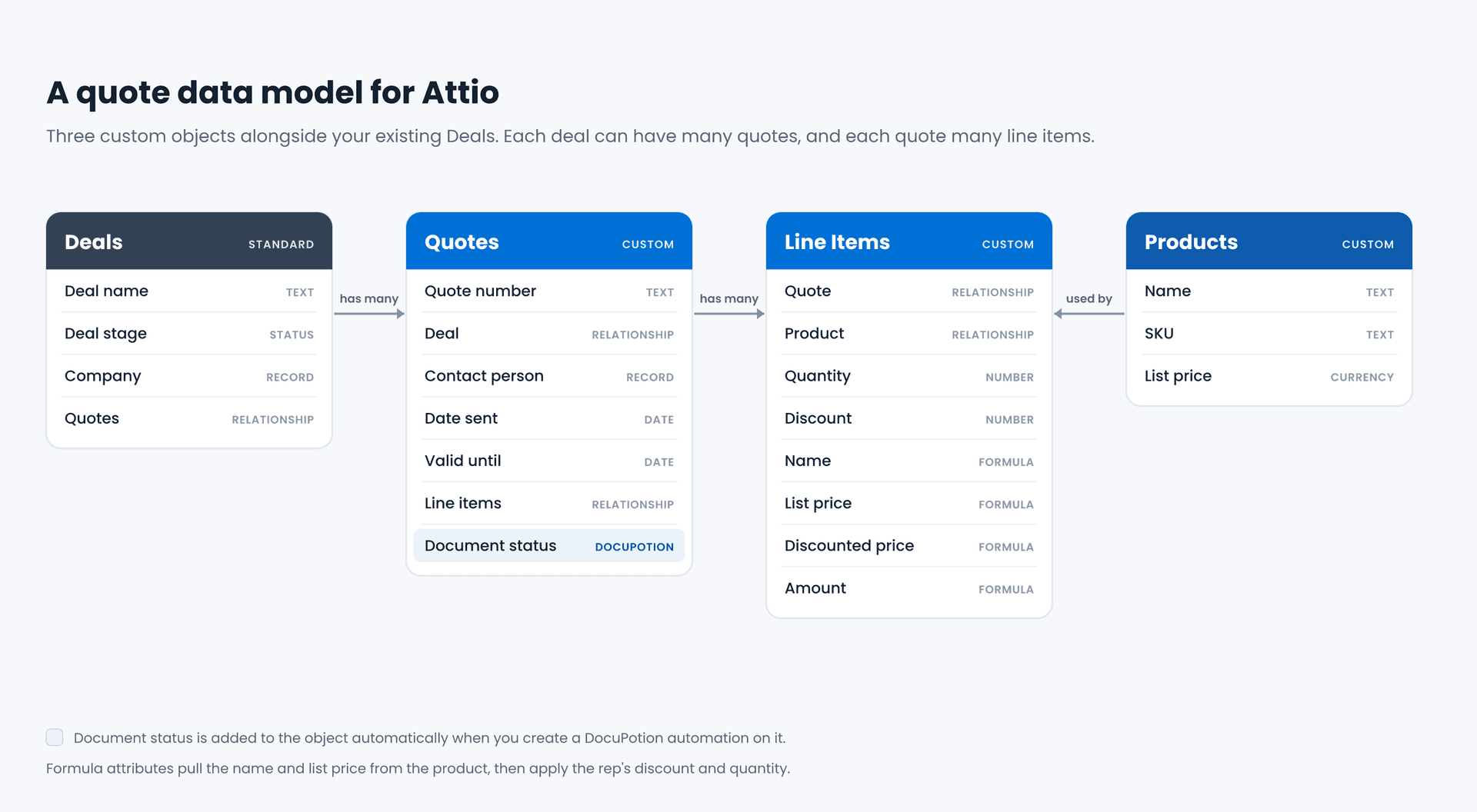
A cleaner approach is to use three custom objects:
- Quotes, the object the document is generated from. Each deal can have many quotes.
- Products, a product catalogue with names, SKUs and list prices.
- Line Items, which pull from the product catalogue. Each quote can have many line items, and reps can apply a discount to each one.
Generating invoices instead? Swap the Quotes object for an Invoices object, with attributes like invoice number, issue date, due date and payment terms. Products and Line Items work exactly the same way, with each invoice having many line items. If you send both quotes and invoices, add an Invoice relationship to Line Items alongside the Quote one.
Building line items from a product catalogue
You'll notice that most of the Line Items attributes in the above graphic are formulas. The idea is that reps build line items from the product catalogue rather than typing them in. They pick the product, set a quantity, and apply a discount if they've agreed one. The name and list price come through from the product automatically, and the discounted price and amount are calculated for them.
In practice, the rep opens the deal, creates a new quote with the contact person and the date sent, then adds the line items from inside the quote record itself.
What you end up with is a lightweight CPQ (configure, price, quote) setup: a product catalogue, rep-applied discounts and calculated totals, all living in Attio. For most small and mid-sized sales teams, that's plenty. It isn't a full CPQ system, though. If your sales process depends on discount approval chains, complex pricing rules, product bundles or contract amendments, the kind of controls larger sales organisations often need, a dedicated CPQ tool is likely to be a better fit.
Building a reusable quote template
This is where you'll need a DocuPotion account and the DocuPotion Attio app installed and connected.
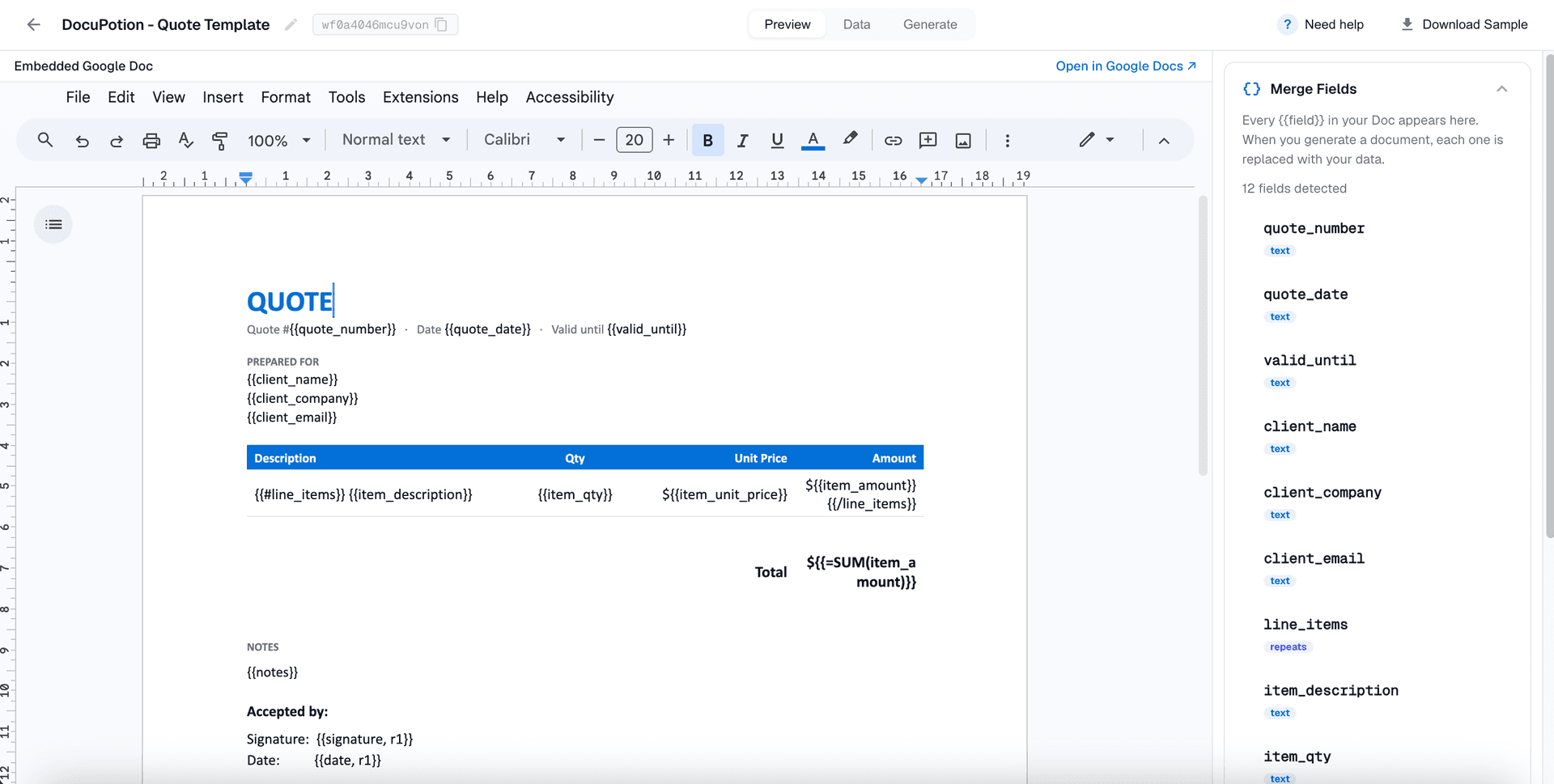
DocuPotion templates are built on top of Google Docs. Upload a quote Doc to your Google Drive (or ask ChatGPT to draft one if you don't have one to hand) and load it into the DocuPotion editor. Then add {{merge_fields}} wherever your Attio data should appear, like {{client_name}} or {{quote_number}}. Merge fields can also be formatted, for example to show a number as a currency or a date in a particular style.
For the line items, you only need one row in a table. Wrap it in a loop and it repeats once per line item on the quote:
{{#line_items}}
{{item_name}}   {{sku}}   {{quantity}}   {{discounted_price}}   {{amount}}
{{/line_items}}
You can also add a formula to sum the item amounts for the quote total. The full syntax for loops, formatting and formulas is in the DocuPotion docs.
An invoice template is much the same. Swap the quote number and valid-until date for an invoice number and due date, add your payment terms and bank or payment details, and you can usually leave out the signature block.
Mapping it to your Attio data
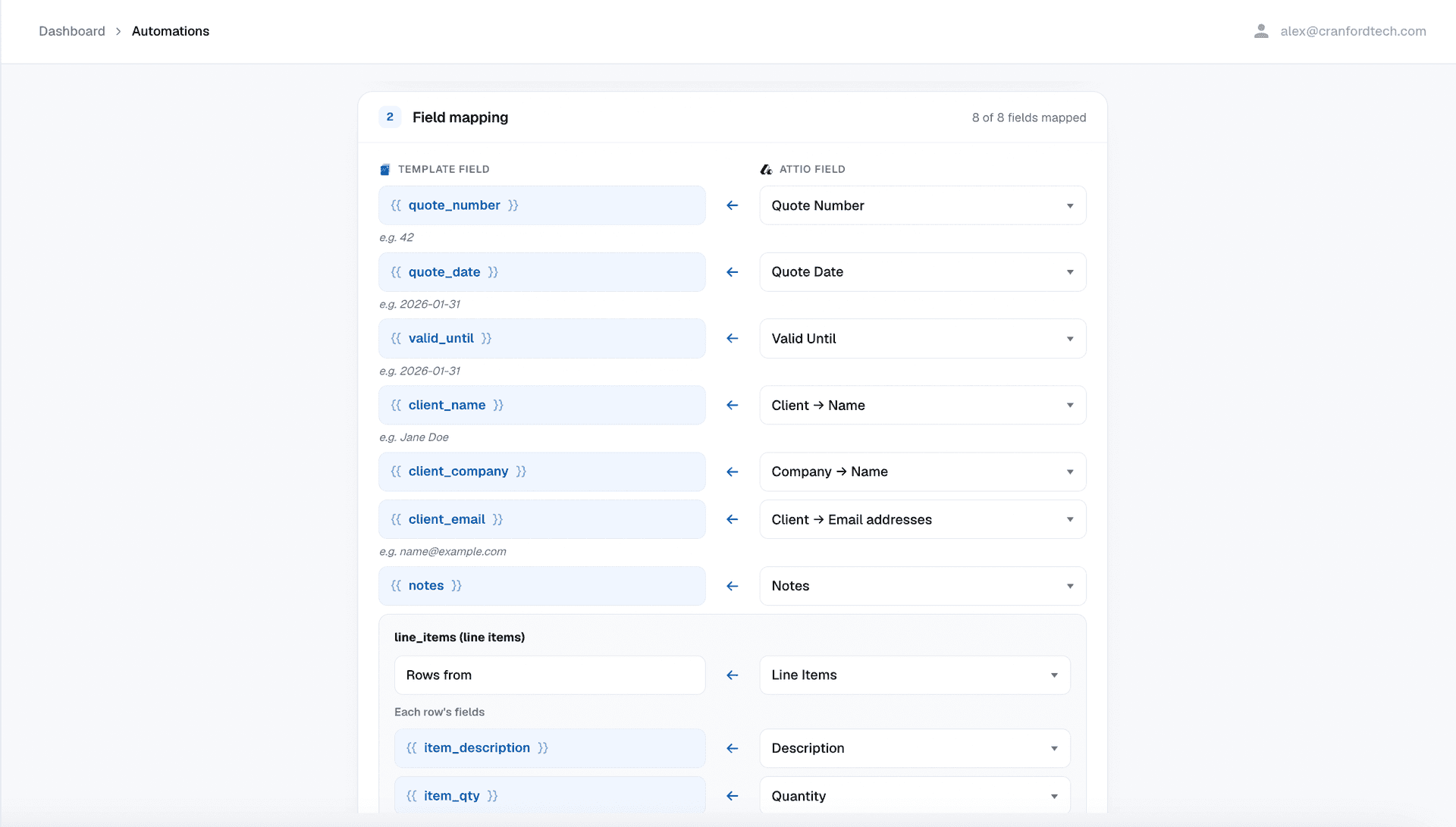
Once the template is ready, add it to a DocuPotion automation. This is where you map each merge field to Attio data. The important step is to run the automation on the Quotes object (or your Invoices object, if you're generating invoices), since that's what you'll generate from. From there you can reach into related records: the contact person's name and email, the customer company's name, and the line items, which come in as one row per related Line Item record.
You also choose where the finished PDF goes. It's always uploaded to the Files section of the Attio record, and you can optionally save a copy to Google Drive or email it.
Generating the quote and sending it for signature
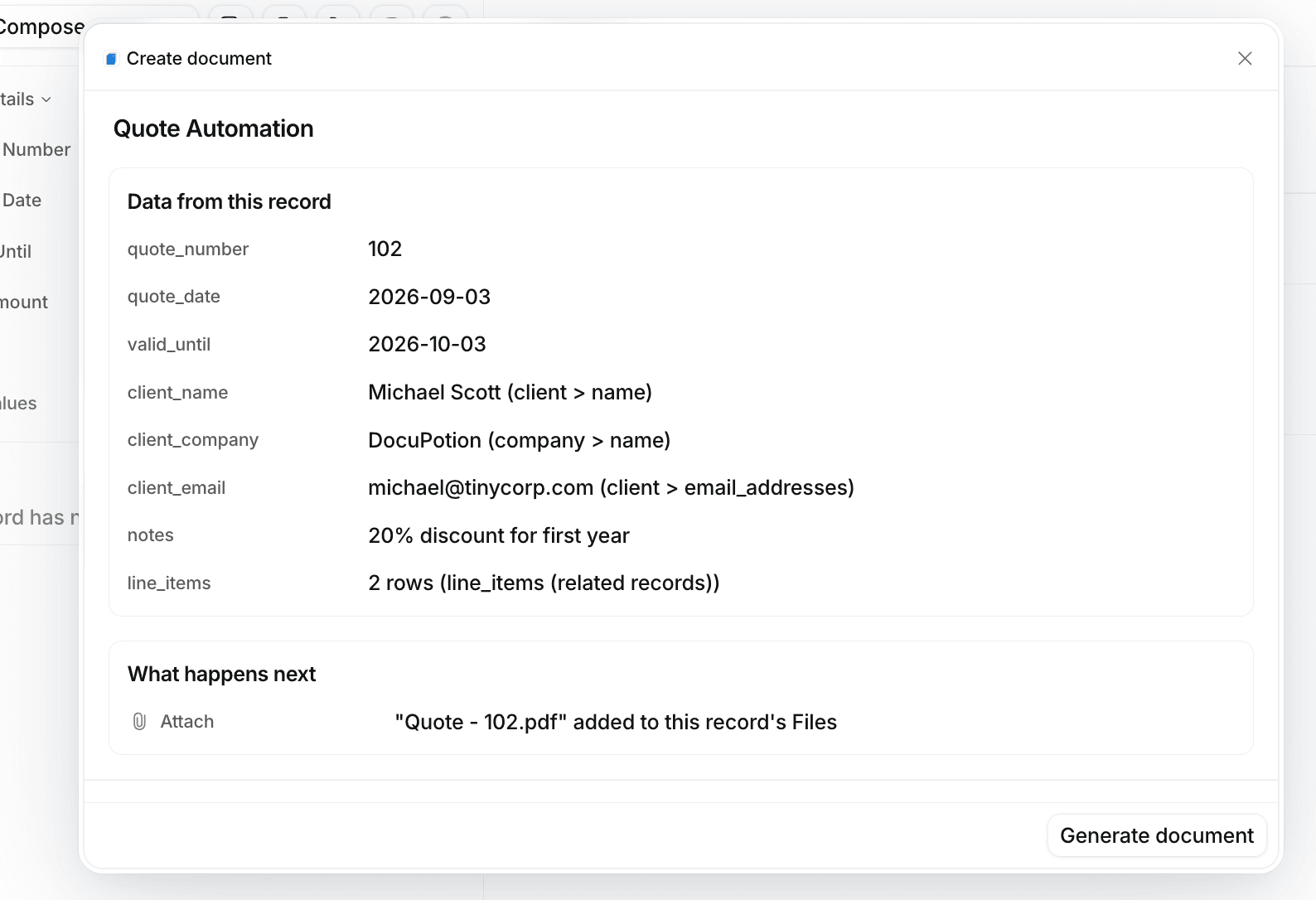
Open a quote record in Attio, click the DocuPotion icon, then Create document and pick your automation. You'll see exactly which Attio data is going to be merged into the template, including the line items, before anything is generated.
If you want the customer to sign the quote, add e-signature fields to the template, like {{signature, r1}} and {{date, r1}} for the first signer, and switch on Send for signature in the automation. The signer is filled in from the quote's contact person, and you can override it when you generate.
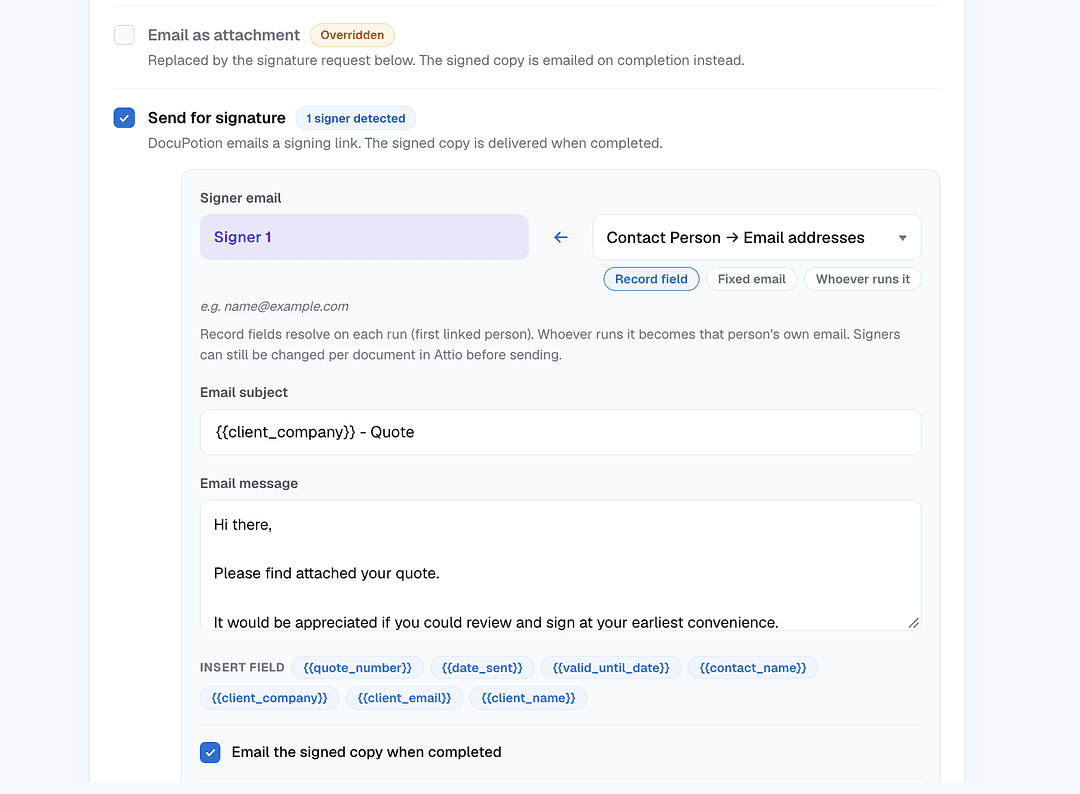
Click Generate and send for signature, and a few moments later the customer gets an email asking them to review and sign. They're then brought to a DocuPotion-hosted webpage where they can review the document and sign it, much like they would with DocuSign. An unsigned and a signed version of the quote are both uploaded to the Files section of the Attio record, and everyone gets a copy of the signed document.
Don't need e-signatures? Leave Send for signature unchecked and don't include any signature fields in your template. DocuPotion will simply generate the PDF and upload it to the record (and to Google Drive, if you've set that up).
Generating invoices? Invoices usually don't need a signature, so skip Send for signature and use the email delivery option to send the PDF straight to the customer's billing contact. Bear in mind that an invoice generated this way is a document, not an entry in your accounting system. That's fine if you just need a professional invoice to send, but if you need payment tracking, reconciliation or tax reporting, create the invoice in your accounting tool instead, as covered in the next section.
Sync: getting invoices and payment status into Attio
Syncing invoices is a job for a billing app rather than a document app. The right one depends on where your invoices already live:
- Stripe Invoicing if you invoice through Stripe. It adds a Create Invoice action to people and companies, and can keep an invoices object in Attio in sync as invoices are finalized, paid, fail payment or are voided. It also adds workflow blocks, so you can create invoices as part of an Attio workflow.
- AttiBooks if you use QuickBooks Online. Click Create Invoice on a record and a real QuickBooks invoice is created from your Attio data. The invoice number, status and link are written back to the record, and you can pull the latest statuses and balances back in from QuickBooks.
- A billing platform like Hyperline if you want quotes, subscriptions and invoices all handled by your billing system. It syncs quotes, subscriptions and invoices into Attio, but it's a bigger commitment, since it becomes your billing platform.
- Zapier, Make or the Attio API if your accounting tool doesn't have an Attio app. Create an Invoices custom object, link it to your companies or deals, and write invoice data into it from your accounting tool.
Worth noting: Stripe Invoicing and AttiBooks handle invoices, not quotes. If you want to send a professional quote for signature before you invoice, that's where a document app like DocuPotion comes in.
Track: seeing where every quote stands
Once quotes are going out, you want to see where each one stands without chasing anybody. There are a couple of ways to do this inside Attio.
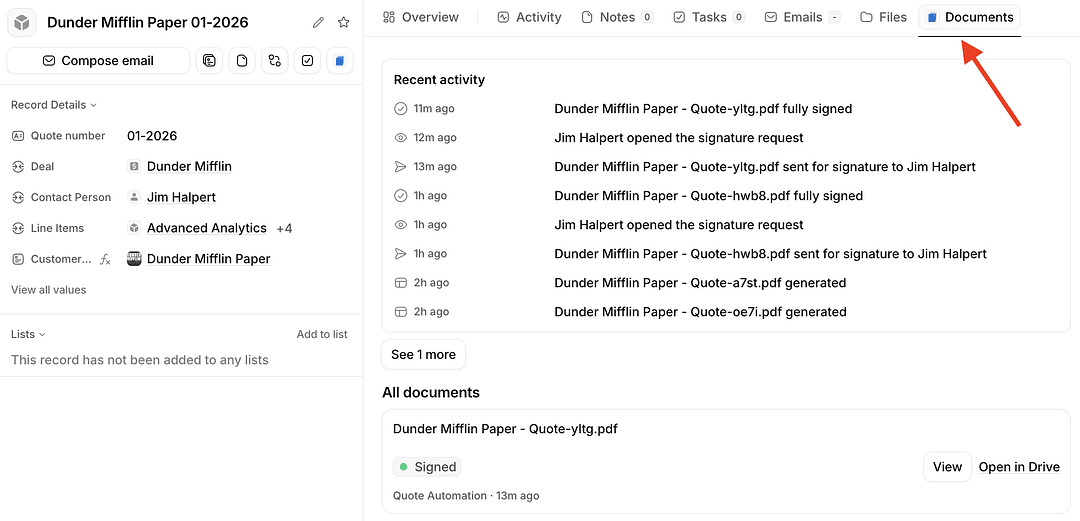
The Documents tab. The DocuPotion app adds a Documents tab to your records (add it through Configure page setting on the record). It shows when each quote was generated, sent for signature, opened and fully signed, and you can open the signed copy from there too. It works the same way on an invoice record, so you can see when each invoice was generated and sent.
The Document status attribute. DocuPotion adds a Document status attribute to any object you create an automation on. It changes from Awaiting signature to Signed when the quote is signed, which means you can build Attio workflows on it. For example, a workflow can watch for a quote's Document status changing to Signed, then update the deal associated with that quote and move it to Won. You could also move the deal to a Quote sent stage when the quote goes out for signature.
DocuPotion also adds Document sent for signature and Document signed trigger blocks to Attio's workflow builder, if you'd rather start a workflow from the signing event itself. There's a full example of this in how to auto-generate a proposal when a deal changes stage in Attio.
On the invoice side, the billing apps above keep their own statuses (paid, overdue and so on) on the record, so the payment half of the story lives in Attio too.
Putting it together: from quote to invoice
To keep the whole flow inside Attio, you can combine the two:
- A rep builds a quote on the deal and generates it with DocuPotion, sending it for e-signature.
- When the customer signs, an Attio workflow moves the deal to Won.
- You raise the invoice in your billing tool, either with a Stripe Invoicing step in that same workflow, or by clicking Create Invoice with AttiBooks.
- The invoice and its payment status sync back to Attio.
Each workspace is set up differently, so test the full workflow in your own workspace before you rely on it.
Which approach do you need?
| What you need | What to use |
|---|---|
| A professional quote or proposal PDF from your Attio data | A document generation app like DocuPotion |
| The customer to sign the quote | DocuPotion with e-signatures switched on |
| A branded invoice PDF from your Attio data, without an accounting integration | DocuPotion, with an Invoices object |
| Invoices created in Stripe and synced to Attio | Stripe Invoicing |
| Invoices created in QuickBooks Online and synced to Attio | AttiBooks |
| Quotes, subscriptions and invoices all run from your billing system | A billing platform like Hyperline |
| Quote status visible on the record, and deals that update themselves | DocuPotion's Documents tab, Document status attribute and Attio workflows |
Wrapping up
This may be more than some workspaces need. If all you want is a PDF of a quote with line items, the "generate" section will cover you. If you're also sending quotes for signature and invoicing from Stripe or QuickBooks, it's worth setting up all three pieces, so the whole quote-to-invoice process stays in Attio.
Ready to try the quoting side? Install the DocuPotion app from the Attio marketplace and start a free trial.