Getting a document signed usually means leaving your Attio workspace for a separate e-signature tool or connecting to a third party tool with middleware (like Zapier, Make or n8n). With DocuPotion you can request and collect e-signatures straight from an Attio record, and the signed copy is automatically uploaded to that record. There is no separate signing tool to log into.
In this guide we will send an NDA for signature, but the same steps work for any agreement you sign from Attio: service agreements, contracts, order forms, statements of work and more.
This guide assumes you already have DocuPotion connected to your Attio workspace. If you have not set that up yet, start with How to generate documents from Attio, which covers connecting the two and building your first template.
Before you start
You will need:
- An Attio workspace and a DocuPotion account. You can start a free trial with no credit card required.
- The DocuPotion Attio app installed and connected to your workspace.
- An NDA template in DocuPotion, either a Google Doc or an uploaded PDF, which we will add signature fields to next.
You can install the DocuPotion app from the Attio marketplace and connect it to your workspace in a couple of minutes.
Step 1: Add signature fields to your NDA template
Signature fields tell DocuPotion where each person signs, and who each field belongs to. An NDA usually has two signers: your side and the counterparty. In DocuPotion, signers are numbered, so signer 1 is r1, signer 2 is r2, and so on, up to five signers.
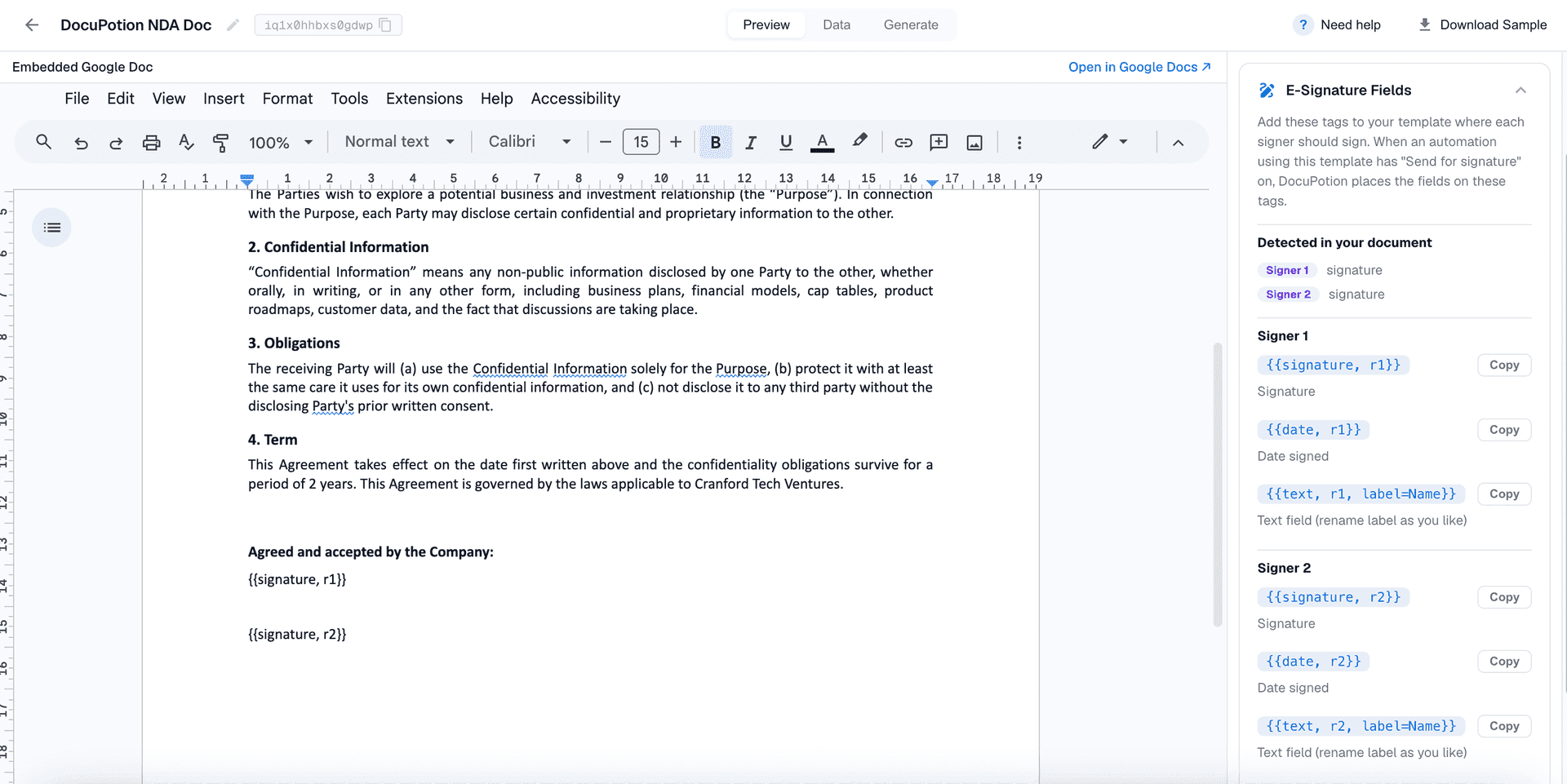
You do not have to type these tags from memory. Open your template in DocuPotion and expand the E-Signature Fields panel on the right. It lists each field with a Copy button beside it, so you copy the tag you need and paste it into your Google Doc exactly where that signer should sign:
- Signature:
{{signature, r1}} - Date signed:
{{date, r1}} - Initials:
{{initials, r1}} - Text field:
{{text, r1, label=Name}}, and you can rename the label to whatever you like.
For a second signer, click + Add signer in the panel and you get the same set of tags numbered r2. As you paste tags into the document, the panel's Detected in your document section updates, so you can confirm which fields DocuPotion has picked up.
If you are working from an uploaded PDF instead of a Google Doc, you place fields a different way: use the signature field tool in the left-hand palette, click where each person should sign, then assign each field to a signer.
For our NDA, the two signing blocks might end up looking like this in the Google Doc:
Disclosing party
{{signature, r1}}
{{date, r1}}

Receiving party
{{signature, r2}}
{{date, r2}}
The one rule is that every signer must have at least one signature field.
DocuPotion tip: The number after the comma is the signer, not the order of the field, so {{signature, r2}} always belongs to signer 2 wherever it sits in the document. You can also pad a tag with extra spaces to make its field wider on the signed document.
Step 2: Turn on e-signature in your automation
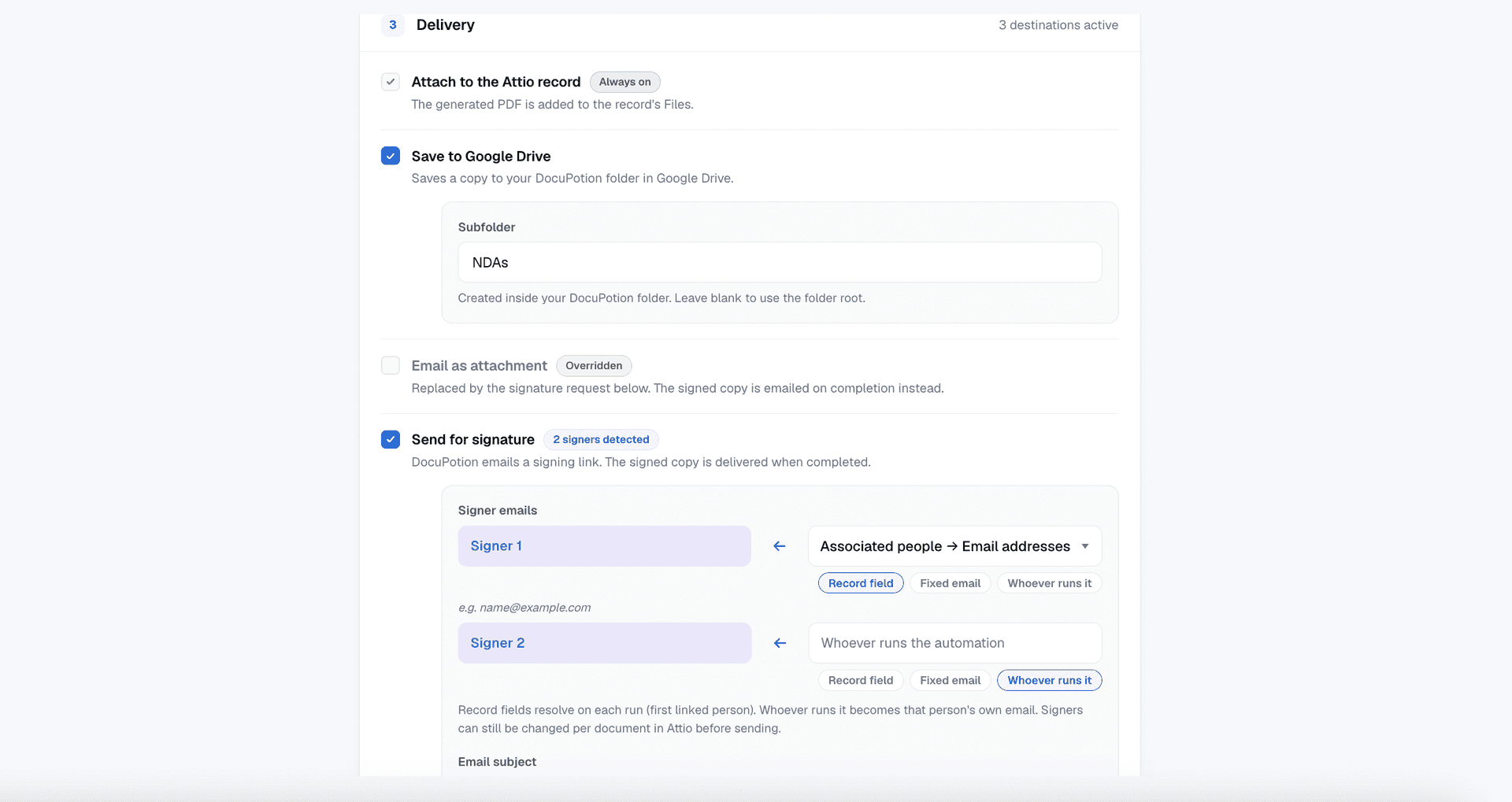
Open the automation for your NDA template and find the Delivery section. Switch on Send for signature, then tell DocuPotion where each signer's email address comes from:
- Record field: pull the address from an Attio attribute, which is how you send to the counterparty on the record.
- Fixed email: a static address that is always the same.
- Whoever runs it: the email of the person generating the document, which is handy for your own side of an NDA.
For our NDA, signer 1 is Record field (the counterparty's email on the person or company record) and signer 2 is a Whoever runs it (your team). You can also customise the subject and message of the signature request email, and choose whether the signed copy is emailed to everyone once it is complete.
Two signers cannot share one email address. Each signer needs a distinct address so they each get their own signing link.
Step 3: Send the NDA for signature from a record
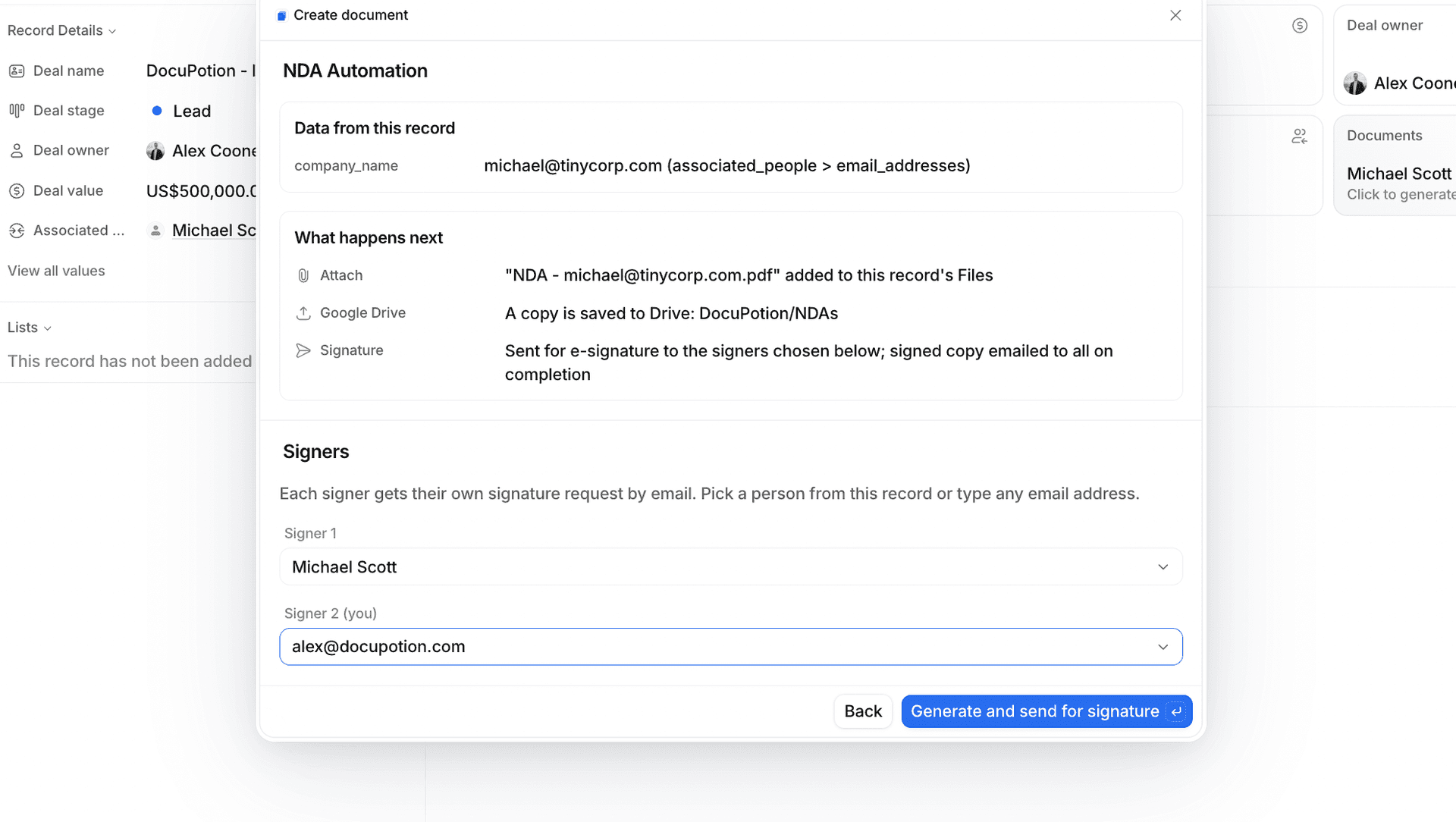
Now the quick part. Open the record you want to send from in Attio, a person or company for an NDA, and click Create document. DocuPotion shows you the signer email addresses it has prefilled from the automation, so you can check them or pick a different contact. When it looks right, click Generate and send for signature.
Two things happen at once: the NDA is attached to the record's files, and each signer receives their own signature request by email. Signers open a secure link and sign in their browser, with no DocuPotion account required.
Step 4: Track signature progress
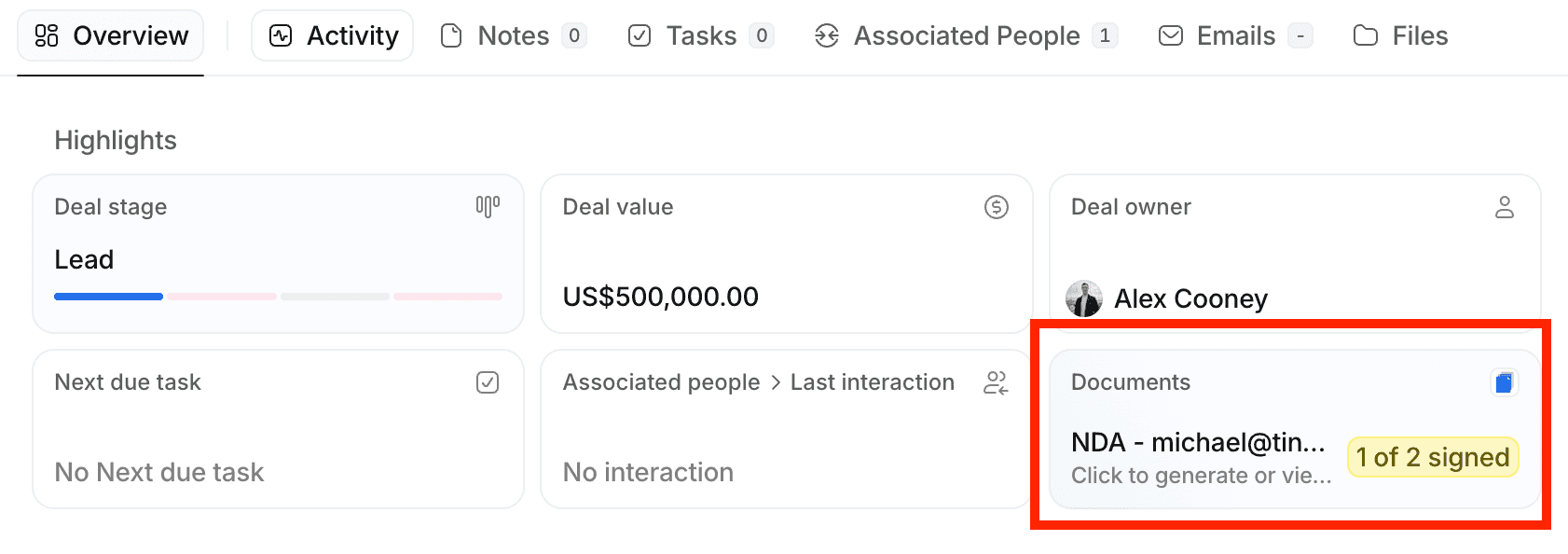
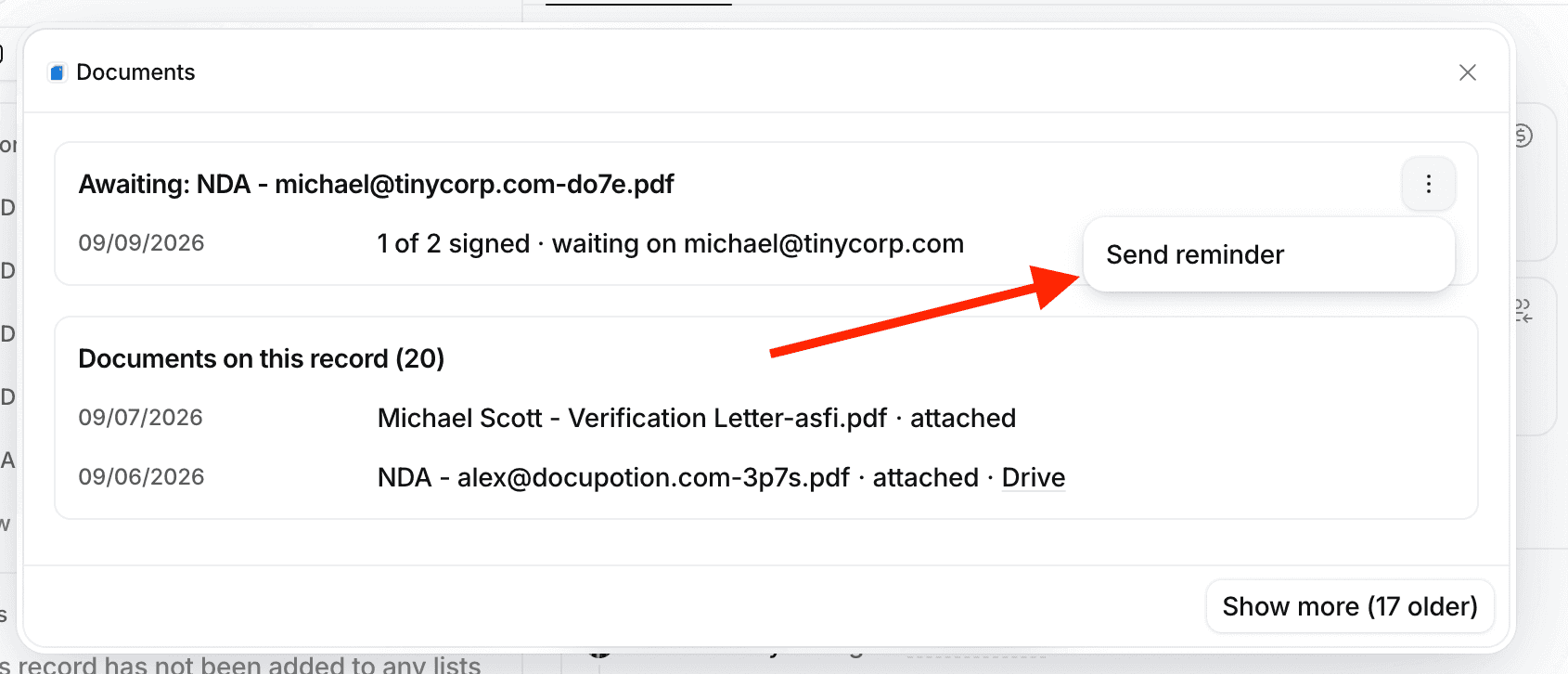
You can follow a request without leaving Attio. The DocuPotion Documents widget on the record shows a live status such as "1 of 2 signed", and View documents opens the full history for that record. Inside DocuPotion, the run history shows each document, who has signed, who is still pending, and a download for the audit trail.
Sending reminders
If a signer has not got to your NDA yet, you can give them a nudge. Select the pending document and send a reminder, and the signers who still need to sign get a fresh copy of their signing email.
You can trigger a reminder from either place:
- The View documents modal in Attio, on the record itself.
- The DocuPotion dashboard, alongside the rest of your document history.
Reminders are rate limited to once every 24 hours per document, so a waiting signer gets a timely prompt without being flooded with emails.
DocuPotion tip: Because reminders are capped at one every 24 hours, they are safe to send the moment a signer goes quiet. There is no way to accidentally spam the counterparty on an NDA.
When everyone has signed
Once every party has signed, the completed NDA is cryptographically sealed, so any later change to the file is detectable. The sealed copy is attached to the Attio record automatically and emailed to every party. The audit trail and a signing certificate stay available in DocuPotion for your records.
Are e-signatures from Attio legally binding?
Yes. Signatures you collect through DocuPotion comply with the ESIGN Act and UETA in the United States, and qualify as simple electronic signatures under the EU's eIDAS regulation, which covers the vast majority of business agreements, including NDAs.
Every request keeps a tamper-evident audit trail that records when the document was sent to each signer, when they viewed it, and when they signed, along with each signer's name, email address, IP address and browser information. Together with the sealed PDF and the signing certificate, that is the evidence of who signed, when, and from where.
DocuPotion supports simple electronic signatures, which are legally valid and admissible across the US and EU. It does not offer the Advanced (AES) or Qualified (QES) eIDAS tiers, which are only required for a small set of document types under EU or national law. There is more detail in E-signature compliance and legal validity.
Wrapping up
That is the whole loop. You add signature fields to your NDA template, switch on Send for signature in the automation, and from then on you request and collect e-signatures straight from an Attio record: send in a couple of clicks, track progress on the record, send a reminder if someone goes quiet, and let the sealed, signed copy file itself back automatically.
Ready to try it? Install the DocuPotion app from the Attio marketplace and send your first NDA for signature today.