If your deals close in Attio, the contract is usually the one step that still happens somewhere else. Attio has no native way of generating contracts, so you'll need an app. With the DocuPotion Attio app you generate a contract from an Attio record, send it for e-signature, and the signed copy is uploaded to the record when everyone has signed.
The setup is the same for every contract type: turn your contract into a template, map its fields to Attio, and add signers. This guide walks through that once, then shows what changes for six contracts: NDAs, MSAs and service agreements, statements of work, renewals, pilot agreements, and partnership or referral agreements.
Not every contract starts from a template, though. If you already have an approved contract that has all the relevant data and you just want to get it signed, you can skip the setup and send the finished PDF from the Signatures tab. It's linked to the Attio record, and the signed copy still ends up there.
A disclaimer: DocuPotion is our product, so I'm going to be somewhat biased. It's built for contracts that start from Attio data, but if there's another tool that's a better fit (heavy negotiation, interactive proposals, a company-wide DocuSign license), I'll say so.
Prefer a video walkthrough? Check out the video below:
New to DocuPotion? How to generate documents from Attio covers connecting your workspace in more detail. This guide focuses on what's specific to contracts.
Before you start
You'll need four things:
- An Attio workspace where you can install apps. DocuPotion works on any Attio plan, including the free one.
- A DocuPotion account. You can start a free trial with no credit card required. It includes 10 documents and 3 templates.
- The DocuPotion Attio app, installed and connected to your workspace.
- The contract you already use, as a Google Doc or a PDF. Use the wording your legal team approved. DocuPotion fills in the details; it doesn't write the legal terms for you.
Step 1: Turn your contract into a template
A contract template is your existing contract with merge fields where the deal details go. You build it once and every contract after that is populated with data from the record.
In DocuPotion, open Templates and click New Template. You have two ways to build it, and the right one depends on how fixed the wording is:
| Template type | Best for | Why |
|---|---|---|
| NDAs and MSAs with fixed wording | The layout and wording stay exactly as they are. You place fields on top. | |
| Google Doc | SOWs, renewals and anything with a table of deliverables or fees | Text reflows around the data, tables can repeat per related record, and you can edit a draft before it goes out. |
In a Google Doc, you type merge fields inline wherever a value should appear:
This Mutual Non-Disclosure Agreement is made on {{effective_date}}
between {{our_company}} and {{company_name}}, {{company_address}}.
With an uploaded PDF, you place text fields on the page instead, so the original document isn't touched.
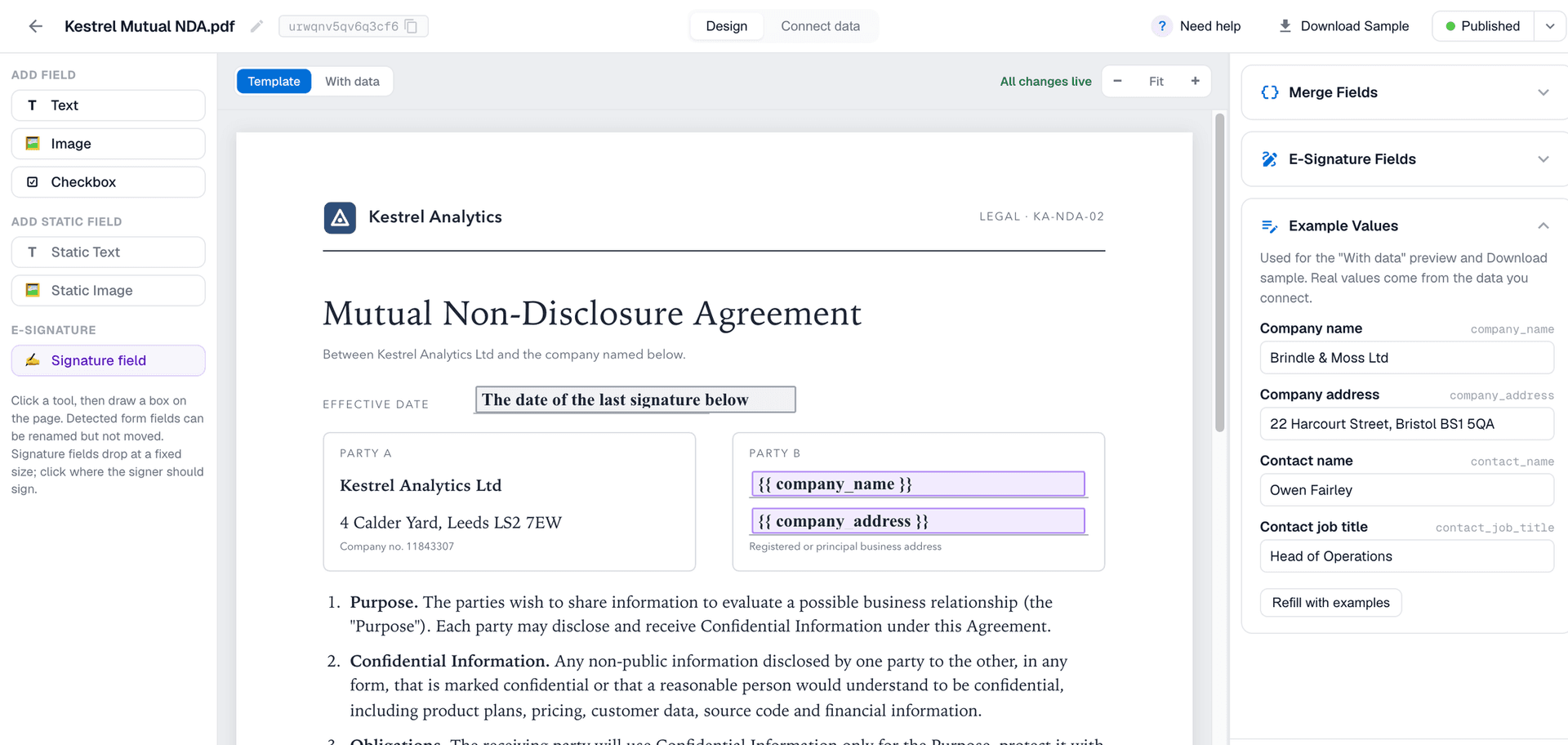
DocuPotion tip: If a contract varies a lot from deal to deal (custom terms, a negotiated clause), use a Google Doc. You get the Edit document first option when you generate, which opens a draft in Google Docs before anything is sent.
Step 2: Map the contract fields to your Attio data
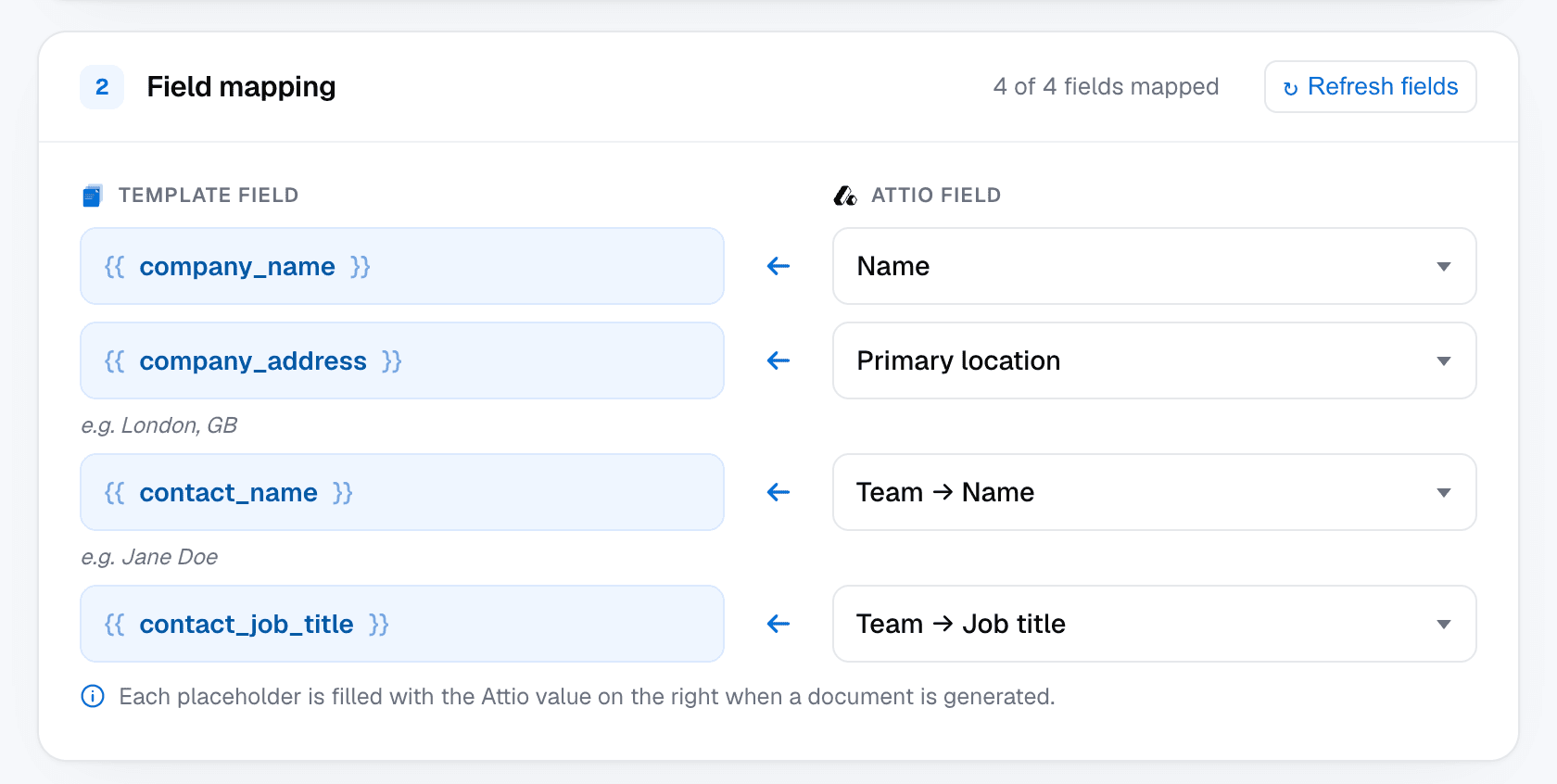
Mapping tells DocuPotion which Attio attribute fills each merge field. Open Automations, click + New automation, pick your contract template, and choose the Attio object you'll generate from.
The object matters more for contracts than for most documents, because different contracts start from different records:
| Contract | Usually generated from |
|---|---|
| NDA | A person or company record (often before a deal exists) |
| MSA or service agreement | A company or deal record |
| Statement of work | A deal record, or a custom object such as Projects |
| Renewal | A renewal deal, or a custom object such as Contracts or Subscriptions |
| Pilot agreement | A deal record at a pilot stage |
| Partnership or referral agreement | A company record, or a custom object such as Partners |
Then map each merge field to an attribute. You can use standard and custom attributes, and reach into related records, which is how a deal's company name and address end up in the contract.
Step 3: Add signers and send from the record
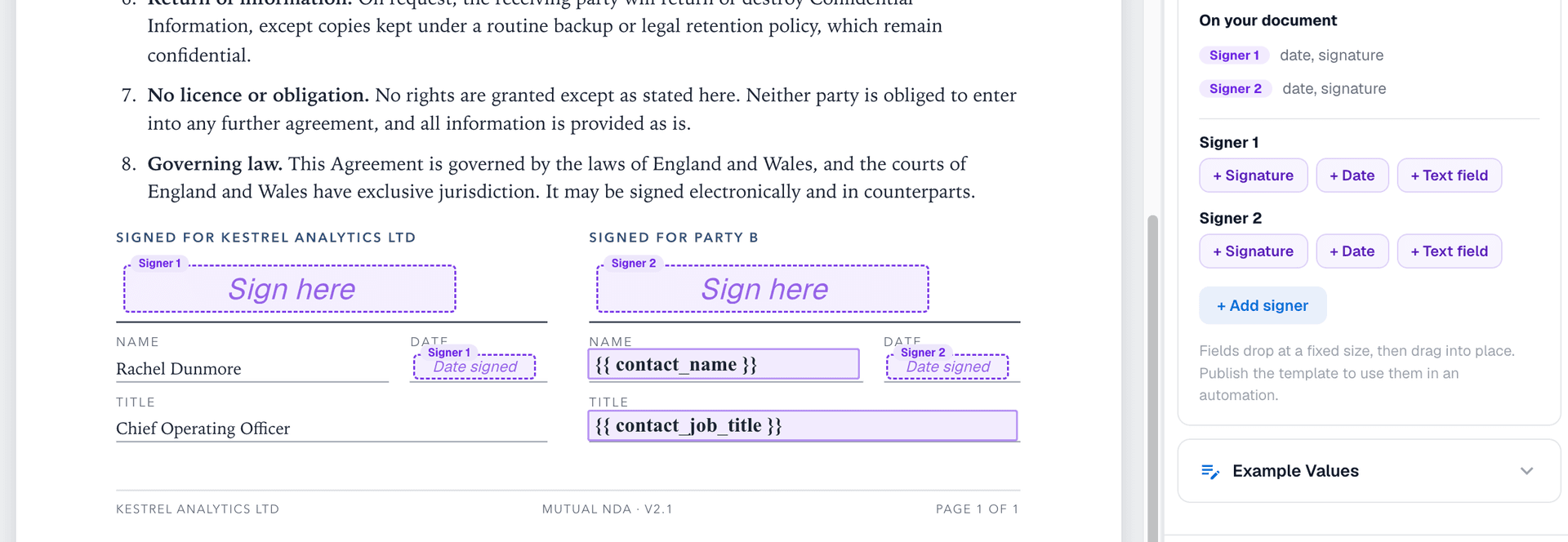
Signature fields tell DocuPotion where each person signs. Signers are numbered: signer 1 is r1, signer 2 is r2, and a contract can have up to five signers. In a Google Doc, paste a tag for each signer where they should sign:
Signed for {{our_company}}
{{signature, r1}}
{{date, r1}}

Signed for {{company_name}}
{{signature, r2}}
{{date, r2}}
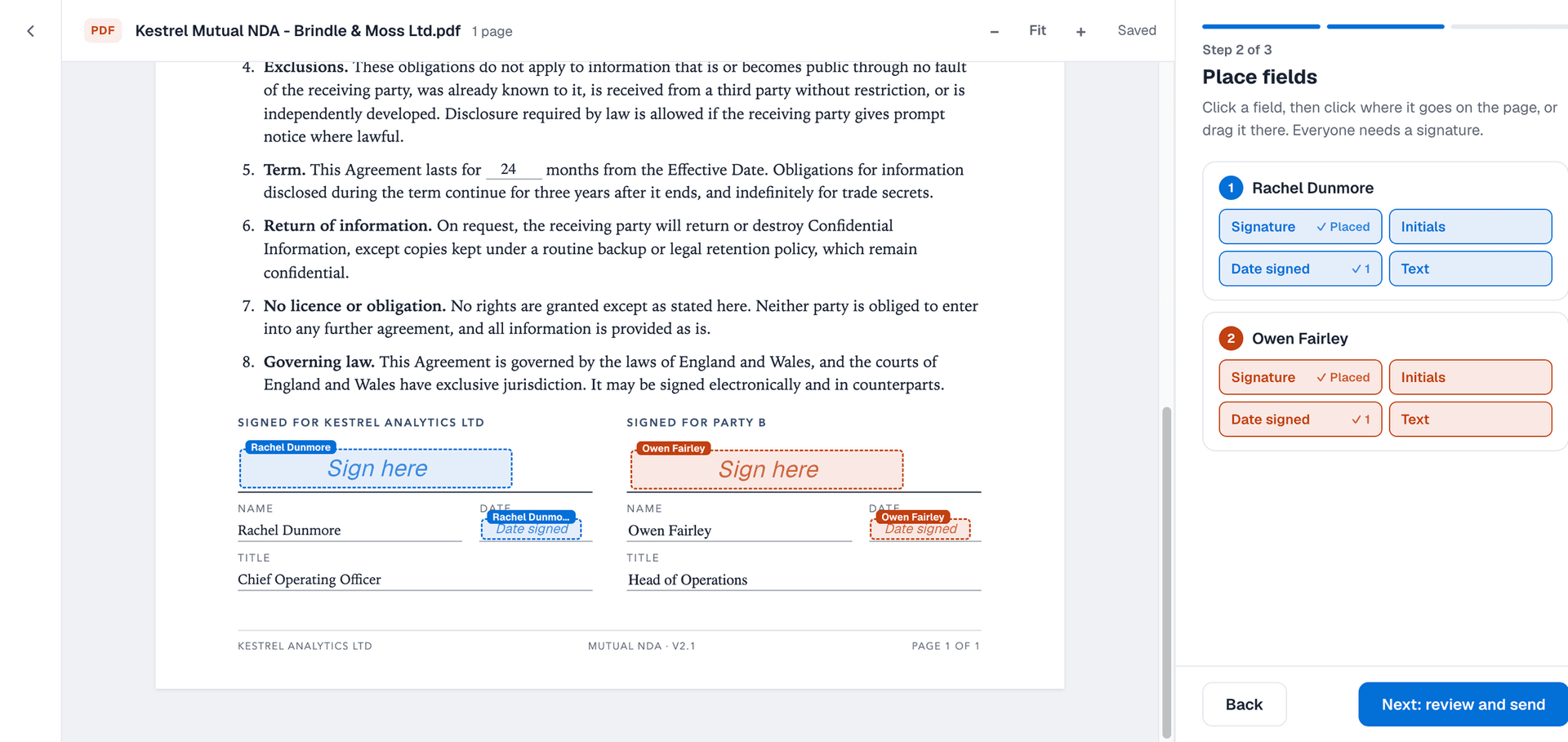
In an uploaded PDF, you place a Signature field and a date field for each signer in the editor instead of typing tags.
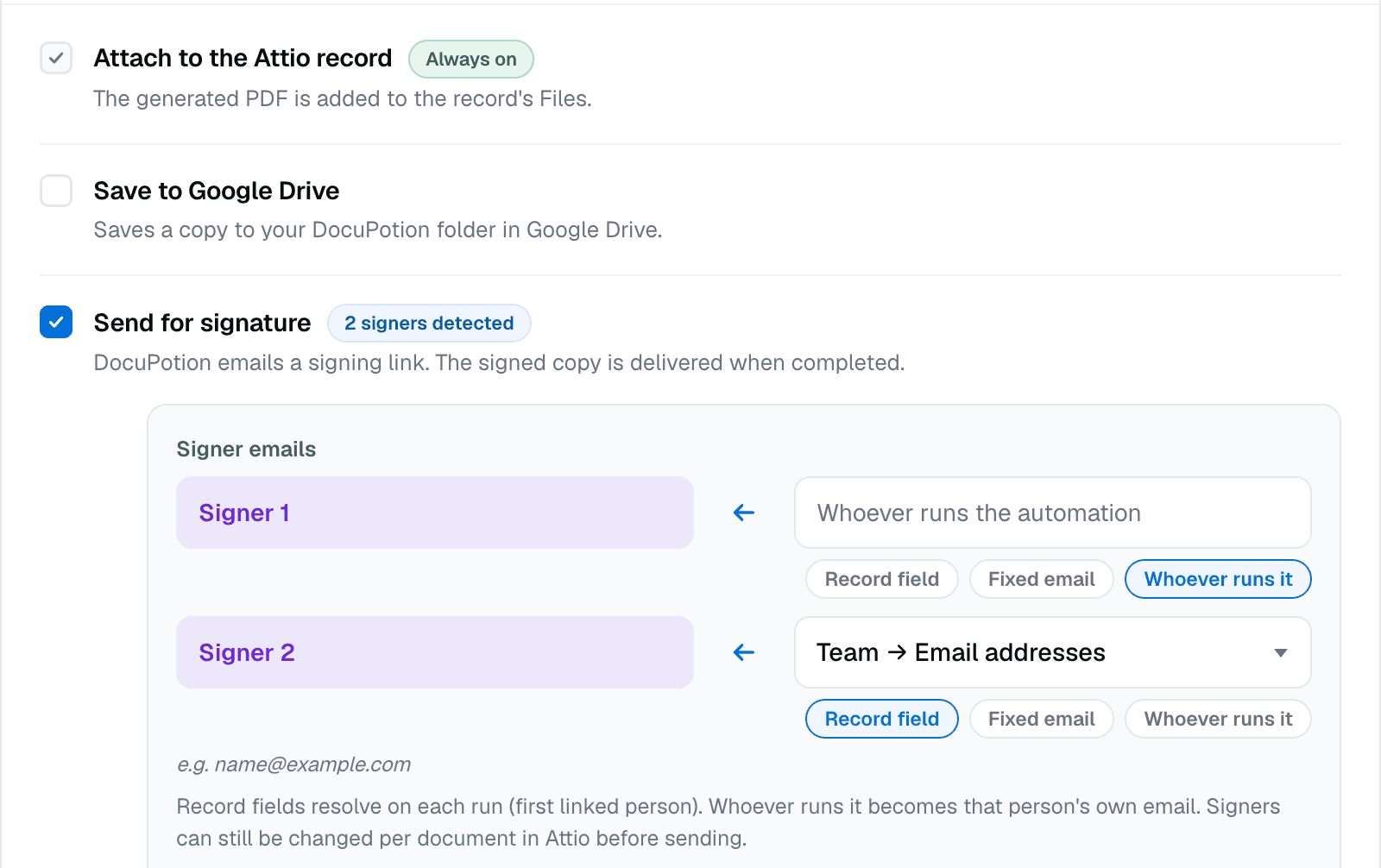
In the automation's Delivery section, switch on Send for signature and set where each signer's email comes from: a Record field (the contact on the deal), a Fixed email (your CEO, who signs every MSA), or Whoever runs it.
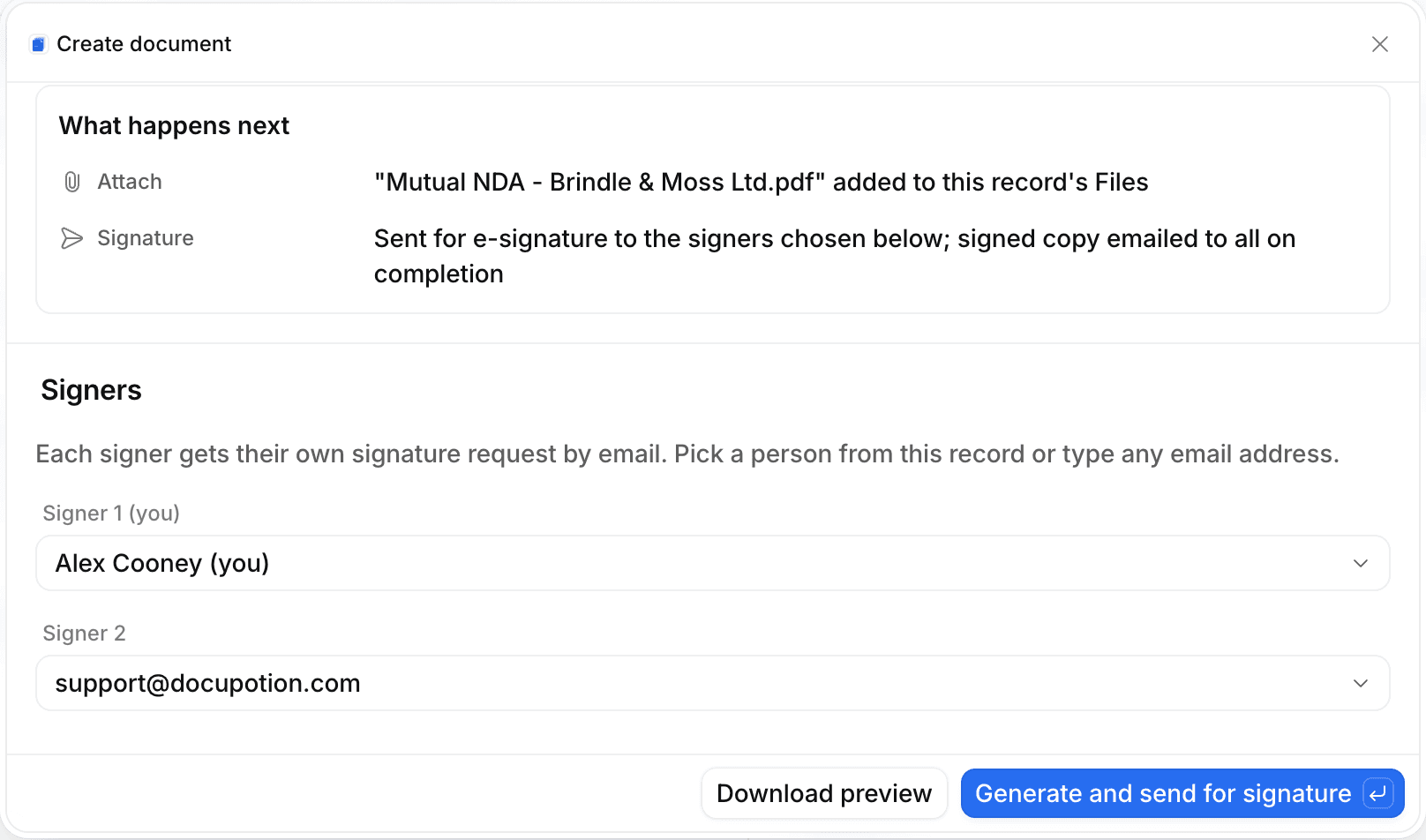
Now open a record in Attio and click Create document. Check the signer emails DocuPotion has prefilled, then click Generate and send for signature. Each signer gets their own link by email and signs in the browser, with no account to create.
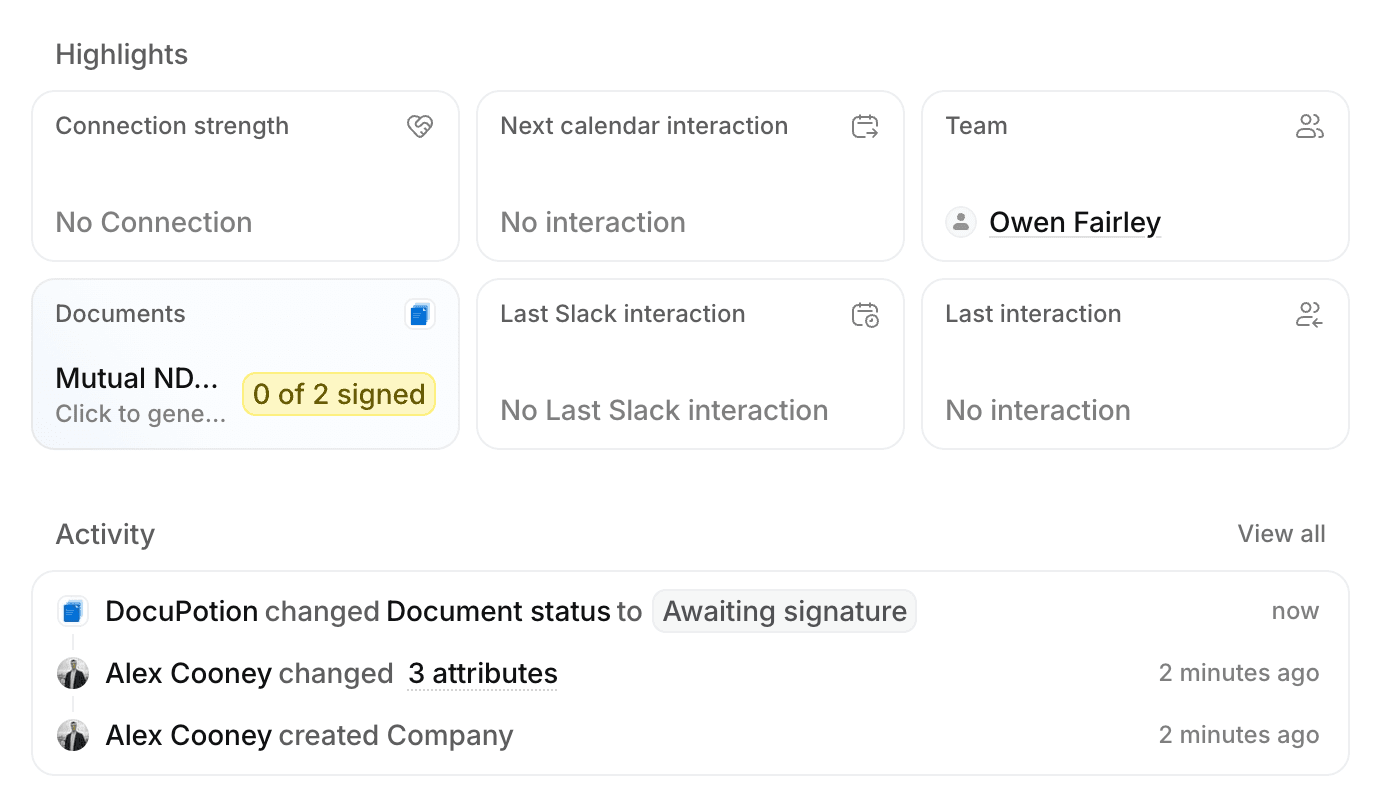
You'll know it worked when the contract appears in the record's files and the DocuPotion Documents widget on the record shows its signing status, such as "1 of 2 signed". Once everyone has signed, the sealed copy is uploaded to the record automatically. There's more on reminders and tracking in How to request and collect e-signatures in Attio.
Step 4: Automate it with an Attio workflow (optional)
Once a contract works from a record, you can have an Attio workflow send it for you. DocuPotion adds a Generate document step to Attio workflows, plus Document sent for signature and Document signed triggers.
A typical contract workflow looks like this:
- Trigger: Record updated on Deals, for the Deal stage attribute.
- Filter: the new stage is Contract Sent.
- Generate document: your contract automation, run on the deal that changed.
A second workflow, started by Document signed, can then move the deal to Won and create an onboarding task. Keep those steps in their own workflow: the Generate document step finishes when the contract is sent, not when it's signed, because signing can take days.
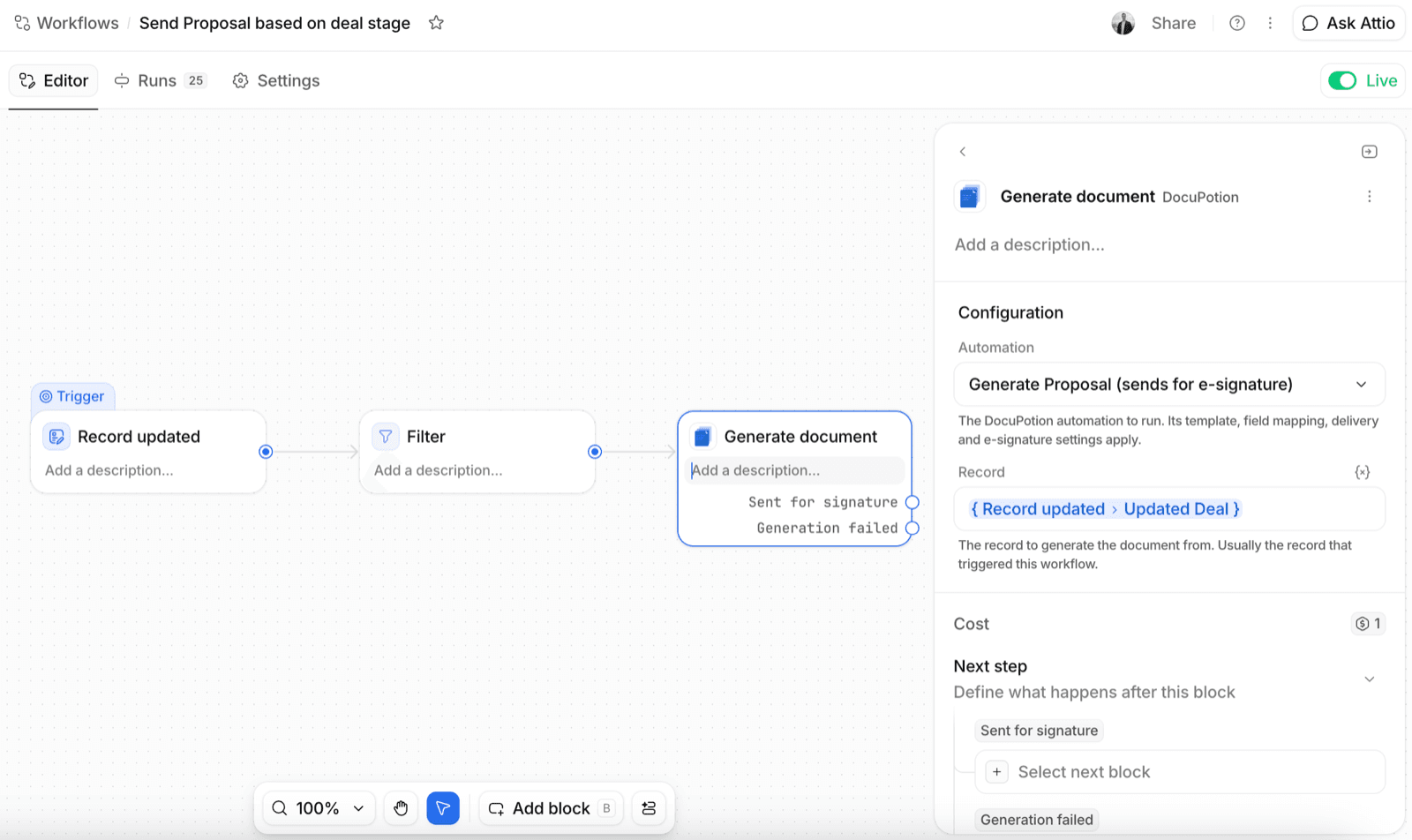
The full walkthrough, with screenshots of each workflow, is in How to auto-generate a proposal when a deal changes stage. The steps are identical for a contract.
The Generate document step always sends straight away. It can't pause for you to edit a draft, so automate only the contracts you'd send without changes.
Already have the contract? Send it from the Signatures tab
Templates are worth it for contracts you send again and again. For a one-off, the Signatures tab is quicker: it sends a finished PDF for signature with no template and no automation. It's the route I'd use for the other company's NDA, a contract your legal team redrafted for one deal, or anything you'll only send once.
- In DocuPotion, open the Signatures tab and click Send for signature.
- Upload the PDF. It can be up to 25 MB and 50 pages, and can't be password protected.
- Under Who signs?, pick the Attio record it belongs to: a person, company, deal or a record in a custom object such as Contracts. Then add up to five signers, or click the people already on that record.
- Place the fields. Each signer gets their own color, and you click or drag Signature, Initials, Date signed and Text fields onto the page. Every signer needs at least one signature field.
- Review the email, choose where the signed copy goes (emailed to the signers and you, attached to the Attio record, saved to Google Drive), and click Send for signature.
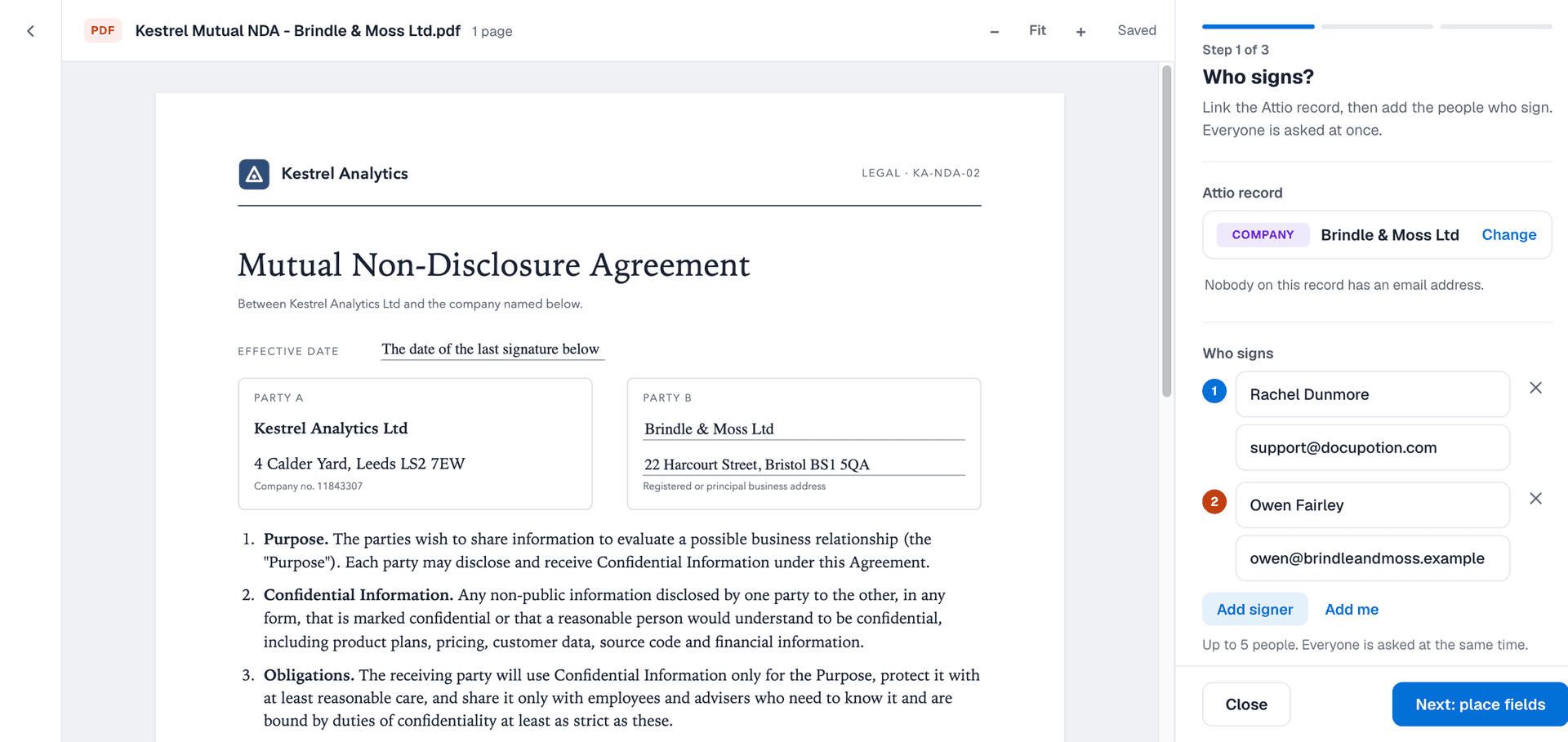
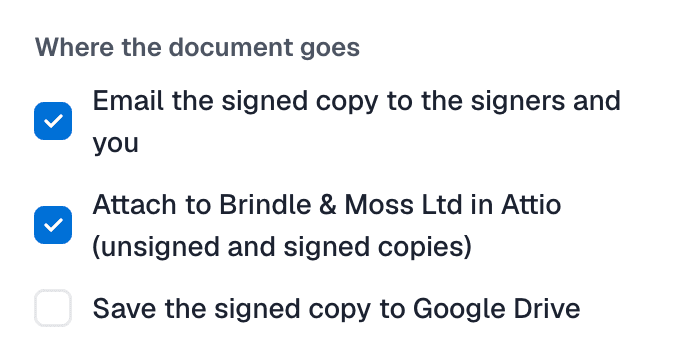
If you linked a record, the unsigned copy is attached to it as soon as you send, and the signed copy is attached once everyone has signed. The Signatures tab lists every request, including the ones your Attio automations send, so you can see who has signed, send a reminder, cancel a request or download the audit trail from one place. Each contract you send counts as one document from your plan.
One thing to note: the Signatures tab is in DocuPotion, not inside Attio. You link the contract to the record rather than sending it from the record, so it's one extra tab open.
Six contracts, one setup
Every contract below uses steps 1 to 3. What changes is the record you start from, the fields you map, and whether it's worth automating. The merge fields are examples: name them whatever matches your contract.
NDAs
To generate an NDA from Attio, build the template from your NDA (an uploaded PDF works well, since the wording rarely changes), and generate it from the person or company record. NDAs often come before a deal exists, so starting from the company is usually the right call. If the other company sends you their NDA instead, don't build a template for it: upload it on the Signatures tab and link it to their company record.
{{effective_date}}  {{company_name}}  {{company_address}}
{{contact_name}}  {{contact_job_title}}  {{term_months}}
A mutual NDA has two signers: your side and the counterparty. It's also the easiest contract to automate. For example, an NDA can go out as soon as a new inbound deal is created.
MSAs and service agreements
To generate an MSA or service agreement from Attio, use the agreement your legal team approved as the template and generate it from the company or deal record. The MSA is the contract you sign once per customer, so the company record is often the better home for it.
{{company_name}}  {{company_registration_number}}  {{company_address}}
{{effective_date}}  {{governing_law}}  {{payment_terms_days}}
MSAs get negotiated more than any other contract here. I'd use a Google Doc template and Edit document first, rather than a workflow, so someone reads the terms before they go out.
Statements of work (SOWs)
To create a statement of work from Attio, generate it from the deal (or a Projects custom object) with a Google Doc template, so the deliverables can repeat as a table. Each deliverable is a related record, and DocuPotion adds one row per record.
SOW for {{company_name}} under the MSA dated {{msa_date}}
Start: {{start_date}}   End: {{end_date}}   Total: {{total_fee}}

{{#deliverables}}
{{deliverable_name}}   {{due_date}}   {{fee}}
{{/deliverables}}
Line-item tables need a Google Doc template; PDF templates don't support them. A document can include up to 100 related records in a table.
Renewal contracts
To create renewal contracts from Attio, generate them from the record that holds the renewal: a renewal deal in its own pipeline, or a custom object such as Contracts or Subscriptions with the end date and current price on it.
{{company_name}}  {{original_contract_date}}  {{current_term_end}}
{{renewal_start_date}}  {{renewal_term_months}}  {{renewal_price}}
The simplest way to automate renewals is a renewal deal. When it moves to a Renewal Sent stage, the same stage-change workflow as step 4 sends the contract.
There's also an advanced route that times the renewal from the end date itself. An Attribute value changed trigger on the contract end date, an Adjust time step to work out 30 days before it, and a Delay until step that waits for that date before the Generate document step runs. One thing to note: if someone changes the end date after the workflow starts, the waiting run still fires on the old date. Unless your end dates rarely change, I'd stick with the renewal deal.
Pilot agreements
To generate pilot agreements from Attio deals, add a Pilot stage to your pipeline and generate the agreement from the deal when it gets there. Pilots are short and repetitive, which makes them a good fit for the stage-change workflow.
{{company_name}}  {{pilot_start_date}}  {{pilot_end_date}}
{{pilot_fee}}  {{success_criteria}}  {{conversion_price}}
When the pilot ends, the same deal can move on to the MSA or order form, so all of a customer's contracts stay on one record.
Partnership and referral agreements
To generate partnership or referral agreements from Attio, start from the partner's company record, or a Partners custom object if you track partners separately from customers. Keeping partners in their own object stops them cluttering your sales pipeline.
{{partner_name}}  {{partner_address}}  {{effective_date}}
{{referral_fee_percent}}  {{payment_terms_days}}  {{term_months}}
The Document signed trigger can then update the partner's status in Attio, so you know who's signed without checking.
What this doesn't do, and when to use something else
DocuPotion generates contracts from your Attio data and gets them signed. It isn't a contract lifecycle tool. Here's where it stops:
- Redlining and back-and-forth negotiation. Edit document first handles changes before sending, and you can share the draft with the client as a commenter. But if contracts go through several rounds of tracked changes with legal teams on both sides, a dedicated contract management tool will serve you better.
- Advanced or qualified e-signatures. DocuPotion signatures comply with the ESIGN Act and UETA in the US, and are simple electronic signatures (SES) under eIDAS in the EU. That covers most business contracts. It doesn't offer advanced or qualified signatures (AES or QES), which only a small set of documents need under EU or national law, such as certain consumer credit agreements and notarial documents. There's more in DocuPotion's guide to e-signature compliance.
- Signer checks and SMS. Requests go by email only, and DocuPotion doesn't verify signers' identity.
- Interactive proposals. If the contract is part of a proposal the buyer clicks through and edits, PandaDoc is the stronger choice. Its Attio app needs PandaDoc Business or above, and you create each document by hand from the record.
- A company that already pays for DocuSign. DocuSign has no official Attio app. The third-party Docusign Workflows app by Fluidlabs needs DocuSign IAM; otherwise you connect it with Zapier, Make or n8n workflows. If you mainly keep DocuSign for one-off contracts, it's worth checking whether the Signatures tab covers them, since it's included in your DocuPotion plan.
There's a fuller comparison in 8 best e-signature tools for Attio.
FAQ
How do I generate contracts from Attio?
Install the DocuPotion Attio app, turn your contract into a template from a Google Doc or PDF, and map its merge fields to Attio attributes. Then click Create document on a record to generate the contract and send it for e-signature. The signed copy is uploaded back to the record.
Can I send contracts for signature without leaving Attio?
For contracts built from a template, yes. You send from the record, track signing status in the Documents widget, and send reminders from Attio, at most once every 24 hours per document. A finished PDF you upload is sent from the Signatures tab in DocuPotion instead, and linked to the record so the signed copy still lands in Attio. Either way, signers sign in the browser from an emailed link.
Can I send a contract I didn't create in DocuPotion?
Yes. Upload the finished PDF on the Signatures tab, link it to an Attio person, company, deal or custom object record, place the signature fields and send it. You don't need a template or an automation, and the signed copy is attached to the record once everyone has signed.
Can Attio generate contracts automatically when a deal is won?
Yes, with the DocuPotion Generate document step in an Attio workflow. Trigger it on the deal stage changing to the stage you choose, and the contract generates and goes out for signature without anyone clicking a button.
Does it cost extra per contract signed?
No. E-signatures are included on every DocuPotion plan, with no per-envelope fees. A contract sent for signature counts as one document, however many people sign it. Core is $49 a month for 100 documents, with unlimited users in your workspace (pricing).
Finishing up
Attio has no native way of generating contracts, but with the DocuPotion app every contract you send, from an NDA to a renewal, comes from the Attio record and the signed copy is uploaded back to it. Build the template once per contract type, map it to the right record, and automate the ones you'd send without changes. For the one-offs, including the other side's paper, send the finished PDF from the Signatures tab and link it to the record.
If quotes are next on your list, How to manage quotes and invoices in Attio covers line items and the data model, and the contracts page has the full contract tutorial.