Introduction
n8n is one of the most popular workflow automation platforms available today. It connects hundreds of apps and APIs, so you can build anything from lead enrichment pipelines to invoicing flows without stitching services together by hand.
One need that comes up again and again in these workflows is generating a PDF document. You might need an invoice after a Stripe payment, a contract after a deal closes in HubSpot, a weekly report dropped into Google Drive, or a certificate emailed to a student who finishes a course. In every case, structured data goes in, and a nicely formatted PDF needs to come out.
n8n doesn't ship with a built in PDF generator, so the question every automation builder runs into is: what's the cleanest way to add one? In this guide we'll look at five of the main n8n PDF generation options, then walk through the recommended approach end to end using DocuPotion's n8n integration. By the time you reach the bottom of the page you'll have a working workflow that turns structured data into a branded PDF in a few minutes.
Prerequisites
To follow along, you'll need:
- An n8n instance, either n8n Cloud or a self hosted install
- A free DocuPotion account
- Some data in a workflow that you want to turn into a PDF, such as invoice details, a customer record or report metrics
n8n PDF generation: five options
Before jumping into the tutorial, it's worth understanding the choices you have. Here are five of the main ways to produce a PDF inside an n8n workflow, and each comes with its own tradeoffs.
1. Use Puppeteer (or Playwright) in a Code node
If you self host n8n, you can install a library like Puppeteer, Playwright or pdf-lib in your n8n environment and call it from a Code node. Puppeteer is the most common choice because it's easy to install and the page.pdf() API covers most document needs. This gives you the most control but comes with a long list of operational responsibilities. You have to manage browser dependencies, handle rendering timeouts, keep an eye on memory when generating lots of PDFs, and keep the HTML templates in sync with every design change.
It also doesn't work on n8n Cloud, where you can't install arbitrary npm packages. For most teams this approach ends up being more infrastructure than it's worth. It is still a reasonable fit if you already run a custom n8n build and want to keep everything inside one repo. If you want to go down this path, our Puppeteer PDF guide has some useful information on generating PDFs with Puppeteer.
2. Run Gotenberg as a self hosted service
Gotenberg is an open source API that converts HTML, Markdown and Office documents to PDF using Chromium and LibreOffice under the hood. You run it as a Docker container alongside n8n, then call its endpoints from the HTTP Request node by posting your HTML payload or source files as multipart form data.
This is a reasonable middle ground if you need more than Puppeteer can comfortably do (Office document conversion, merging, watermarks) but don't want to manage browser dependencies inside the n8n container itself. The tradeoff is the same as any self hosted service: you're responsible for uptime, scaling, version upgrades and locking the endpoint down so only your n8n instance can hit it. Gotenberg also doesn't ship with a template editor, so the HTML still has to live somewhere your team can edit, usually in a Git repo or inside n8n itself.
It's worth considering if you're already comfortable running containers and want to keep PDF generation entirely within your own infrastructure. For most teams a hosted API removes a lot of operational overhead.
3. Generate from a Google Drive template
Another option is to keep your template as a Google Doc and use n8n's Google Docs and Google Drive nodes to copy it, fill in the placeholders and export the result as a PDF. The flow looks roughly like this: copy the template document with the Google Drive Copy File action, use the Google Docs Replace Text action to swap merge fields like {{customer_name}} for the values from your workflow, then call Google Drive Download with application/pdf as the conversion target to fetch the rendered PDF.
The appeal here is familiarity. Anyone on the team can edit the template in Google Docs without learning a new tool, and there's no extra service to pay for if you already use Google Workspace. The downside is that Google Docs wasn't built for transactional document generation. Layout precision is limited, repeating sections like invoice line items need a workaround because the Docs API has no native loop primitive, and you'll burn through Drive API quota quickly at any kind of volume. Each generated document also leaves a copy in Drive that you have to clean up.
It works fine for low volume internal documents like meeting briefs or simple letters, but invoices, contracts and anything that needs consistent branding tend to outgrow it quickly. If you want to keep your template as a Google Doc without the workarounds, DocuPotion can use it as a native template and render a pixel-perfect PDF with proper line items and column totals.
4. Call a PDF generation API via the HTTP Request node
The HTTP Request node lets you call any external API, which means you can integrate with a dedicated PDF service like DocuPotion, PDFShift, DocRaptor or APITemplate.io. This works on n8n Cloud and self hosted n8n, and it lets you keep template design outside of the workflow.
The downside is that you have to configure headers, authentication and the request body yourself, parse the response, and wire up the binary conversion if you want to attach the PDF to another node. It's flexible, but there's more wiring than most workflows need.
5. Use a community node (recommended)
A community node wraps a specific service into native n8n steps. You install it once, add your API key, and the node takes care of the request structure, output formats and binary handling. You get a typed UI with dropdowns and expression support instead of handcrafting JSON in an HTTP node.
DocuPotion publishes an official n8n community node that covers PDF generation end to end. This is the approach we'll focus on in this guide.
Walkthrough: Generate PDFs in n8n with DocuPotion
Here's the full flow from zero to a working PDF generation step inside an n8n workflow. The whole setup takes around five minutes once your template is designed.
Step 1: Create a DocuPotion account
Head to docupotion.com and create an account. During signup you'll be asked how you plan to use DocuPotion. Pick n8n so your dashboard is preconfigured for this flow.
Once you're in, open the Document Editor. This is where you'll design the template that n8n renders into a PDF each time your workflow runs.
Step 2: Design your document template
You can build a template three ways: bring a Google Doc you already use, upload an existing PDF, or describe what you need and let the editor build it. This guide uses the editor, but any of the three works with the steps below.
DocuPotion's editor is conversational. Instead of dragging blocks onto a canvas, you describe the document you need and an AI editor builds it for you. A prompt like "an invoice with a header, billing details, a line items table and a totals section" produces a first draft you can refine with follow up prompts.
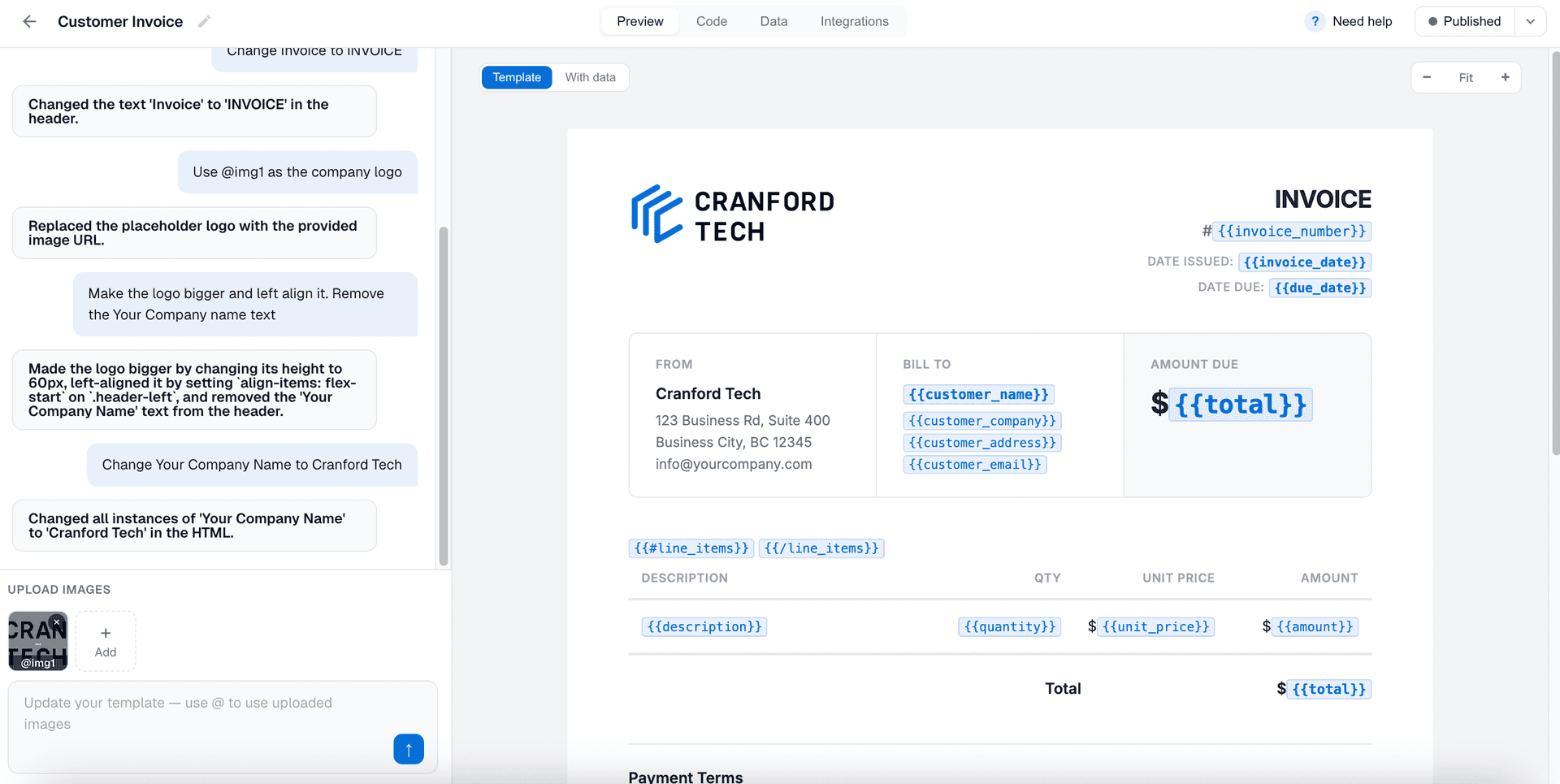
A few things to keep in mind when designing your template:
- Merge fields. Add placeholders like
{{customer_name}}or{{invoice_total}}anywhere dynamic data should appear. These are the hooks n8n will fill in at run time. Ask the AI to add them to the template. - Images. Upload up to eight images (logos, signature blocks, headers) through the upload rail on the left. Reference them in prompts as
@img1,@img2and so on. - Preview with data. Toggle "With data" in the preview pane to render the template with sample values. This is the fastest way to catch layout issues before hitting the workflow.
- Publish. Once you're happy, hit Publish. Only published versions of a template are used when n8n calls the API, so you can keep editing the draft without breaking production flows.
DocuPotion tip: List the exact data fields you expect to send in your first prompt. Something like "generate a quote template with fields for customer_name, quote_number, issue_date, line_items (array with description, quantity, unit_price), subtotal, tax and total" gives the editor enough to create merge fields that match your workflow payload one to one.
Step 3: Grab your template ID and API key
You'll need two values from DocuPotion before moving back to n8n:
- Template ID. Open your published template. The ID is shown in the top left corner of the editor. Copy it.
- API key. Go to the API Integration page in your dashboard and copy the key. Keep this private, it's the credential n8n will use to authenticate.

Step 4: Install the DocuPotion community node
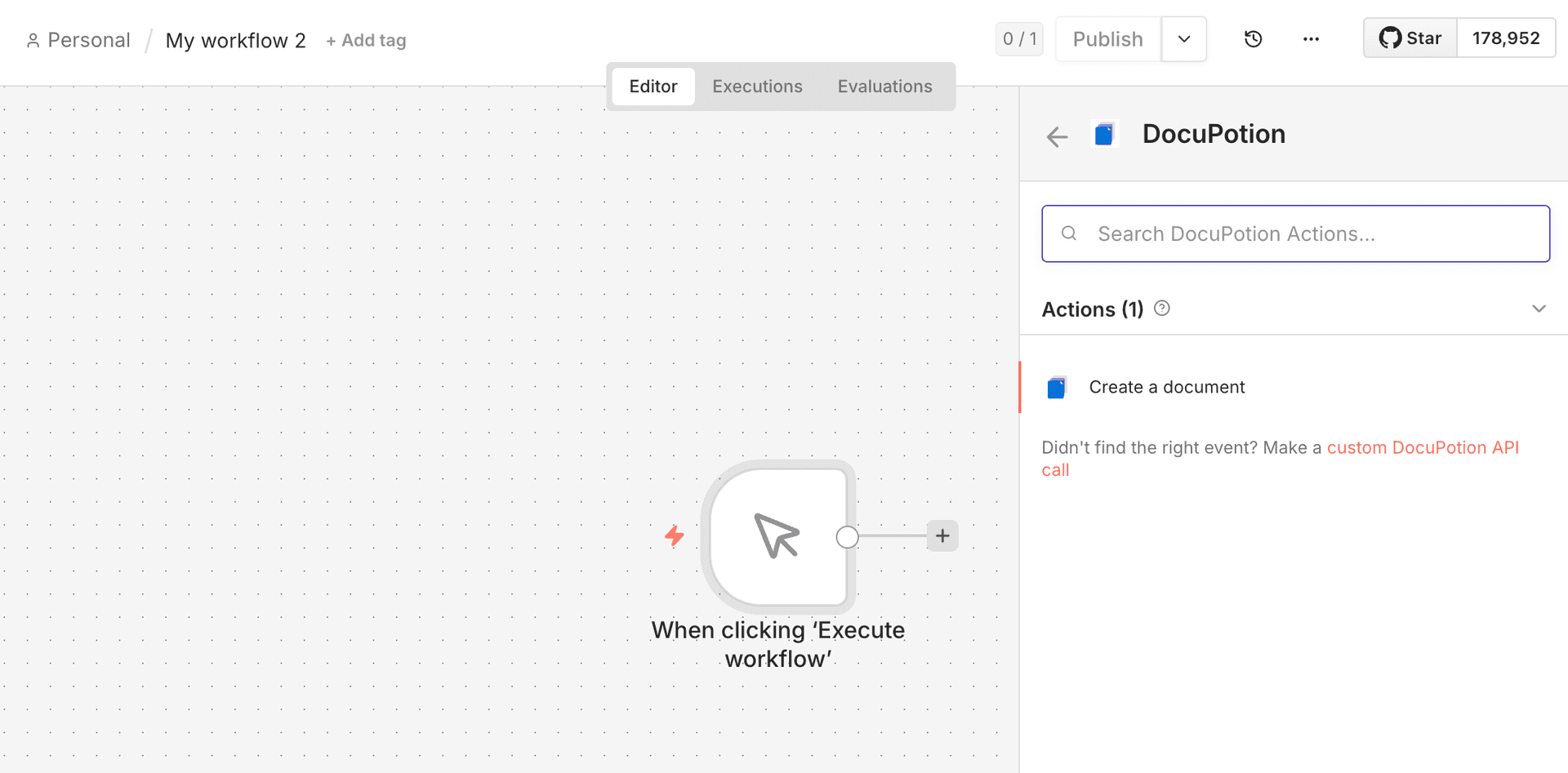
In n8n, open a new or existing workflow. Add a new node and search for "DocuPotion". If this is the first time you're using it, n8n will prompt you to install the community node. Confirm the install. Once installed, it behaves like any other node in the canvas.
On n8n Cloud, community nodes are available on paid plans. On self hosted n8n they work out of the box. See n8n's community nodes documentation if you hit any installation issues.
Add the Create a Document action from the DocuPotion node.
Step 5: Connect your DocuPotion credentials
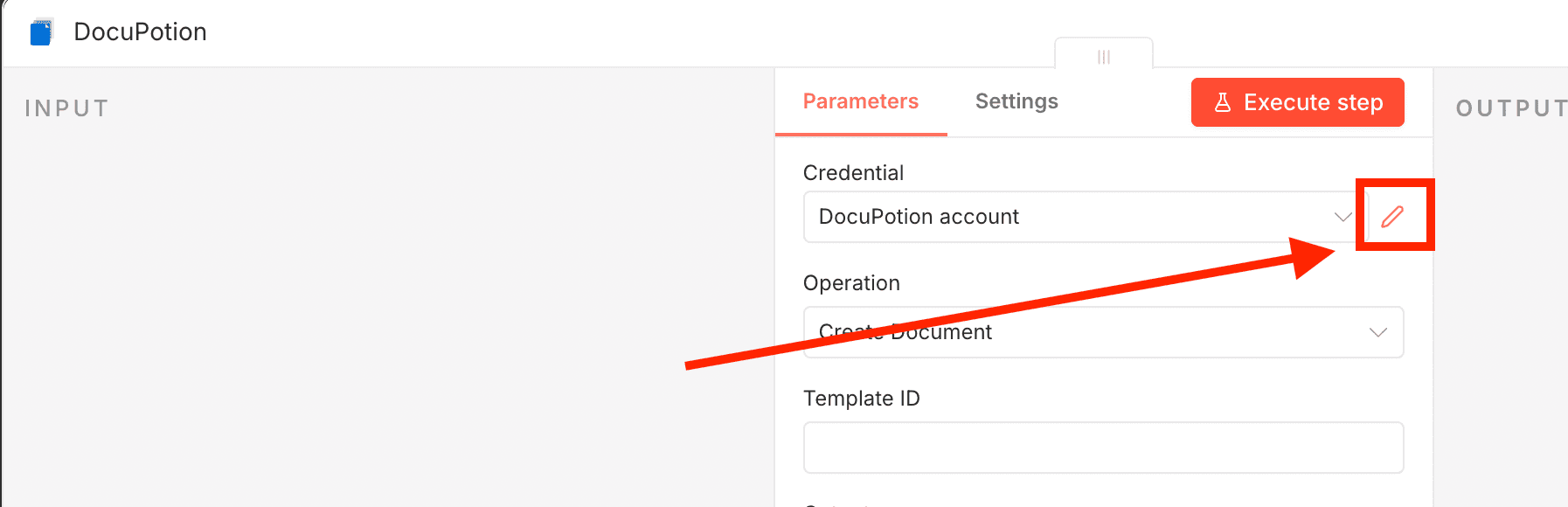
Click the pencil icon next to the Credential field and select "Create New". Paste the API key you copied from your DocuPotion dashboard and save. n8n will reuse these credentials across any DocuPotion nodes in your account, so you only need to do this once.
Step 6: Configure the Create Document action
The node exposes four fields:
| Field | What to enter |
|---|---|
| Template ID | The template ID you copied from the DocuPotion editor |
| Output | file, url or base64. file is the most common because it puts the PDF directly onto the binary output of the node |
| File Name | The filename for the generated PDF. You can use n8n expressions here, for example invoice-{{ $json.invoice_number }}.pdf |
| Template Data | A JSON object with values for every merge field in your template |
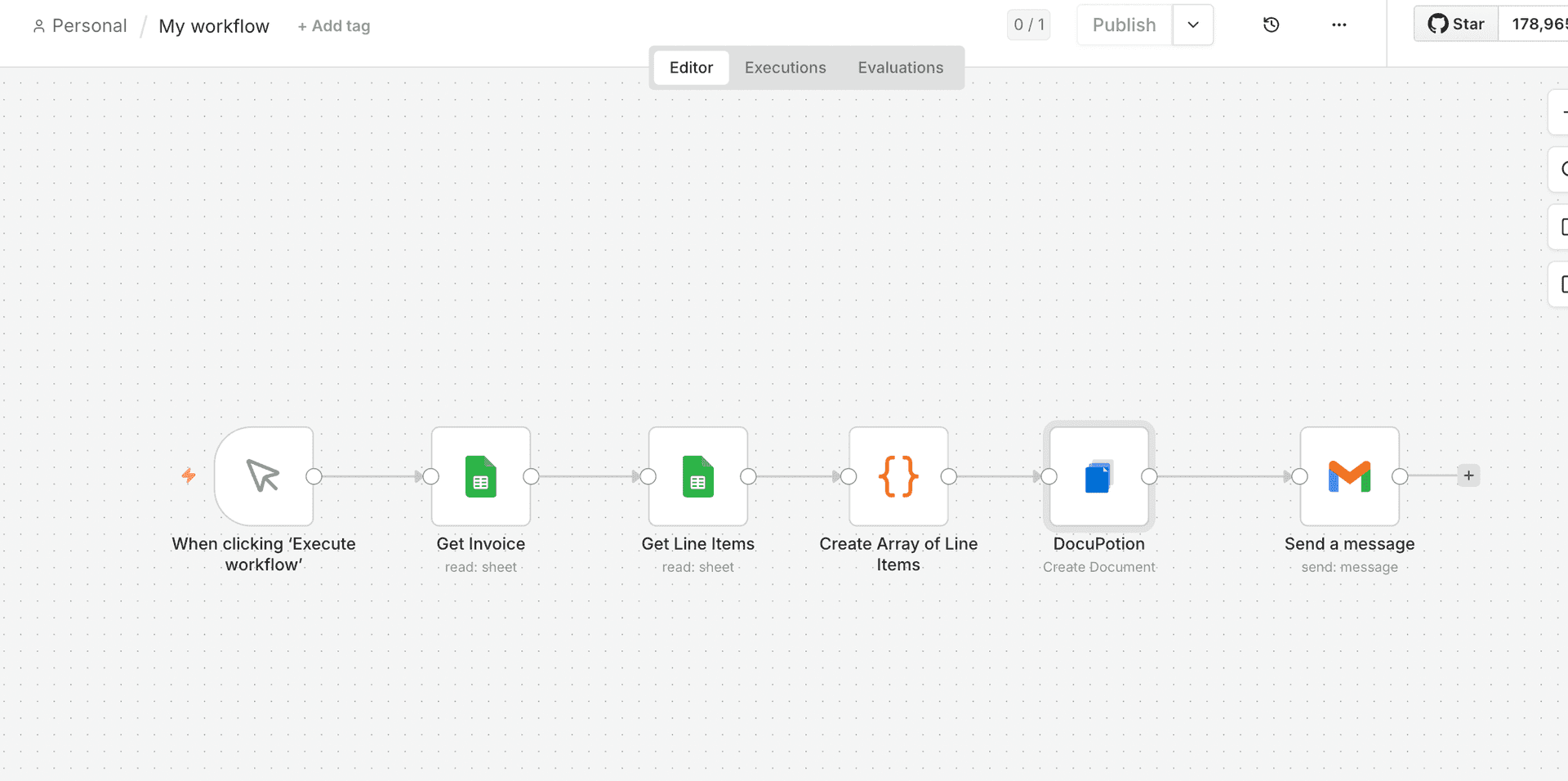
The Template Data field is where most of the mapping work happens. Open the Data tab inside the DocuPotion editor to see the exact JSON structure the template expects, then build the same structure in n8n by mapping values from previous nodes.
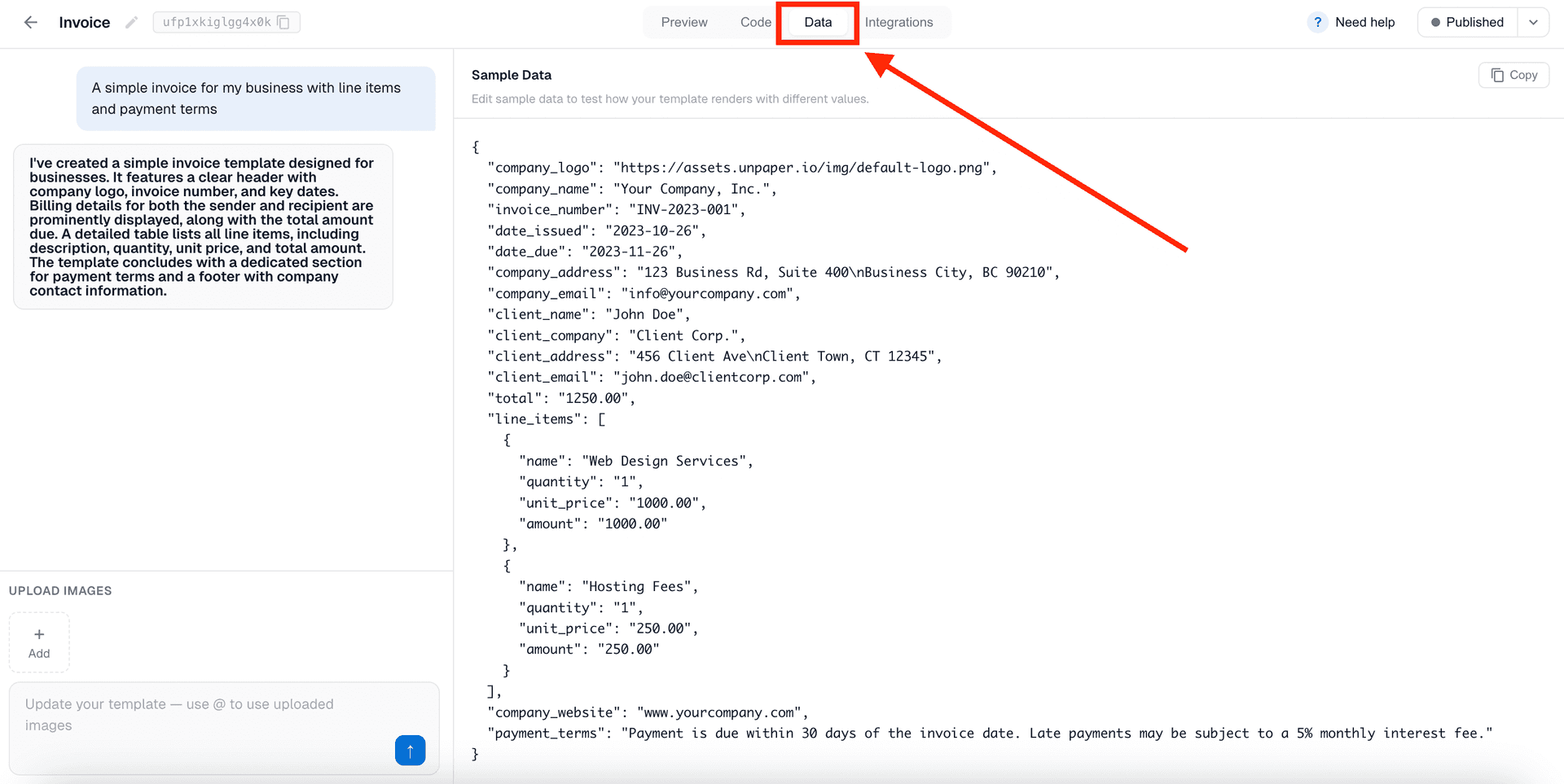
For example, if your template expects:
{
  "customer_name": "",
  "invoice_number": "",
  "issue_date": "",
  "line_items": [
    { "description": "", "quantity": 0, "unit_price": 0 }
  ],
  "total": 0
}
Your Template Data field in the DocuPotion node could look like:
{
  "customer_name": "{{ $json.customer.name }}",
  "invoice_number": "{{ $json.invoice_number }}",
  "issue_date": "{{ $now.toFormat('yyyy-MM-dd') }}",
  "line_items": {{ $json.line_items }},
  "total": {{ $json.total }}
}
Step 7: Route the PDF to its destination
Once Create Document runs, the generated PDF is available to downstream nodes. What you do with it depends on the workflow:
- Email it. Connect a Gmail, Outlook or SMTP node and attach the binary output.
- Save it. Use the Google Drive, Dropbox, S3 or FTP nodes to upload the file.
- Post it. Send the PDF to Slack, Discord, or a webhook.
- Sign it. Pass it into a DocuSign, SignNow or HelloSign flow.
Because the file comes out as native n8n binary data, any node that accepts a file input can pick it up without extra conversion.
Run the workflow once with real data, check the output, tweak the template if needed, and you're done.
Generating invoice PDFs in n8n
Invoices are the one of the most common reason teams reach for PDF generation in n8n, so it's worth walking through the pattern in a bit more detail. The flow looks like this:
- Stripe Trigger fires on
charge.succeeded(or a webhook from whatever billing system you use). - A Set or Function node assembles the invoice payload. Pull line items, customer details, tax rates and totals from your billing system and any complementary tables in your database or CRM.
- DocuPotion Create Document renders your invoice template with the assembled data. The same template can drive receipts, quotes and credit notes by swapping the data you pass in.
- Gmail, Outlook or SMTP sends the PDF to the customer as an attachment.
- Google Drive, Dropbox or S3 archives a copy in your accounting folder.
- Optionally, a Xero, QuickBooks or Airtable node logs the invoice internally.
A template for this kind of workflow usually expects a data payload that looks like:
{
  "invoice_number": "INV-00042",
  "issue_date": "2026-04-24",
  "due_date": "2026-05-24",
  "customer": {
    "name": "Acme Ltd",
    "email": "billing@acme.com",
    "address": "1 Infinite Loop, Cupertino, CA"
  },
  "line_items": [
    { "description": "Consulting (April)", "quantity": 10, "unit_price": 150 }
  ],
  "subtotal": 1500,
  "tax": 300,
  "total": 1800
}
Because the invoice number, issue date and totals all come from the Stripe event or your database, the only maintenance cost once the workflow is live is updating the template itself, which you can do in DocuPotion without touching n8n.
DocuPotion tip: If you issue invoices in multiple currencies or jurisdictions, add a locale or currency field to your template and branch on it inside the template. One template can then handle every market, avoiding the urge to maintain a separate template per region.
More n8n PDF workflow examples
Invoices are the common case, but the same pattern works for almost any document.
Weekly report
- A Schedule Trigger fires every Monday at 09:00.
- Postgres or MySQL pulls last week's metrics.
- A Function node reshapes the rows into the structure your template expects.
- DocuPotion Create Document generates a branded report PDF.
- Slack posts the report to your team channel.
Course certificate
- A Webhook trigger receives a course completion event from your LMS.
- DocuPotion Create Document renders a personalised certificate with the student's name, course title and completion date.
- Gmail emails the certificate to the student.
- Airtable logs the issue date against the student record.
Contract after a deal closes
- A HubSpot or Salesforce trigger fires when a deal enters the "Closed Won" stage.
- A Set node pulls the contract values (parties, scope, fees, start date) from the deal record.
- DocuPotion Create Document renders the contract template.
- DocuSign or SignNow routes the PDF for signature.
Alternative: Call DocuPotion from the HTTP Request node
If you can't or don't want to install the community node, you can still call DocuPotion directly from the HTTP Request node. The request looks like this:
POST https://api.docupotion.com/v1/create
Authorization: Bearer YOUR_API_KEY
Content-Type: application/json
With a body like:
{
  "templateId": "tpl_xxx",
  "output": "url",
  "format": "pdf",
  "data": {
    "customer_name": "Acme Ltd",
    "invoice_number": "INV-0001",
    "issue_date": "2026-04-24",
    "total": 1250.00
  }
}
The API returns either a base64 encoded PDF or a presigned URL, depending on the output value. The community node essentially wraps this exact request plus the binary handling, so the HTTP approach is only worth reaching for when you need custom headers or are running on an environment where community nodes aren't available.
For the full reference, see the DocuPotion API docs.
Tips and troubleshooting
A few things worth knowing as you build out more complex workflows.
Template IDs are stable across republishes
You can keep editing a template in the DocuPotion editor without breaking any workflows that reference it. Only the published version is served to the API, and the template ID doesn't change when you republish.
Keep merge field names consistent
If you rename a field in the template, remember to update the JSON in every workflow that calls it. Missing merge fields render as empty strings, which is easy to miss in a spot check.
Pick the right output format
fileplugs straight into email and storage nodes. This is the default for most flows.urlreturns a presigned link. Useful when you want to share a link, or when the PDF is large and you'd rather not carry it through the workflow as binary data.base64returns the raw encoded PDF. Useful when you're embedding the PDF into another API payload.
Sanitise user supplied values
If the data in your template comes from a form or external source, trim whitespace and validate numeric fields before passing them to the Create Document step. This avoids chasing layout issues later when an unexpected string lands in a numeric column.
Batch generation
For high volume runs, use the Split In Batches node with a sensible batch size so you're not firing thousands of parallel requests at once. A batch size of 10 to 20 is a safe starting point.
FAQ
What is the best n8n PDF generator?
For most teams the DocuPotion community node is the fastest path. You design the template visually, publish it once, and the node handles authentication, data merging and binary output inside n8n. Alternatives like calling a PDF API via the HTTP Request node, running Puppeteer or Gotenberg yourself, or filling a Google Docs template with the Google Drive nodes work too, but they require significantly more wiring and, in the self hosted cases, infrastructure to maintain.
Can I use Puppeteer in n8n to generate PDFs?
Yes, but only on self hosted n8n. You'd install Puppeteer in your n8n container and call it from a Code node using page.setContent() and page.pdf(). This doesn't work on n8n Cloud because community npm packages can't be installed there. For a full walkthrough of Puppeteer's API see our Puppeteer PDF guide.
How do I convert HTML to PDF in n8n?
The cleanest way is to keep the HTML as a template inside a PDF service like DocuPotion and call it from n8n using the community node or HTTP Request node. If you want to stay entirely inside n8n, you can also feed HTML directly into a Puppeteer Code node on self hosted n8n, but you'll pay the operational cost described above.
Is there a free n8n PDF generator?
DocuPotion has a free trial with no credit card required, which is enough to build and test a workflow end to end, and the community node itself is free. On self hosted n8n you can also use open source libraries like Puppeteer or pdf-lib at no cost, at the expense of running and maintaining the infrastructure yourself.
Does the DocuPotion n8n node work on n8n Cloud?
Yes. Community nodes are supported on paid n8n Cloud plans. On self hosted n8n they work out of the box.
Can I use DocuPotion in n8n without the community node?
Yes. The HTTP Request node can call the DocuPotion API directly. The community node is recommended because it handles authentication, field mapping and binary output for you, but the HTTP approach works the same way under the hood.
How do I pass arrays, like line items, to my template?
In the Template Data field, reference the array directly using an n8n expression such as {{ $json.line_items }}. Inside the template, DocuPotion iterates over the array so each item renders as its own row in the table.
How much does it cost?
DocuPotion offers a free trial with no credit card required, so you can build and test your first workflow end to end before committing. Paid plans start at $24/month and are based on the number of documents you generate. See the pricing page for current tiers.
Is the generated PDF secure?
Yes. PDFs generated via the API are transmitted over HTTPS and, when using the url output, are served via presigned URLs that expire after a short window you control. Your API key is passed only to DocuPotion and should be treated like any other credential in n8n.