Mail merge with attachments, a different PDF for every recipient

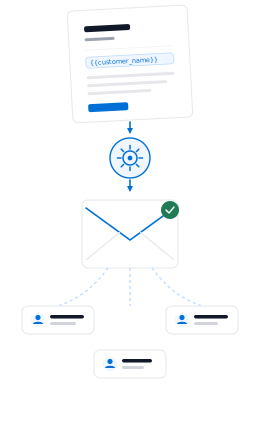
A normal mail merge can personalise the email, but it can't attach a different file to each one. DocuPotion does both: it creates a personalised PDF for every row of your spreadsheet and emails it to the person on that row, with their name in the subject line and the message.

✓ No credit card✓ Set up in minutes
Your spreadsheet
Name
Email
Details
Their own PDF
To: maria.chen@example.com
Subject: Your offer letter, Maria
Hi Maria,
PDFMaria Chen - Offer Letter.pdf
G24.9/5 Rated on G2 by real users
860,000+
Documents generated to date
2,000+
Documents generated every day

If you have ever tried to add an attachment to a mail merge, you will have found the gap: Microsoft Word's email merge sends the message body only, with no way to attach a file, so people turn to add-ins, VBA macros or sending one email at a time. A mail merge with attachments works best when the attachment is created as part of the merge. You set up one template, DocuPotion fills it in for every row of your spreadsheet, and each recipient gets their own document. Run the demo below to see the documents being created, then watch the video to see them emailed out.

Try it yourself

Run the sample spreadsheet and watch each row become its own PDF, ready to attach to that person's email.

Merge fields sit wherever data should be filled in.

Northfield College
Office of Admissions
August 1, 2026

Dear {{student_name}},

We are delighted to offer you a place at Northfield College to study {{programme}}, beginning {{start_date}}. Your application reference is {{application_id}}.

Please confirm your place by {{accept_by}}. If you have any questions, your admissions advisor, {{advisor}}, is happy to help.

Warm regards,
Admissions Office, Northfield College

Here's how it works

From a spreadsheet of recipients to an email with the right PDF in every inbox.

1

Set up the attachment once

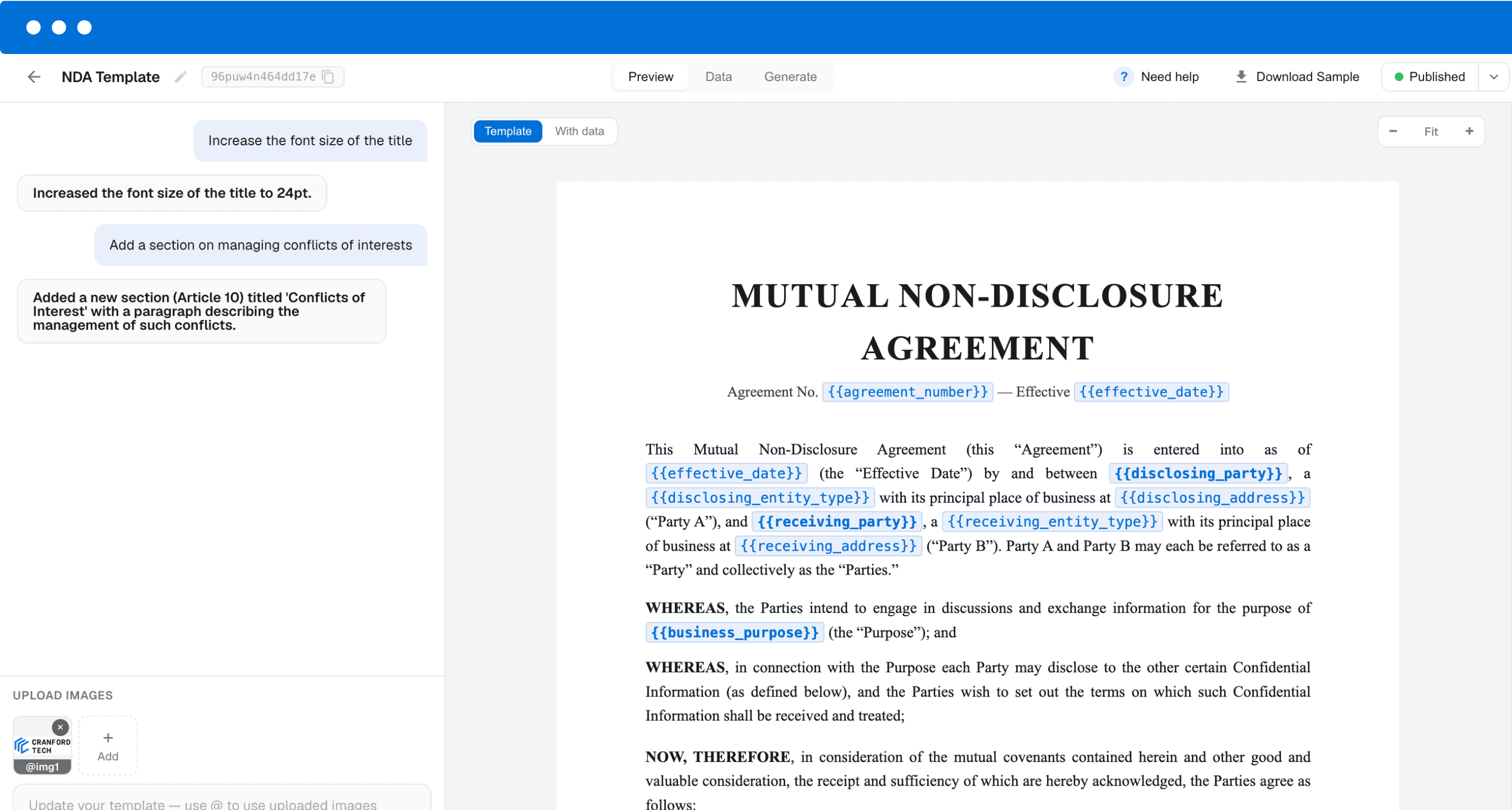
Upload the PDF you already send, bring a Google Doc, or describe a new one to DocuPotion's AI editor. Mark the parts that change per person as merge fields, like {{name}}, {{amount}} or {{date}}.

2

Upload your recipient list

Upload a CSV or Excel file with one row per recipient and a column of email addresses. DocuPotion matches your column headers to the template's merge fields, and you can adjust any pairing.

3

Write the email and send

Pick the email column, then write a subject and message using the same merge fields. Send yourself a test, then send the batch. Each person receives one email with their own PDF attached.

DocuPotion editor showing a template with merge fields

Why Word can't add a different attachment to each email

Word's Mailings tab can merge a list into email messages, but the merge only fills in the message text. There is no field for an attachment, so the usual workarounds are a paid Outlook add-in, a VBA macro that loops through your list, or sending the emails one by one.

Most of those workarounds attach files that already exist, so first you have to produce a separate, correctly named file for every person and keep the file names in step with your spreadsheet. That is usually the slowest part. Some add-ins can turn each merged Word document into a PDF for you, but they still run inside Word and Outlook on your computer.

DocuPotion removes that step. The attachment is generated from your template as part of the merge, so the right document always goes to the right person, named the way you choose.

  • ✓

    Personalised subject and message. Merge fields work in the email as well as the attachment.

  • ✓

    File names from your data. Name each PDF from merge fields, e.g. "Maria Chen - Offer Letter.pdf".

  • ✓

    Delivery status per recipient. See sent, delivered or bounced, and resend failures without regenerating.

Email delivery is included on paid plans. If you'd rather send the emails yourself, download the batch as individually named PDFs instead.

Ways to mail merge with attachments

What each approach can do once you have a list of recipients. DocuPotion is a paid tool: the free trial lets you build and test your attachment, and sending emails needs a paid plan.

Word email mergeAdd-in or macroDocuPotion
Personalised email text Yes Yes Yes
A different attachment for each recipient No Yes Yes
Creates the attachments for you NoVaries Yes
Personalised attachment file names NoVaries Yes
Delivery status per recipient NoVaries Yes
Nothing to install Yes No Yes
CostIncluded with WordFree to paidPaid plan, from $49/month

See it in action

A spreadsheet becoming individually named PDFs, each emailed to its recipient as an attachment.

Frequently asked questions

Can I add an attachment to a mail merge in Word?

Not natively. Word's email merge fills in the message text but has no way to attach a file, let alone a different file for each recipient. You need a paid add-in, a VBA macro or a separate tool. DocuPotion handles the whole merge, attachments included, without Word.

Can each recipient get a different attachment?

Yes, that's the point. DocuPotion creates one PDF per row of your spreadsheet from your template, so each recipient's attachment contains their own details, and attaches it to the email going to that row's address.

Can I attach files I already have, like a folder of existing PDFs?

No. DocuPotion attaches the PDF it generates from your template for each row. If your attachments already exist as separate files, a mail merge add-in that attaches files by name is the better fit. If you are creating those files from a spreadsheet anyway, DocuPotion replaces both steps.

What does the email look like to the recipient?

A plain-text email with your subject line and message, personalised with merge fields, and one PDF attached. It comes from documents@send.docupotion.com with a sender name you choose (DocuPotion if you leave it blank), and replies go to the reply-to address you set.

What can the attachment be?

Any document whose details for each person fit in one spreadsheet row: offer letters, certificates, award letters, renewal notices, payment reminders. Upload an existing PDF and place fields on it, use a Google Doc, or create a new design with DocuPotion's AI editor. Each attachment can be up to 7 MB. Documents with lists that vary in length, such as invoice line items, don't fit a single row and are better suited to our API and integrations.

Do I need Outlook or Gmail?

No. DocuPotion sends the emails itself, so it works the same whichever email client you use. If you're coming from a specific client, see our guides to Outlook mail merge with attachments and Gmail mail merge with attachments.

Can I test it before sending to everyone?

Yes. On a paid plan you can send yourself a test email first and see exactly what your recipients will receive, attachment included. Test emails and email delivery aren't part of the free trial, but the trial lets you generate a few documents from your own spreadsheet to check the attachment before you upgrade.

How many emails can I send in one merge?

A spreadsheet can have up to 5,000 rows, one email per row, but your plan sets the practical limit. Every PDF counts as one document from your monthly allowance: 100 a month on Core, 500 on Business, and more on a custom plan. You can also send up to 2,000 emails a day, or 500 a day during your account's first 30 days.

Send every recipient their own PDF

Set up the attachment once, upload your list, and DocuPotion creates and emails a personalised PDF to every row. Build and test it on a free trial, no credit card required. Sending emails needs a paid plan.