Outlook mail merge with attachments, without VBA or add-ins

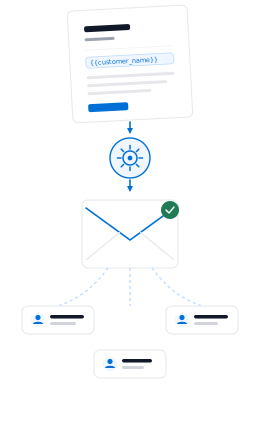
Word and Outlook can mail merge the email, but not a different attachment for each contact. Upload your Excel list to DocuPotion instead: it creates a personalised PDF for every row and emails each one to the right person, with nothing to install in Outlook and no macros to maintain.

✓ No credit card✓ Set up in minutes
Excel list
Name
Email
Details
Sent per contact
To: james.patel@example.co.uk
Subject: Your membership renewal, James
Hi James,
PDFJames Patel - Renewal Letter.pdf
G24.9/5 Rated on G2 by real users
860,000+
Documents generated to date
2,000+
Documents generated every day

The usual Outlook mail merge goes through Word: you connect an Excel sheet on the Mailings tab, choose Finish & Merge, then Send Email Messages, and Outlook sends one message per row. It only works when classic Outlook for Windows is your default mail app, and it won't attach a file, so anyone sending letters, notices or certificates to a contact list ends up writing a VBA macro, buying an Outlook add-in, or attaching files one email at a time. DocuPotion takes a different route. It works from the same Excel file, creates each contact's PDF from a template, and sends it as an attachment, so you never prepare the files separately. Run the demo below to see the documents being created.

Try it yourself

Run the sample list and watch each row become its own PDF, the attachment that contact will receive.

Merge fields sit wherever data should be filled in.

Northfield College
Office of Admissions
August 1, 2026

Dear {{student_name}},

We are delighted to offer you a place at Northfield College to study {{programme}}, beginning {{start_date}}. Your application reference is {{application_id}}.

Please confirm your place by {{accept_by}}. If you have any questions, your admissions advisor, {{advisor}}, is happy to help.

Warm regards,
Admissions Office, Northfield College

Here's how it works

From the Excel list you already keep to a personalised attachment in every contact's inbox.

1

Use the Excel file you already have

Save your contact list as .xlsx or .csv, the same sheet you would connect in Word's Mailings tab. Keep one row per contact and a column of email addresses.

2

Turn your attachment into a template

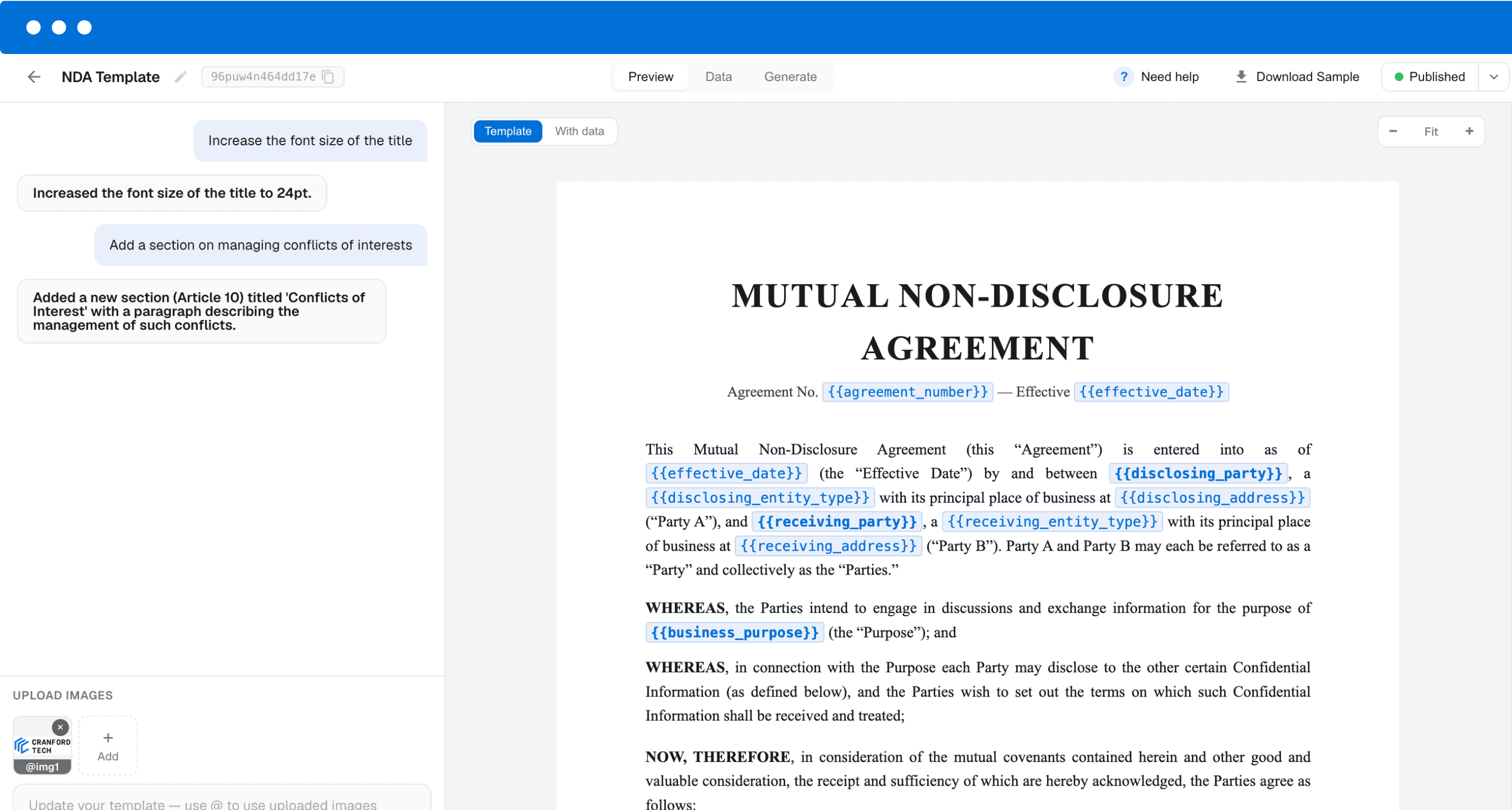
Upload the PDF you currently attach by hand, export it from Word as a PDF first if needed, and place merge fields where the details change. Or build a new template with DocuPotion's AI editor.

3

Merge and send

Map the email column, write the subject and message with merge fields, send yourself a test, then send the batch. Every contact gets one email with their own PDF attached.

DocuPotion editor showing a template with merge fields

No macros, no add-ins, nothing to install in Outlook

The common fix for Outlook attachments is a VBA macro that loops through your list and attaches a file from a folder. It works until someone renames a file, moves the folder or updates Office, and VBA macros and COM add-ins don't run in the new Outlook for Windows or in Outlook on the web at all.

DocuPotion runs in your browser and does the sending itself, so it doesn't matter which version of Outlook your team uses, or whether IT lets you install add-ins.

One thing to know: the emails don't go through your Outlook mailbox. They're sent from documents@send.docupotion.com under your organisation's name, and replies go to the reply-to address you set, so you can point that at your Outlook inbox. Sent copies won't appear in Outlook's Sent Items; you track delivery in DocuPotion instead.

  • ✓

    Works with any Outlook. Classic, new Outlook, Outlook on the web, or no Outlook at all.

  • ✓

    Replies reach your inbox. Set your Outlook address as the reply-to.

  • ✓

    Tracked per contact. Sent, delivered or bounced, with resend for any failures.

Email delivery is included on paid plans. Prefer to send from Outlook yourself? Download the batch as individually named PDFs.

Outlook attachment workarounds compared

The three common ways to send a different attachment to each Outlook contact. DocuPotion is a paid tool: the free trial lets you build and test your attachment, and sending emails needs a paid plan.

VBA macroOutlook add-inDocuPotion
A different attachment for each contact Yes Yes Yes
Creates the attachments for youIf you code itVaries Yes
Works in new Outlook and Outlook on the web NoVaries Yes
No code to write or maintain No Yes Yes
Nothing to install Yes No Yes
Sends from your own Outlook mailbox Yes Yes No
CostFree, but you maintain the codeUsually paidPaid plan, from $49/month

See it in action

A spreadsheet becoming individually named PDFs, each emailed to its contact.

Frequently asked questions

Can Outlook mail merge send attachments?

Not on its own. A Word to Outlook mail merge sends personalised message text, but there's no option to attach a file per recipient. You need a VBA macro, an add-in, or a tool like DocuPotion that creates and attaches each contact's PDF for you.

How do I send multiple emails with different attachments in Outlook?

Without extra tools, you attach each file manually, one email at a time. To do it in bulk, put your contacts in an Excel file, set up the attachment once as a DocuPotion template, and DocuPotion sends each contact an email with their own PDF attached.

Does it work with Outlook 365 and the new Outlook?

Yes. DocuPotion doesn't plug into Outlook at all, so it works the same with Microsoft 365, classic Outlook, the new Outlook for Windows, Outlook on the web and Outlook for Mac.

Will the emails come from my Outlook address?

No. They're sent from documents@send.docupotion.com with a sender name you choose, such as your organisation's name. Set your own address as the reply-to and any replies land in your Outlook inbox. The sent emails won't appear in your Outlook Sent Items folder.

Can I use my existing Excel mail merge list?

Yes. Upload the .xlsx or a .csv export as-is. DocuPotion matches the column headers to your template's merge fields, so a list you already use for Word mail merges usually needs no changes beyond having an email column.

I have a Word document I attach today. Can I use it?

Yes. Save the Word document as a PDF, upload it to DocuPotion and place merge fields where the details change. The layout stays exactly as it is in Word. The fields sit in fixed positions and don't reflow, so this suits documents where each person's details fit in set places. If the text varies a lot in length, build the template in DocuPotion's editor instead, where content can flow onto extra pages.

Can I attach a file that already exists for each contact?

No. DocuPotion attaches the PDF it creates from your template for each row. If you already have a separate file for every contact, an Outlook add-in that attaches files by name is the better fit.

Is there a limit on how many emails I can send?

A spreadsheet can have up to 5,000 rows, one email per row, but your plan sets the practical limit. Every PDF counts as one document from your monthly allowance: 100 a month on Core, 500 on Business, and more on a custom plan. You can also send up to 2,000 emails a day, or 500 a day during your account's first 30 days.

Retire the mail merge macro

Upload your Excel list, set up the attachment once, and DocuPotion emails every contact their own PDF. Build and test it on a free trial, no credit card required. Sending emails needs a paid plan.