If you fill out the same PDF form over and over, you already know the pain.
Open the file. Click into each field. Type the details. Save a copy, repeat. This is fine for one form. For fifty contracts a week, or a new application for every client, it turns into hours of careful, error-prone retyping. And it's not fun.
The good news is that you can likely automate the entire process using the form you already use and DocuPotion. If your PDF has real fillable fields (the boxes you can click into and type), DocuPotion can read those fields, turn the document into a reusable template, and fill it from your data automatically. The PDF stays exactly the same. You just stop typing into it by hand.
This guide shows you how to automate PDF form filling end to end: confirm your form is fillable, upload it, check the detected fields, test with sample data, and then generate completed forms one at a time or in bulk. No redesign, and no developer needed (although you can use our REST API if you're technical).
What "automate PDF form filling" actually means
Manually filling a PDF form means a person clicks into each field and types a value. Automating it means a system does that for you: it takes a value from your data (a name, an address, a policy number, a true/false value for a checkbox) and drops it into the matching field on the form, then hands you the finished PDF.
To make that possible, DocuPotion converts each of your PDF's form fields into a merge field: a named placeholder it can fill from your data. A form field with a cryptic internal name like Text1 sitting next to a "Company name" label becomes a clean merge field such as company_name. Once every field is mapped this way, filling the form is just a matter of sending in the values.
The form itself does not change. You are not redrawing or rebuilding it. DocuPotion reads the fillable fields you already have and points each one at your data.
Check that your PDF is actually fillable
This approach works with fillable PDFs, the ones that contain real interactive form fields. There is a quick way to tell:
- Open the PDF in any reader (Adobe Acrobat, Preview, your browser).
- Click where you would normally type, such as the name or date field.
- If a cursor appears and you can type into the box, it has real form fields and will work.
Flat or scanned PDFs (an image of a form with lines drawn on it), password-protected files, and corrupted documents do not contain interactive fields, so you won't be able to use the approach outlined in this guide. If your form is flat, you can still automate it by creating a template from an existing PDF instead.
What you'll need
- A fillable PDF form you complete regularly (a contract, application, intake form, claim, agreement, and so on)
- A DocuPotion account
- The data you want to drop into it (from a spreadsheet, a table, an app, or a form submission)
Step 1: Upload your fillable PDF
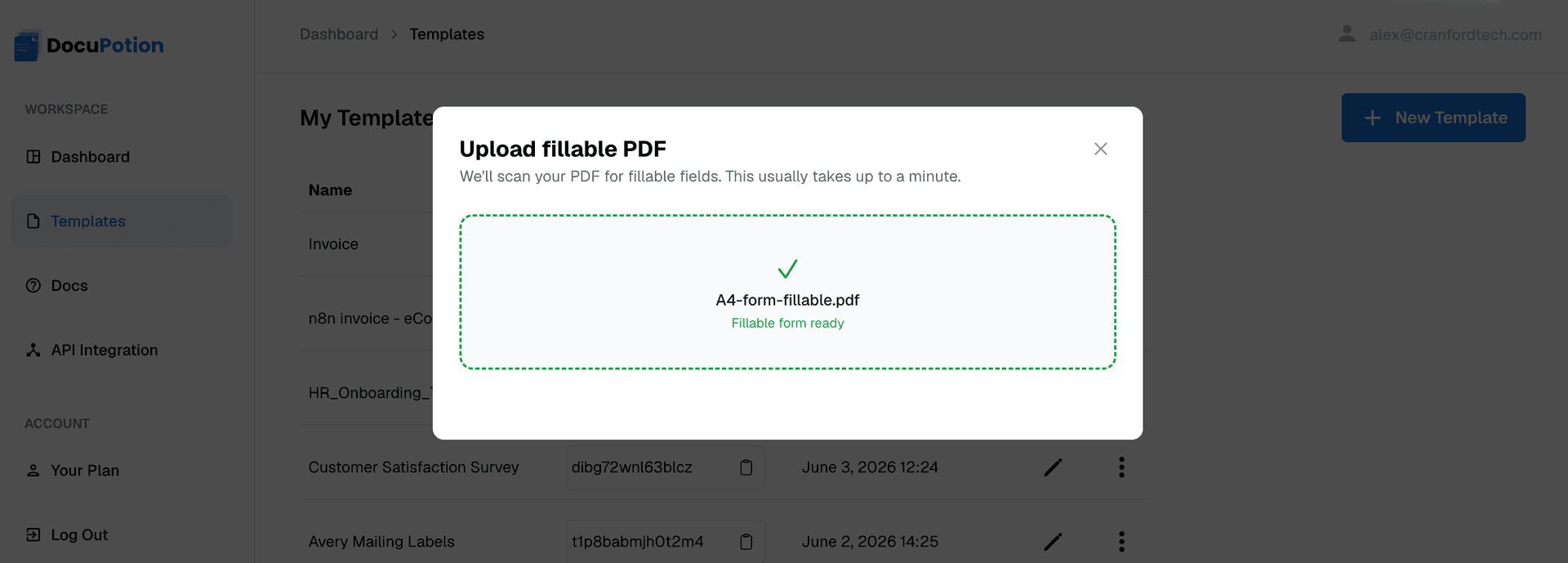
In your DocuPotion dashboard, open the Templates section, click New Template, and choose Upload a fillable PDF.
Drop your form into the upload area. DocuPotion accepts fillable PDFs here and spends a minute or two analyzing the document, reading every text field, checkbox, and text area it contains.
Step 2: Review the detected fields
When the analysis finishes, you land in the template editor with the detected fields listed out. This is where DocuPotion has converted each of your form's internal field names into readable merge fields, so the messy Text1 becomes something like company_name based on the label next to it.
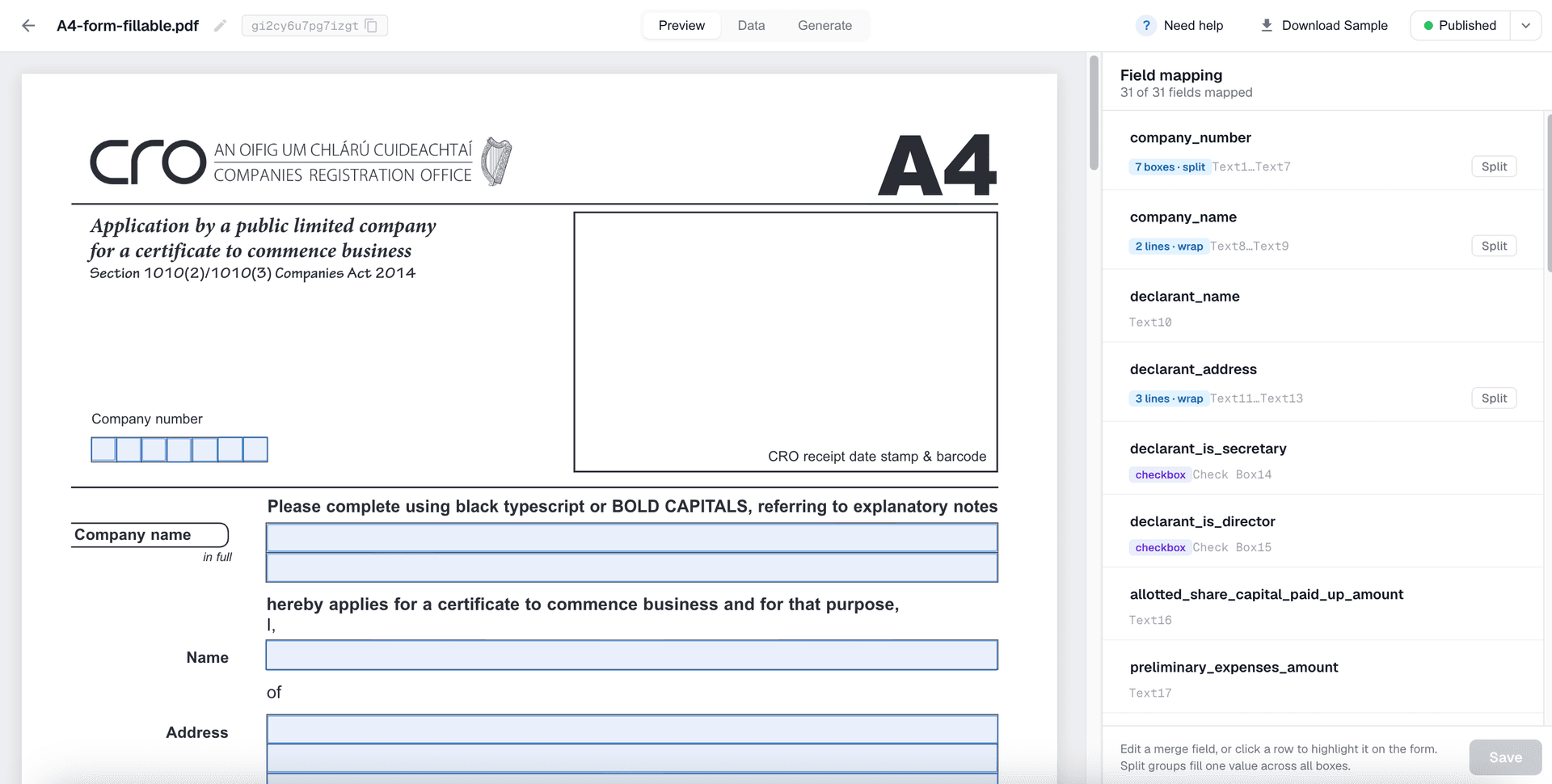
Take a moment to check the mapping against your original form. Three things are worth a quick look:
- Coverage: every field you normally fill in is represented, and nothing was missed.
- Names: the merge field names are clear and easy to recognise, so they will be simple to map to your data later.
- Grouping: character boxes (one box per letter) and stacked lines that make up a single answer are grouped together as one value, not split into many.
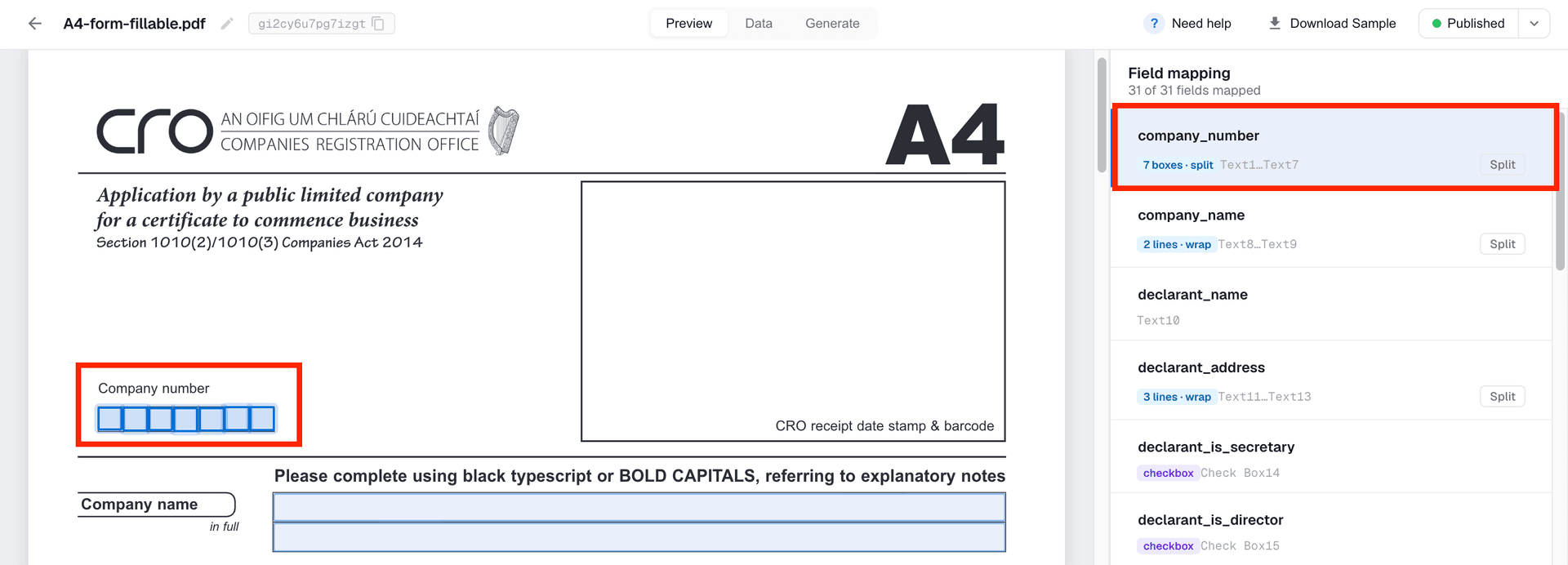
If a name is awkward, rename it now to something that matches your data. Clear names save you time when you connect your data source.
DocuPotion tip: Keep merge field names identical to the field names in your data source (your spreadsheet column, table field, or app). When the names line up exactly, mapping your data is almost automatic.
Step 3: Test with sample data
Before you generate anything for real, prove the mapping works. Open the Data tab, type a sample value into each merge field, and click Download Sample to generate a test PDF.
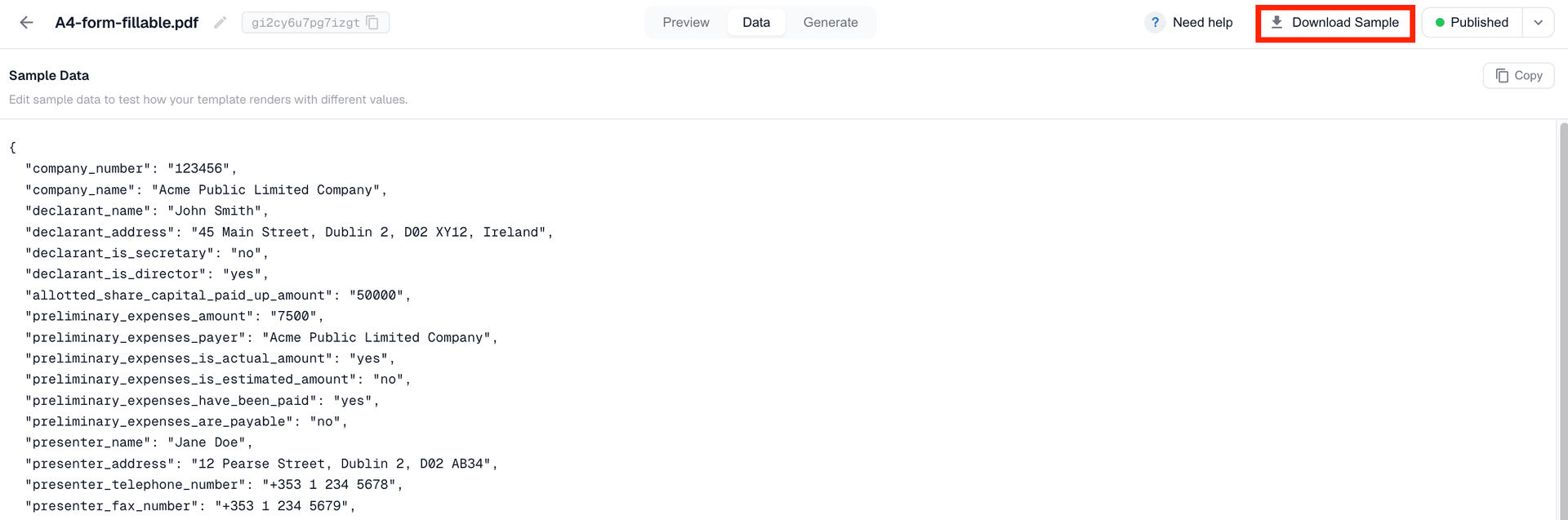
Open that sample at full size and read it the way your recipient would. This is where you catch the small things: a value landing in the wrong box, a long answer that needs to wrap across lines, a checkbox that should tick when a value is true. Fix anything you spot, then download another sample until it is exactly right.
Checkboxes are handled with true/false values. Send true to tick the box and false to leave it clear, so your data can drive ticks and crosses automatically.
Step 4: Fill the form automatically from your data
Once you're happy with the sample PDF generation, your template is good to go. To start automating your PDF, you'll need to connect your template to a data source. DocuPotion has a number of no-code integrations that allow you to connect your data to a template:
- Our Airtable integration allows you to fill your template with data from Airtable records via an Airtable Automation
- Use your template in a Zapier Zap and fill a form whenever something happens in another app
- Our n8n node allows you to generate filled PDFs as a step in an n8n workflow
- Generate filled PDF forms from your Bubble app
- If you're a developer, you can use our REST API to fill forms directly from your own backend
Pick whichever matches your data. The template stays the same no matter how the values reach it, so you can start with one integration and add others later.
What you can automate this way
Almost any recurring form is a candidate. Some common use cases include:
- Government and compliance forms that must be filled the same way every time
- Contracts and agreements that change only by client and terms
- Applications and intake forms filled from a submission or a CRM record
- Insurance and claims forms generated per policyholder
- Onboarding and HR paperwork issued for every new hire
If you produce the same form repeatedly and only the values change, it is worth automating.
A few things worth knowing
- Your form is preserved exactly. You are reusing the PDF you already trust, so the layout, fonts, and fixed text all stay as they are.
- Names matter. If you rename a merge field, update the matching field name wherever your data comes from, or that value will come through blank.
- Not fillable? You still have options. If your form is flat or scanned, see how to create a reusable template from an existing PDF, which rebuilds the layout for you.
Wrapping up
Filling the same PDF form by hand is exactly the kind of work that should not need a person. If you already have a fillable form, you can automate it in a few minutes: confirm it has real fields, upload it, check the detected merge fields, test with a sample, and then fill it from your data through an integration or the API. From there, every form completes itself, correctly and at whatever volume you need.
This is just one way DocuPotion can help you automate your business documents. For more info, check out our overview of document automation software.