Most teams already have the PDF they need. It might be a property brochure, a quote, a certificate or a welcome letter that someone designed once in Word, Canva or InDesign and then exported. The problem is what happens next: every time you need a new version, someone opens a copy, retypes the details, fixes the formatting that shifted, exports it again and hopes nothing was missed.
That works for one document. It does not work for fifty a week.
This guide shows how to take a PDF you already have and turn it into a reusable template with DocuPotion: a document that keeps its exact design but fills the changing details (names, prices, dates, line items) automatically from your data. You do not need to rebuild the design, and you do not need a developer. And if your document already lives in Google Docs, you can bring it as a template directly, with no PDF export needed.
What a "reusable template" actually means
A static PDF is a finished file. Every word in it is baked in. A reusable template looks identical, but the parts that change from one document to the next are marked as merge fields using double curly braces, like {{Property Address}} or {{Price}}. Everything else (your layout, fonts, logo and fixed text) stays exactly as it was.
When you generate a document, those merge fields are replaced with real values from your data. The same template can produce one document or a thousand, each one correct and on-brand, without anyone touching the design.
The design never changes. You are not redrawing your PDF. You are pointing at the few spots that vary and telling DocuPotion to fill them from your data.
What you'll need
- An existing PDF you want to reuse (a brochure, invoice, quote, certificate, letter, and so on)
- A DocuPotion account
- A rough idea of which details on the page change between documents and which stay the same
That last point is the only thinking you need to do up front. For a property brochure, the address, price, photos and description change with every listing. The agency logo, the agent's name and the office phone number usually do not.
Step 1: Upload your existing PDF
In your DocuPotion dashboard, go to the Templates section and start a new template with the Describe with AI option.
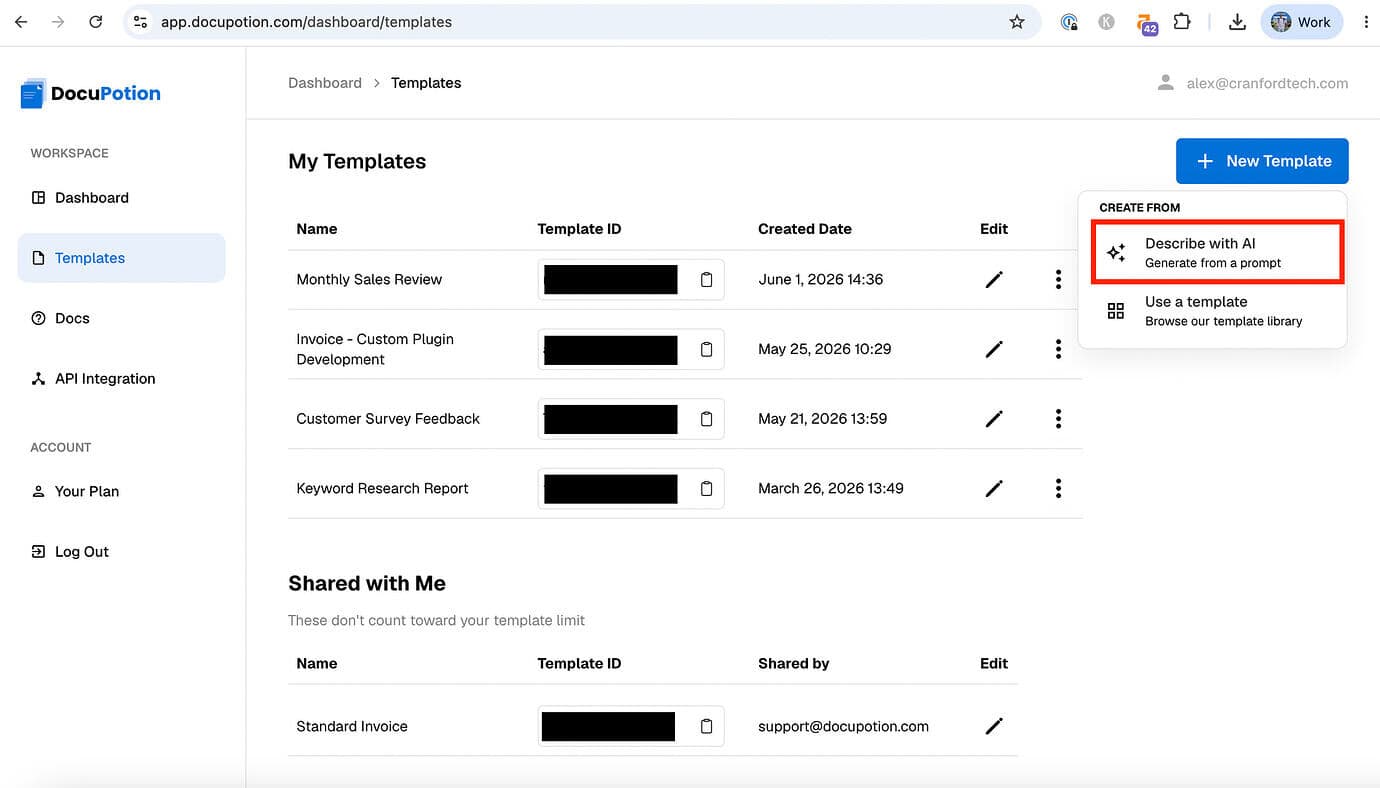
Attach your existing PDF (our example is a property brochure) and ask DocuPotion to build a template based on it.
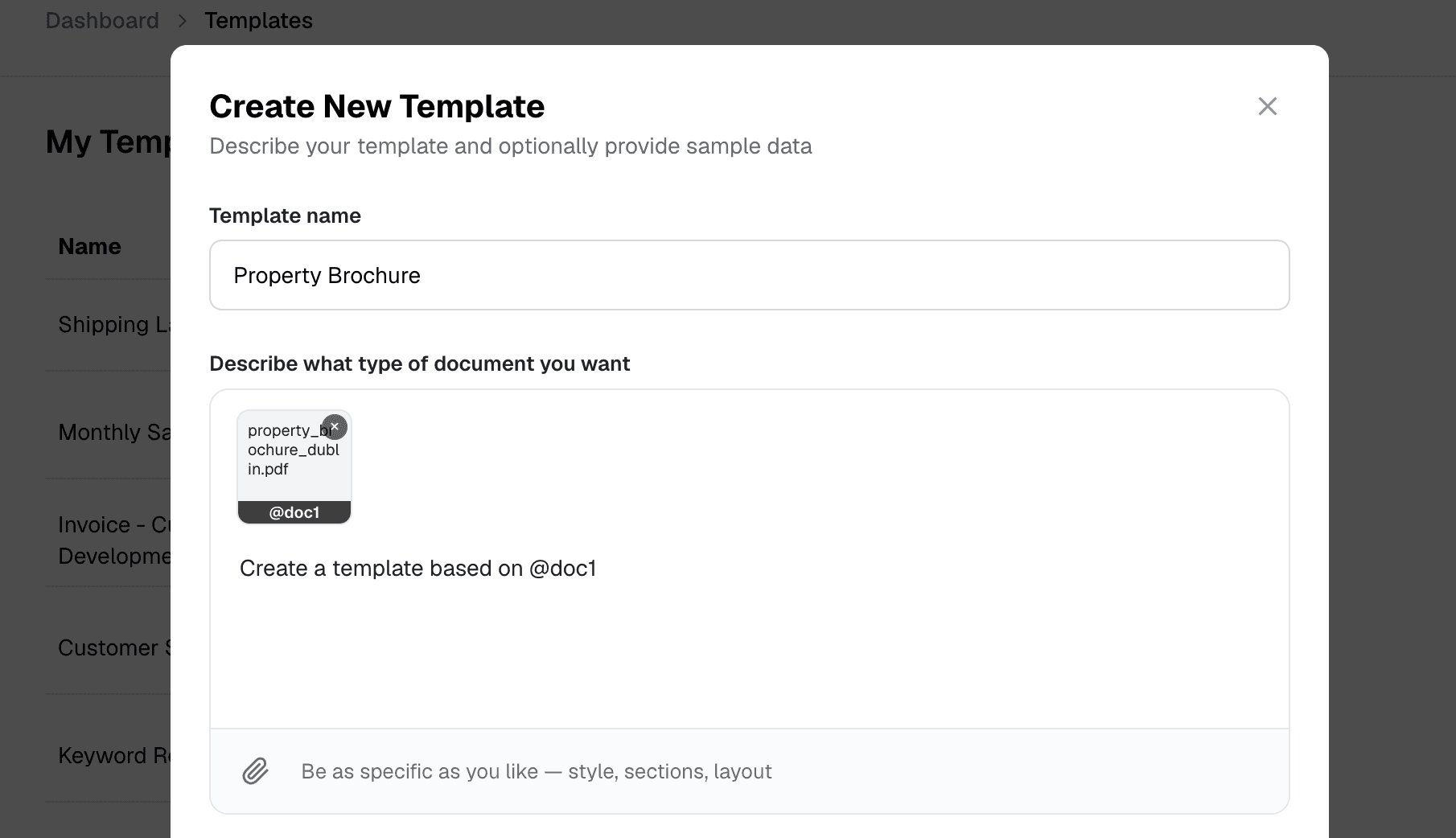
DocuPotion reads the document, recreates the layout, and detects the values that look like they should be dynamic. For our property brochure, that means it picks out the address, the price, the number of bedrooms, the description and so on, and turns each of them into a merge field.
Step 2: Provide sample data (or let it fill in)
You will be asked whether you want to supply sample data for the merge fields or have DocuPotion generate realistic examples for you.
The main reason to paste in your own sample data is to define the structure of your merge fields, in other words, which fields your template should pull in and what they are called. The actual placeholder values matter less. They simply let you see how the finished document will read once it is filled. So if your records have fields like Property Address, Asking Price and Bedrooms, pasting in one example record tells DocuPotion exactly which merge fields to create. If you would rather not, let DocuPotion generate the examples for you and adjust the fields afterwards in the chat.
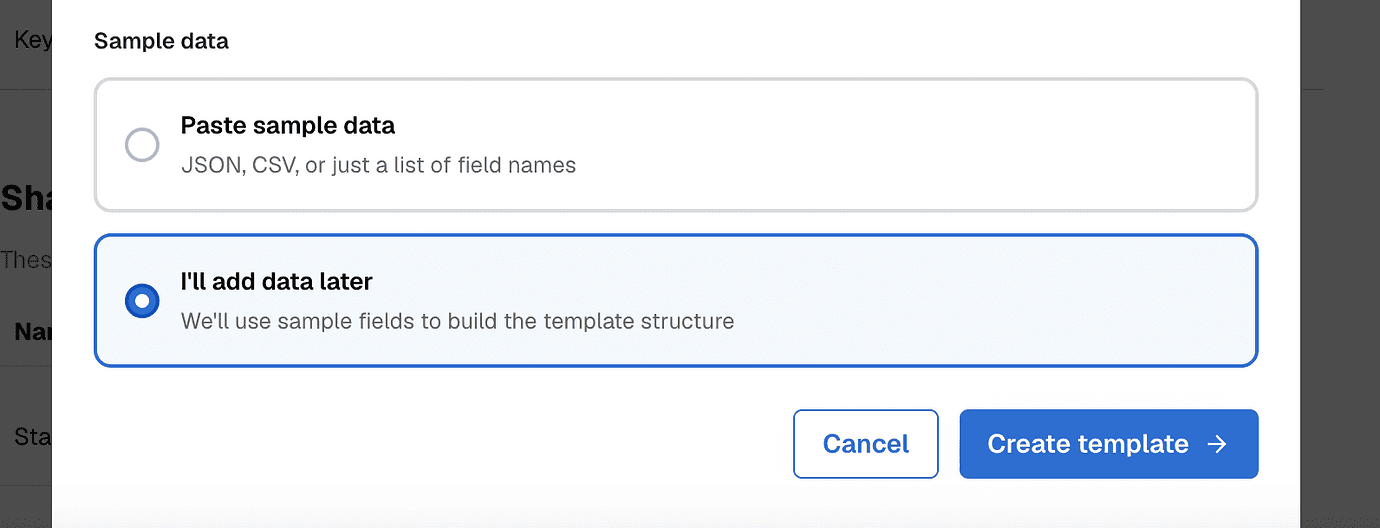
Then click Create Template and give it a moment to render.
Step 3: Review the generated template
You now have a template that matches your original PDF, with the changing details marked as merge fields. Open it in the editor and check two things:
- The layout matches your original closely enough to ship
- The right values were turned into merge fields, and nothing important was missed
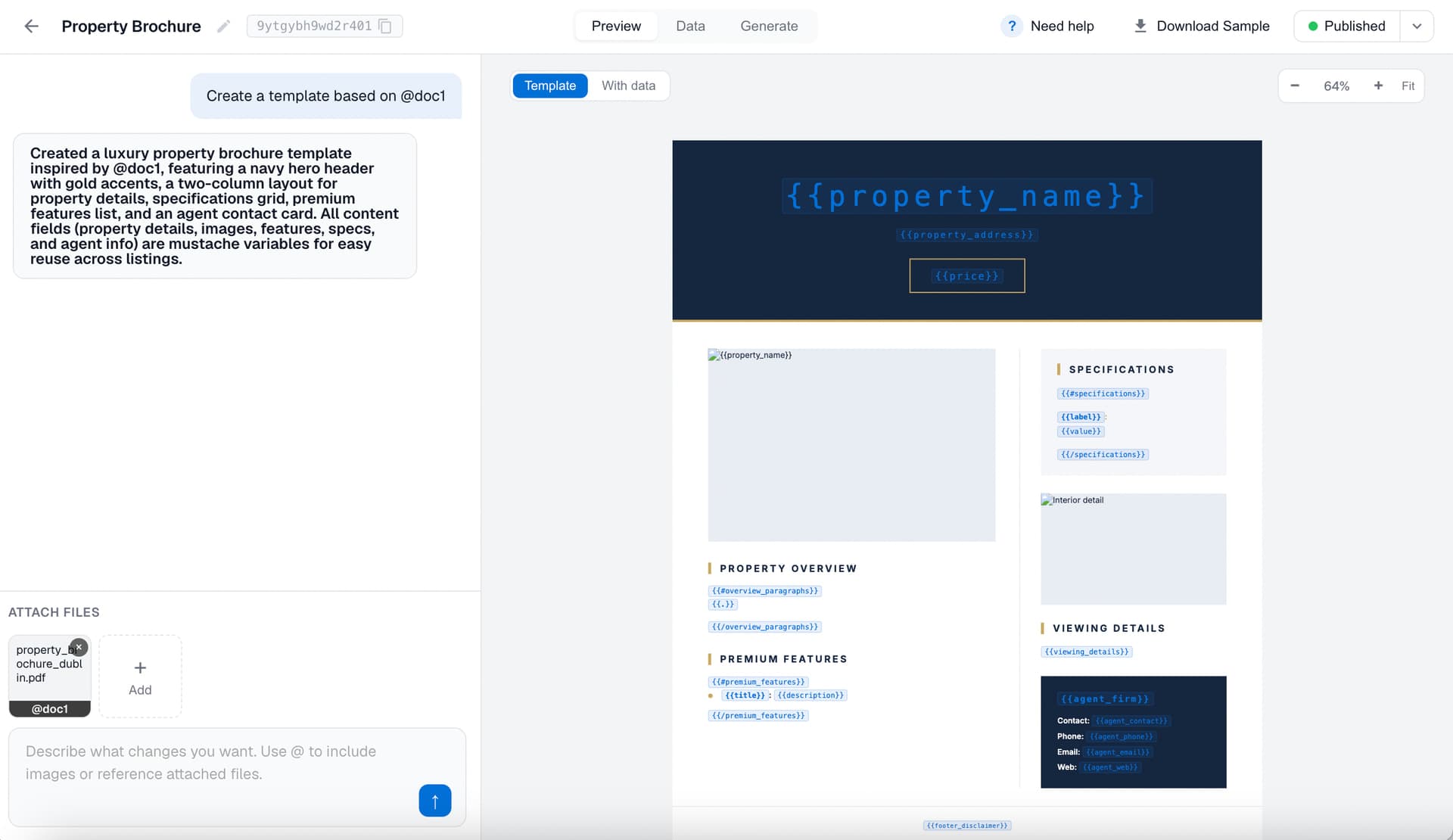
If a value that should be dynamic was left as plain text, you can ask for it in the chat: "Make the listing price a merge field." If the merge field has an awkward name, rename it so it is easy to map to your data later. Clear names like {{Property Address}} and {{Asking Price}} will save you time when you connect your data source.
DocuPotion tip: Keep merge field names identical to the field names in your data source (your spreadsheet, table or app). When the names line up exactly, mapping your data is almost automatic.
Step 4: Lock down the fields that should not change
When DocuPotion converts a PDF, it tends to treat anything specific as dynamic. That can include details that are actually constant for you, such as the agent's name, the office phone number or the company tagline. If you leave those as merge fields, you would have to supply them with every single document, even though the answer is always the same.
So do the opposite of step 3: anywhere a value should stay the same on every document, convert that merge field back to static text. In the chat, that is as simple as: "Change the agent name to Jane Doe and make it static text" or "Replace the contact details merge field with the fixed office number."
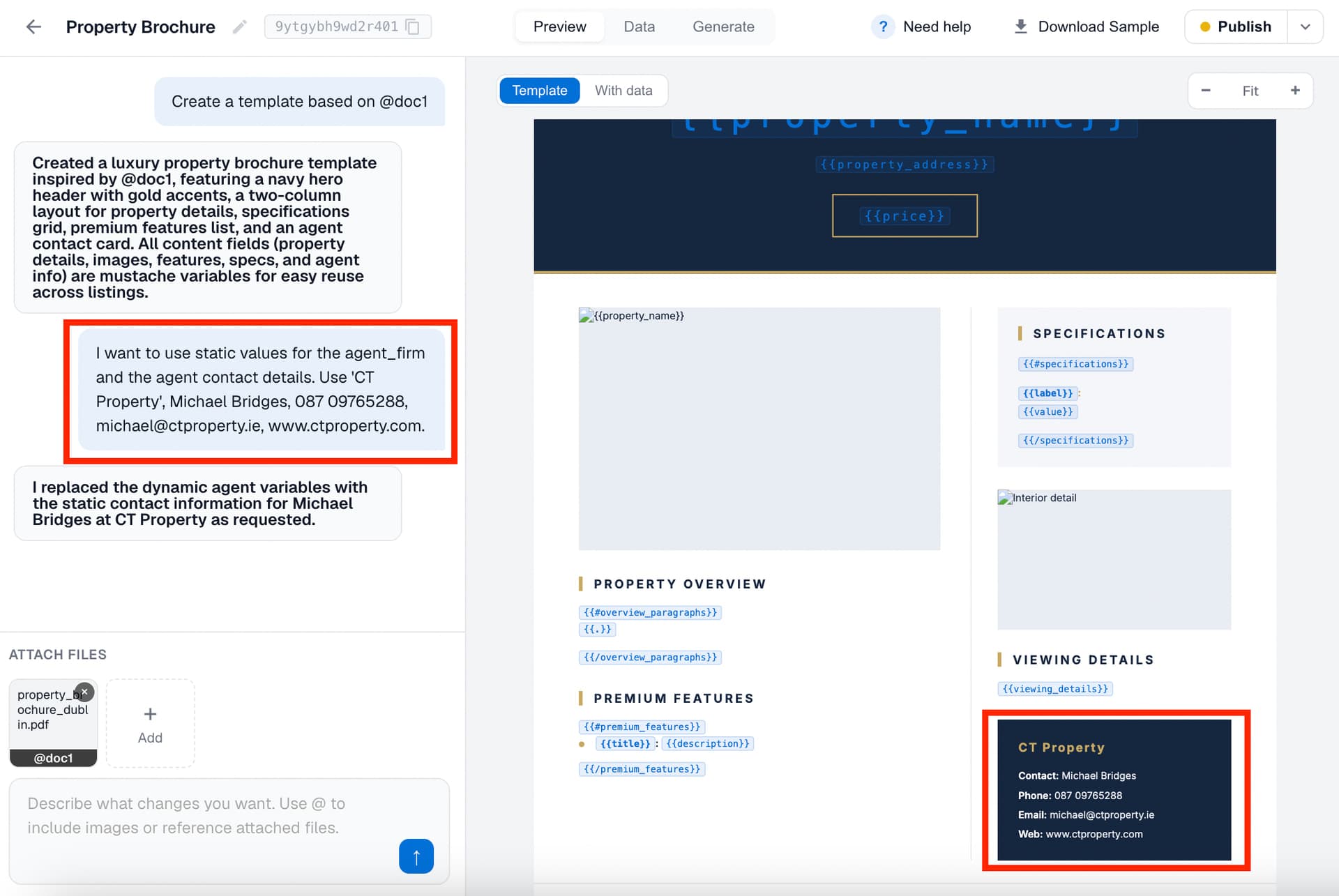
After this pass, the only merge fields left are the ones that genuinely change from document to document. That is exactly what you want.
Step 5: Preview with real data before you ship
Switch to the With data tab in the editor to see the template filled with your sample values, exactly as a real document would look. When you are happy, use Download Sample to pull an actual PDF and check it the way your recipient would, at full size.
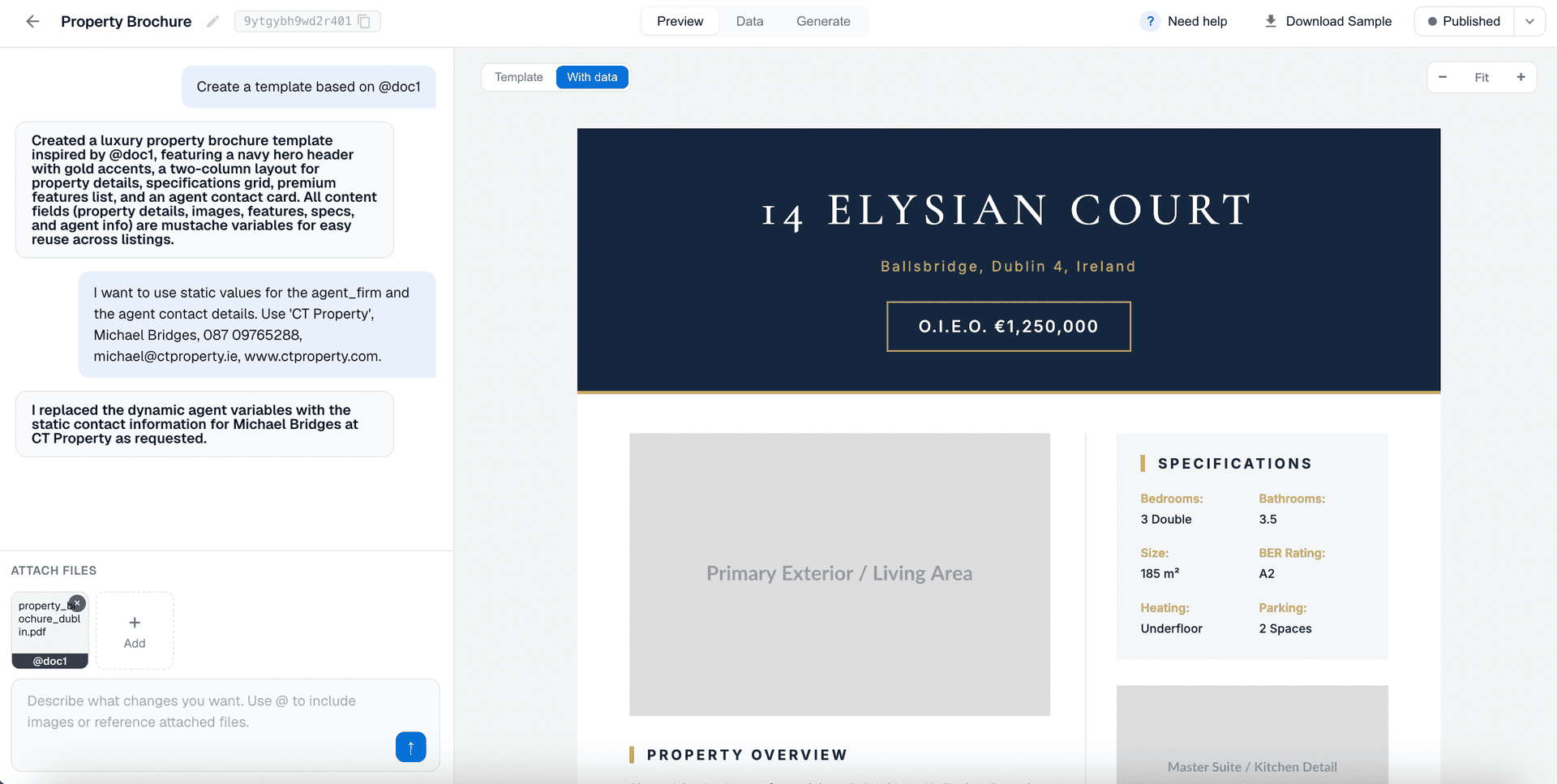
This catches the small things that are hard to see in the editor: a price that needs a currency symbol, a description that runs long, a logo that sits a few pixels off. Fix anything you spot through the chat and preview again.
Step 6: Publish
Once the sample looks right, hit Publish to finalise the template. Publishing is what makes your latest changes live for document generation, so remember to publish again any time you edit the template later.
Step 7: Generate PDFs from your data
Your template is now reusable. To produce a finished document, you point a set of data at the template and DocuPotion fills the merge fields and returns the PDF. You can do this one document at a time or in bulk, on demand or automatically whenever a new record appears.
How you feed it data is up to you. DocuPotion connects to the tools most teams already use:
- API for generating documents directly from your own app or backend
- Zapier to trigger generations of your template in a Zap
- n8n to generate PDF documents in an n8n workflow
- Airtable to turn rows in a table into finished PDFs
- Bubble to generate documents inside your Bubble app
Pick whichever matches where your data already lives. The template stays the same regardless of how you send the data to it.
That is the whole point of a reusable template: design once, then generate as many on-brand documents as you need, each filled correctly from your data.
A few things worth knowing
- Your original design is preserved. You are reusing the PDF you already approved, not starting over. Branding, layout and fonts come across with it.
- Updates are made in one place. When your phone number or logo changes, you edit the template once and republish. Every future document picks it up.
- Names matter. If you rename a merge field, update the matching field name in whatever connects your data, or that value will come through blank.
- Start small. Convert one high-volume document first (the one you produce most often by hand). The time it saves usually makes the case for the rest.
Wrapping up
You do not need to rebuild your documents to automate them. If you already have a PDF you are happy with, you can turn it into a reusable template in a few minutes: upload it, let DocuPotion detect the changing values, lock down the parts that stay fixed, preview with real data and publish. From there, every future document fills itself from your data instead of from someone's afternoon.
If you want a broader look at how teams put this to work, see our overview of document automation software.