Last updated: November 2026
If you're spending time rebuilding the same report for multiple clients at the end of each month, you can stop doing it by hand. Build a report template in DocuPotion, upload that month's spreadsheet, and DocuPotion generates one report per spreadsheet row. You can then download the reports one by one, as a single zip file, or email each client their own copy.
This guide demonstrates a workflow that allows you to generate a monthly client report from start to finish. It covers the template, the spreadsheet, the column matching, the file names and the run. Then it shows how to repeat it next month in a few minutes, and how to automate it completely if you'd rather not upload anything.
We'll use an agency's monthly performance report as the example: one row per client, with hours used, spend and results. The same steps work for per-department reports from Excel, per-site reports, or a statement for each customer.
Before you start
You'll need three things:
- A DocuPotion account. The free trial needs no credit card and includes 10 documents and 3 templates, which is enough to test the whole setup on a few rows.
- This month's data in one sheet, with a header row and one row per client. Excel (.xlsx) and .csv files both work. If you use Google Sheets, download the tab with File, then Download, as .xlsx or .csv.
- The report you already send, as a PDF. If you build it by hand in Word, Canva or Google Docs today, export one copy as a PDF. That becomes your template.
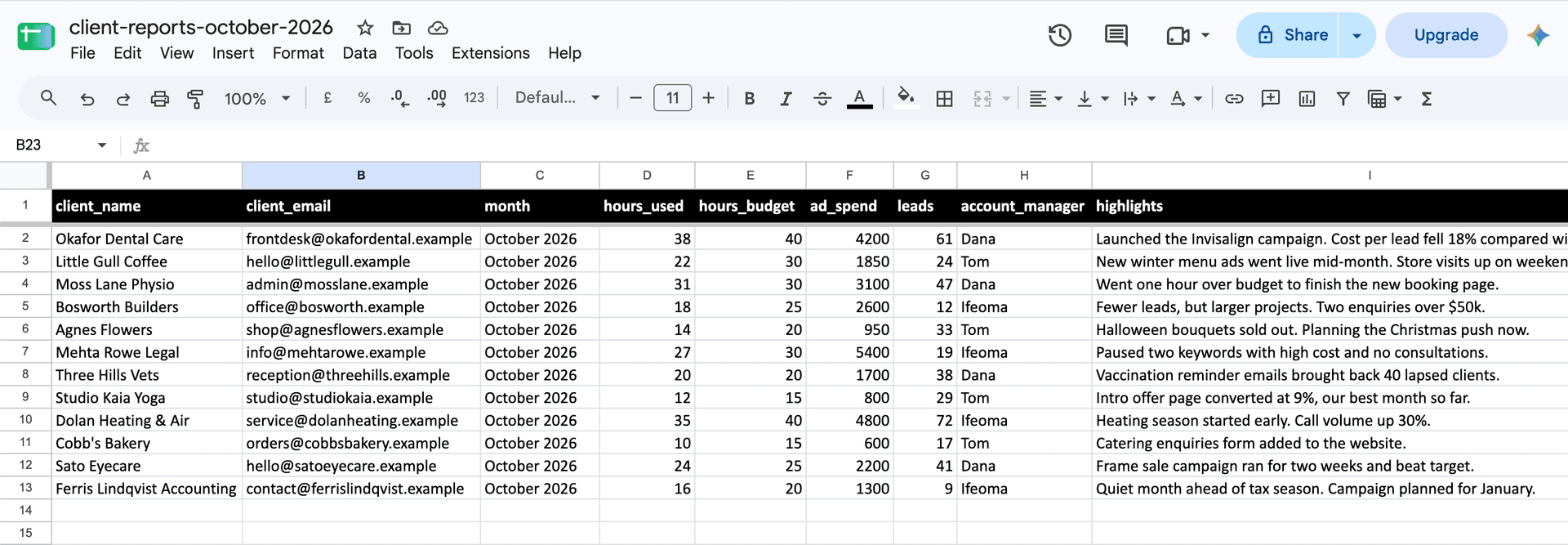
The one thing that catches people out is the shape of the data. Each report is built from one row, so if your raw data has a row per transaction or per timesheet entry, you'll need to summarize it first. A pivot table, or a SUMIFS column that gives one total per client, is enough.
Here's the example sheet:
Step 1: Build the report template
The template is your report with merge fields where the numbers go, such as {{client_name}}, {{hours_used}} and {{leads}}. In DocuPotion, go to Templates and click New template, then Upload a PDF.
I'd start from a PDF. It's where we've had the most success with customers. You upload the report you already designed in Word, Canva or InDesign and place merge fields on top of it where each number goes. DocuPotion keeps the original layout exactly, so every client gets a report that looks the same as the one you send by hand today, minus the copying. See how to turn an existing PDF into a reusable template.
There are two other ways to build it, and both have their place:
- Google Docs: connect Google Drive and pick the report you already write in Google Docs. Good if your report is mostly text that changes length from client to client. See Google Doc templates.
- AI Builder: describe the report ("a one-page monthly performance report with a summary table and a notes section") and DocuPotion builds the template. Useful if you don't have a design yet. You can attach an old report for reference.
One small habit saves a lot of clicking later: name each merge field after the column it should take its value from. That way the matching in Step 3 does itself. You're done when the template preview shows every number you want in the report as a merge field.
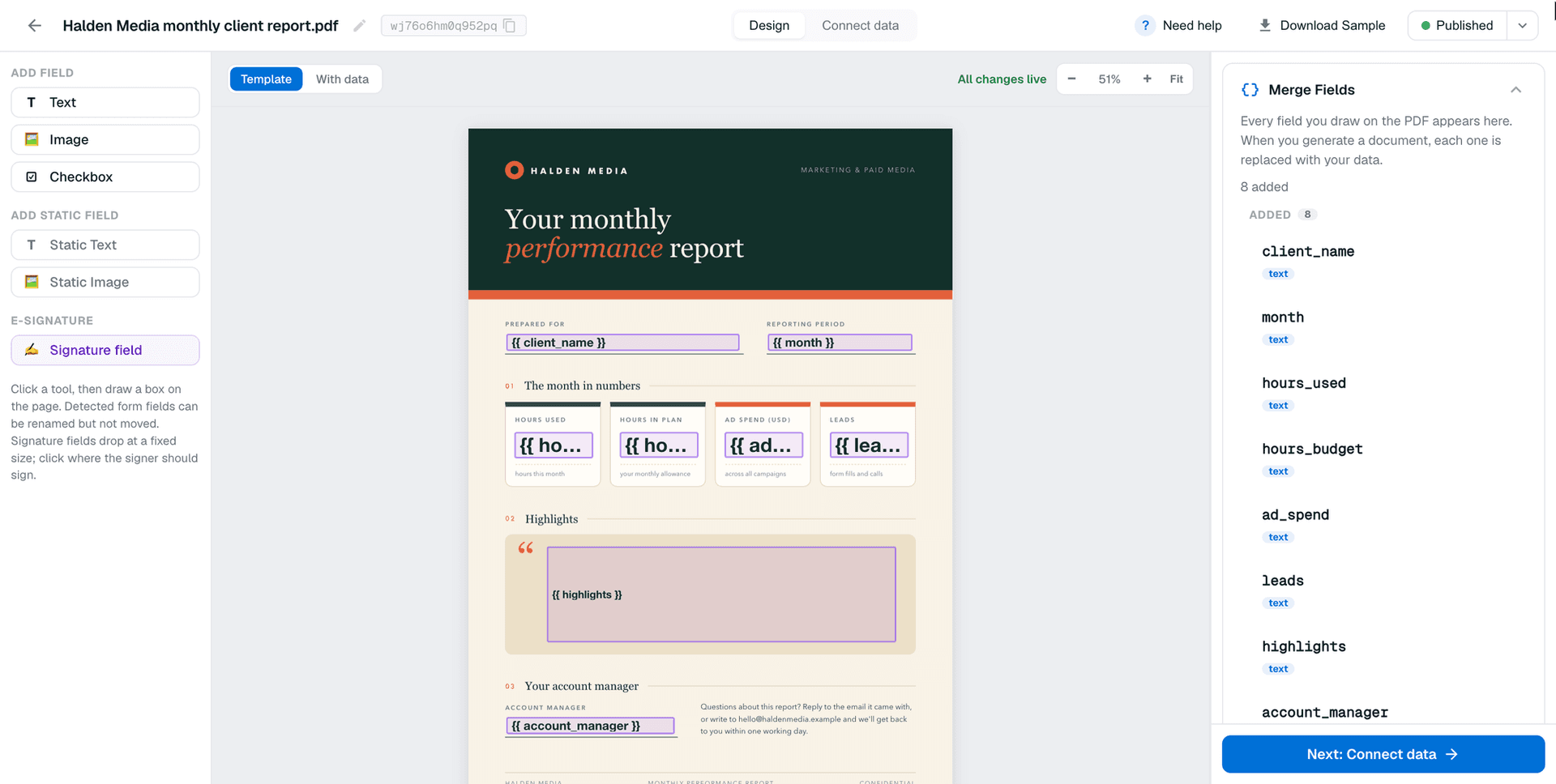
Step 2: Upload this month's spreadsheet
Open the template, go to the Connect data tab, and drop your file into Generate from spreadsheet. DocuPotion reads the header row as column names and turns each row below it into one document.
A file can have up to 5,000 rows and be up to 20 MB. Templates built from a Google Doc take up to 500 rows per file, so split bigger jobs into several files. For a monthly client report you're very unlikely to hit either limit.

Step 3: Check the column matching
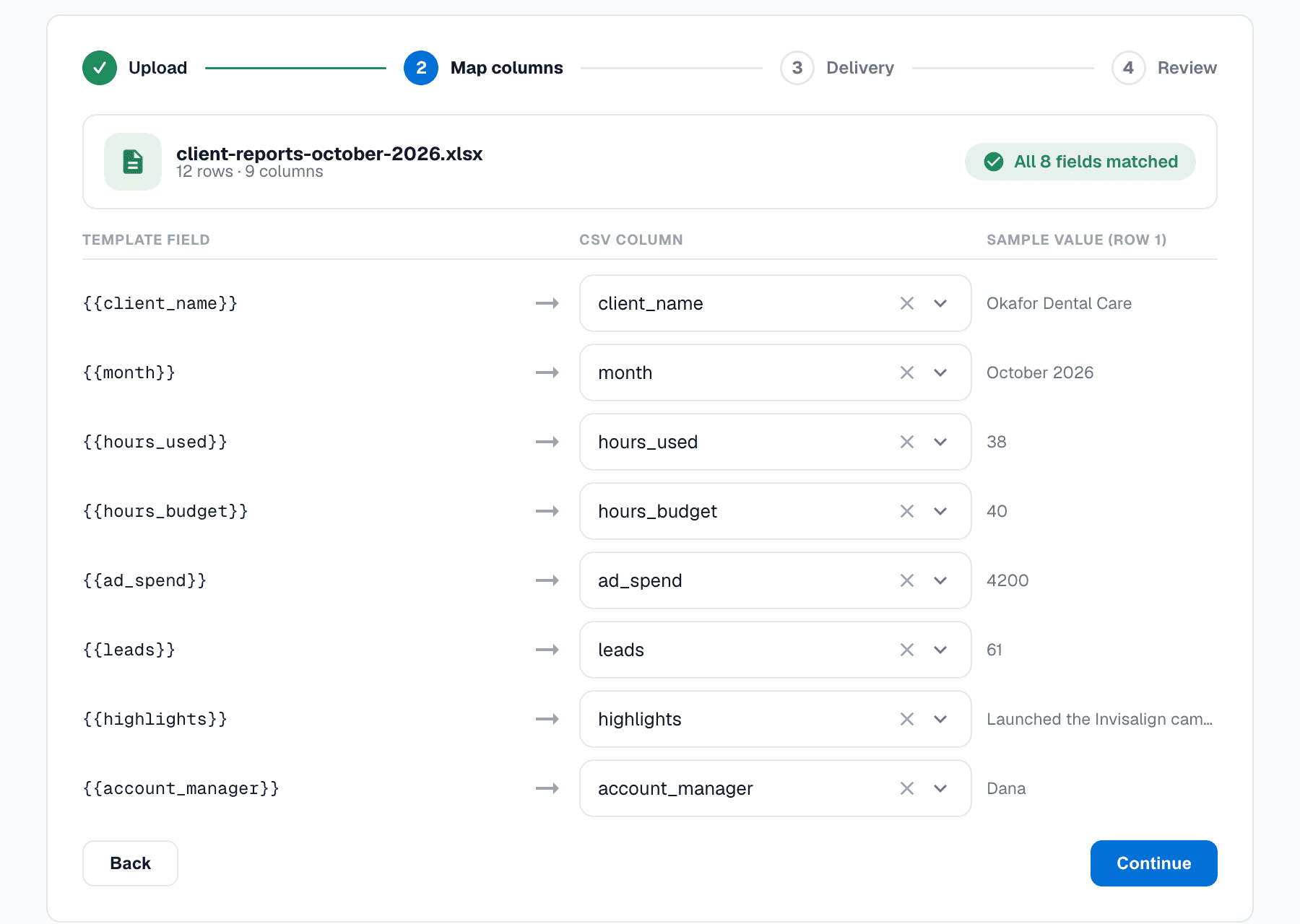
DocuPotion matches each merge field to a spreadsheet column by name, and shows a sample value from your first row next to each pairing. Read down the list and check each sample looks right: "Okafor Dental Care" next to {{client_name}}, "38" next to {{hours_used}}.
If a pairing is wrong, change it with the dropdown. Every merge field needs a column before you can click Continue. This is the step worth thirty seconds of attention, because a wrong match here goes into every report in the batch.
Step 4: Name the files after the client and the month
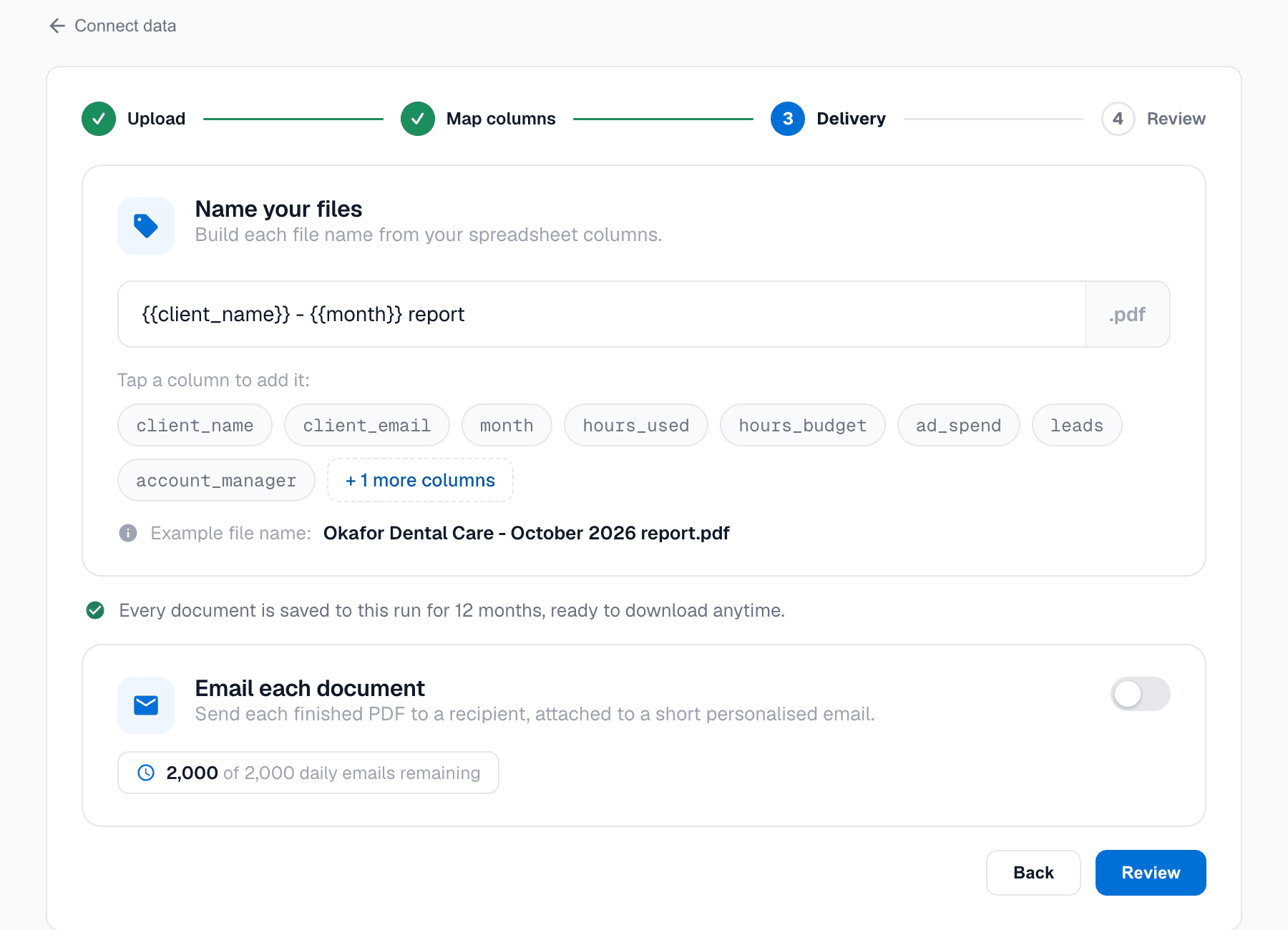
The next step is Delivery. Under Name your files, set a file name pattern so your reports don't arrive as row-00000.pdf. Type the pattern, or click the column chips under Tap a column to add it:
{{client_name}} - {{month}} reportThe Example file name line shows what the first row's file will be called ("Okafor Dental Care - October 2026 report"). On a paid plan you can also turn on Email each document here: pick the client_email column and each client gets their own report as an attachment, with a subject and message that can use merge fields too. Then click Review.
Step 5: Generate and download the reports
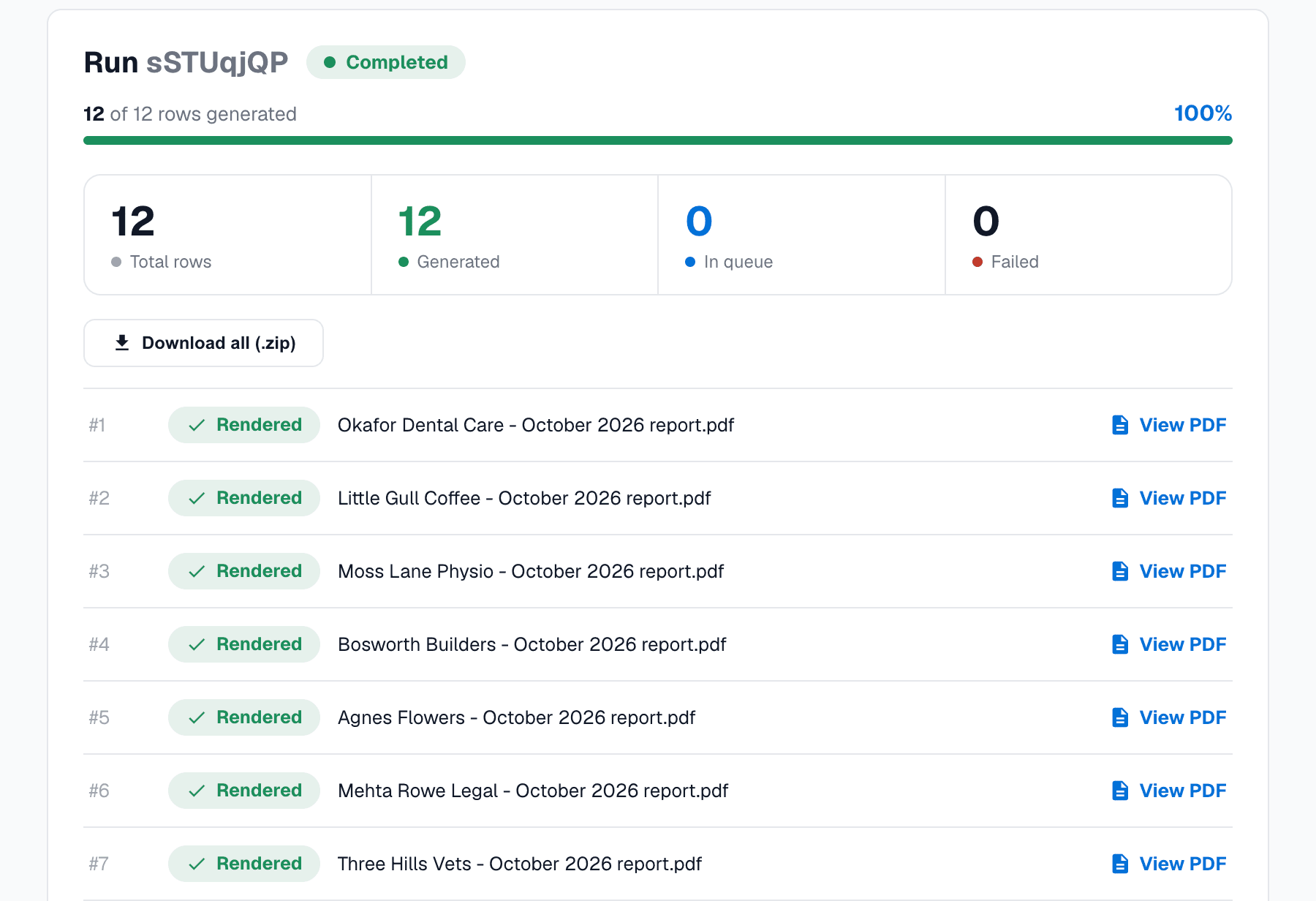
The review screen shows the file, the row count, how many fields are mapped, the delivery option and an example file name. Click Generate [N] documents and DocuPotion creates the reports with a live progress bar. Each row shows its status, and Rendered when its report is ready.
When the run finishes, click View PDF to open any single report, or Download all (.zip) to get the whole month in one file. Generated documents stay available for 12 months, so when a client asks for "that report from March" in October, it's still there.
Running it again next month
This is where the time saving actually shows up. Next month you use the same template and upload a new file: export the month's data with the same column names, upload it on the Connect data tab, check the matching, and generate. Because matching is by column name, an unchanged header row matches the same way as last time, so the whole run takes a few minutes.
Two habits keep it that way:
- Keep the column names the same from month to month, even when you add new ones. Renaming
leadstoLeads (total)in November means rematching in November. - Put the month in a column (like
monthabove) rather than typing it into the template, so the file names and report headings update themselves.
Should you automate it completely?
You can, but I wouldn't start there. If you'd rather not upload a file each month, a scheduled workflow can run the same template for you. DocuPotion has integrations for Zapier, Make and n8n, plus a REST API, so a workflow can read your sheet on the first of the month and generate one report per row.
The route depends on where your data lives:
- Google Sheets or Excel: a scheduled workflow in Zapier, Make or n8n reads each row and has DocuPotion generate its report. In Zapier that's a Schedule trigger, Zapier's Looping action over the rows, and DocuPotion's Create a Document action.
- Airtable: an Airtable automation generates the document from each record and saves it back to the table.
- Your own database or BI tool: call the PDF generation API from a scheduled job.
If you do automate it, my pick is n8n: it handles a loop over many rows well and doesn't charge per task. But be honest about the trade-off. Someone has to build the workflow and fix it when a column gets renamed, and every report still counts as one document either way. For one batch a month, the upload is a few minutes of work. The workflow takes longer to build than a lot of monthly uploads, and it needs fixing whenever the sheet changes.
Other ways to do this, and when they're the better fit
The usual alternatives are Word mail merge, the Autocrat add-on for Google Sheets, and Excel macros. Here's how they compare for a monthly per-client report:
| Option | One file per client? | Best for |
|---|---|---|
| Word mail merge | Not by default: Word merges into one long document | One-off letters from Excel, when you'll split or print the result |
| Autocrat (Google Sheets add-on) | Yes, one Google Doc or PDF per row | Teams that live in Google Workspace and want reports saved in Drive |
| Excel VBA macro | Yes, if you write it | Teams with someone who maintains Excel code |
| DocuPotion | Yes, named from your columns, plus a zip | Monthly batches from Excel or Google Sheets, designed PDFs, or emailing each client their report |
Word mail merge is the tool most people already have, and for a one-off letter it's fine. The catch is that it merges everything into one long document. Getting a separate PDF per client needs an add-in or a macro, and that's where a monthly job starts to drag.
Autocrat is a genuinely good option if your data and templates already live in Google Drive. It merges each row into a Google Doc or Slides template and can run on a schedule, and it's free. DocuPotion is the better fit when the report needs to match a designed PDF exactly, when the data starts in Excel, or when you want each client's report emailed without building that yourself.
How many reports your plan covers
Every generated report counts as one document. Core includes 100 documents a month for $49 a month, and Business includes 500 documents a month for $149 a month, both billed monthly. So 60 client reports a month fits in Core with room to spare, and 150 a month needs Business. See pricing for the full plans, including Custom for higher volumes.
Honest limits
DocuPotion fills each report from a single row. It doesn't add up your raw data for you, so you'll need to summarize to one row per client in the spreadsheet first (Before you start covers how).
The upload is also a manual step by design. If the report has to go out at 6am on the first of the month whether anyone is at their desk or not, use the automated route above.
FAQ
How do I generate a report for each client from a spreadsheet every month?
Build a report template with merge fields once, then each month upload that month's spreadsheet with one row per client. DocuPotion matches the columns to the merge fields by name and generates one report per row, named from your columns, which you download individually or as one zip.
How do I automate per-department reports from Excel?
Put one row per department in your Excel file, with a column for each figure in the report. Upload the .xlsx file to a DocuPotion template and you get one report per department. To skip the upload, run the same template from a scheduled Zapier, Make or n8n workflow.
How can I turn each row of a Google Sheet into a PDF report automatically?
Download the sheet as .xlsx or .csv and upload it to a DocuPotion template, which creates one report per row. For no manual step at all, use a scheduled Zapier, Make or n8n workflow that reads each row and generates its report with DocuPotion.
Can I email each client their report?
Yes, on paid plans. Map the column with each client's email address and DocuPotion sends every client their own report as an attachment, with a subject and message personalized from their row.
Next steps
Build the template once, upload the month's spreadsheet, and DocuPotion turns each row into a named report, ready to download or email. The first month takes the setup. Every month after that takes a few minutes.
To see a spreadsheet become separate documents right now, try the demo on the PDF mail merge page. And if your report is an existing PDF form that has to stay exactly as it is, see how to auto fill a PDF form from Excel.