This guide will cover two of the common ways you might want to generate PDFs from Airtable:
- Building a brand new document, like an invoice or a proposal, filled with your record data
- Taking a fillable PDF form you already use and filling it automatically from your records
DocuPotion handles both, and the overall process is the same each time. You design a reusable template, map your Airtable fields to it, and then trigger generation. The finished PDF is saved straight back to an attachment field on your record. No developer needed.
This guide walks through the whole thing end to end, including line items, linked records, and checkboxes.
Prefer to watch? The full walkthrough is below.
What you'll need
- A DocuPotion account
- An Airtable base with the records you want to turn into PDFs
- An attachment field in your table (this is where each finished PDF is saved)
Step 1: Create your reusable template
Your template is the reusable design that gets filled with a different record each time. In DocuPotion, open the Templates section and click New Template. There are a few ways to start. This guide covers the two most common: Describe with AI to build a new document, and Upload a fillable PDF to reuse a form you already have.
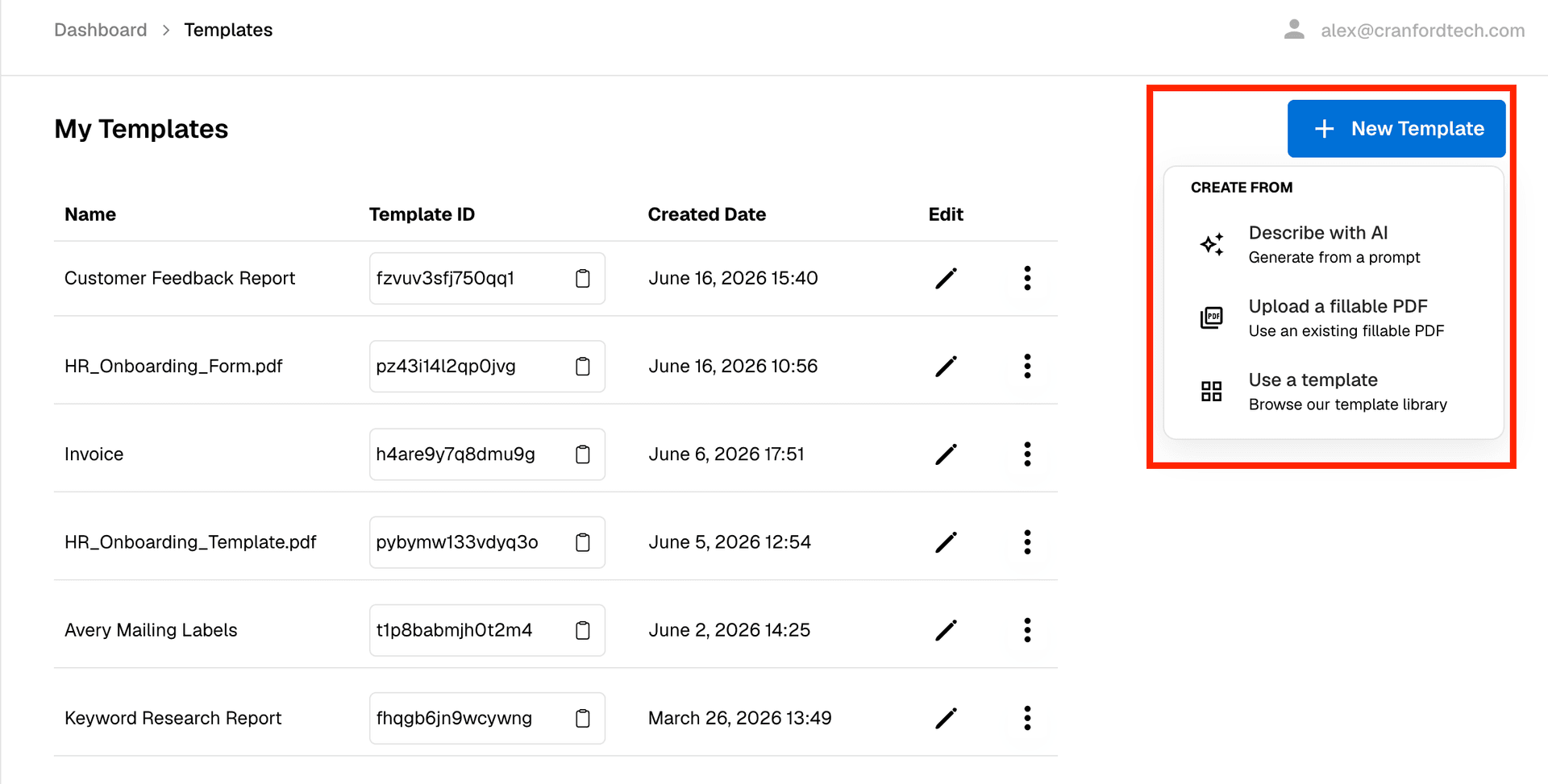
Option A: Build a new document with AI
Pick Describe with AI when you want to create a document from scratch, such as an invoice. Give it a short description of what you want, for example "a simple invoice for my business with line items."
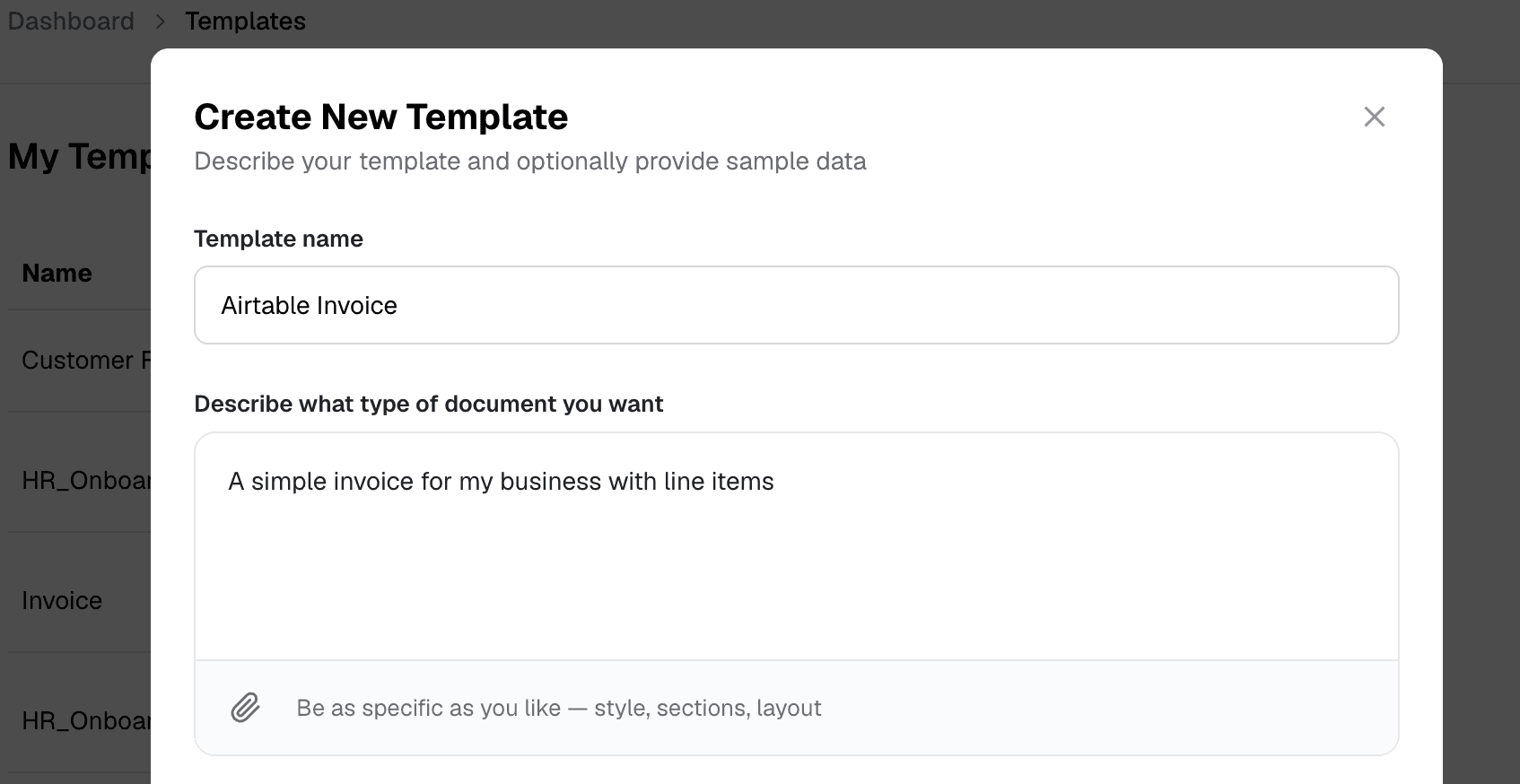
The above example is pretty simple, but DocuPotion is good at taking very detailed, complex instructions and turning it into a specific template. You can also attach existing documents and instruct DocuPotion to 'create a template based on the attached'.
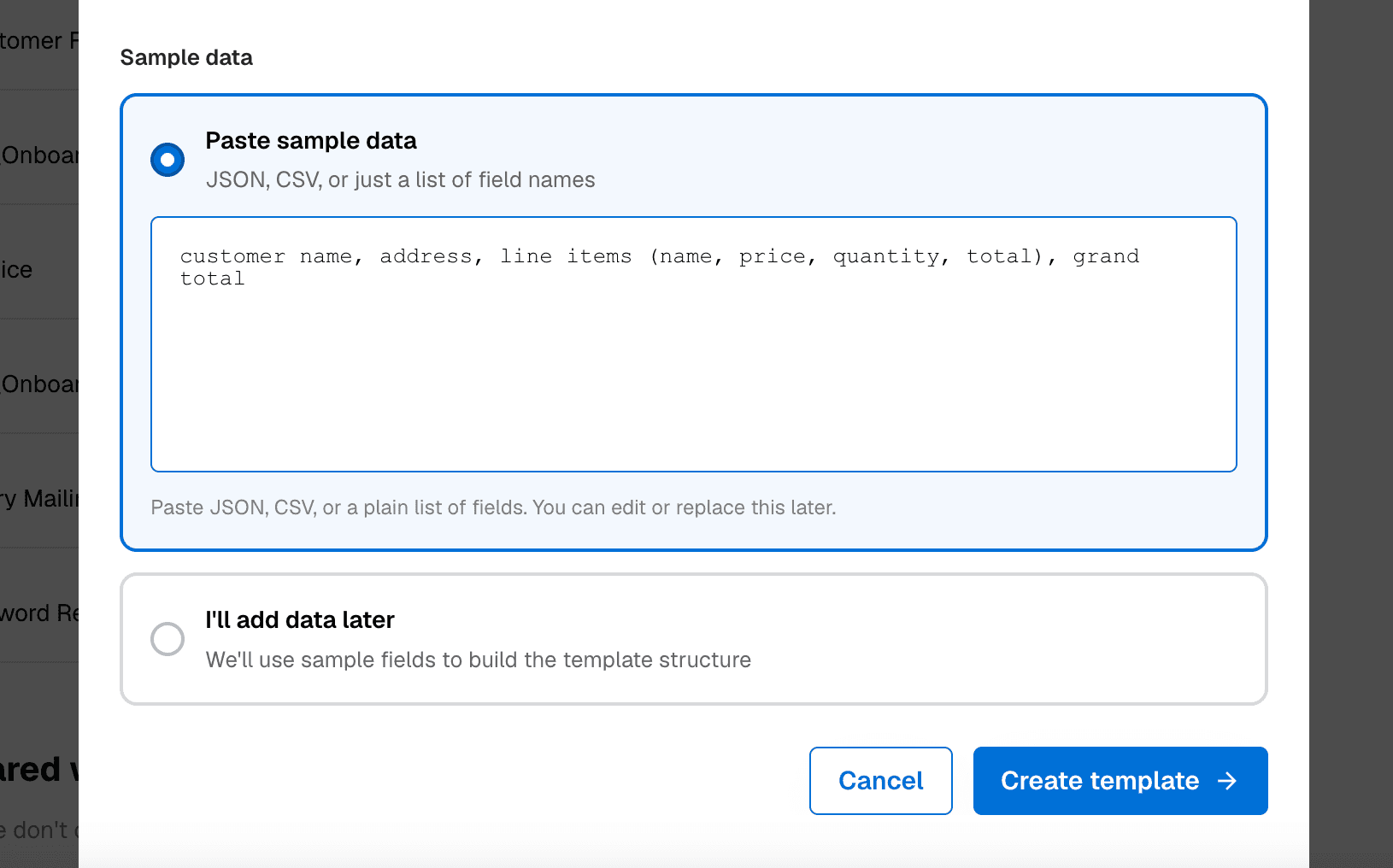
Next, add some sample data. This is the important part: it tells DocuPotion which fields to turn into placeholders. You can paste JSON or CSV, or just type a list of field names that roughly match your Airtable columns. They don't need to match exactly, since you'll map them properly later.
If your records include line items from a linked table (like products on an invoice), list those nested fields too, for example line items (name, price, quantity, total). This tells DocuPotion to build a repeating section (or 'loop'), one row per line item, instead of a single fixed block.
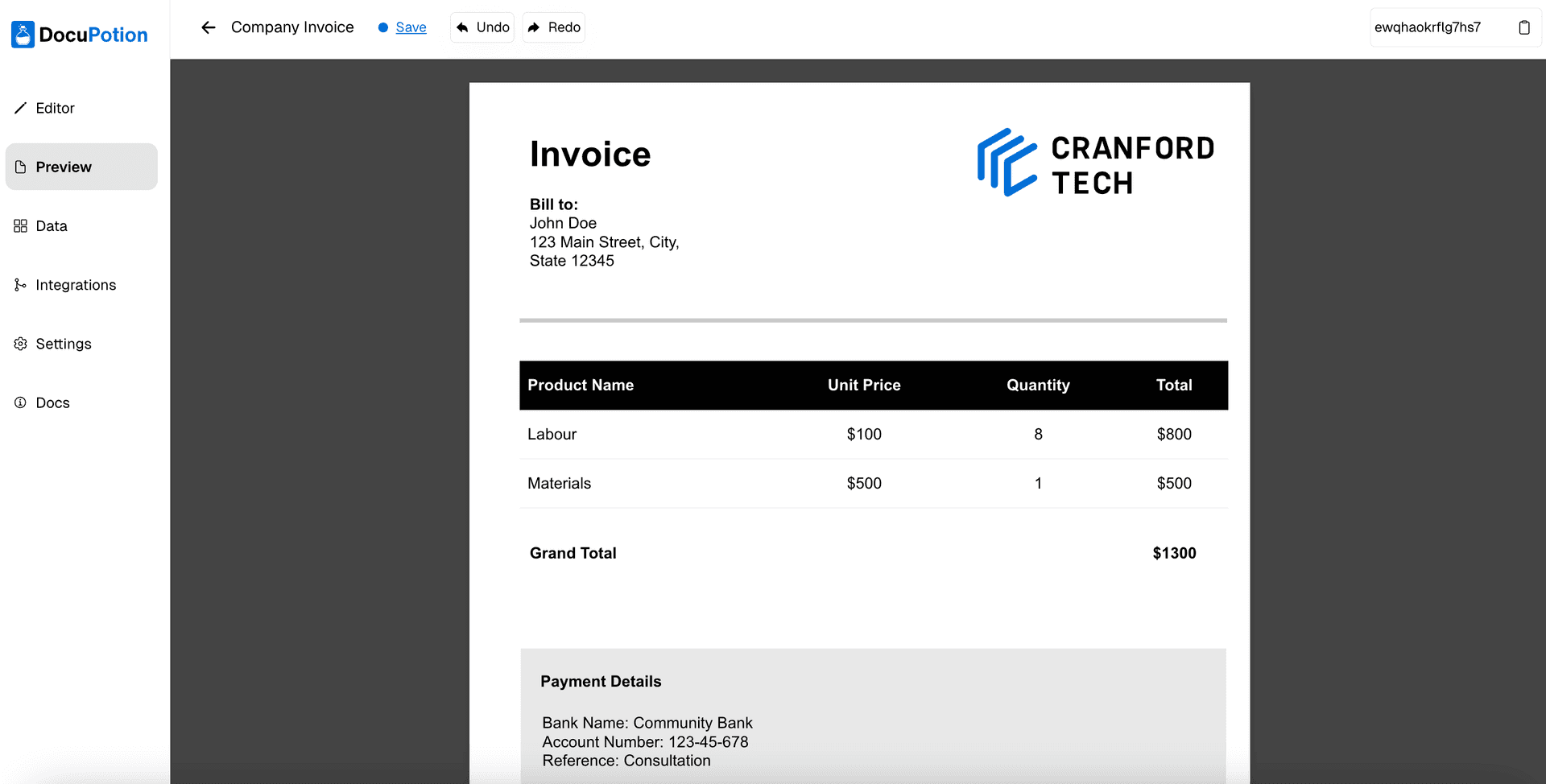
DocuPotion takes a minute or two to build the template. Once it's complete, you'll see a preview of your template in the editor.
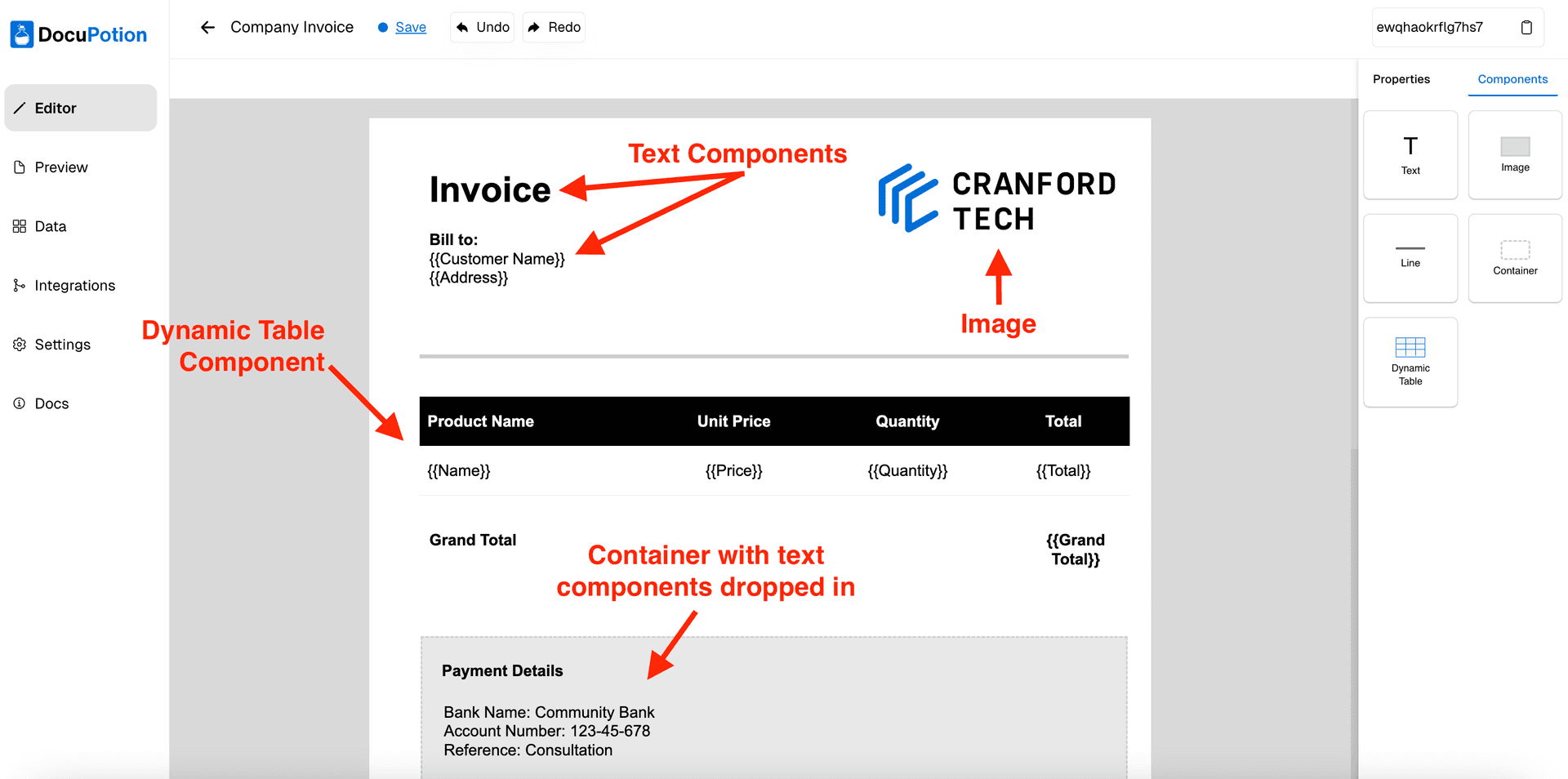
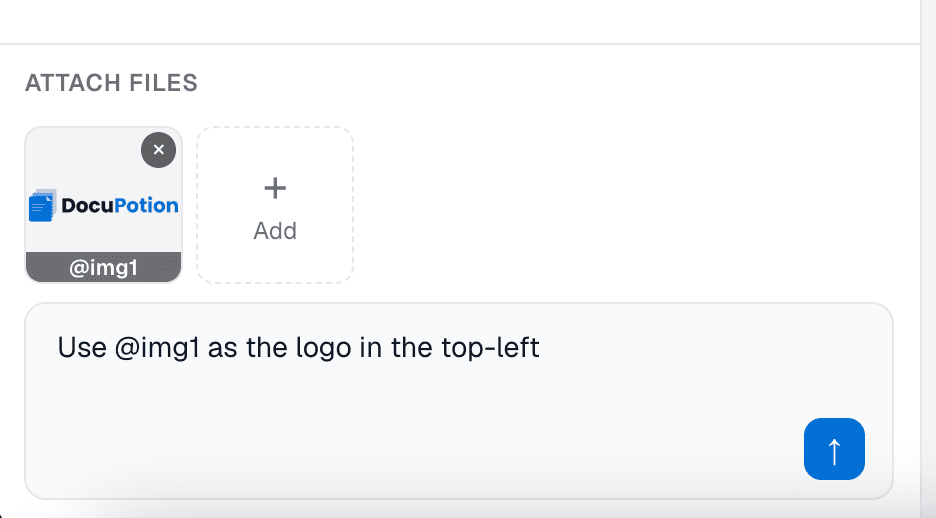
You can refine your reusable template by chatting with it, the same way you would with ChatGPT or Claude. Ask for changes like "remove the placeholder company name" or "make the header navy." To add a logo, click Add in the attach files panel and pick an image to upload. Then reference it in a prompt with the @ command (for example, "use @logo in the top left").
Switch to the With Data tab at any point to see your template rendered with sample values rather than raw placeholders.
Option B: Reuse a fillable PDF form
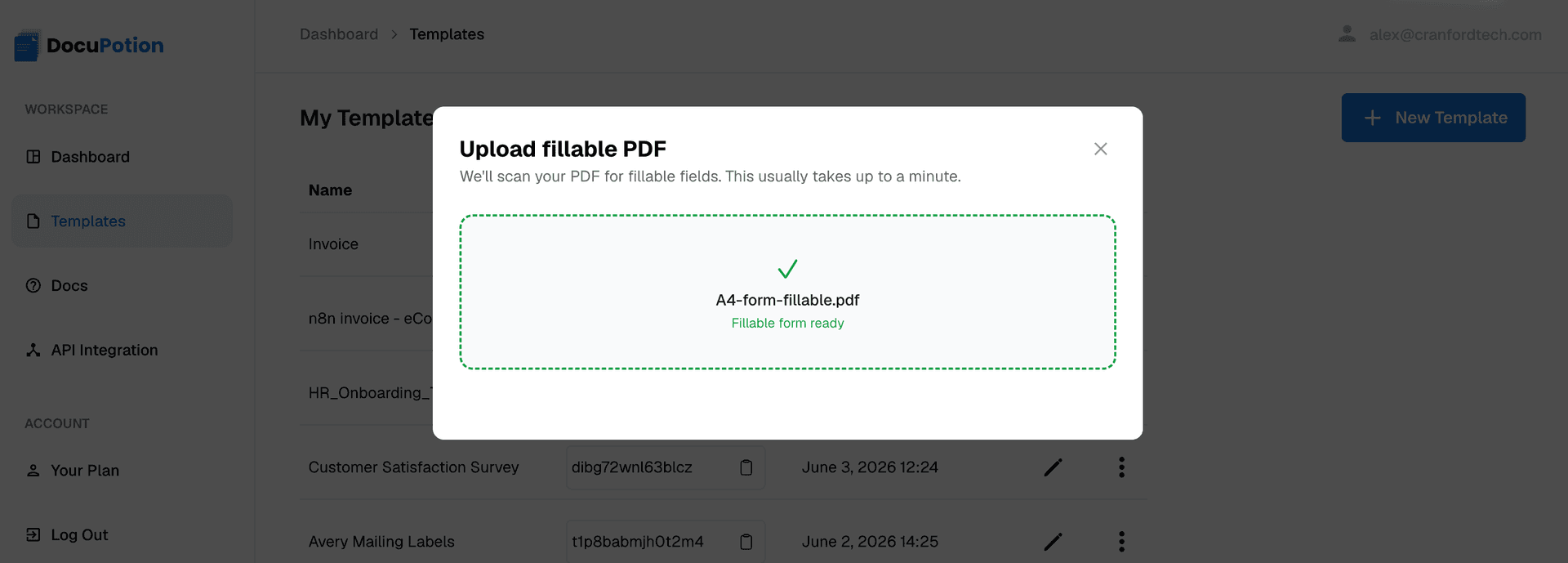
If you already have a fillable PDF form, such as an onboarding or intake form, pick Upload a fillable PDF and drop your file in. DocuPotion scans the form for fillable fields, which usually takes up to a minute.
The editor looks a little different here. Alongside the form you get a field mapping panel that lists every detected field and turns each one into a named merge field you can map to Airtable.
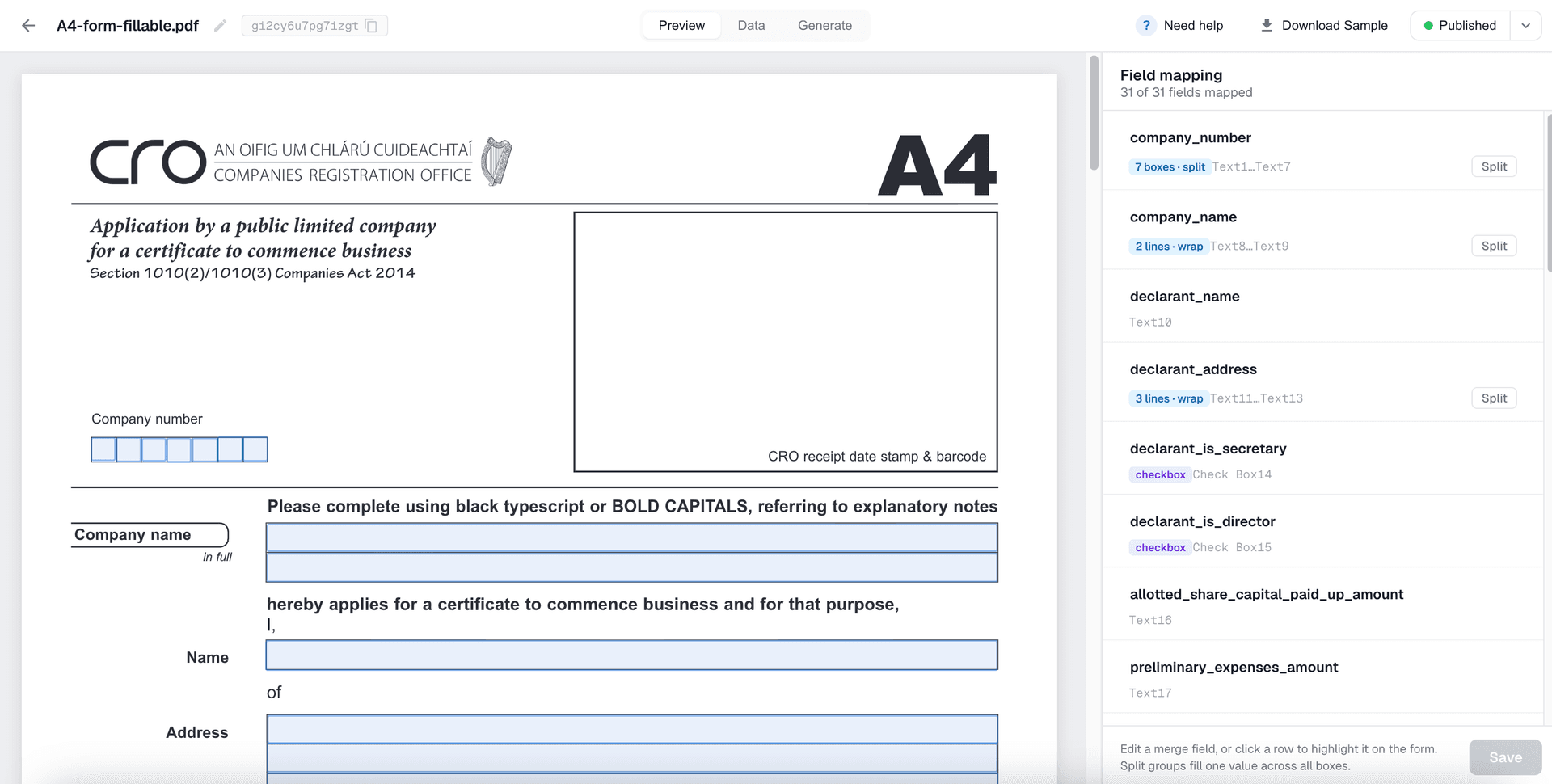
It's worth a quick review before you move on:
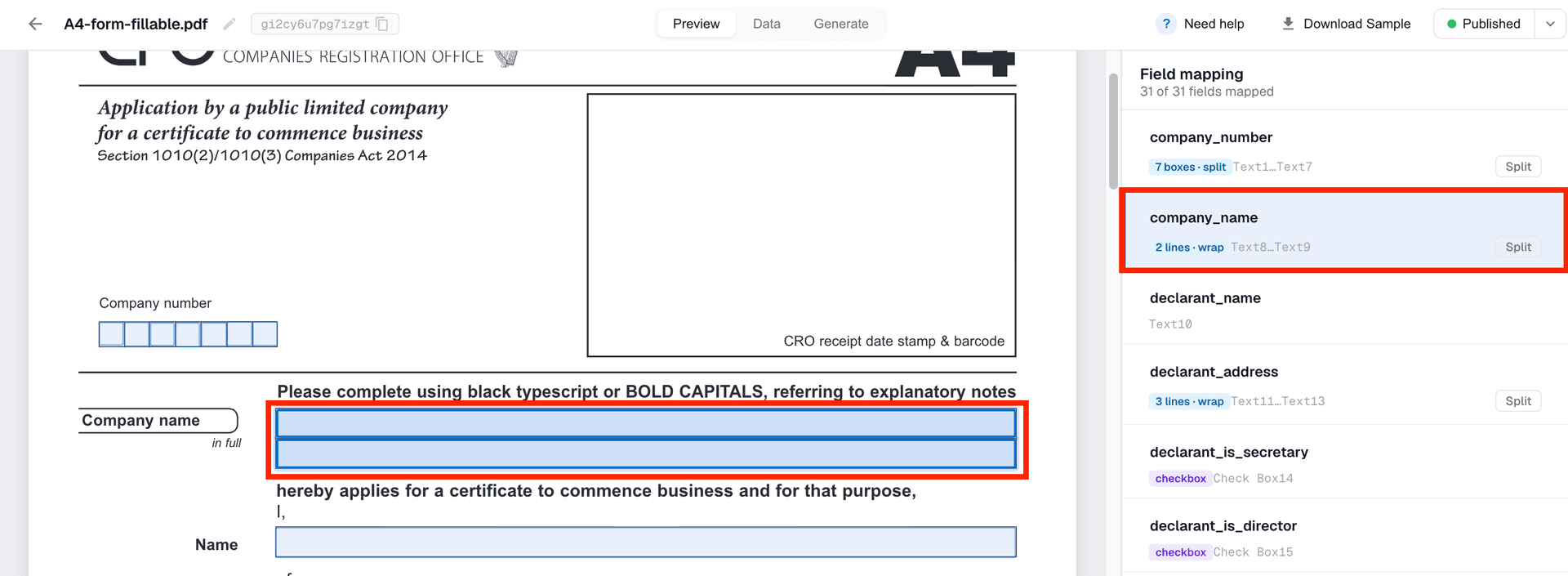
- Grouped multi-line fields. Stacked input lines that make up one answer, like a three-line address block, are detected as a single
addressfield rather than three separate ones. If you'd rather split them out, use the Split control (or rename themaddress,address 2,address 3); give them the same name again and they merge back.
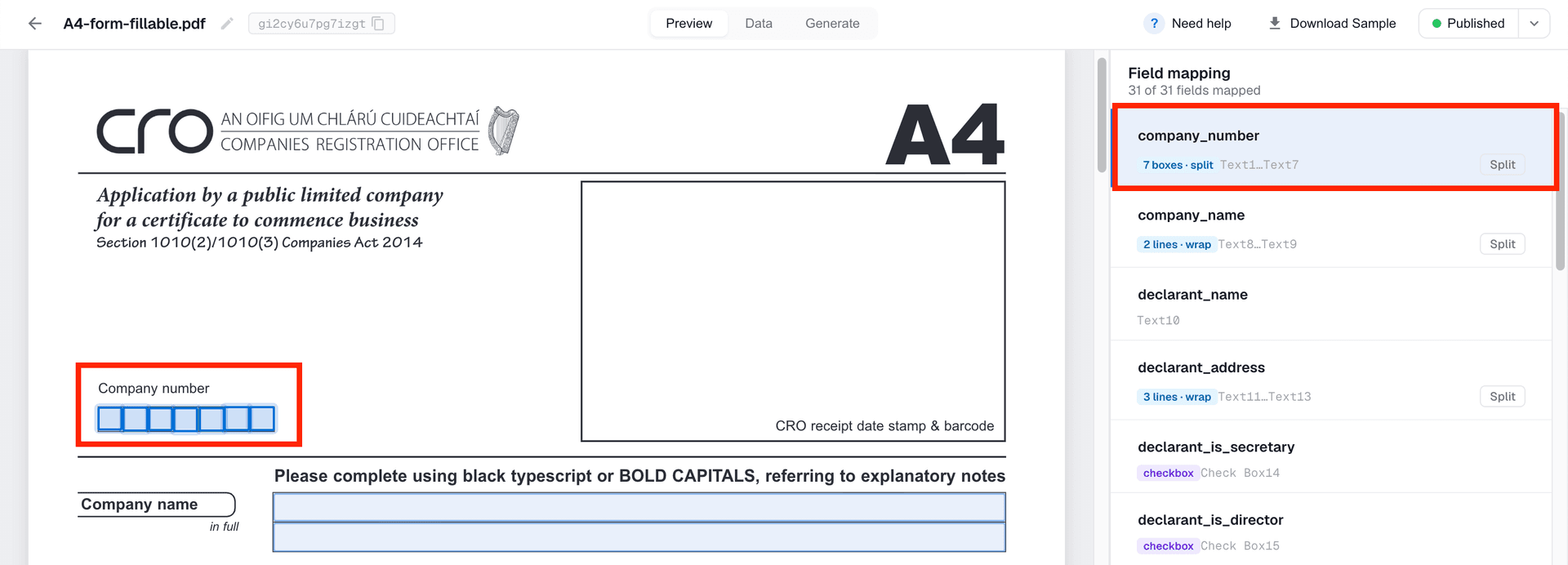
- Grouped character boxes. A row of single-character squares, like a reference or company number, is detected as one field too, so you map a single value rather than one box per character.
- Clear names. Rename any cryptic field names (like
Text1) to something readable. It makes mapping to Airtable easier later.
A fillable PDF needs real interactive form fields, the kind you can click into and type. Scanned or flat PDFs don't have these and won't work here. If your form is flat, use Describe with AI to rebuild it instead.
Step 2: Publish your template
When you're happy with the design, click Publish in the top right of the editor. This locks in the version DocuPotion will use for generation. You can also click Download Sample to see exactly what a finished PDF will look like before you connect any data.

Step 3: Connect your Airtable account
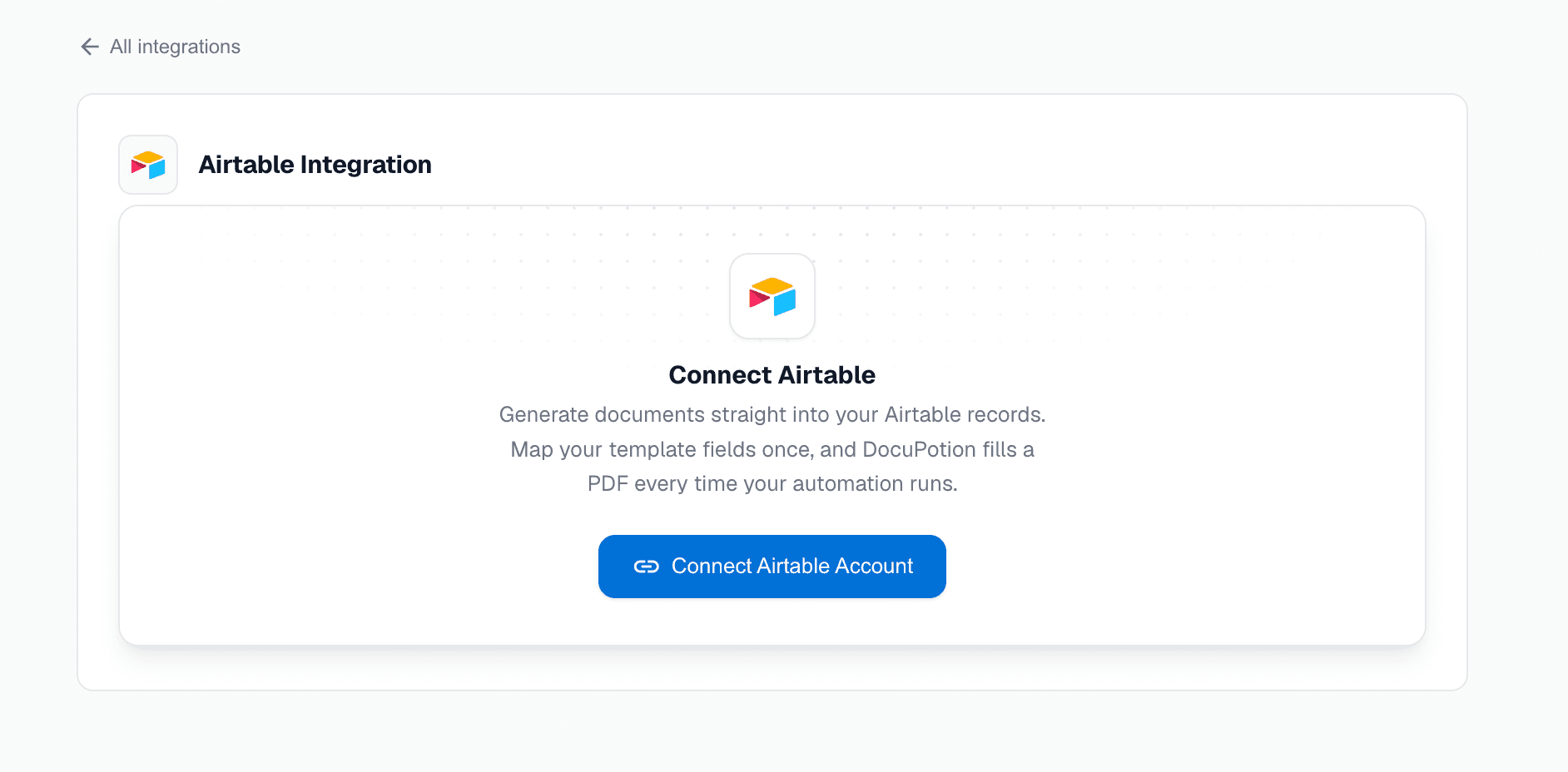
Open the Generate tab of your template and select Airtable, then click Connect Airtable account.
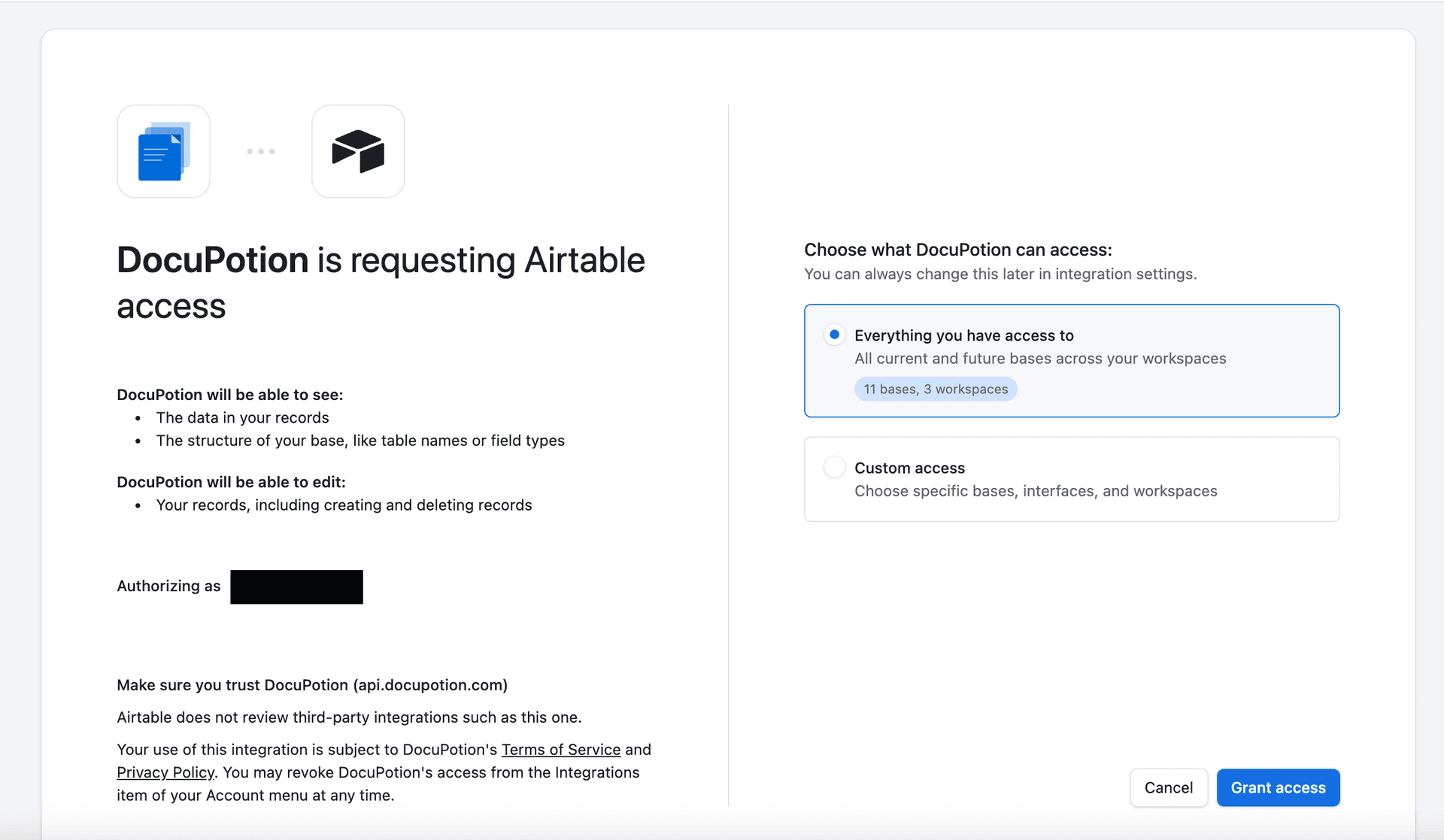
You'll be asked to authorise DocuPotion. You can grant access to every base, or limit it to just the base you'll generate from.
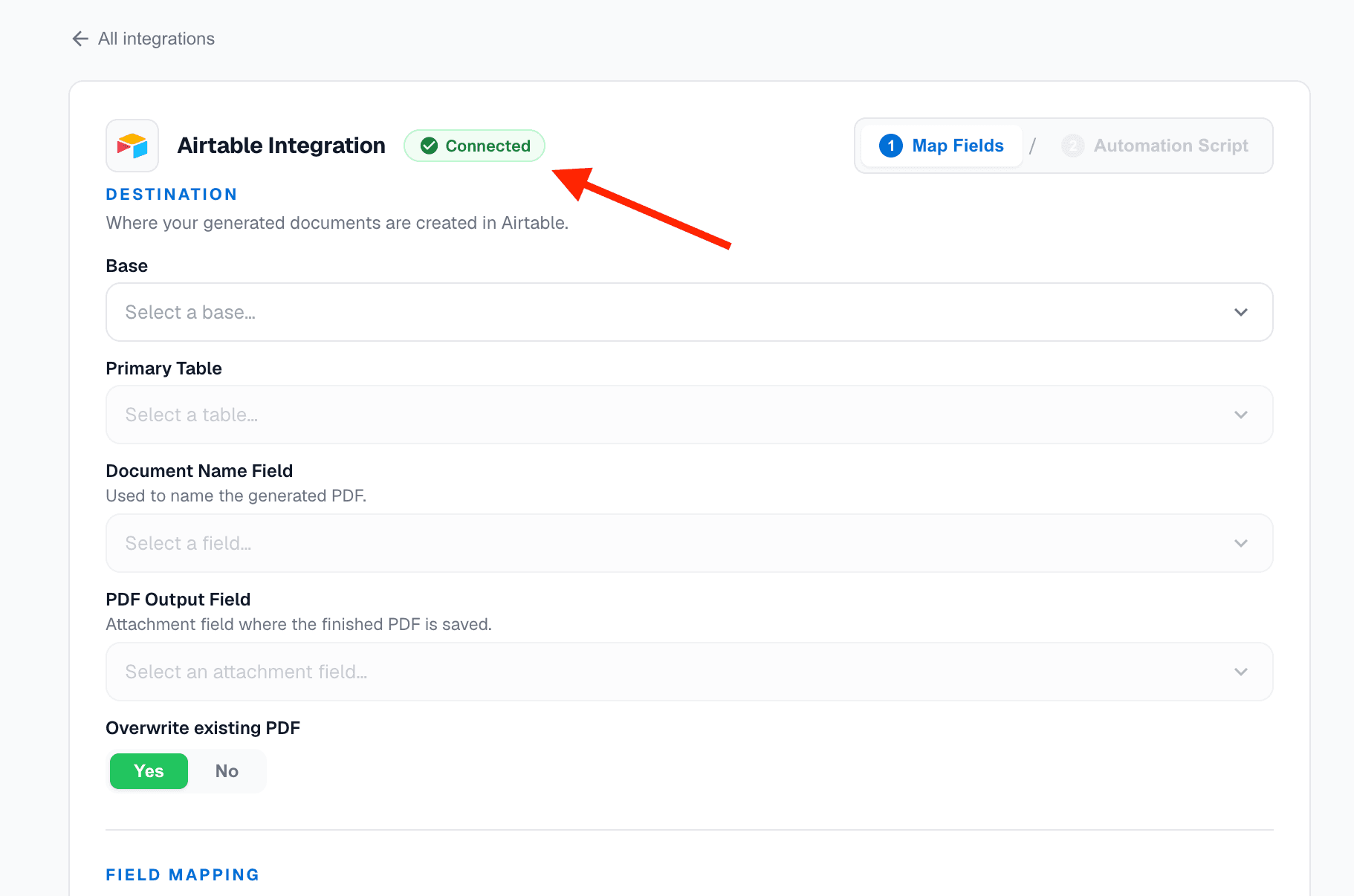
Once it's done, a green Connected badge appears.
Step 4: Map your fields
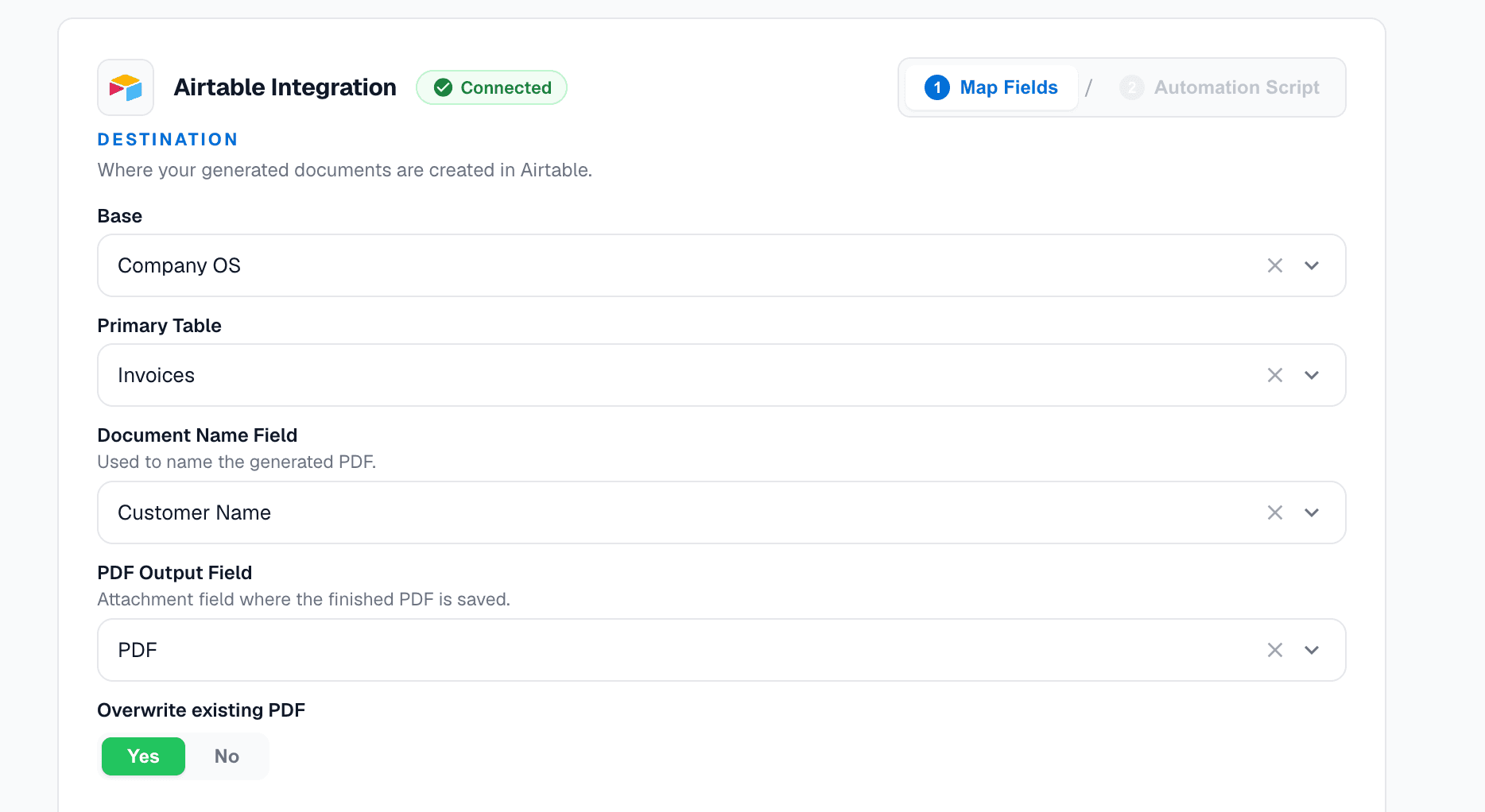
Still in the Generate tab, start by telling DocuPotion where documents come from and where they go:
- Base: the base that holds your records.
- Primary Table: the table you trigger generation from. If your data spans tables (say Invoices and Line Items), pick the one you want one PDF per record of, usually the parent (Invoices).
- Document Name Field: the field used to name each PDF, for example Customer Name.
- PDF Output Field: the attachment field your finished PDF is saved to. This must be an attachment field.
- Overwrite existing: keep a single PDF per record, or add a new one alongside the old each time.
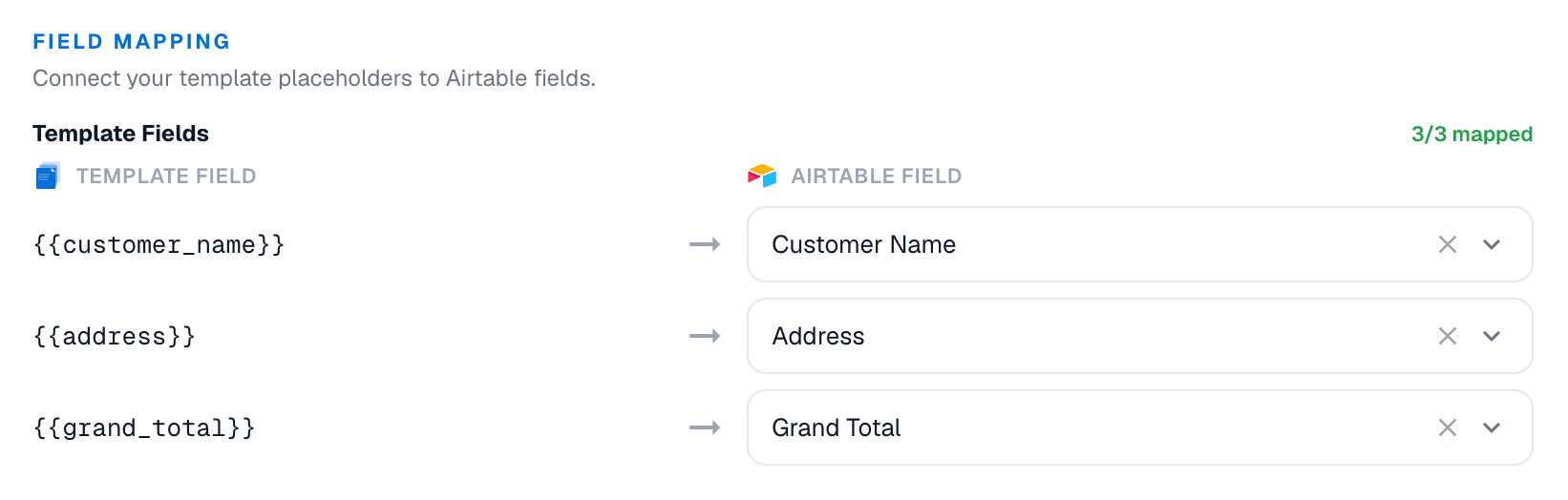
Then map each template field to the matching Airtable column. Just start typing to find a field.
Line items and linked records
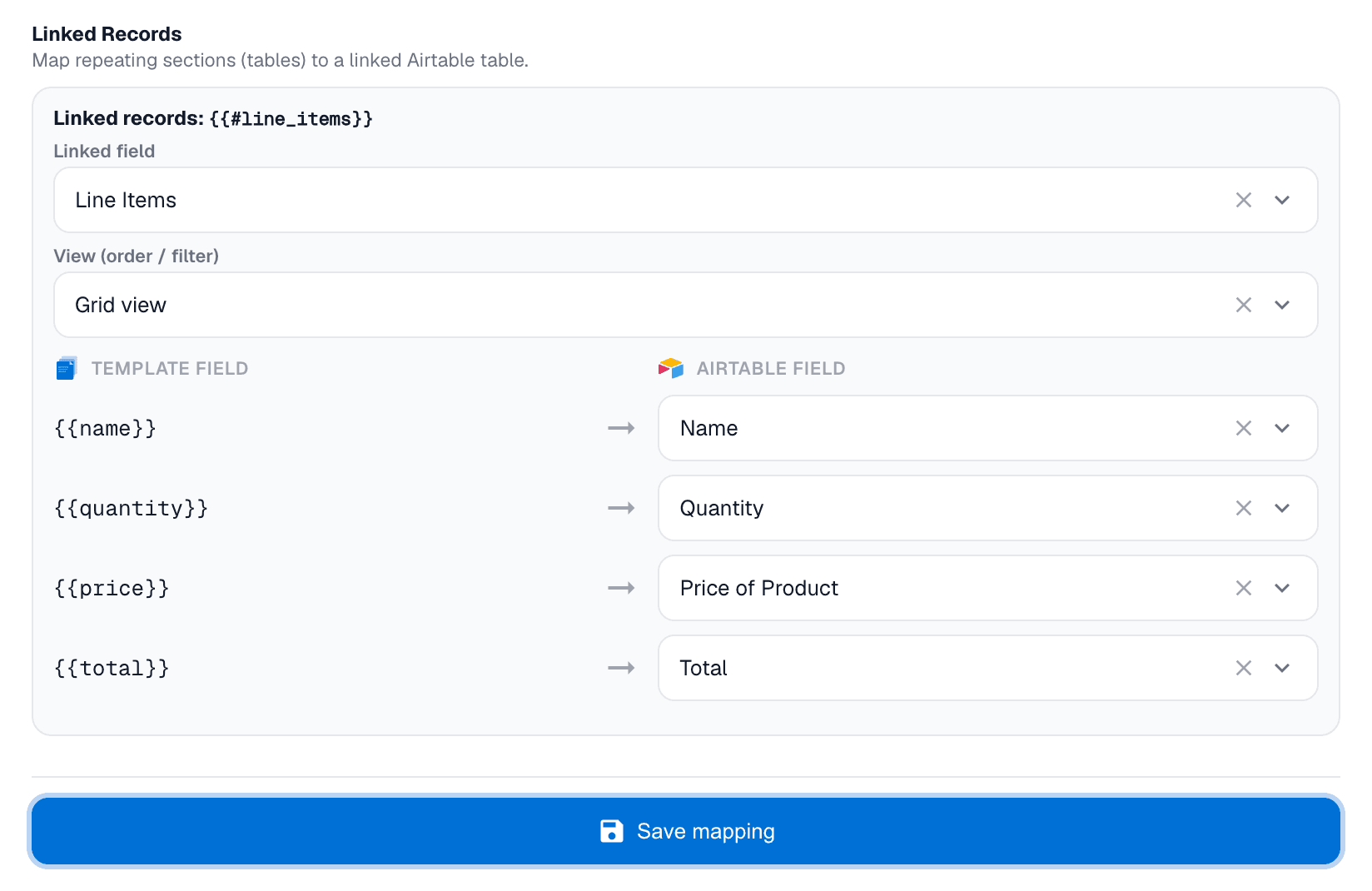
If your template has a repeating section (like invoice line items), you map it separately. Choose the linked table, pick the view, then map each field inside the row: name to name, quantity to quantity, price to price, and so on.
Pulling fields through linked records
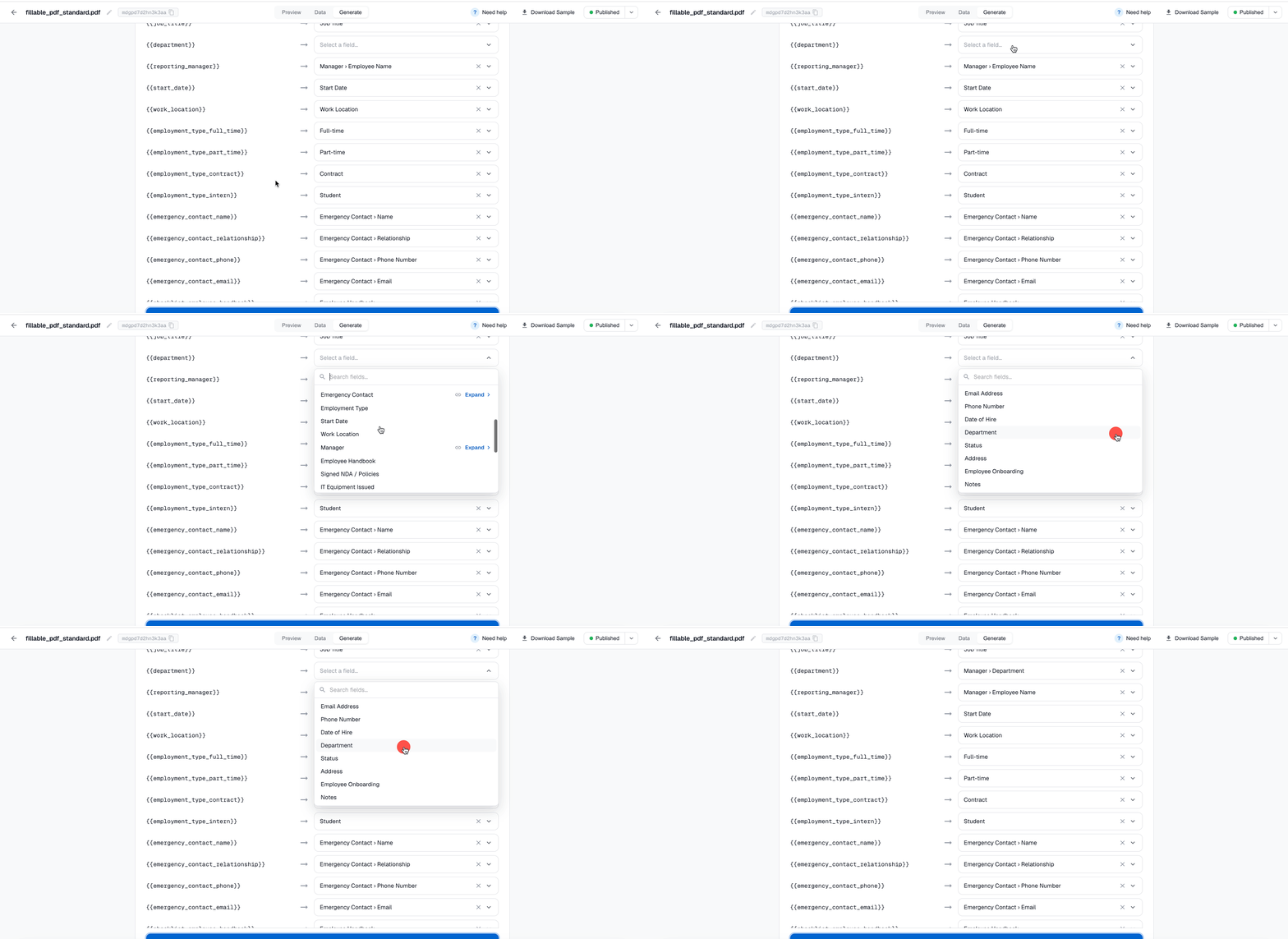
You can reach fields on records that are linked to your records. Say your form has a Department field and you want the employee's manager's department. Manager is a linked record, so expand it in the mapping panel and select Department from there. The same trick gets you a manager's name for a "reporting manager" field.
Checkboxes
Airtable checkbox fields arrive as true or false and map straight onto checkboxes in your template or form. A checked record ticks the box; an unchecked one leaves it blank.
One choice across several checkboxes
Forms often have a group of boxes where only one applies, like an Employment Type with Full-time, Part-time, Contractor, and Intern.
It's likely you'll be using a single select dropdown in Airtable to store this type of data. This doesn't map neatly onto the template fields (as you need to send a TRUE or FALSE value for each of the 4 checkboxes), but there is a solution.
Create a new formula field in your Airtable base that returns TRUE or FALSE for each of the values you need. Each one returns true when the single-select matches, and false otherwise:
IF({Employment Type} = "Full-time", TRUE(), FALSE())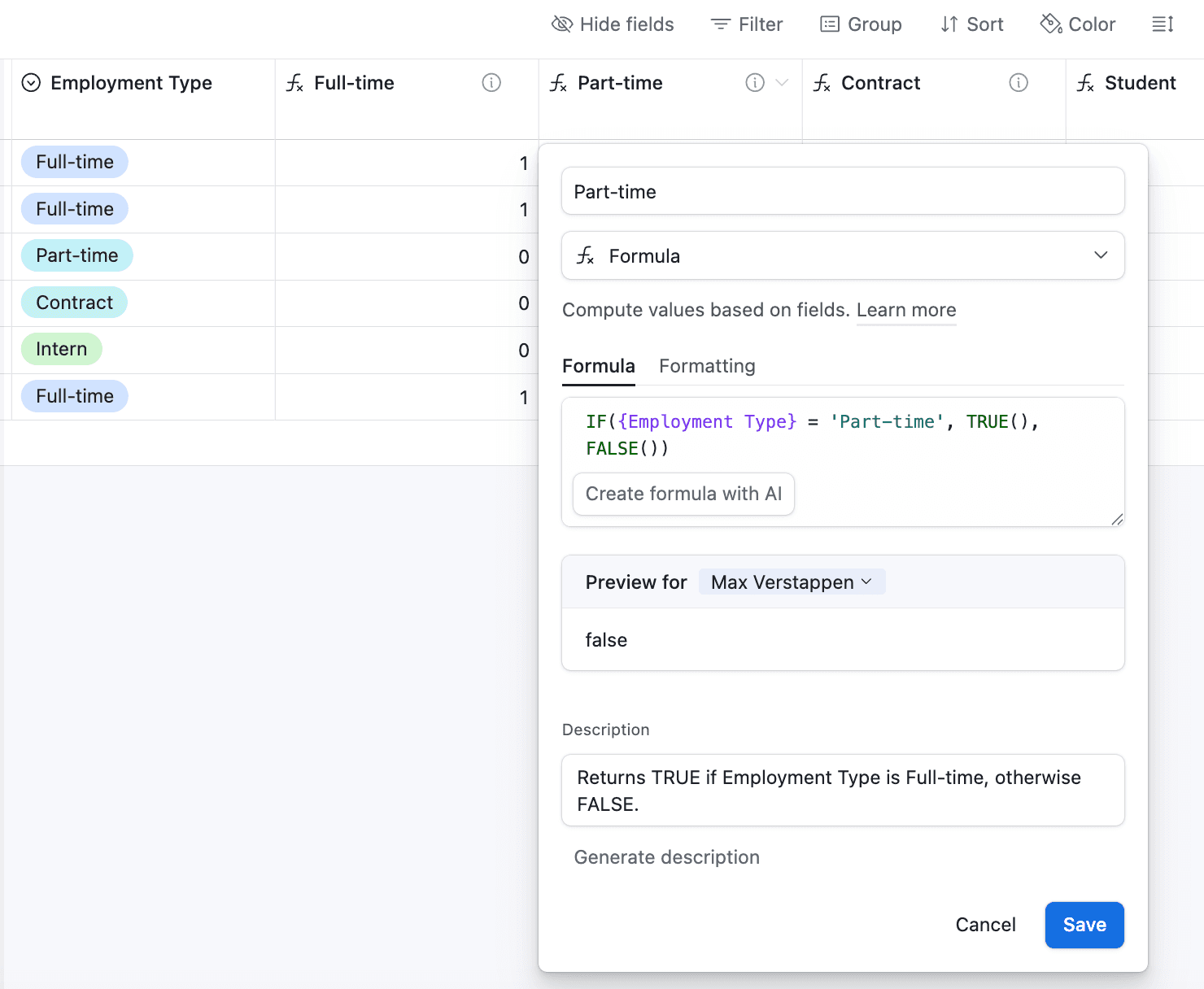
Add one per option, hide them so they don't clutter your view, then map each to its box. You keep Airtable's clean single-select interface, and the form still fills correctly.
When everything is linked, click Save mapping.
Step 5: Trigger PDF generation
With your mapping saved, you have two ways to generate PDFs. Both produce the same result. The difference is how generation is triggered and which Airtable plan you need.
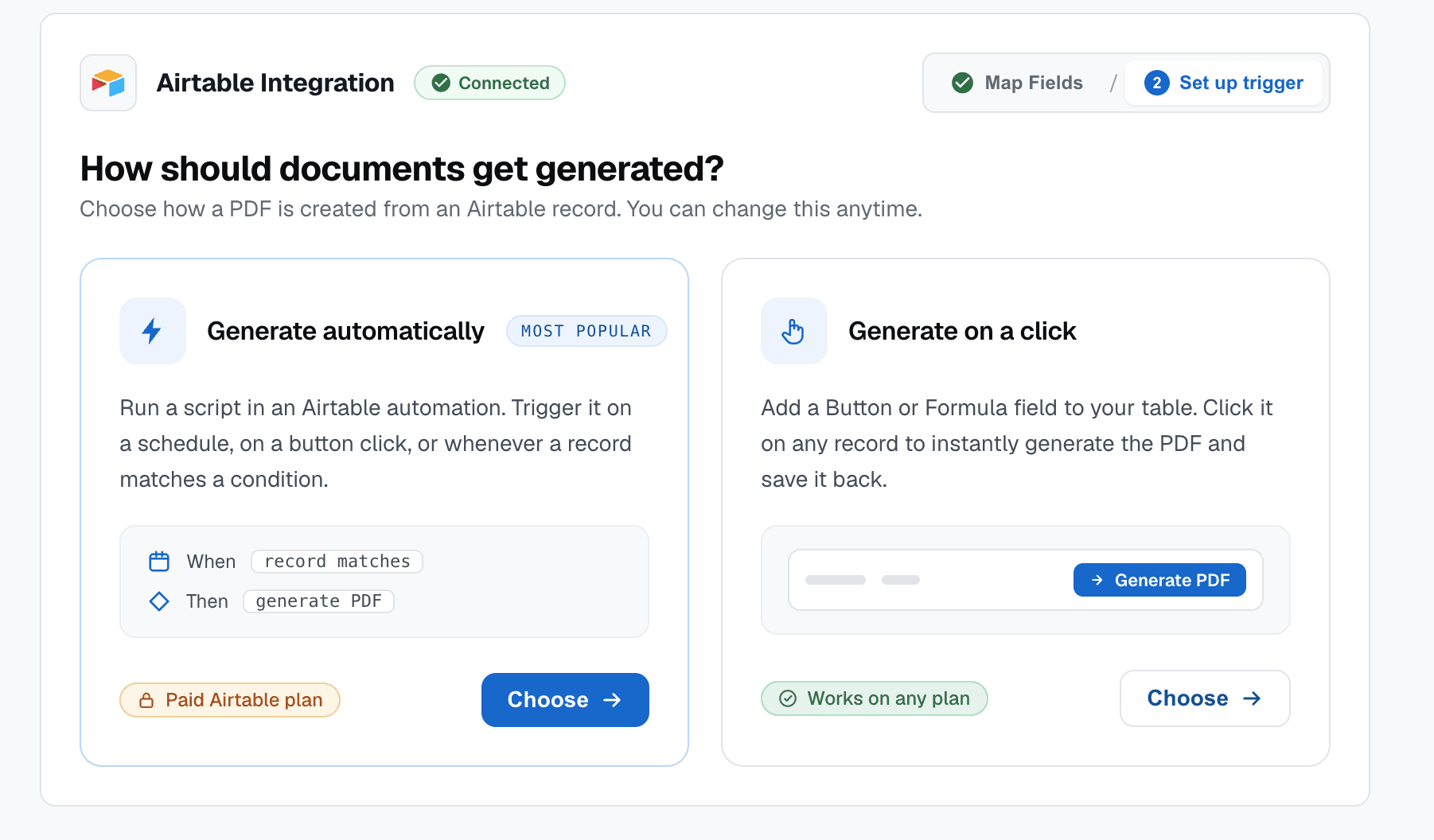
Generate on a click works on any Airtable plan. Generate automatically runs through an Airtable automation, which requires a paid Airtable plan.
Option 1: Generate on a click (button)
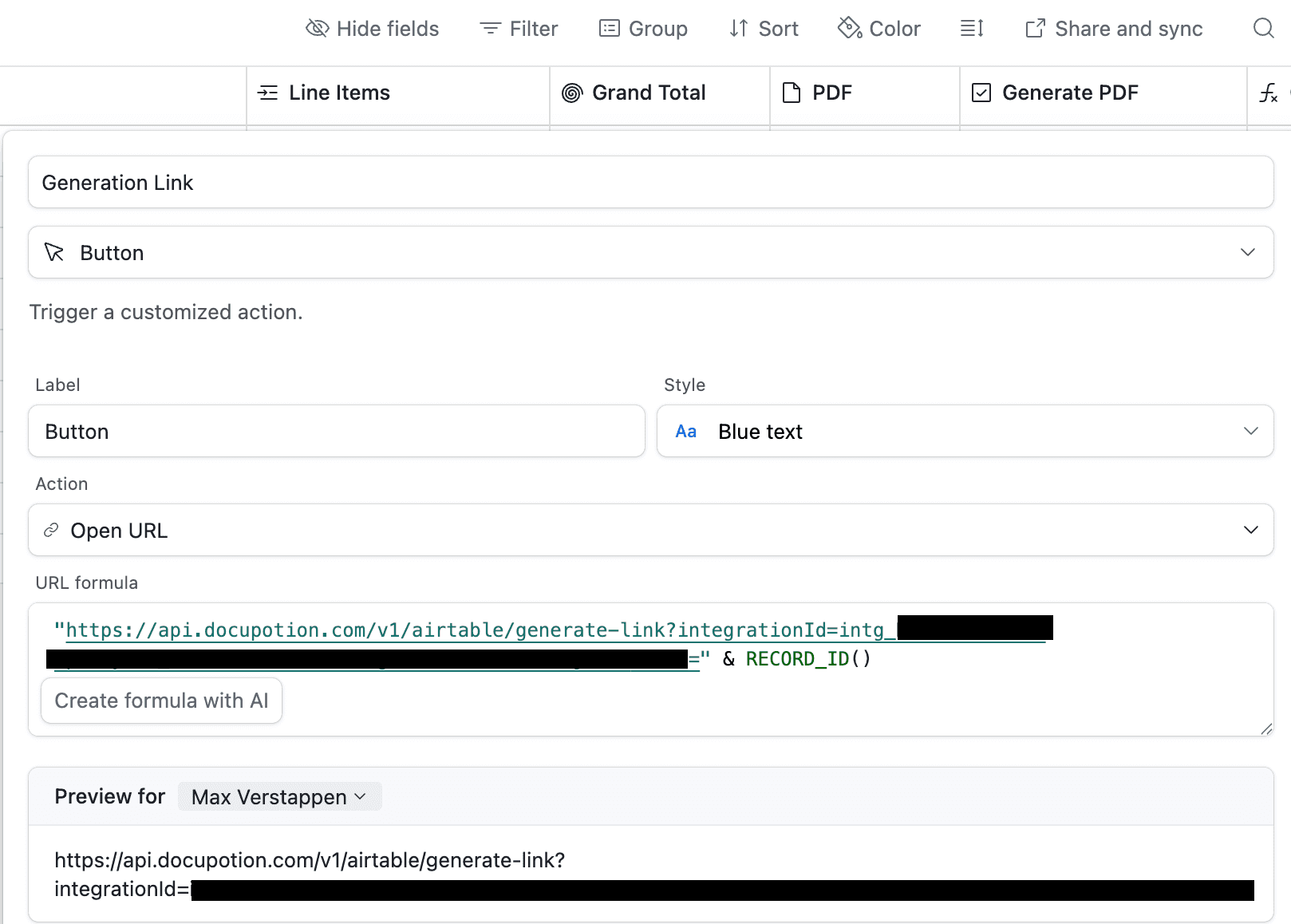
Choose Generate on a click and copy the formula DocuPotion gives you.
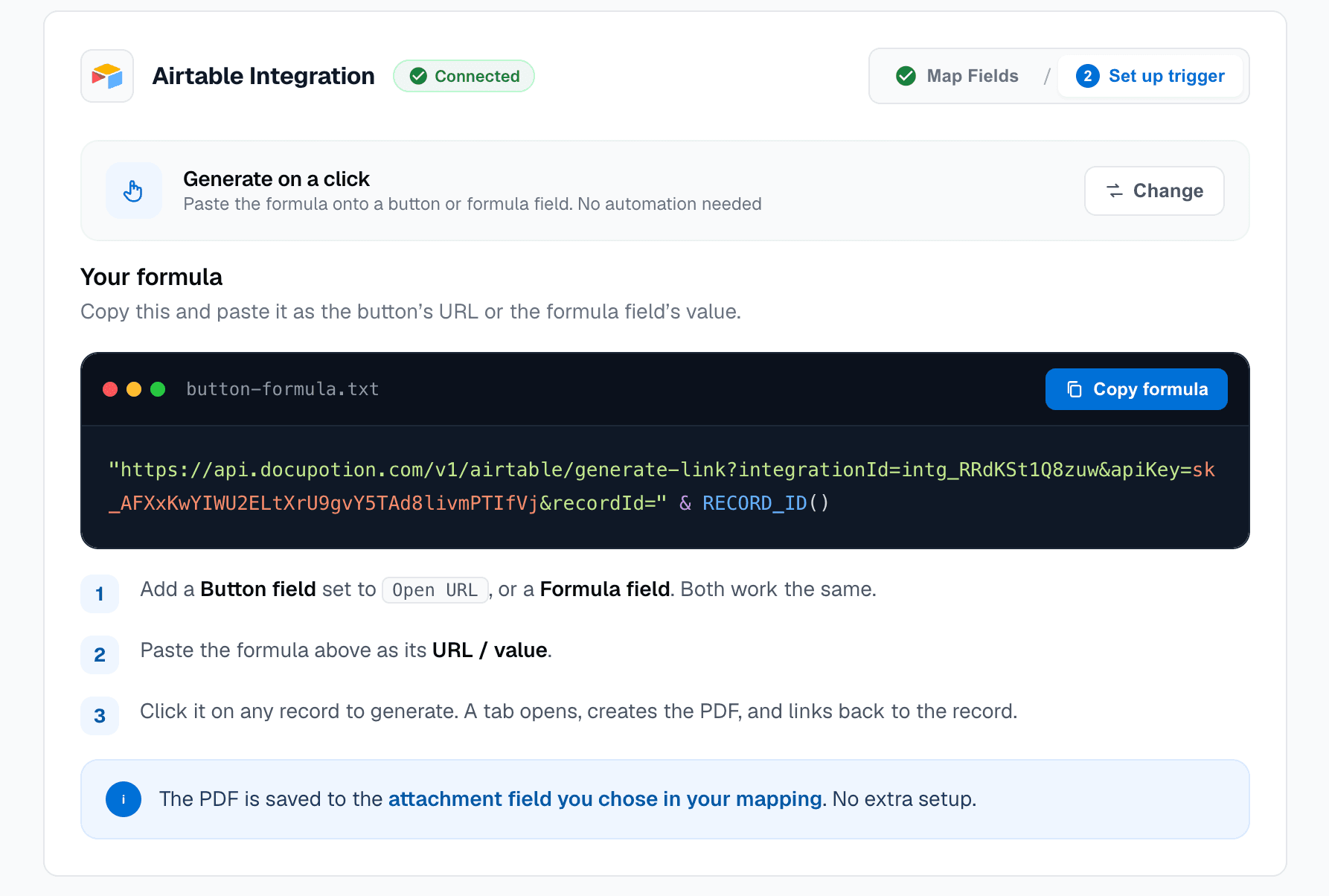
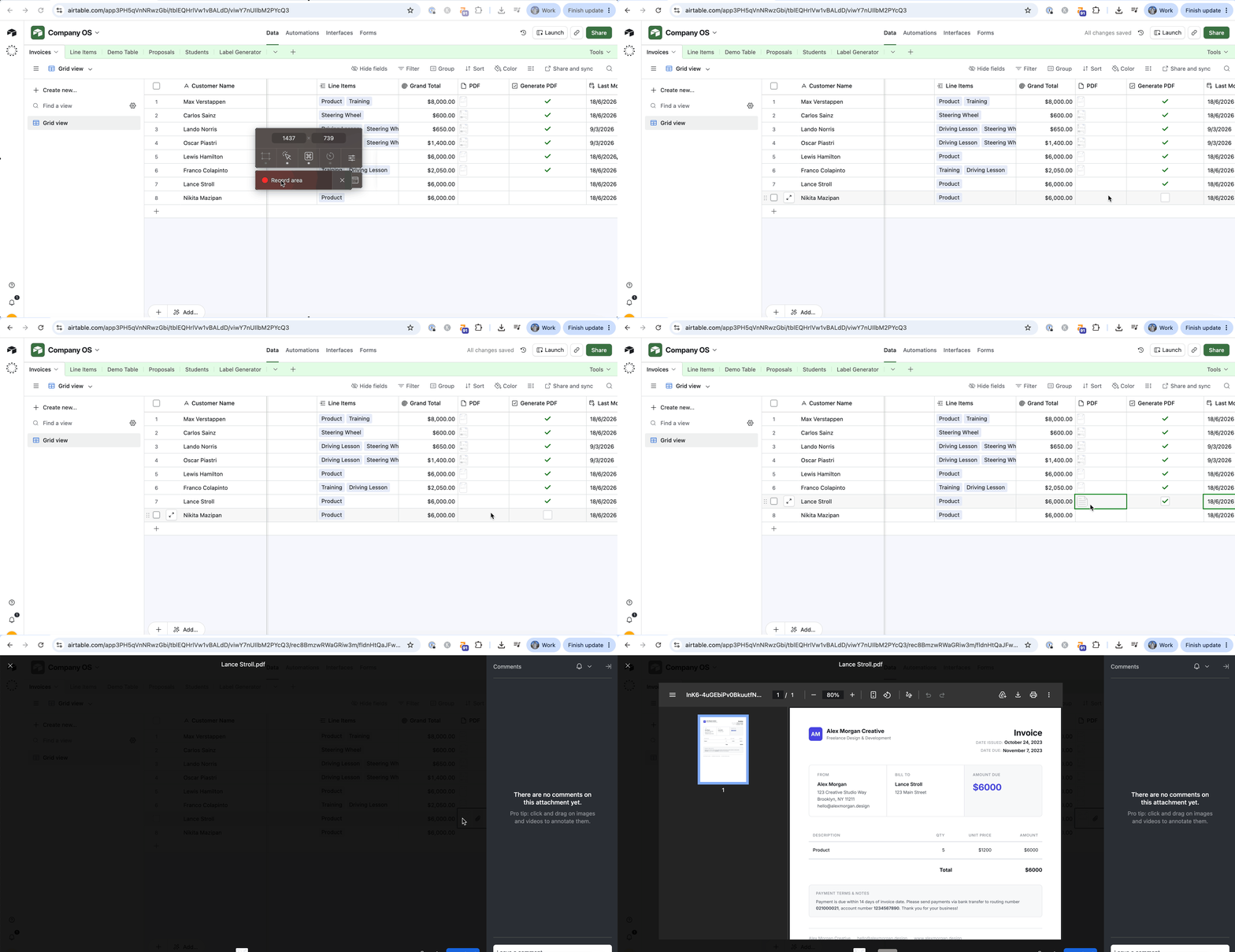
In Airtable, add a Button field, set its action to Open URL, and paste in the formula. Now clicking the button on any record opens a new tab, generates that record's PDF, and saves it to your attachment field. You'll see a green tick when it's done.
Option 2: Generate automatically (automation)
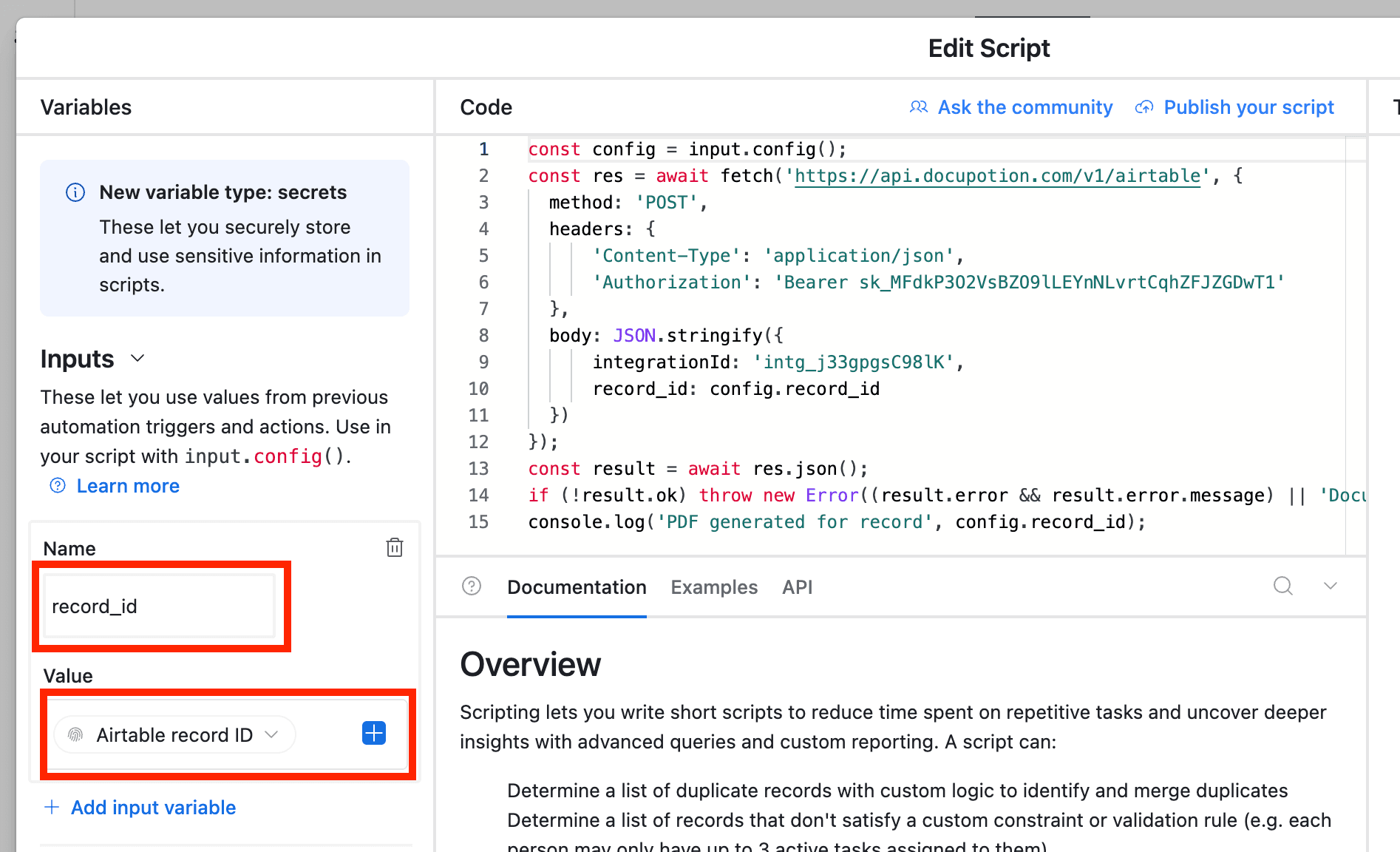
For hands-off generation, choose Generate automatically and copy the script.
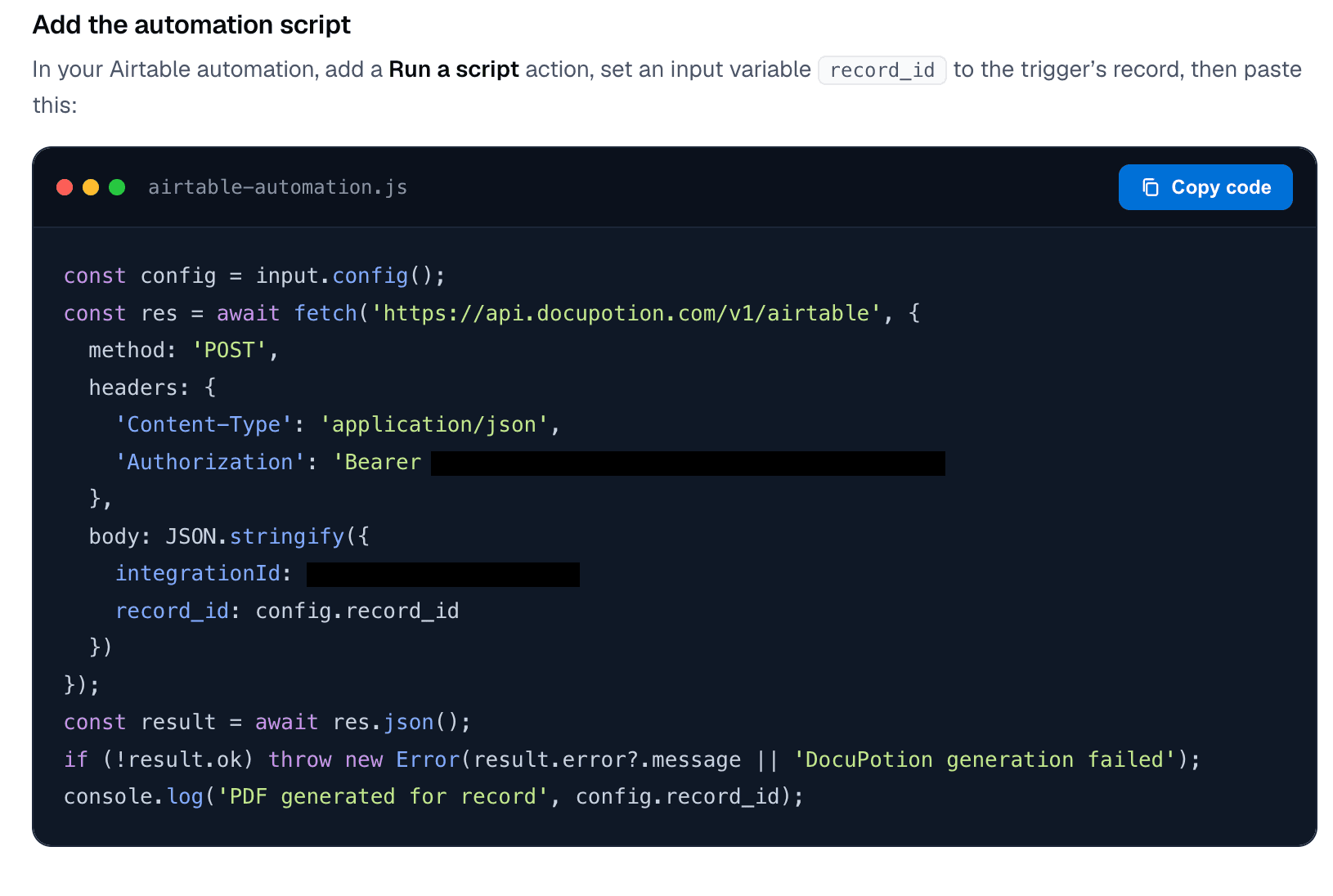
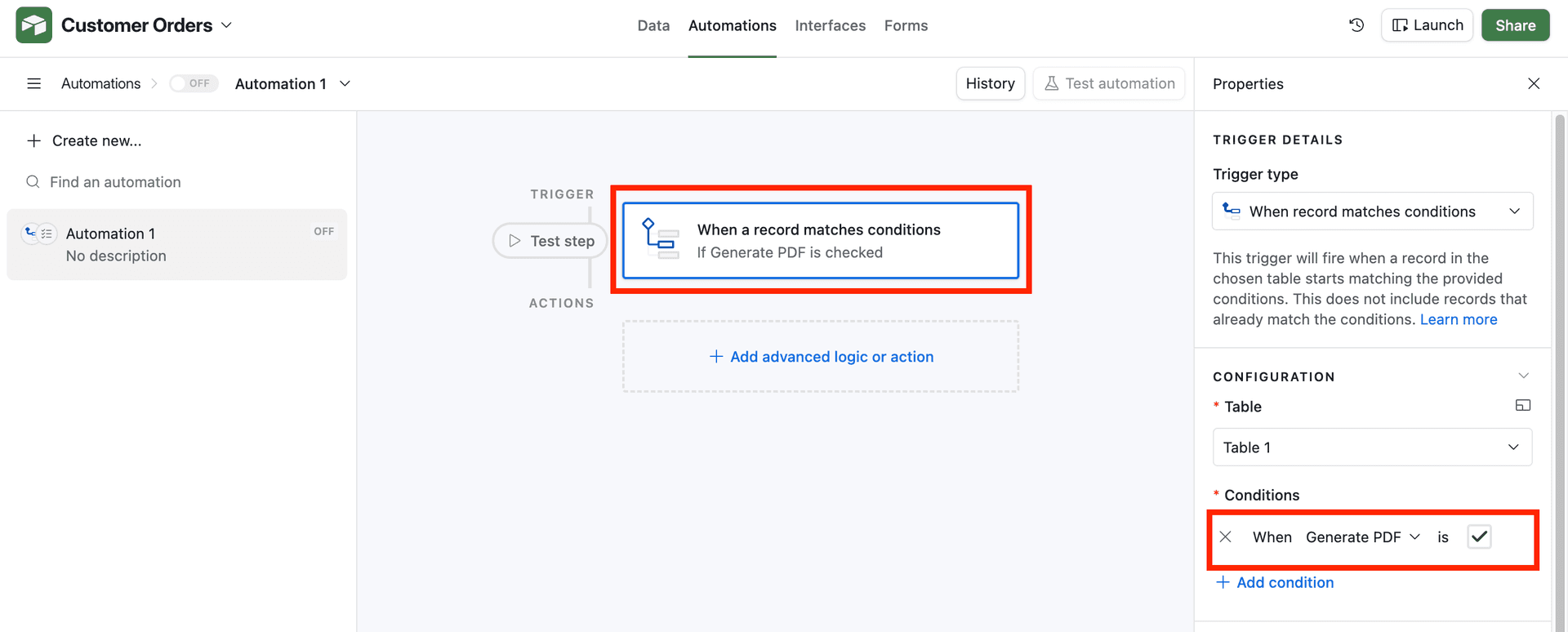
In Airtable, open Automations and create a new one. A common setup is a trigger of "When a record matches conditions" that fires when a checkbox like Generate PDF is ticked. Add a Run a script action and paste in the script.
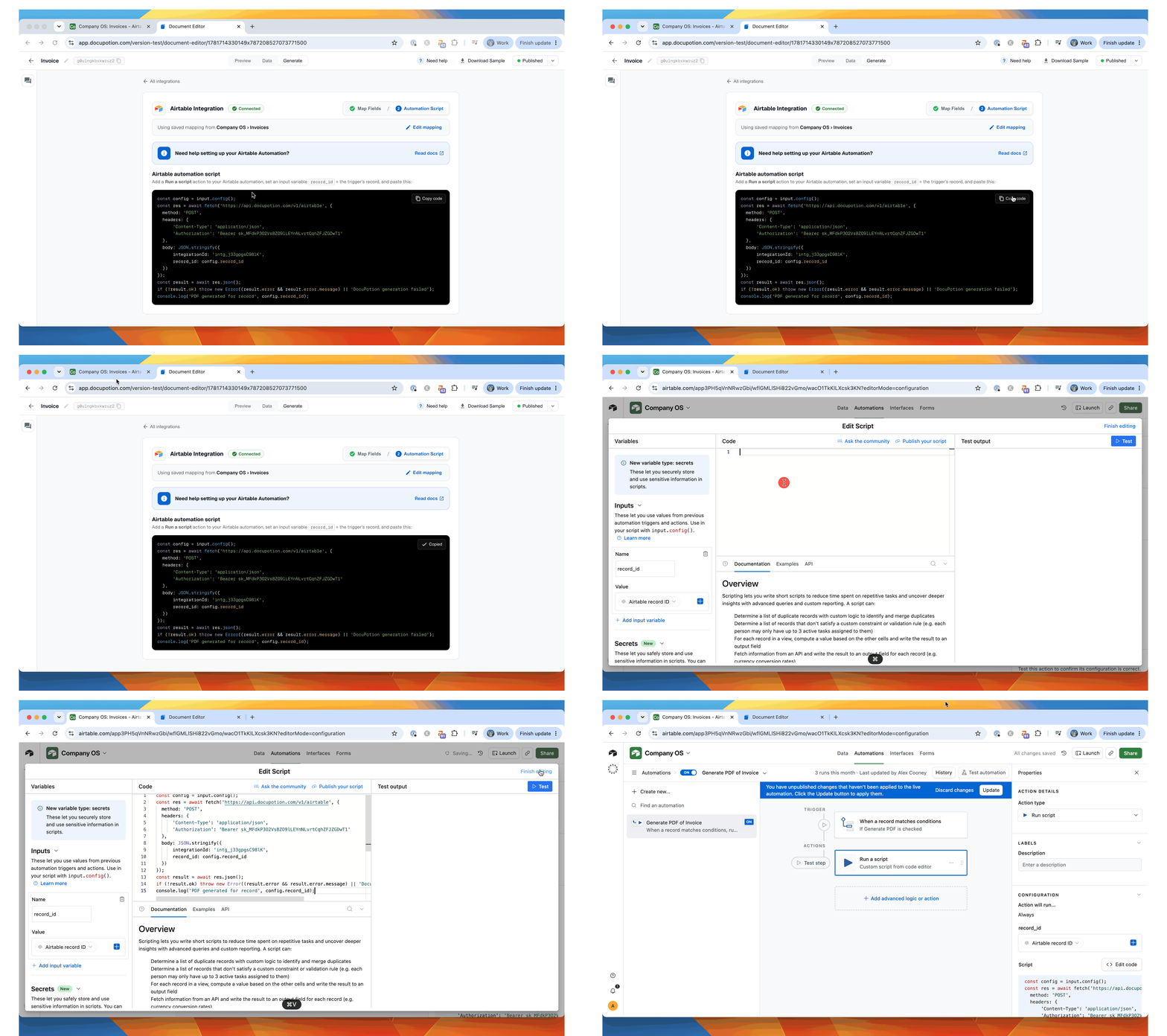
Then click Add input variable, name it exactly record_id, and link it to the record ID from your trigger.
The input variable must be spelled exactly record_id. If the name doesn't match, the script can't locate the record and generation will fail.
Turn the automation on. From now on, ticking the checkbox (or whatever trigger you chose) generates the PDF and attaches it automatically.
Wrapping up
That's the full process: design a template once, map your fields, and let every record turn itself into a finished PDF, whether that's a brand new invoice or a fillable form you already rely on.
Airtable is one of several ways to feed data into DocuPotion. If your data lives elsewhere, the same templates also work with our Zapier, n8n, and Bubble integrations, or directly through the REST API.