Introduction
If you fill out the same PDF form again and again, you already know how the time adds up. Open the file, click into each field, type the details, save a copy, and start over for the next person. It is fine once. For an onboarding form for every new hire, or a fresh application for every client, it turns into hours of careful retyping that is easy to get wrong.
The good news is that you can automate this job with Zapier and DocuPotion. Whenever something happens in another app (a form is submitted, a deal closes, a row is added to a sheet), Zapier can take that data and drop it straight into your PDF form, then send the completed file wherever it needs to go. No retyping, and no developer needed at any point.
In this guide we'll walk through how to automatically fill PDF forms in Zapier from start to finish, using DocuPotion. We'll turn an existing fillable PDF into a reusable template, build a Zap around it, map the data, and route the finished PDF to Google Drive. We'll use an employee onboarding form filled from a Google Forms response as the worked example, but the same steps apply to contracts, applications, intake forms, claims, and any other fillable PDF forms.
How the workflow fits together
Before the walkthrough, it helps to see the shape of what you're building. There are two parts to it:
- Turn your fillable PDF into a reusable template. DocuPotion reads the form fields in your PDF and converts each one into a named merge field it can fill from data. You do this once.
- Fill that template inside a Zap. Your Zap's trigger supplies the data, the Create a Document action maps that data onto the merge fields, and DocuPotion hands back the completed PDF for any later step to use.
The form itself never changes. You are reusing the exact PDF you already trust, and only pointing each field at a value from your Zap.
This approach works with fillable PDFs: the ones with real interactive fields you can click into and type. Flat or scanned forms (an image of a form with lines on it) do not contain those fields. If your form is flat, you can still automate it by creating a template from an existing PDF instead, which rebuilds the layout for you.
What you'll need
To follow along, you'll need:
- A fillable PDF form you complete regularly (a contract, application, intake form, onboarding pack, etc.)
- A DocuPotion account (the free trial includes 50 documents and needs no credit card)
- A Zapier account on any plan that allows the apps you want to connect
- A trigger that produces the data for the form, for example a Google Forms response, a new CRM record, or a new payment
Step 1: Check that your PDF is actually fillable
This whole workflow depends on your PDF having real form fields, so it's worth a ten-second check before you start:
- Open the PDF in any reader (Adobe Acrobat, Preview, or your browser).
- Click where you would normally type, such as the name or date field.
- If a cursor appears in the box and you can type into it, the form has real fields and will work.
If nothing happens when you click, the form is flat. Flat forms, scanned documents, and password-protected files don't contain interactive fields, so build a template from the PDF instead.
Step 2: Turn your fillable PDF into a reusable template
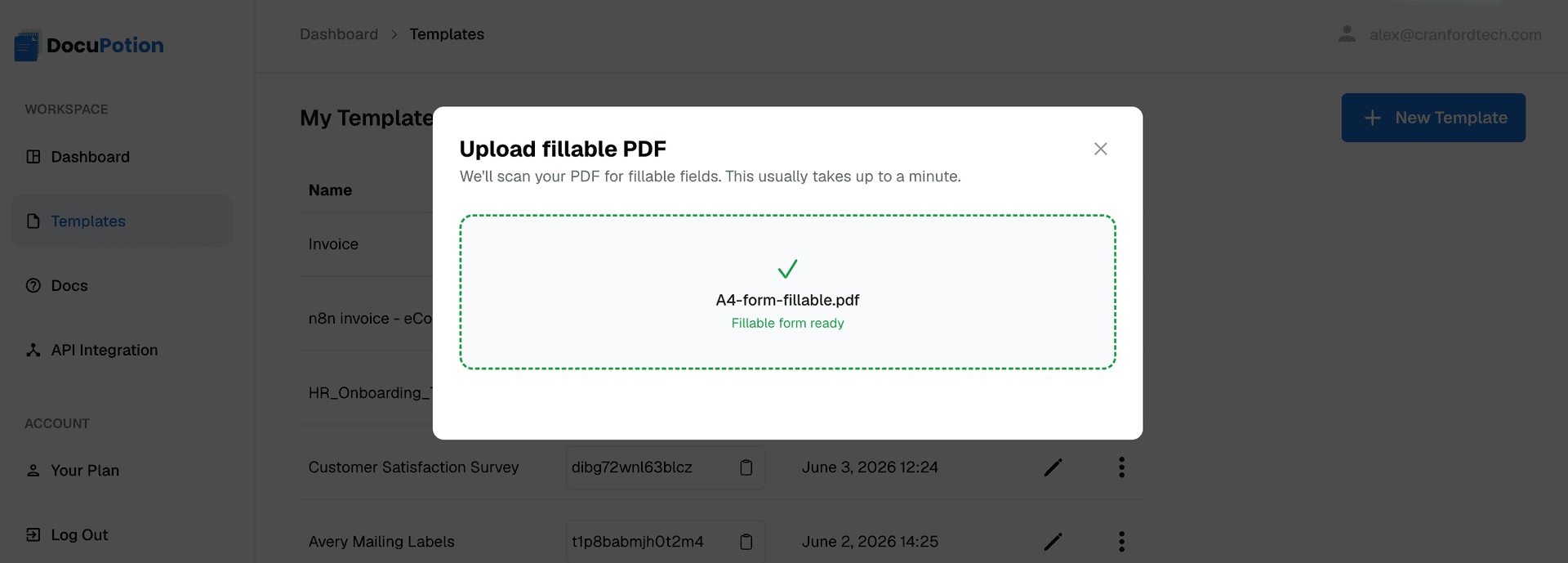
In your DocuPotion dashboard, open the Templates section, click New Template, and choose Upload a fillable PDF.
Drop your form into the upload area. DocuPotion spends a minute or two analysing the document, reading every text field, checkbox, and text area it contains.
When the analysis finishes, you land in the template editor. Your form appears exactly as it was, but DocuPotion has now converted each of its internal field names into a readable merge field, taking its cue from the label printed next to the field. So a cryptic internal name sitting next to a "Full legal name" label becomes a clean merge field you can recognise at a glance.
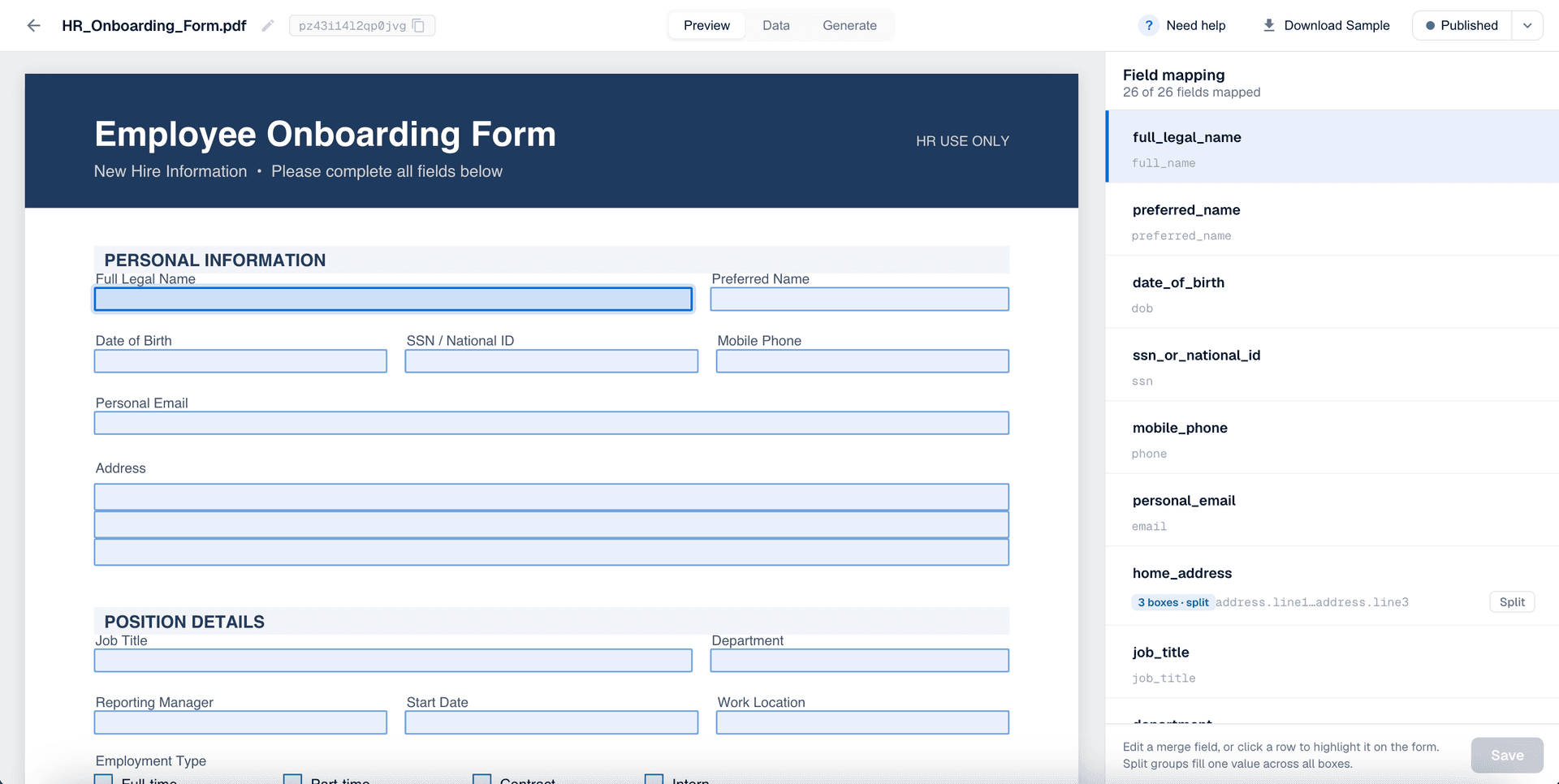
Click through the detected fields and check three things against your original form:
- Coverage: every field you normally fill in is represented, and nothing was missed.
- Names: each merge field name is clear, so it will be easy to match to your data in Zapier.
- Grouping: stacked lines and character boxes that make up a single answer are handled sensibly.
Watch out for multi-line fields
The fields worth a second look are the ones where a single answer spans several lines. An address, for example, often has more than one line. In the below example, DocuPotion has grouped all three address lines into one 'home_address' field.
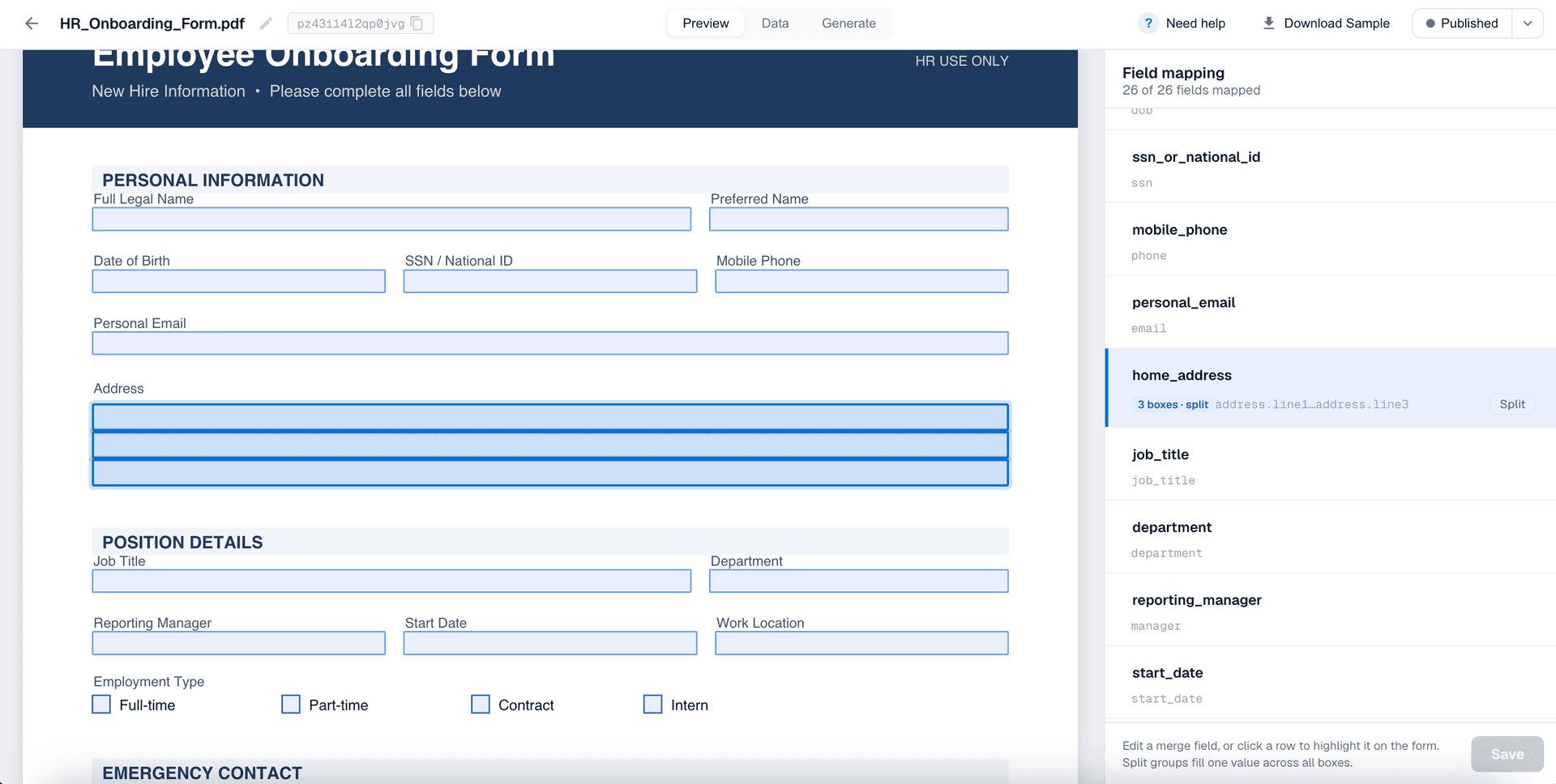
You have a choice here. If you'd rather supply the address as three separate values, click Split to break it into home_address_1, home_address_2, and home_address_3. If you'd rather send the whole address as one value (usually the simpler option), give all three lines the same merge field name and DocuPotion rebundles them into a single field. Pick whichever matches how the data arrives from your trigger.
DocuPotion tip: Keep merge field names as close as possible to the field names in your data source. When the names line up, mapping your data in Zapier is almost automatic. Checkboxes are driven by true/false or 'yes'/'no' values, so send true or 'yes' to tick a box and false or 'no' to leave it clear.
Preview with sample data
Before you wire anything into Zapier, it's worth checking that the template fills correctly with some sample data. Open the Data tab, where DocuPotion has filled in some sample values, edit any of them if you like, and click Download Sample to generate a test PDF (it carries a demo watermark).
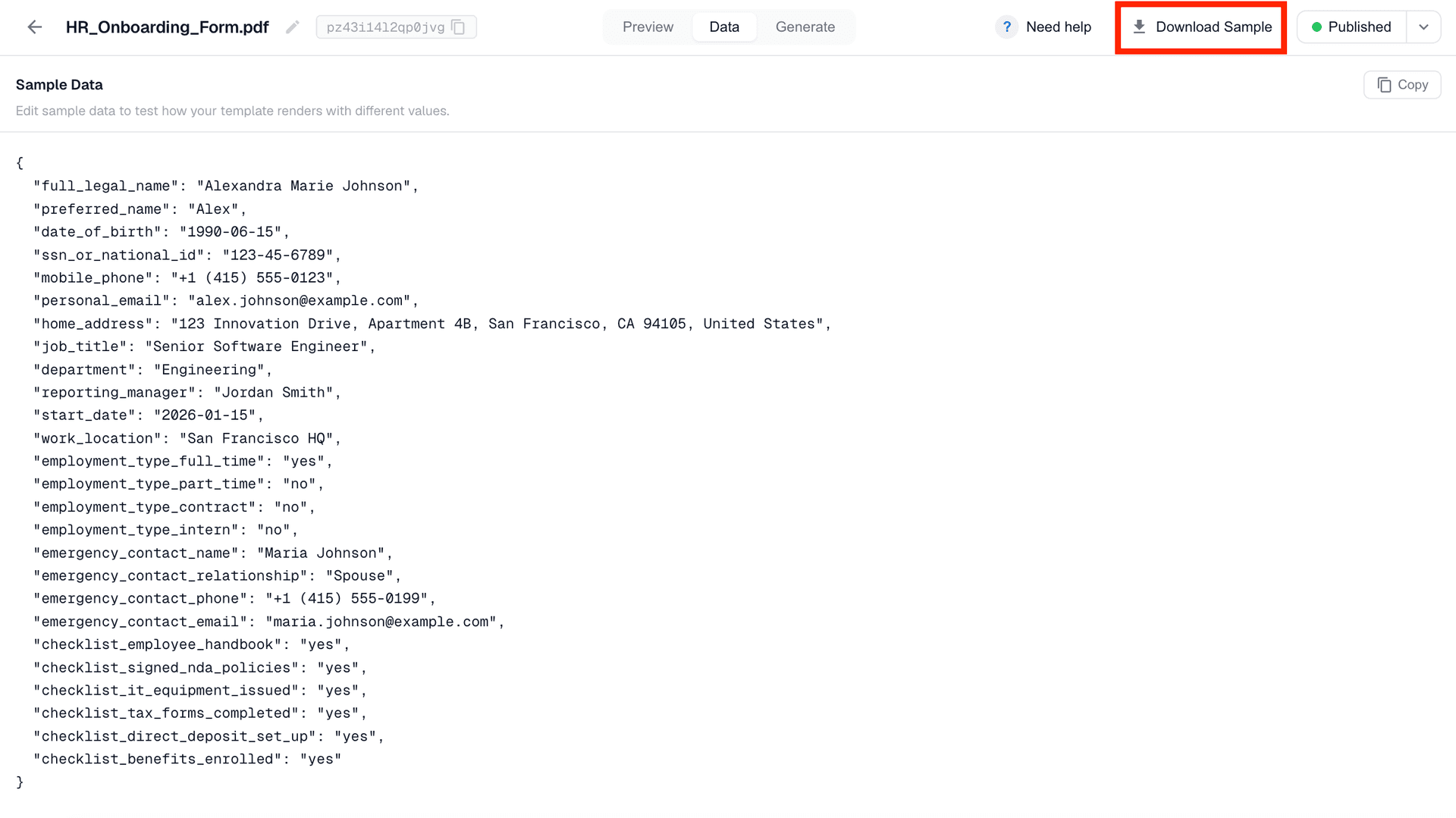
Open that sample at full size and read it the way your recipient would. This is where you catch the small things: a value landing in the wrong box, a long answer that needs to wrap, a checkbox that should tick. Fix anything you spot, then download another sample until it's exactly right.
When you're happy, click Publish. Only published templates are used when Zapier generates a PDF, so you can keep editing the draft later without affecting any live Zaps. Your Zap references the template by name, so just note which template you published.
Step 3: Set up your Zap trigger
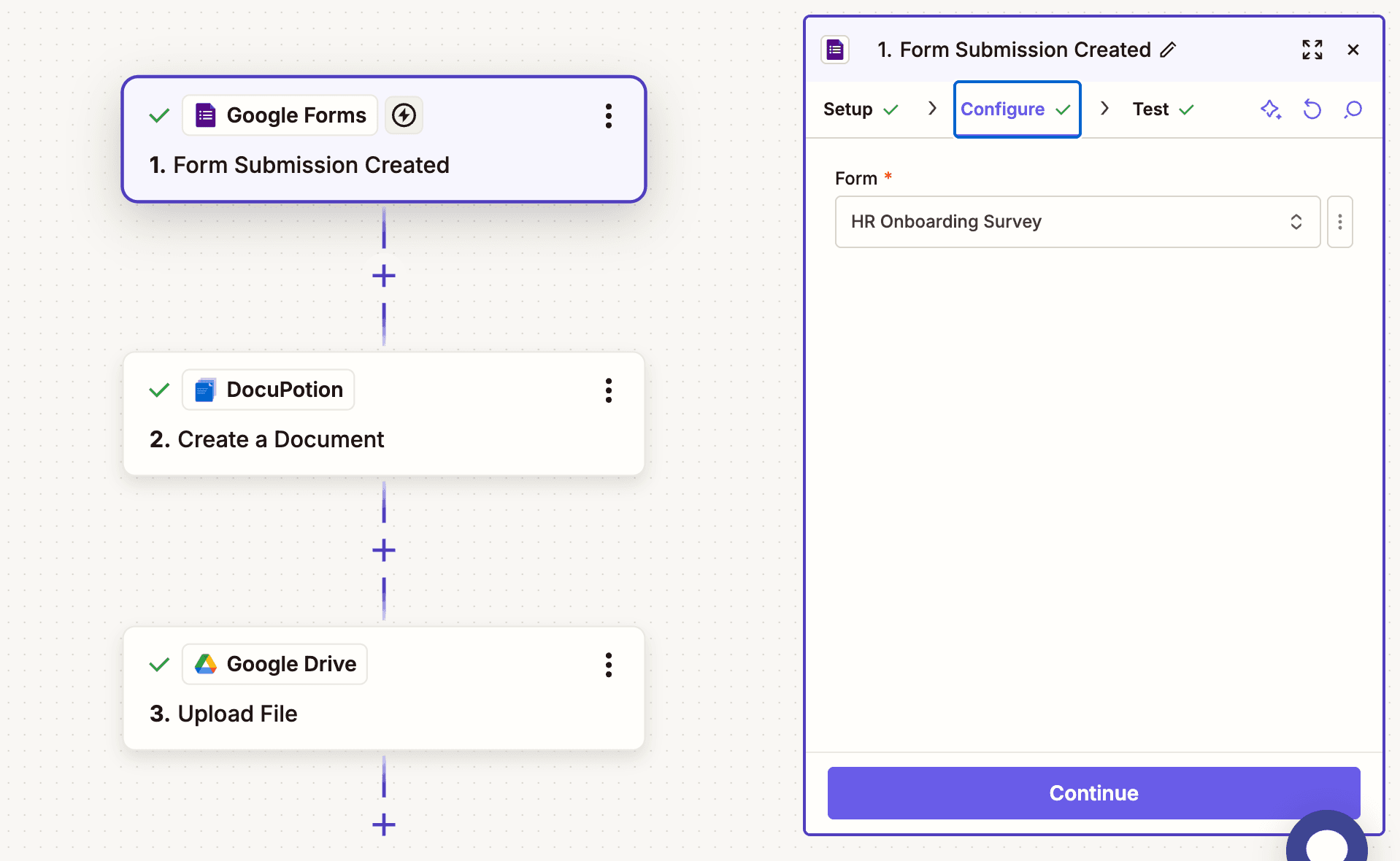
Now switch over to Zapier and create a new Zap. The trigger is whatever event should kick off the form. In our example it's a new Google Forms response from an HR onboarding survey, so we add the Google Forms trigger, connect the account, choose the survey, and pull in a recent response to work with.
This is the one part that's entirely up to you. The same flow works with almost any trigger:
- A new form submission (Google Forms, Typeform, Jotform, Gravity Forms)
- A new or updated CRM record (HubSpot, Pipedrive, Salesforce)
- A new payment (Stripe)
- A new row in a spreadsheet or table (Google Sheets, Airtable)
- A new email or a file added to a folder
Whatever you pick, the goal of the trigger step is the same: hand Zapier the data you want to be included in the form.
Step 4: Add DocuPotion to your Zap
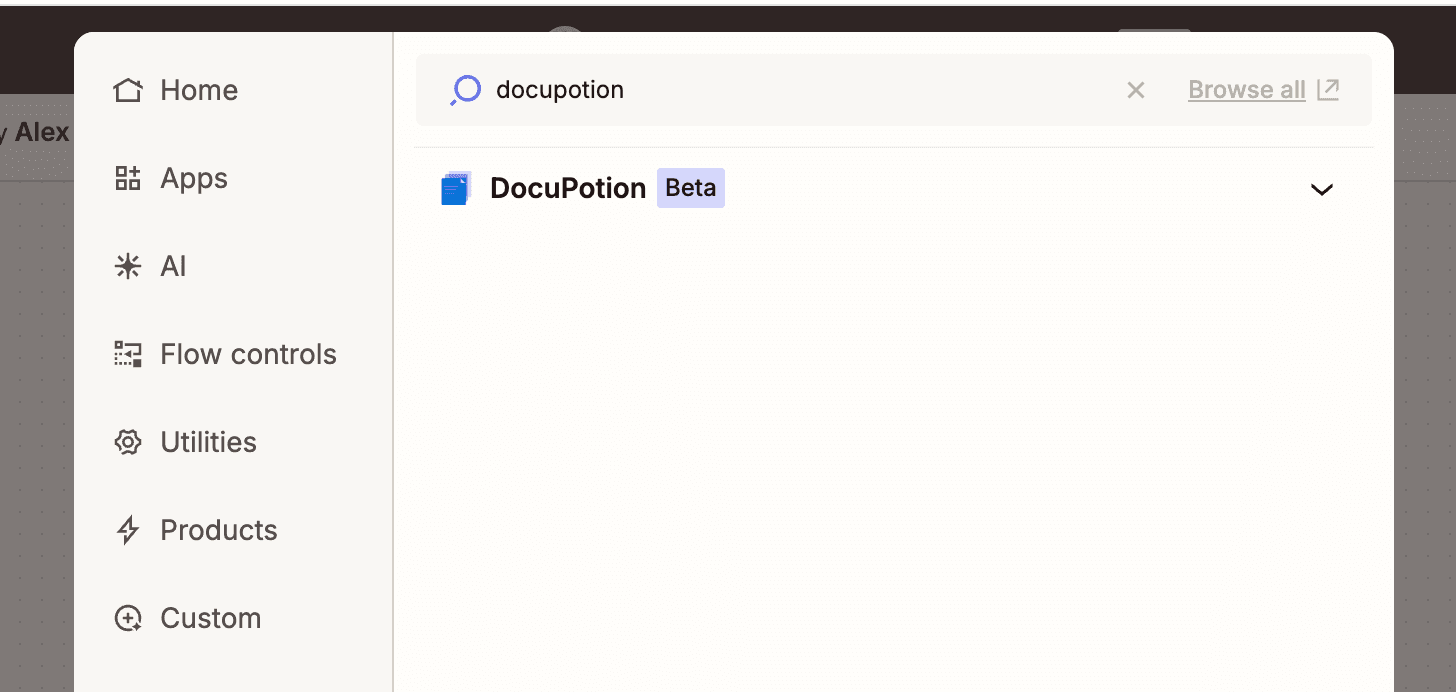
After your trigger, add an action step and search for DocuPotion.
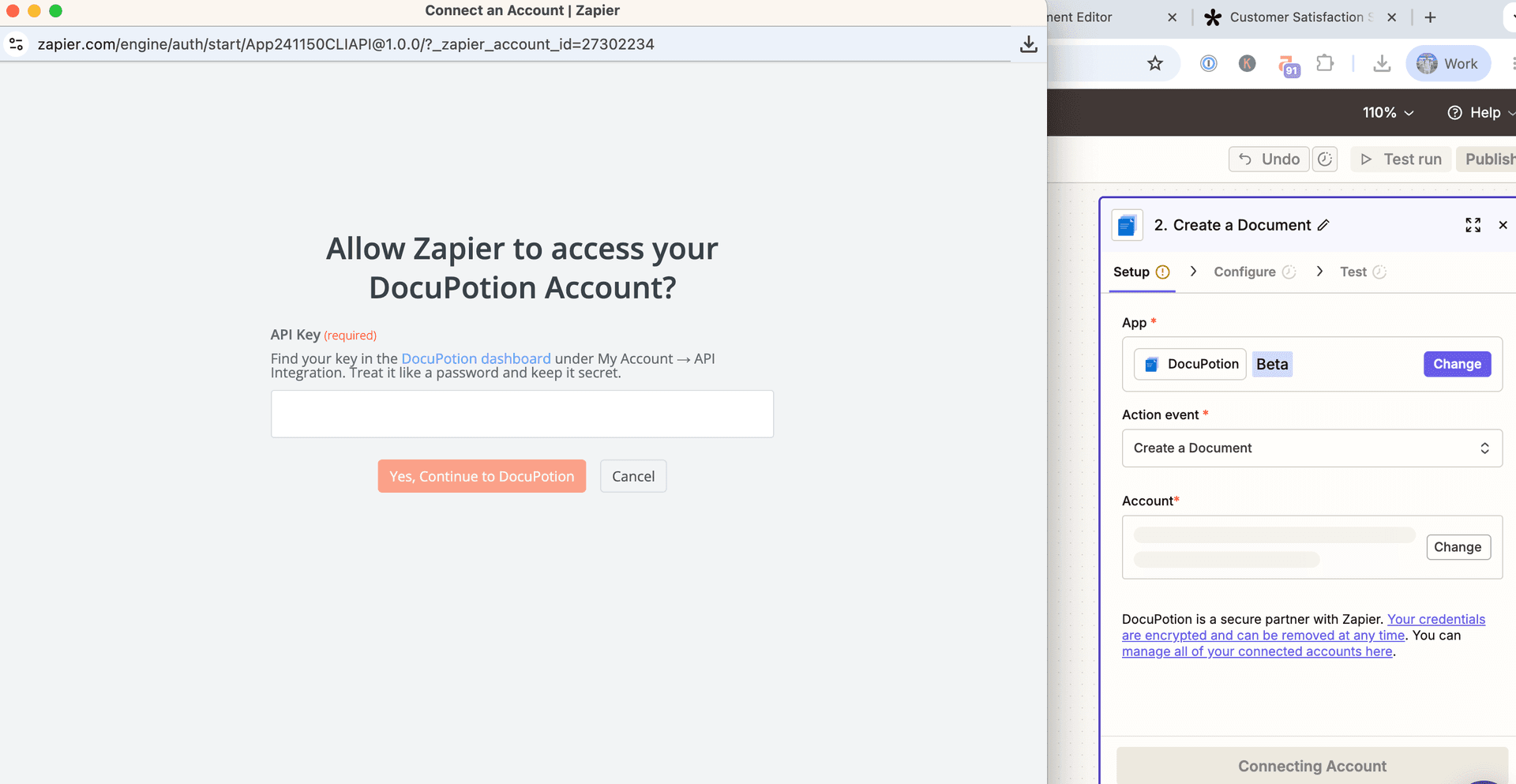
Choose the Create a Document action event, then connect your account. Click Sign in and paste your DocuPotion API key into the window that appears. You'll find the key in the API Integration tab of your DocuPotion dashboard. Keep it private: it's the credential Zapier uses to authenticate.
Step 5: Choose your template and output
With the account connected, configure the action. There are four fields to set:
| Field | What to enter |
|---|---|
| Template | Choose the form template you published in Step 2 from the dropdown |
| Output | File, URL, or base64. File is recommended because it hands Zapier a binary file you can email, upload, or pass to any later step |
| File Name | The filename for the completed PDF |
| Template Data | A JSON object mapping your merge fields to data from your trigger (covered in Step 6) |
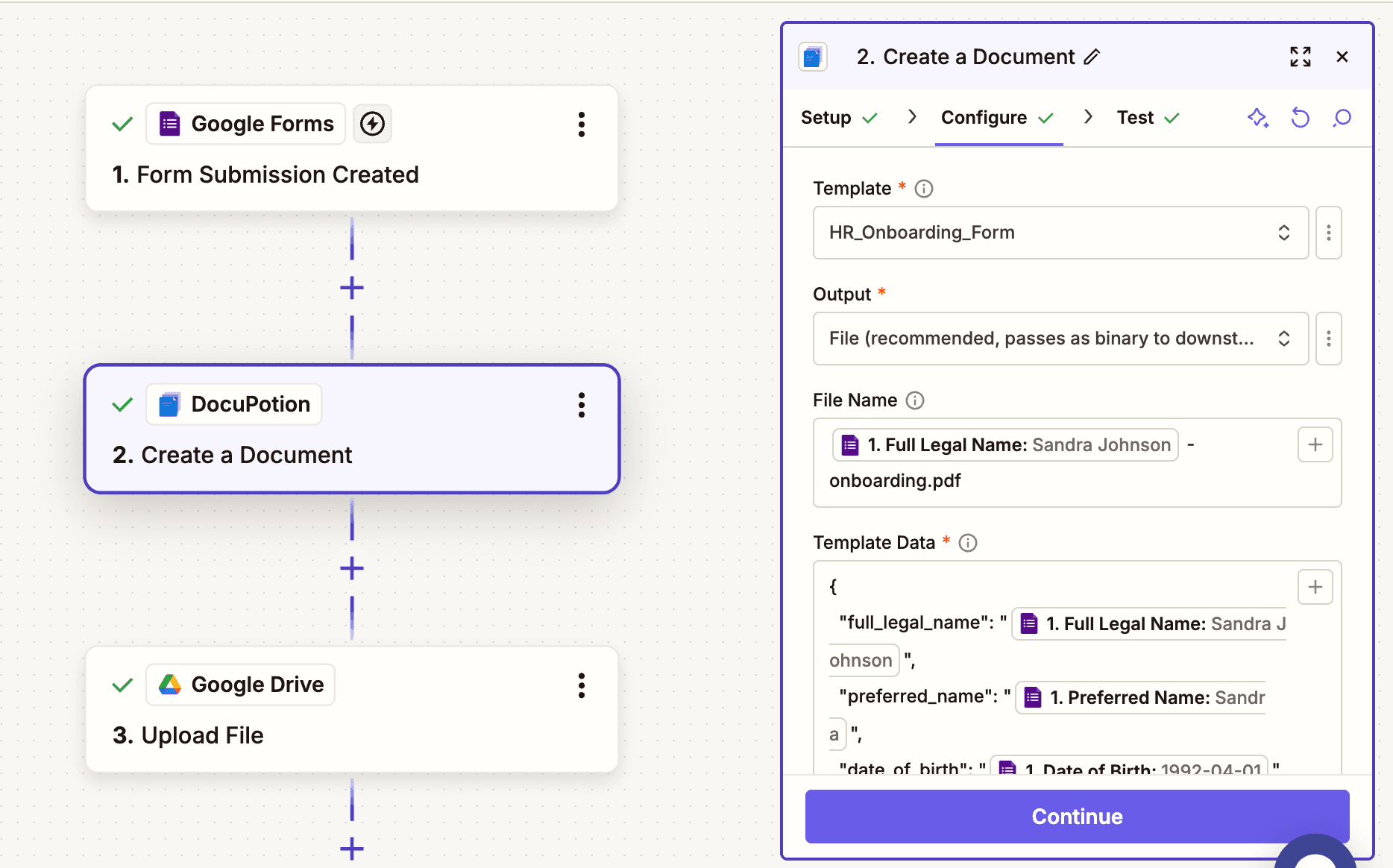
For the file name, it pays to make each PDF easy to identify. Click into the field and insert a value from your trigger, then add a suffix, so a name like Alexandra Johnson - onboarding.pdf tells you at a glance who the document is for.
If you want to store output PDFs in your own S3 bucket, you can set the 'Use my own S3 bucket' to True and connect to your bucket via your DocuPotion dashboard.
Step 6: Map your data to the form fields
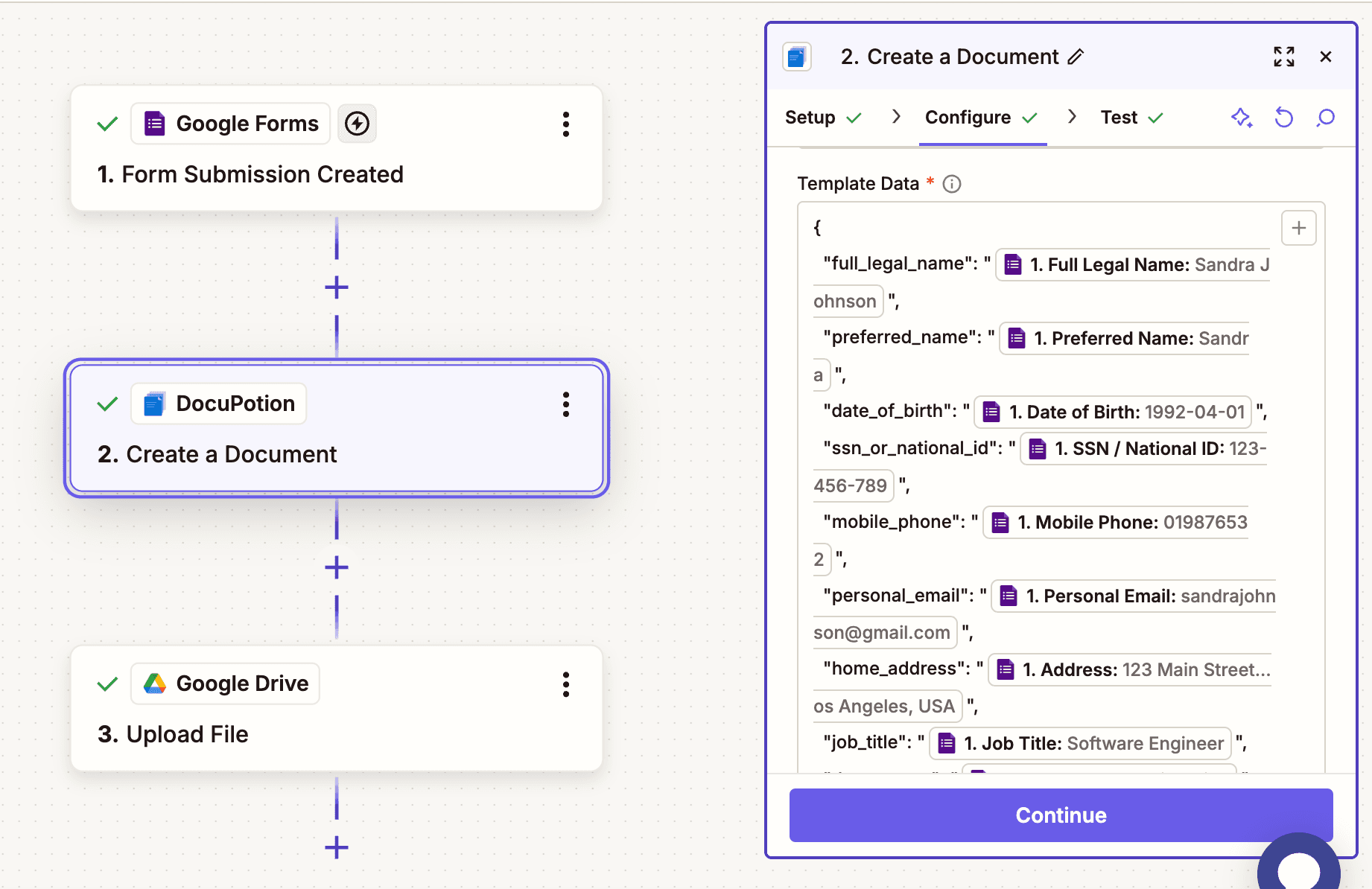
This is the heart of the automation. The Template Data field takes a JSON object whose keys are the merge fields in your template and whose values come from your trigger step.
The easiest way to get it right is to go back to the Data tab in your DocuPotion editor and copy the sample JSON, which already matches your template's fields exactly. So sample data that looks like this in the editor:
{
  "full_legal_name": "Alexandra Marie Johnson",
  "preferred_name": "Alex",
  "mobile_phone": "+1 555 0148",
  "home_address": "24 Maple Avenue, Springfield, IL 62704",
  "start_date": "2026-07-01",
  "remote_worker": true
}
Paste that into the Template Data field, then replace each static value with a field from your trigger using Zapier's field picker. After mapping, it looks like this:
{
  "full_legal_name": "{{google_forms.full_legal_name}}",
  "preferred_name": "{{google_forms.preferred_name}}",
  "mobile_phone": "{{google_forms.mobile_phone}}",
  "home_address": "{{google_forms.home_address}}",
  "start_date": "{{google_forms.start_date}}",
  "remote_worker": "{{google_forms.remote_worker}}"
}
A couple of things to keep in mind when you're mapping the data:
- Click, don't type, the values. Rather than typing the
{{...}}tokens by hand, click into each value and insert the field from your trigger with Zapier's field picker. It's quicker and avoids typos. - Checkboxes take true/false OR 'yes'/'no'. Map a checkbox field to a value that resolves to
true/falseor 'yes'/'no' so your data can drive the tick automatically.
Step 7: Test and route the completed PDF
Click Continue and test the action. Zapier sends your data to DocuPotion, which fills the template and returns the completed PDF in whichever output you chose. Download it to confirm every field landed where it should.
With the File output, the PDF comes back as a binary file that any later Zapier step can accept, so you can:
- Save it. Upload it to Google Drive, Dropbox, OneDrive, or S3.
- Email it. Attach it to a Gmail or Outlook step.
- Post it. Send it to Slack or a webhook.
In our example we add a Google Drive step, and upload the PDF output by DocuPotion to a folder in our drive.
Turn the Zap on and you're done. Every time your trigger fires, a fresh PDF form is filled from the new data and routed wherever you need it, with nobody typing into the form by hand.
What you can automate this way
The onboarding form is one shape. The same Create a Document action covers almost any recurring form where only the values change:
- HR and onboarding paperwork issued for every new hire from a form or HR system
- Contracts and agreements that differ only by client and terms
- Applications and intake forms filled from a submission or a CRM record
- Insurance and claims forms generated per policyholder
- Government and compliance forms that must be completed the same way each time
If you produce the same form repeatedly and only the data differs, it's worth automating.
Tips and troubleshooting
A few things worth knowing as you build more of these Zaps.
Keep merge field names consistent
If you rename a field in the template, update the matching key in every Zap that calls it. Missing keys render as empty values, which is easy to overlook in a quick check.
Republishing is safe
You can keep editing a template without breaking the Zaps that use it. Only the published version is served, so republishing pushes your latest changes live without changing how the Zap references the template.
Pick the right output format
Fileplugs straight into email and storage actions. This is the default for most Zaps.URLreturns a presigned URL. Useful when you'd rather share a link, or when the file is large and you don't want to carry it through the Zap.base64returns the raw encoded PDF, handy when you're passing it into another API.
Watch the full walkthrough
If you'd rather follow along on video, here's the full process from uploading a fillable PDF to filling it inside a Zap:
How to automatically fill PDF forms in Zapier with DocuPotion
FAQ
How do I automatically fill a PDF form in Zapier?
Turn your fillable PDF into a reusable template in DocuPotion, then add DocuPotion's Create a Document action to your Zap. Connect your account with your API key, pick the template, and map your trigger data to the form's merge fields in the Template Data field. When the Zap runs, the action returns the completed PDF.
Can Zapier fill PDF forms on its own?
No. Zapier has no native PDF form filling. You connect a document app like DocuPotion that reads your fillable PDF's fields and fills them from your Zap data in a single action.
Do I need a fillable PDF?
For this workflow, yes. The form needs real interactive fields you can click into and type. If your form is flat or scanned, you can still automate it by creating a template from an existing PDF, which rebuilds the layout instead of reading existing fields.
How do checkboxes work?
Checkboxes are filled with true/false OR 'yes'/'no' values. Map the checkbox field to a value that resolves to true/'yes' to tick it or false/'no' to leave it clear, and your data drives the result automatically.
Can I email or save the filled PDF?
Yes. Choose the File output and the PDF comes back as a binary file. Any later Zapier step that accepts a file, such as Gmail, Outlook, Google Drive, Dropbox, or Slack, can pick it up directly.
How much does it cost?
DocuPotion offers a free trial that includes 50 documents and needs no credit card, so you can build and test your first Zap end to end before committing. See the pricing page for full details.