Introduction
Typeform is great at collecting answers, but sometimes you'll want to convert those answers into a tidy, on-brand document. Maybe it's a customer feedback report, an application summary, an order confirmation, something a person can read or file away. Copying each submission into a document by hand works once, but it falls apart the moment responses start arriving regularly.
The fix is to let Zapier do the copying for you. Every time someone submits your Typeform, Zapier can take the answers, drop them into a formatted PDF, and send that PDF wherever you need it. In this guide we'll wire up that exact flow using Typeform, Zapier, and DocuPotion, and route the finished file to Google Drive. No developer needed at any point.
We'll use a customer feedback form as the worked example, but the same steps apply to any Typeform you collect responses through.
This walkthrough uses Typeform as the trigger, but nothing about the document side is Typeform-specific. If you collect responses with Google Forms, Jotform, Gravity Forms, or any other form app that connects to Zapier, you can swap it in at the trigger step and follow the rest of the guide unchanged.
How the workflow fits together
Before the walkthrough, it helps to see the shape of what you're building. There are three moving parts:
- A trigger. A new Typeform submission starts the Zap and hands Zapier the answers.
- A document step. DocuPotion's Create a Document action takes those answers and fills a reusable template, returning a finished PDF.
- A destination. A final step routes the PDF somewhere useful, in our case Google Drive.
You design the template once. After that, every submission flows through the same Zap and comes out the other end as a fresh PDF with that submission's data in it.
What you'll need
To follow along, you'll need:
- A Typeform account with a form that's collecting responses
- A DocuPotion account (the free trial includes 50 documents and needs no credit card)
- A Zapier account on any plan that allows the apps you want to connect
Step 1: Set up your Typeform trigger
In Zapier, create a new Zap and choose Typeform as the trigger app, with New Entry as the event. Connect your Typeform account, then pick the specific form you want to watch. In our example that's a customer feedback form, so whenever someone fills it out, this Zap will fire.
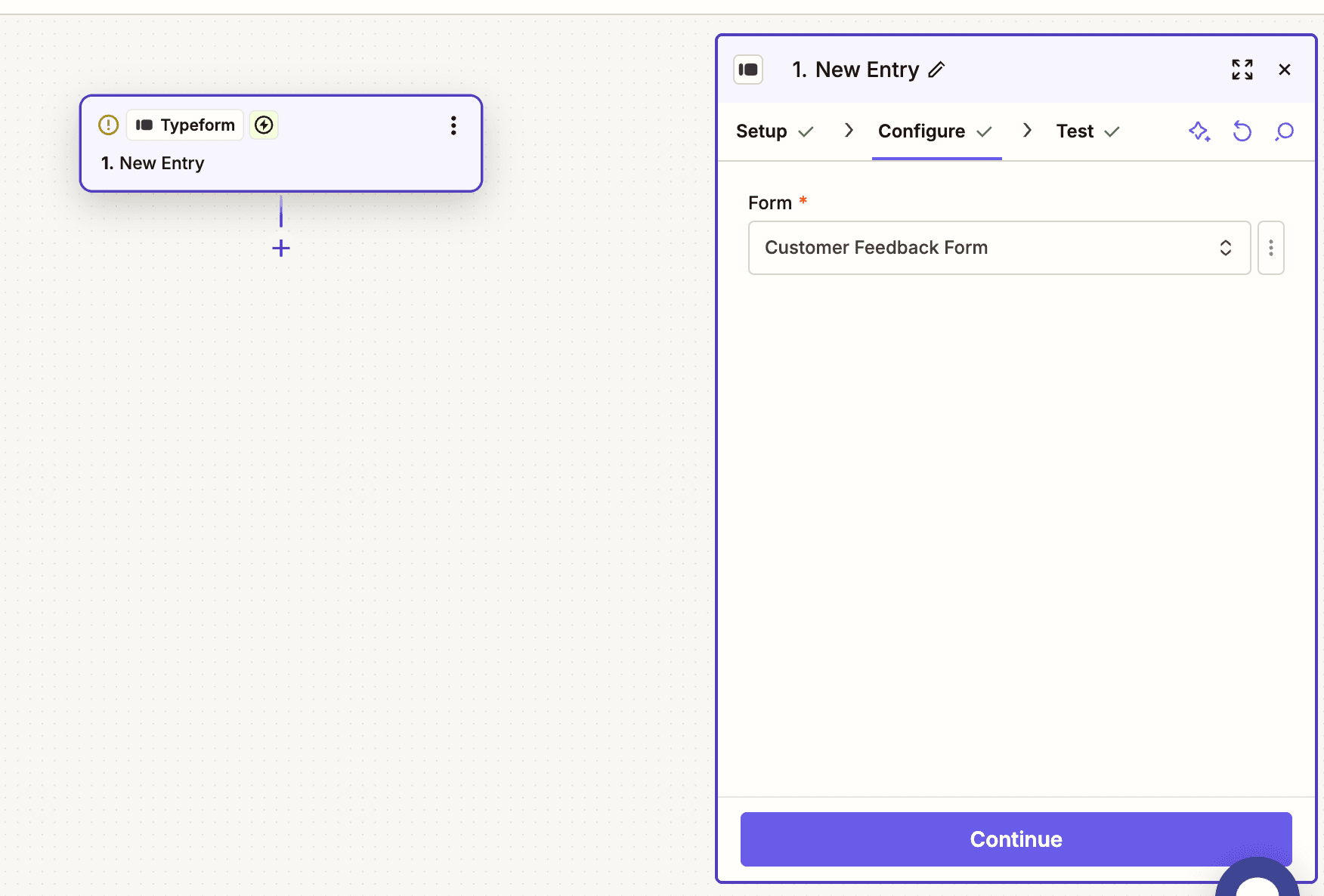
Pull in a recent submission to test the trigger. This gives you real sample answers to map against later, which makes the rest of the setup much easier.
Step 2: Create a reusable template in DocuPotion
Now we need somewhere for those answers to land. In your DocuPotion dashboard, open the Templates tab and click New Template. You'll see a few ways to start: describe the document you want, upload a filled PDF, or use an existing library template.
For a custom report like this, the quickest start is to describe what you need in plain English. Give the template a name (for example "Customer feedback report") and write a short brief telling DocuPotion what the document should contain.
The most important part of the brief is naming the values you want to reuse. Tell DocuPotion to include those values as merge fields so the template can be filled with a different submission's data each time. Spell out the fields you'll send, for example name, email, company, rating, and feedback_notes, and DocuPotion binds them exactly rather than inventing extras.
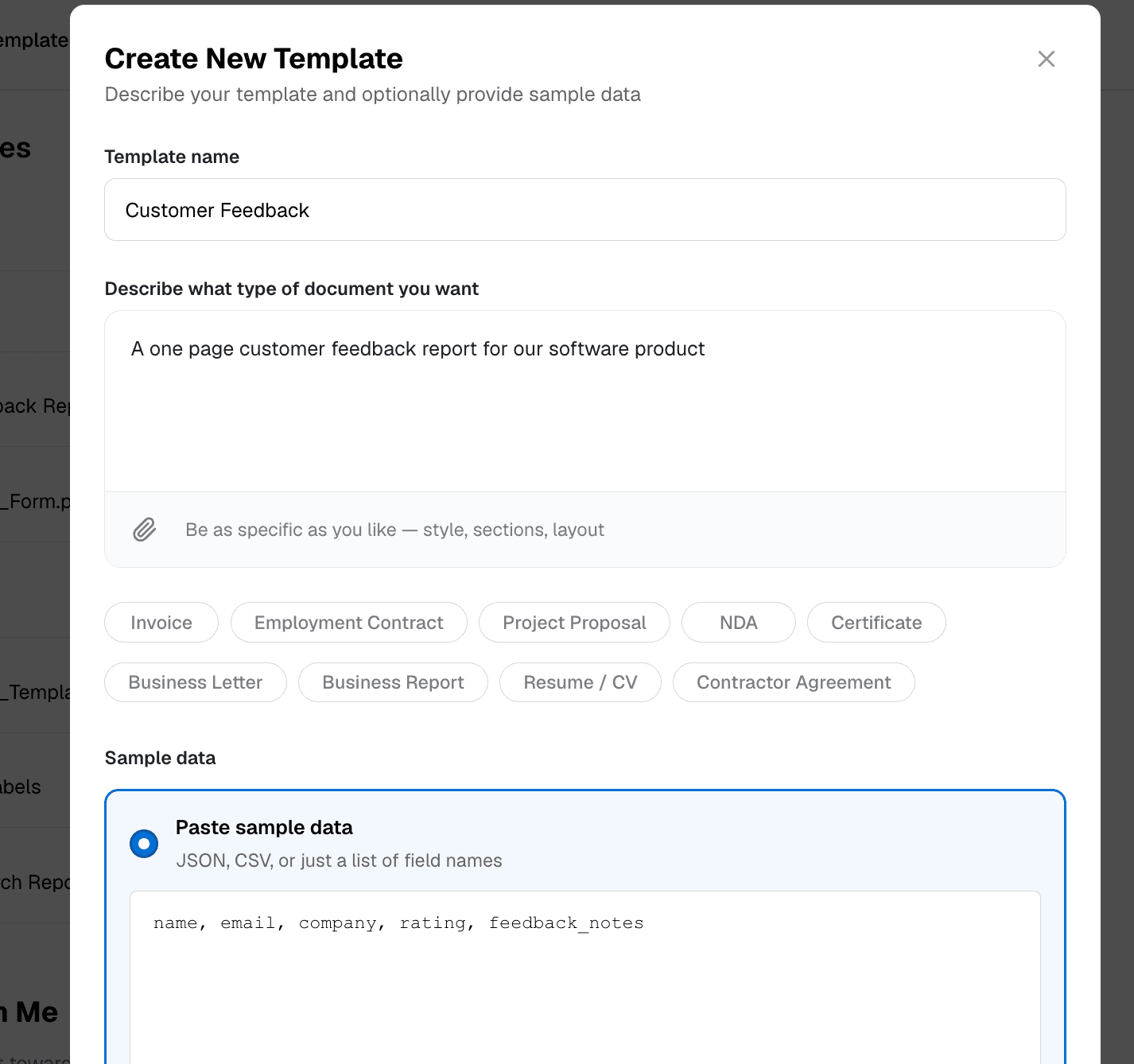
Click Create template and give it a minute or two to build. The more detail you give it, the closer the first draft lands to what you want.
DocuPotion tip: Keep your merge field names close to the answer names coming out of Typeform. When the names line up, mapping the data in Zapier later is almost automatic.
Step 3: Edit and brand the template
When the build finishes, you'll see your customer feedback report in the editor. The text elements wrapped in {{curly braces}} are your merge fields: these are the bits that change with every submission. Switch to the With data view to see how the layout looks once real values are dropped in.
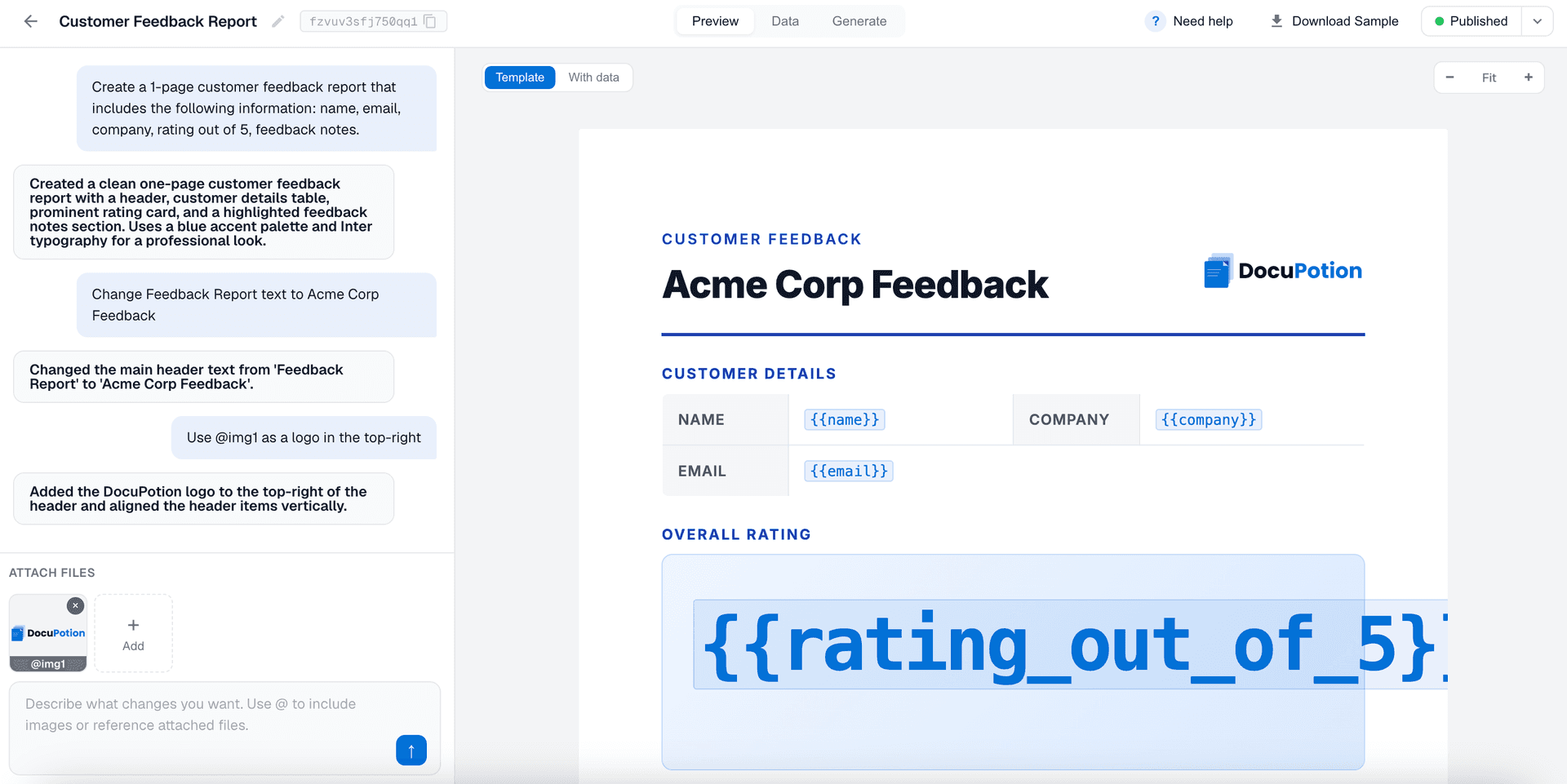
DocuPotion usually gets the layout close, but you'll often want a few tweaks. Editing works like a conversation: describe the change you want and the editor makes it. A few examples:
- Change wording. Ask it to change the report heading from "Feedback report" to your company name, for example "Acme Corp feedback."
- Add your logo. Attach a logo file to the chat, then tell the editor to use it as the logo in the top right. You can reference uploaded files directly when you ask.
- Adjust the layout. Ask for a more compact header, an extra section, or a different ordering. Small edits come back in a few seconds.
When you're happy with how it looks, click Publish in the top right. Only published templates are used when Zapier generates a PDF, so you can keep refining the draft later without affecting any live Zaps.
Step 4: Download a sample PDF
Before wiring anything into Zapier, it's worth confirming the template renders correctly as an actual PDF. In the Data tab, DocuPotion fills in some sample values. Edit any of them (for example change the name to your own), then click Download Sample to generate a test PDF.
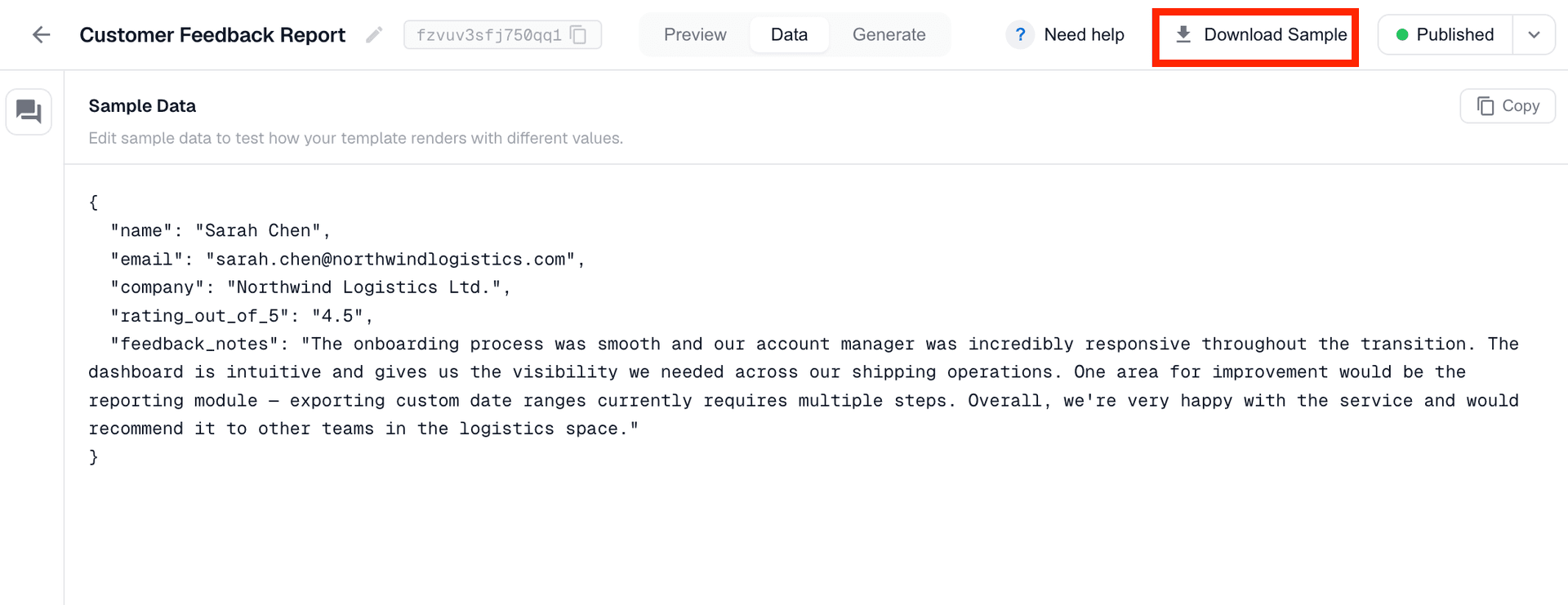
Open the sample at full size and read it the way your recipient would. This is where you catch the small things: a value landing in the wrong spot, a long answer that needs to wrap, a heading that should be bigger. The sample data itself won't be used by your Zap (that comes from Typeform), but it's the fastest way to prove the template is right.
Step 5: Add DocuPotion to your Zap
Back in Zapier, add an action step after your Typeform trigger and search for DocuPotion. Choose the Create a Document action event.
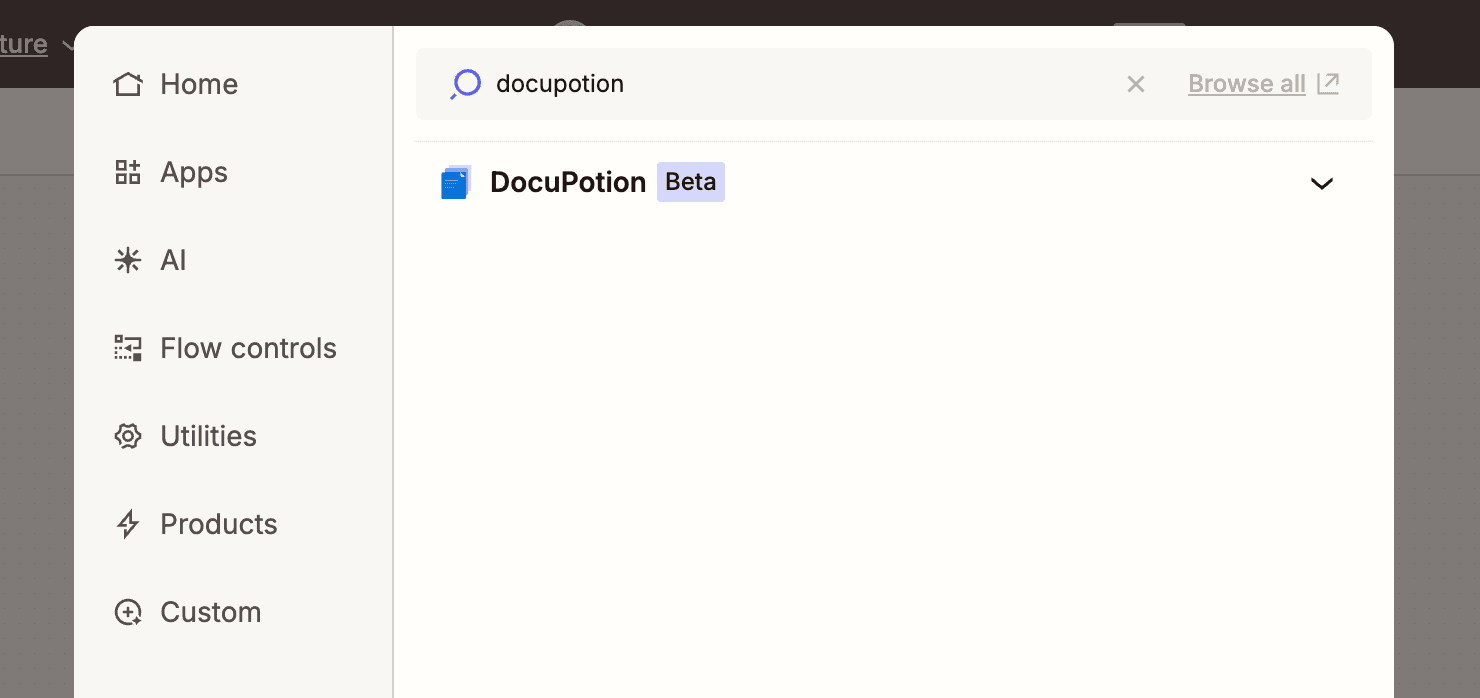
To connect your account, click Sign in and paste your DocuPotion API key into the window that appears. You'll find the key in the API Integration tab of your DocuPotion dashboard. Zapier only asks for this the first time you connect, and it reuses the connection across any future DocuPotion steps. Keep the key private: it's the credential Zapier uses to authenticate.
Step 6: Choose your template and file name
With the account connected, configure the action. There are a few fields to set:
| Field | What to enter |
|---|---|
| Template | Choose the customer feedback report you published in Step 3 from the dropdown |
| Output | File, URL, or base64. File is recommended because it hands Zapier a binary file you can upload, email, or pass to any later step |
| File Name | The filename for the generated PDF |
| Template Data | A JSON object mapping your merge fields to the Typeform answers (covered in Step 7) |
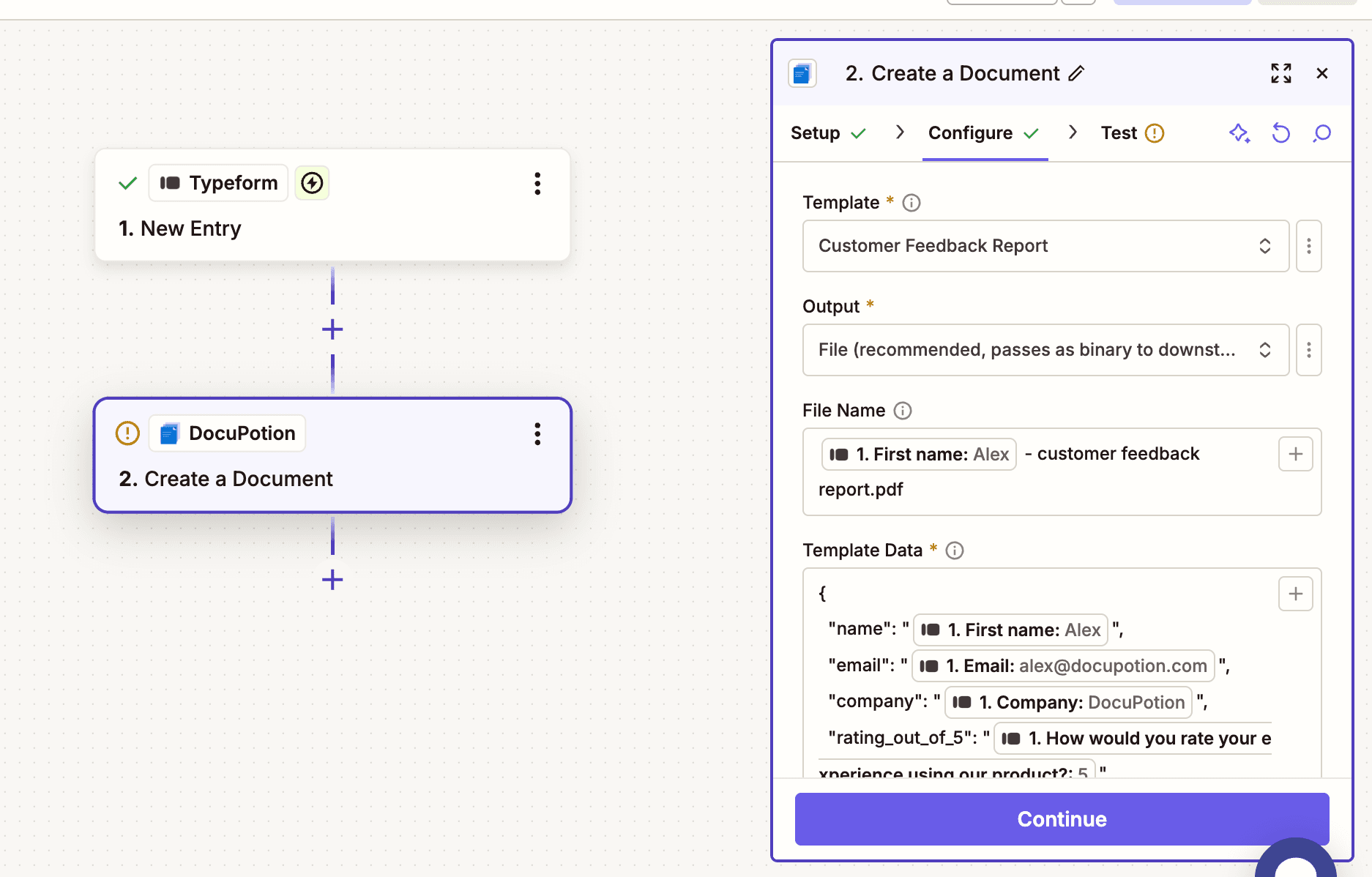
For the file name, make each PDF easy to identify rather than leaving it as a generic "document.pdf". Click into the field, insert the respondent's first name from the Typeform step, then add a suffix, so you end up with something like Mike - feedback report. The S3 bucket option below is only relevant if you want to store output in your own AWS S3 bucket; leave it false otherwise.
Step 7: Map your Typeform answers to the template
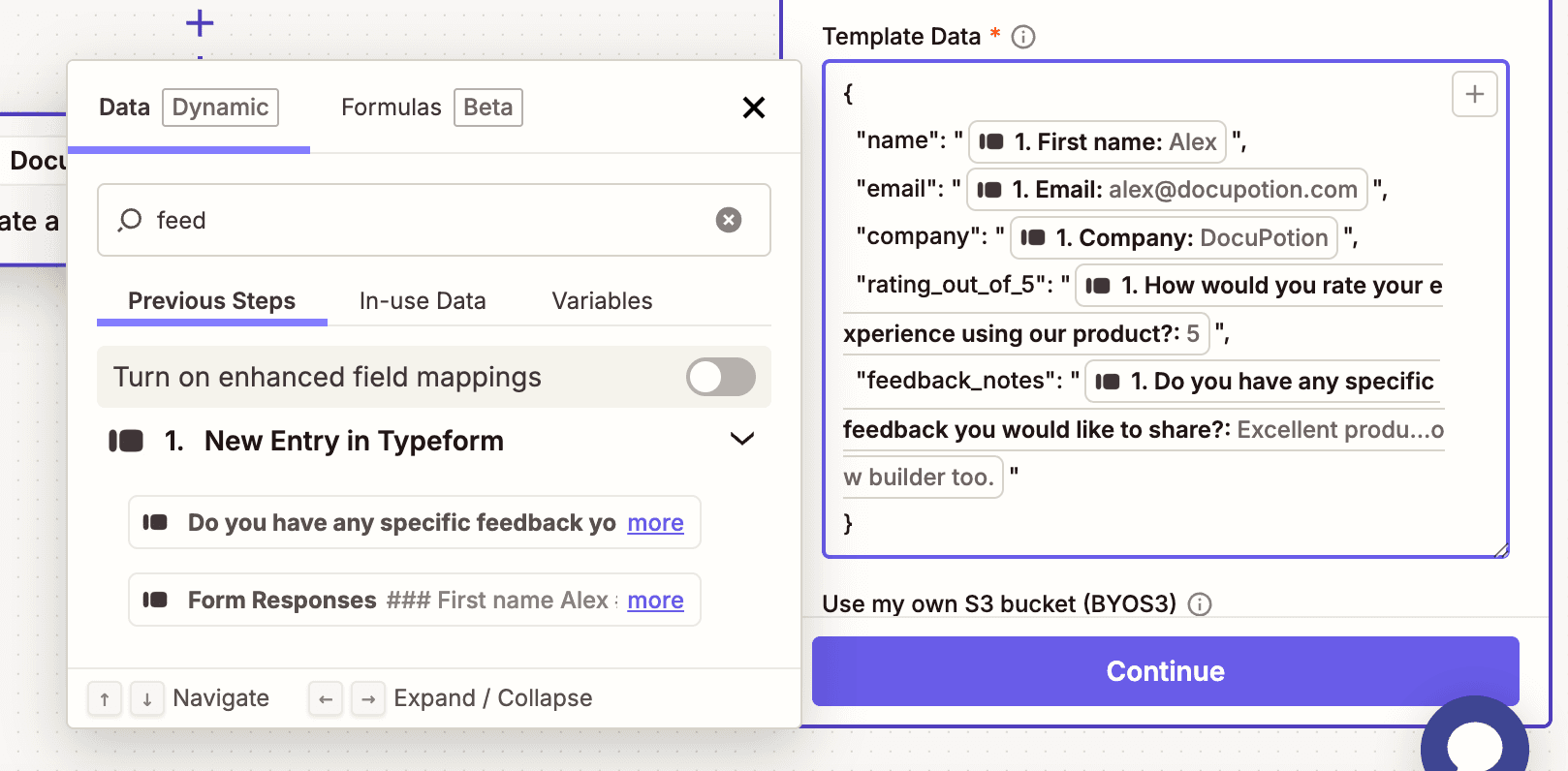
This is the heart of the automation. The Template Data field takes a JSON object whose keys are the merge fields in your template and whose values come from your Typeform submission.
The easiest way to get it right is to go back to the Data tab in your DocuPotion editor and copy the sample JSON, which already matches your template's fields exactly. Paste it into the Template Data field. So you start with something like this:
{
  "name": "Jane Doe",
  "email": "jane@example.com",
  "company": "Acme Corp",
  "rating": "5",
  "feedback_notes": "The onboarding was smooth and support replied fast."
}
Then replace each static value with the matching answer from your Typeform step using Zapier's field picker. After mapping, it looks like this:
{
  "name": "{{typeform.first_name}}",
  "email": "{{typeform.email}}",
  "company": "{{typeform.company_name}}",
  "rating": "{{typeform.rating}}",
  "feedback_notes": "{{typeform.specific_feedback}}"
}
Step 8: Test and route the PDF to Google Drive
Click Continue and test the action. Zapier sends your data to DocuPotion, which fills the template and hands back the finished PDF. With the File output you'll get a file binary plus a URL, so paste that URL into your browser to open the document and confirm every answer landed in the right place.
A PDF sitting inside a Zap isn't much use on its own, so the last step is to send it somewhere. With the File output, the PDF comes back as a binary file that any later Zapier step can accept, so you could email it with Gmail, post it to Slack, or save it to cloud storage. We'll upload it to Google Drive.
Add a Google Drive action with the Upload File event, connect your account, and choose the folder you want the reports to land in. Then set the fields:
- File: select the File output from the DocuPotion step. Leave "Convert to Document" off, since it's already a PDF.
- File Name: reuse the file name from the DocuPotion step. You don't need to add a
.pdfextension, as it already has one.
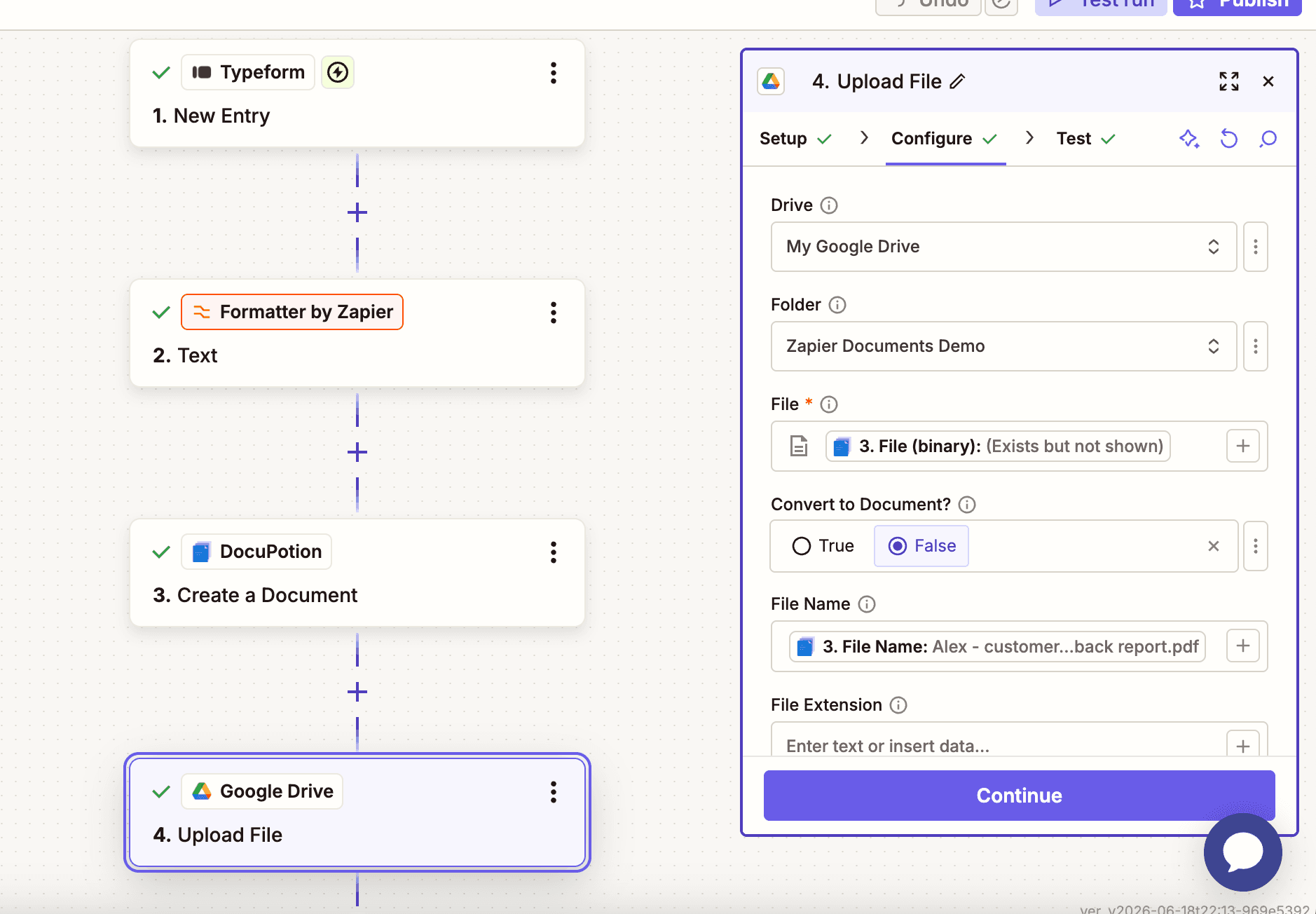
Test the step, and the PDF you created from the Typeform submission appears in your chosen Drive folder. Open it and you'll see the report populated with that submission's data.
Turn the Zap on and you're done. Every time someone submits your Typeform, Zapier fills the template with their answers and drops a fresh, formatted PDF straight into Google Drive, with nobody copying answers by hand.
Using a different form app as the trigger
Typeform is one option, but the document half of this workflow is completely independent of how you collect responses. To convert submissions from another form tool, just change the trigger in Step 1:
- Google Forms with the New Form Response event
- Jotform with the New Submission event
- Gravity Forms, Wufoo, Microsoft Forms, and most other form apps that connect to Zapier
Everything from Step 2 onward stays the same. You point the Template Data at whichever form's answers you're now receiving, and the rest of the Zap fills and routes the PDF exactly as before.
Tips and troubleshooting
A few things worth knowing as you build more of these Zaps.
Keep merge field names consistent
If you rename a field in the DocuPotion template, update the matching key in every Zap that calls it. Missing keys render as empty values, which is easy to miss in a quick check.
Republishing is safe
You can keep editing a template without breaking the Zaps that use it. Only the published version is served when Zapier generates a PDF, so republishing pushes your latest changes live without changing how the Zap references the template.
Pick the right output format
Fileplugs straight into email and storage actions. This is the default for most Zaps.URLreturns a presigned link. Useful when you'd rather share a link, or when the file is large and you don't want to carry it through the Zap.base64returns the raw encoded PDF, handy when you're passing it into another API.
Watch the full walkthrough
If you'd rather follow along on video, here's the full process from a Typeform submission to a finished PDF in Google Drive:
Bonus tip: fixing line breaks that break the JSON
This won't happen with every form, but it's worth knowing about. When you test the Create a Document action, you may occasionally hit an error about invalid JSON. It usually happens when a long Typeform answer (like a feedback box where someone pressed Enter) contains a raw line break. That line break sits inside your JSON string and breaks it.
A raw line break inside a Typeform answer will break the JSON in your Template Data. The fix is to convert it into an escaped line break (\n) before the document step, using a Zapier Formatter step.
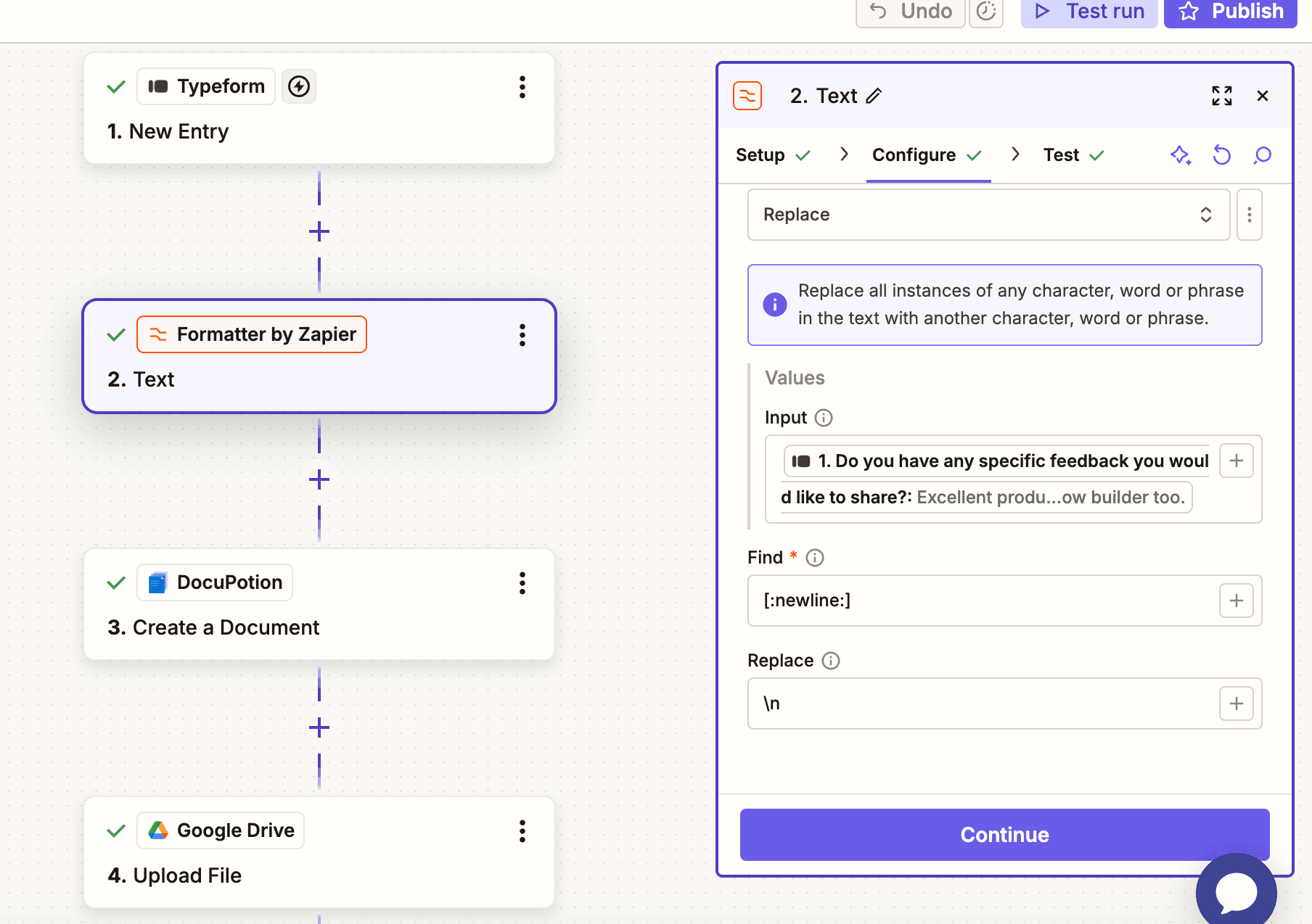
To fix it, add a Formatter by Zapier step before the DocuPotion action:
- Choose the Text event and the Replace transform.
- Set the Input to the Typeform answer that contains the line break (in our example, the specific feedback field).
- In Find, insert Zapier's line break token (shown as "(new line)" in the field picker).
- In Replace, enter the escaped version:
\n.
Test the Formatter step and you'll see the output now uses \n instead of a real line break. Then go back to your DocuPotion action and, for the feedback field, map in the output of the Formatter step instead of the raw Typeform answer.
Run the test again and the action should return your finished PDF.
FAQ
How do I convert a Typeform submission into a PDF in Zapier?
Use a Typeform New Entry trigger, then add DocuPotion's Create a Document action. Connect DocuPotion with your API key, pick a template, and map the Typeform answers to the template's merge fields in the Template Data field. When the Zap runs, the action returns the finished PDF, which you can then save or send in a later step.
Why am I getting a JSON error in the DocuPotion step?
The usual cause is a raw line break inside a long Typeform answer, which breaks the JSON in the Template Data field. Add a Zapier Formatter step before the DocuPotion action, use the Text event with the Replace transform to swap the line break for an escaped \n, then map the Formatter's output into your template instead of the raw answer.
Can I use Google Forms or Jotform instead of Typeform?
Yes. Only the trigger changes. Swap in the Google Forms New Form Response event, the Jotform New Submission event, or any other form app that connects to Zapier, and follow the rest of the guide unchanged.
Can I email or store the generated PDF?
Yes. Choose the File output and the PDF comes back as a binary file. Any later Zapier step that accepts a file, such as Gmail, Outlook, Google Drive, Dropbox, or Slack, can pick it up directly.
How much does it cost?
DocuPotion offers a free trial that includes 50 documents and needs no credit card, so you can build and test your first Zap end to end before committing. See the pricing page for full details.